


惯性聚合 高效追踪和阅读你感兴趣的博客、新闻、科技资讯
阅读原文 在惯性聚合中打开

推荐订阅源

C
Check Point Blog
有赞技术团队
有赞技术团队
博客园 - 三生石上(FineUI控件)
博客园_首页
博客园 - 【当耐特】
WordPress大学
WordPress大学
月光博客
月光博客
博客园 - 叶小钗
S
SegmentFault 最新的问题
雷峰网
雷峰网
H
Help Net Security
宝玉的分享
宝玉的分享
A
About on SuperTechFans
IT之家
IT之家
J
Java Code Geeks
Hugging Face - Blog
Hugging Face - Blog
D
DataBreaches.Net
酷 壳 – CoolShell
酷 壳 – CoolShell
博客园 - 聂微东
T
The Blog of Author Tim Ferriss
B
Blog
freeCodeCamp Programming Tutorials: Python, JavaScript, Git & More
H
Hackread – Cybersecurity News, Data Breaches, AI and More
Y
Y Combinator Blog

Runpod Blog.

New Runpod datacenter now live: AP-IN-1 Track GPU spend across your team with Cost Centers The GPU supply supercycle is here. Here’s what AI builders need to know. Community Spotlight: One-click AI image and video generation on Runpod with SwarmUI | Runpod Blog Community Spotlight: LoRA Pilot Data Prep to Inference Introducing the Runpod Assistant: Manage Your Cloud GPU Resources with Natural Language OpenAI's Parameter Golf: Train the Best Language Model That Fits in 16MB on Runpod LLM inference optimization: techniques that actually reduce latency and cost Pruna P-Video and Vidu Q3 public endpoints now available on Runpod Runpod brand spelling guide Quickstart - Runpod Documentation The AI market looks nothing like the narrative Training StyleGAN3 with Vision-Aided GAN on Runpod KoboldAI – The Other Roleplay Front End, And Why You May Want to Use It How to Connect Cursor to LLM Pods on Runpod for Seamless AI Dev Community Spotlight: How AnonAI Scaled Its Private Chatbot Platform with Runpod Prompt Scheduling with Disco Diffusion on Runpod Runpod's Latest Innovation: Dockerless CLI for Streamlined AI Development Run Your Own AI from Your iPhone Using Runpod Introducing Flash: Run GPU workloads on Runpod Serverless: No Docker required Use Claude Code with your own model on Runpod: No Anthropic account required Avoid Errors by Selecting the Proper Resources for Your Pod What hackers built on Runpod at TreeHacks 2026 Easily Back Up and Restore Your Pod with Cloud Sync + Backblaze B2 The Complete Guide to GPU Requirements for LLM Fine-Tuning AI Guides, Tutorials & GPU Infrastructure Insights | Runpod Your first Claude Code project within Runpod: a complete setup guide 10 billion Serverless requests and counting Building for resilience: Runpod’s response to the AWS us-east-1 outage How to Connect Google Colab to Runpod
How to Achieve True SSH in Runpod
Zhen Lu · 2022-04-24 · via Runpod Blog.

Runpod allows you to get a terminal access pretty easily, but it does not run a true SSH daemon by default. There are plenty of use cases, like needing to SCP or connecting an IDE that would warrant running a true SSH daemon inside the pod. We'll go through the easiest ways to accomplish this in this article. We'll go through the following steps to get up and running...

Edit: All of this is now automated through our custom tensorflow, pytorch, and "Runpod stack" images (github). You can still follow this tutorial to get started in any custom image you want to use, though!

We'll go through the following steps to get up and running:

  • How to select a compatible pod
  • How to configure the pod to install and configure OpenSSH automatically
  • How to get the correct connection command to SSH into your pod

Finding a Compatible Instance

All secure cloud pods are TCP enabled by default, so the easiest way to get a compatible pod is to deploy a Secure Cloud instance. If you'd rather browse or use the Community Cloud, you can select "Pods" from the left side menu and then click Deploy to get to the deployment options.
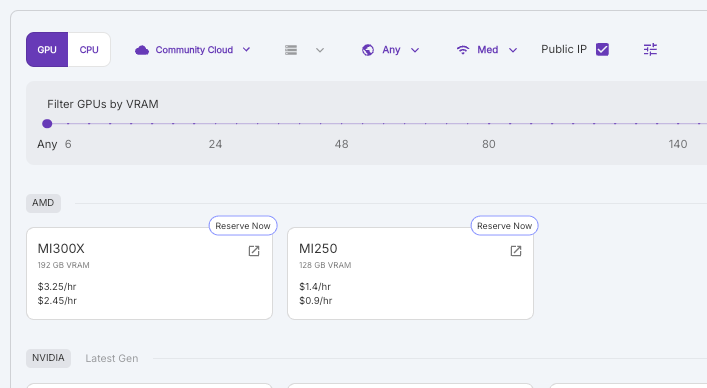
Runpod console GPU selection with VRAM filter, showing AMD MI300X and MI250 cards with hourly prices

First choose your GPU spec, then how many units would like, and your pricing requirement, and then click Deploy On Demand.
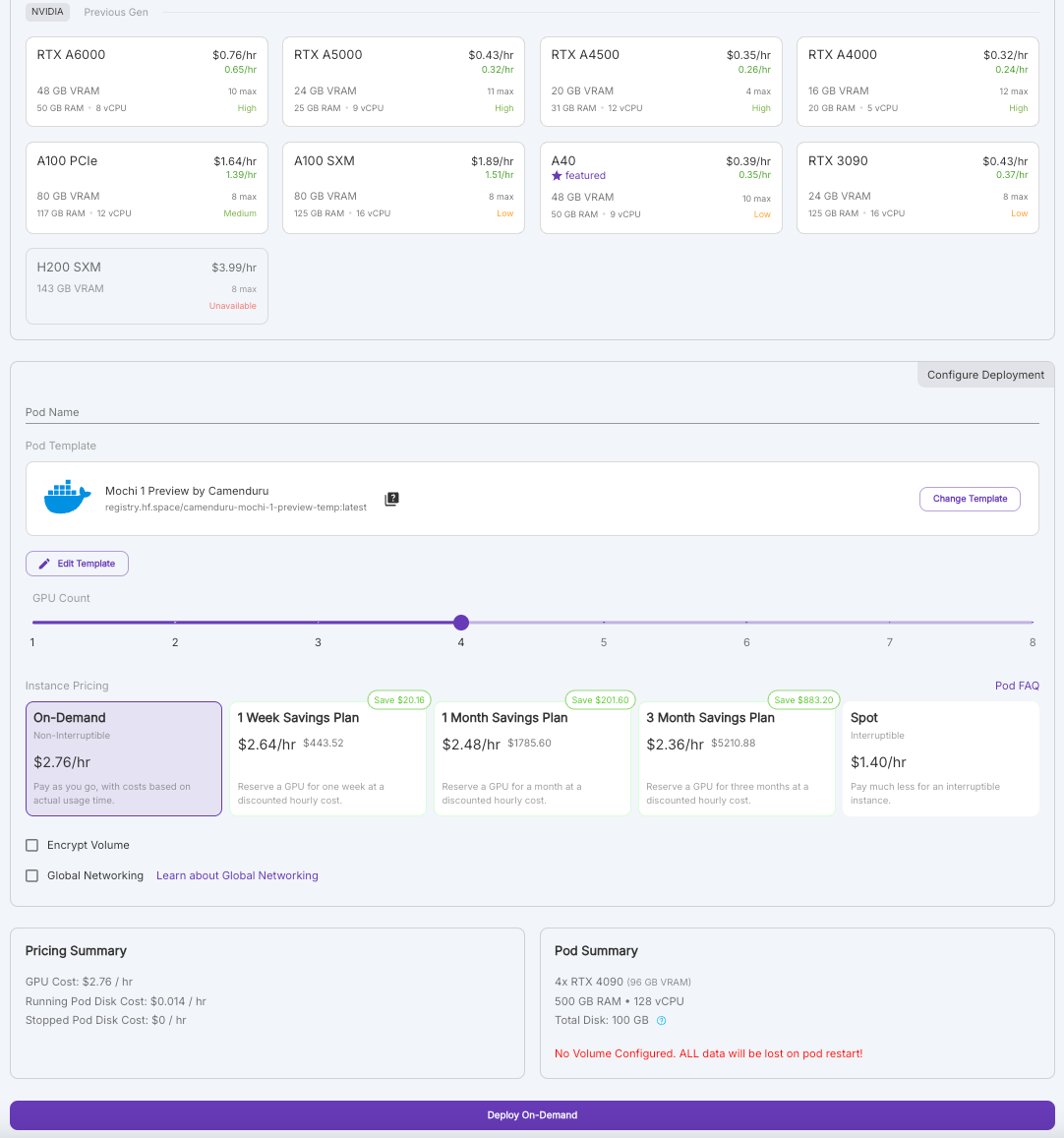
Runpod deploy page with NVIDIA GPU options and pod configuration for the Mochi 1 Preview template

At this point, you can also select any Runpod template that you have configured, along with any templates that our community have created.
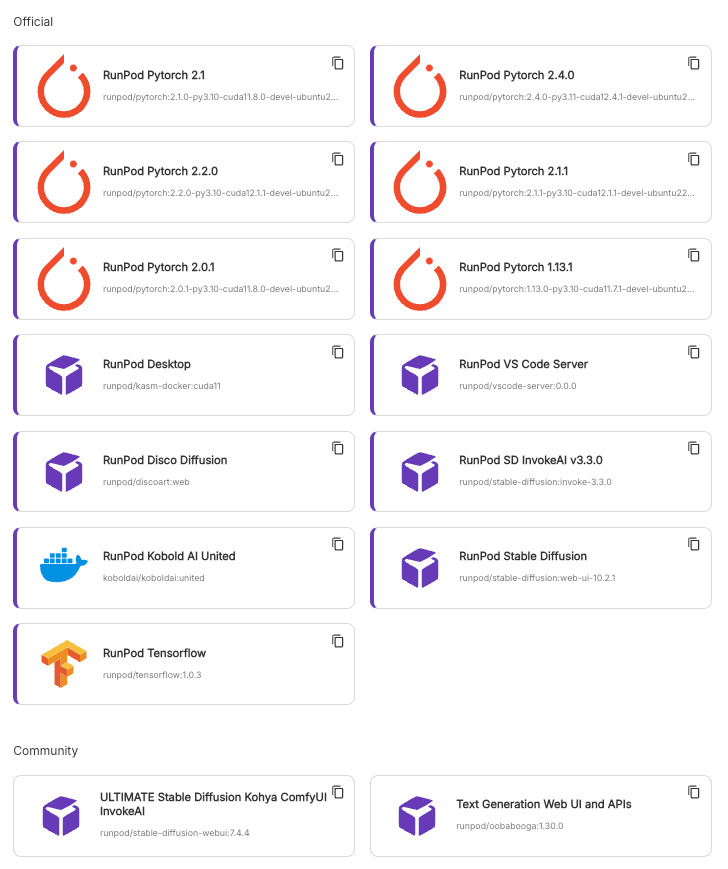
Runpod templates list with official PyTorch, Stable Diffusion, TensorFlow, and community templates

Once you've selected your template, click on the "Edit Template " button. You should see a menu like this pop up:
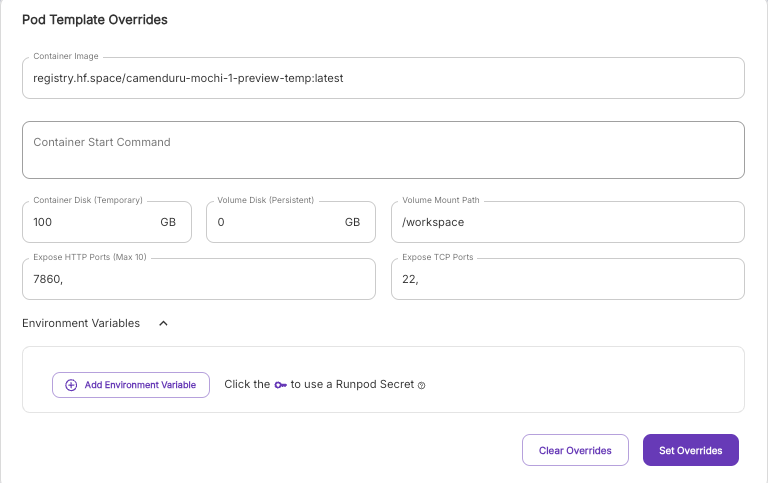
Runpod pod template overrides form with container image, disk sizes, ports, and environment variables

Most of the setup takes place in this menu. In this example, we're using the stock Ubuntu image. The major things to check off are:

  • Expose TCP port 22
  • Copy/Paste the below in the "Container Start Command" field
  • Make sure that you replace YOUR_PUBLIC_KEY with... your public key

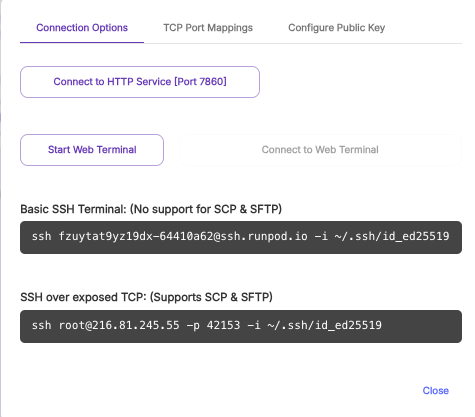
Fill out the rest of the fields however you desire. Hit OK, Continue, then choose whether you would like a spot instance or an on-demand instance and deploy. Your pod will begin initializing. This is very fast for images that are used often, but may take some time if you are using an image that has not been run yet on the machine. Normally, this will take 20 seconds to 5 minutes. If you are concerned that something may not be working correctly, you can inspect the log output to debug whether it's a configuration issue. Once your pod is initialized, you should see the "Connect" button enabled.Click on this button, and it will bring up a menu of connection options. The one we are most interested in is at the bottom.
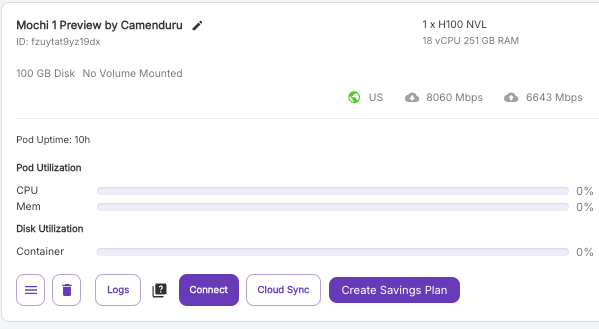
Runpod pod card for Mochi 1 Preview on one H100 NVL showing utilization stats and a Connect button

Runpod connection options dialog showing basic SSH terminal and SSH over exposed TCP commands

Clicking on the field will automatically copy it to your clipboard. You may have to edit this command if you saved your private key somewhere else. You should now be able to run this command in a terminal window and get a real SSH tunnel!

Author profile: Zhen Lu