


惯性聚合 高效追踪和阅读你感兴趣的博客、新闻、科技资讯
阅读原文 在惯性聚合中打开

推荐订阅源

WordPress大学
WordPress大学
小众软件
小众软件
钛媒体:引领未来商业与生活新知
钛媒体:引领未来商业与生活新知
博客园 - Franky
Jina AI
Jina AI
freeCodeCamp Programming Tutorials: Python, JavaScript, Git & More
OSCHINA 社区最新新闻
OSCHINA 社区最新新闻
Y
Y Combinator Blog
V
Visual Studio Blog
C
Check Point Blog
阮一峰的网络日志
阮一峰的网络日志
U
Unit 42
量子位
人人都是产品经理
人人都是产品经理
博客园 - 聂微东
M
MIT News - Artificial intelligence
爱范儿
爱范儿
B
Blog RSS Feed
MyScale Blog
MyScale Blog
H
Help Net Security
Cyber Security Advisories - MS-ISAC
美团技术团队
L
LangChain Blog
D
Docker

Runpod Blog.

New Runpod datacenter now live: AP-IN-1 Track GPU spend across your team with Cost Centers The GPU supply supercycle is here. Here’s what AI builders need to know. Community Spotlight: One-click AI image and video generation on Runpod with SwarmUI | Runpod Blog Community Spotlight: LoRA Pilot Data Prep to Inference Introducing the Runpod Assistant: Manage Your Cloud GPU Resources with Natural Language OpenAI's Parameter Golf: Train the Best Language Model That Fits in 16MB on Runpod LLM inference optimization: techniques that actually reduce latency and cost Pruna P-Video and Vidu Q3 public endpoints now available on Runpod Runpod brand spelling guide Quickstart - Runpod Documentation The AI market looks nothing like the narrative Training StyleGAN3 with Vision-Aided GAN on Runpod KoboldAI – The Other Roleplay Front End, And Why You May Want to Use It How to Connect Cursor to LLM Pods on Runpod for Seamless AI Dev Community Spotlight: How AnonAI Scaled Its Private Chatbot Platform with Runpod Prompt Scheduling with Disco Diffusion on Runpod Runpod's Latest Innovation: Dockerless CLI for Streamlined AI Development Run Your Own AI from Your iPhone Using Runpod Introducing Flash: Run GPU workloads on Runpod Serverless: No Docker required Use Claude Code with your own model on Runpod: No Anthropic account required Avoid Errors by Selecting the Proper Resources for Your Pod What hackers built on Runpod at TreeHacks 2026 Easily Back Up and Restore Your Pod with Cloud Sync + Backblaze B2 The Complete Guide to GPU Requirements for LLM Fine-Tuning AI Guides, Tutorials & GPU Infrastructure Insights | Runpod Your first Claude Code project within Runpod: a complete setup guide 10 billion Serverless requests and counting Building for resilience: Runpod’s response to the AWS us-east-1 outage How to Connect Google Colab to Runpod
How to Use Runpod’s Fast Stable Diffusion Template
Madiator2011 · 2023-02-28 · via Runpod Blog.

If you're interested in using the Fast Stable template, this blog post will guide you through the process.

If you're looking for a more detailed post, here's an updated one that goes step by step through all the cells.

First off, it's important to note that the Fast Stable template is not compatible with encrypted volumes, so keep that in mind before getting started.

The Fast Stable template is a Runpod packaged template for stable diffusion, but it's important to note that Runpod team doesn't maintain the code for this template. We simply package it to make it easier for you to use. If you need help with settings or have questions, feel free to ask on Runpod discord, but keep in mind that we are not experts in stable diffusion. Though we do our best to help, but the RP community or automatic/stable diffusion communities may be better resources for you.

When using the Fast Stable template, it's important to wait until the GPU/CPU Utilization % is at 0 before attempting to connect. If you try to connect before the pod is ready, you'll likely receive a 502 error.

To start Fast Stable Diffusion template head over to the Templates page and select the template, or just click on this link.
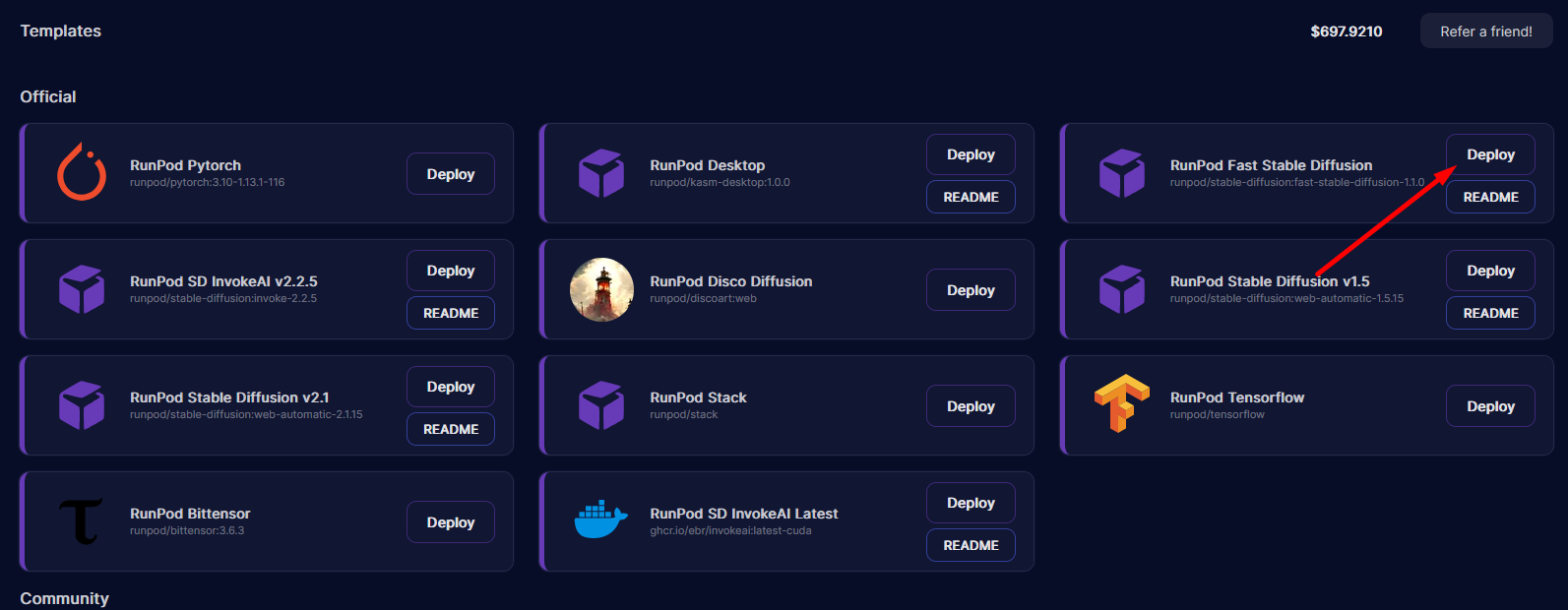
How to find the template

How to find the template

Before creating pod you have option to give additional storage for your pod.
This template supports running AUTOMATIC1111 web UI but also has custom templates for training your own models using Dreambooth.
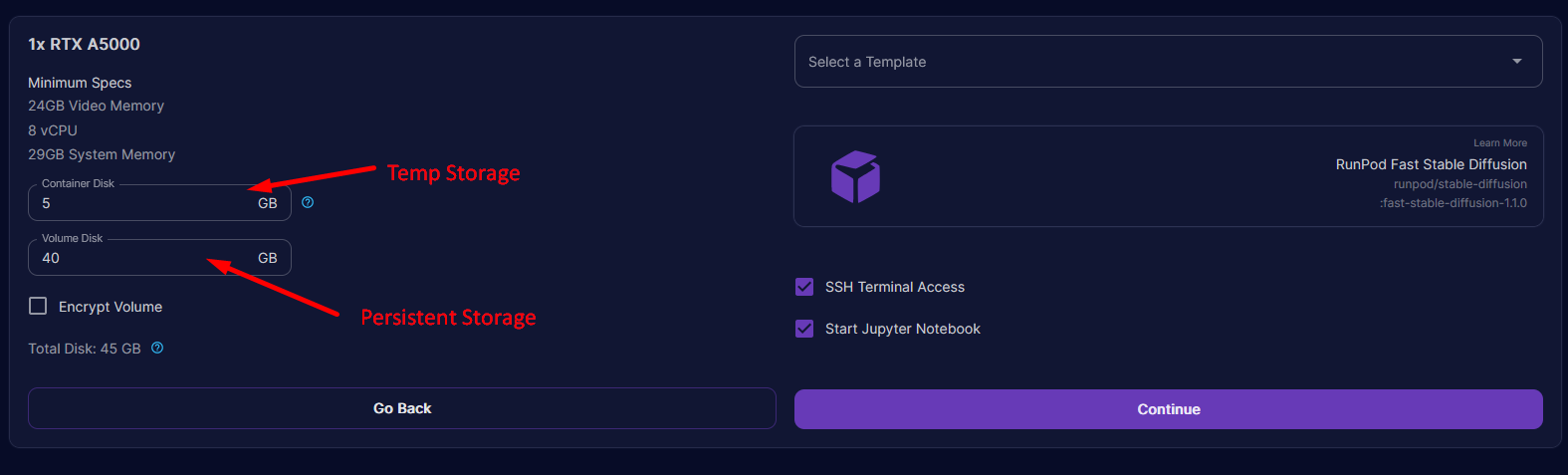
Volume storage is being used to store generated images and also storing custom models

Volume storage is being used to store generated images and also storing custom models

To get started with the Fast Stable template, connect to Jupyter Lab. From there, you can run the automatic1111 notebook, which will launch the UI for automatic, or you can directly train dreambooth using one of the dreambooth notebooks.

To access Jupyter Lab notebook make sure pod is fully started then Press Connect
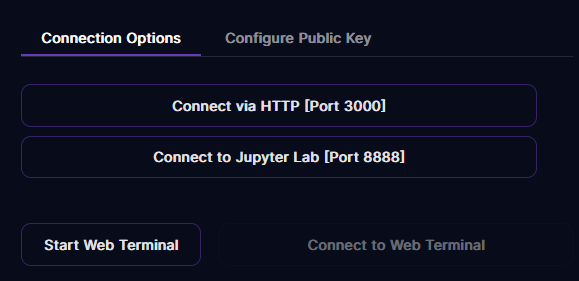
First option is to connect to automatic UI though we going to Jupyter button first

First option is to connect to automatic UI though we going to Jupyter button first

To start A1111 UI open RNPD-A1111.ipynb file by double-clicking it
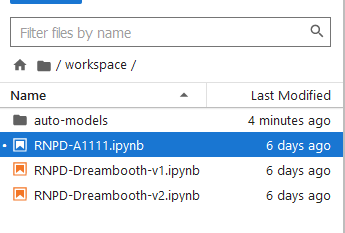
Template comes with three notebooks 1 for 1111 UI and other 2 for training

Template comes with three notebooks 1 for 1111 UI and other 2 for training

After you have open notebook you need to run first 2 cells the first one will install required packages and second one allows you to use own HuggingFace token for model downloads.
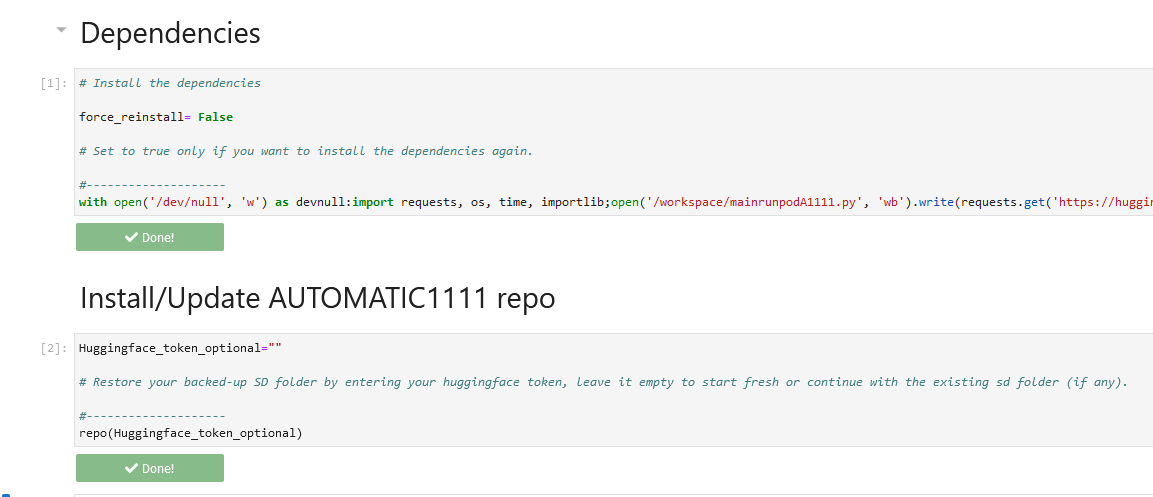
After it run without issues you will see Done buttons

After it run without issues you will see Done buttons

Now we are moving to selecting SD m0del we want to use
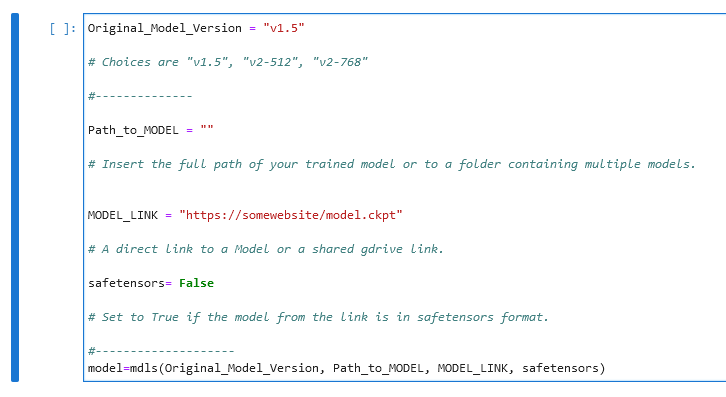
Some models will require you to have HuggingFace token provided in previous step

Some models will require you to have HuggingFace token provided in previous step

First option allows you to pick base SD model that will be downloaded from HuggingFace all you need is to replace v1.5 with model you want.
You can also give direct link or google drive link to ckpt or safetensor file by replacing MODEL_LINK section (it will download that model instead of base)

If you plan to use ControlNet with 1111 UI you can easy download required models using next cell.

NOTE: ControlNet models are very large, so selecting them all will incur a pretty long download (50+GB!!). UPDATE: We pruned them down a bit so it's much more manageable now :)
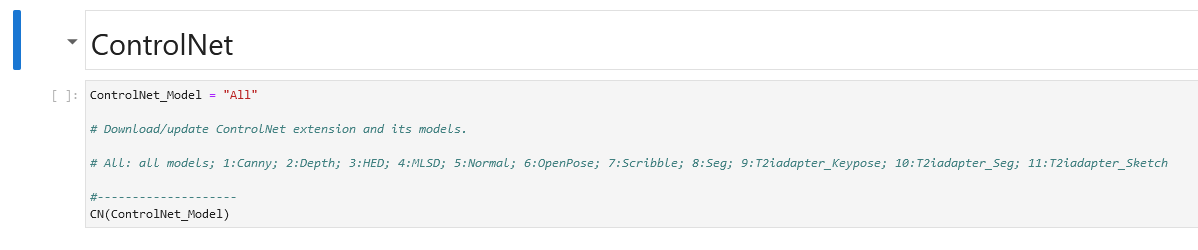
Replace "All" with your choice or pick model from list

Replace "All" with your choice or pick model from list

Starting 1111 UI

Now we finally can start web UI by running this next cell. Make sure that you run the other cells first! This cell does depend on the dependency cell, the A1111 cell, and the model cell. You can skip ControlNet if you aren't planning to use it!
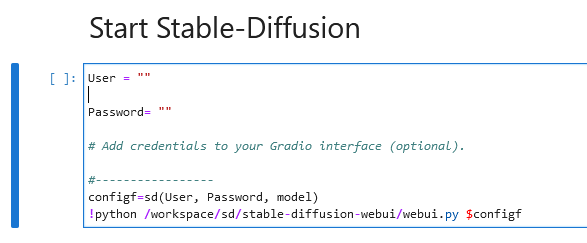
You can protect web UI by setting username and password for access or leave it to not use any protection.

You can protect web UI by setting username and password for access or leave it to not use any protection.

After 1111 UI starts you will see link to your web UI. You can also access it from connect button on Runpod website.
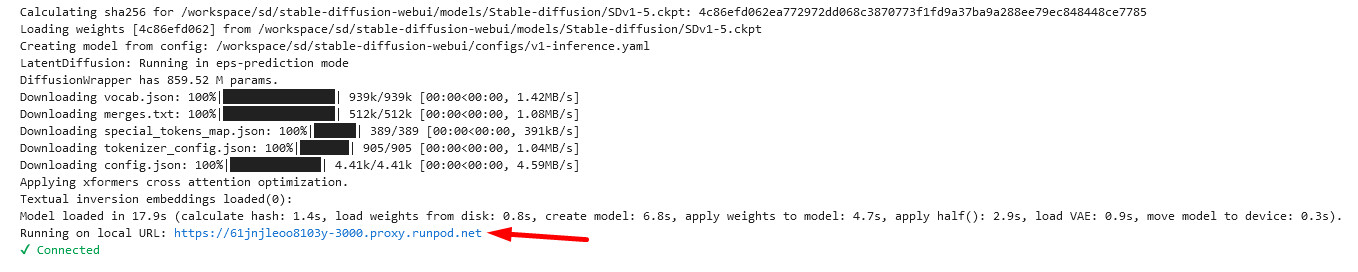
Note: Anyone with access to that link can access 1111 UI so it's advised to set username and password for better security!

Note: Anyone with access to that link can access 1111 UI so it's advised to set username and password for better security!

Customization

If you want to change the launch parameters, you can do so in the "Start Stable-Diffusion" cell in the RNPD-A1111.ipynb notebook. You can change the launch params by changing this line: !python /workspace/sd/stable-diffusion-webui/webui.py $configf.

Hopefully, this blog post has given you a better understanding of how to use the Fast Stable template. If you have any questions or need help, don't hesitate to send message on Runpod's Discord or other communities for support.

Author profile: Madiator2011