


惯性聚合 高效追踪和阅读你感兴趣的博客、新闻、科技资讯
阅读原文 在惯性聚合中打开

推荐订阅源

I
InfoQ
G
Google Developers Blog
Engineering at Meta
Engineering at Meta
月光博客
月光博客
博客园 - 聂微东
博客园 - Franky
奇客Solidot–传递最新科技情报
奇客Solidot–传递最新科技情报
有赞技术团队
有赞技术团队
A
About on SuperTechFans
Microsoft Azure Blog
Blog — PlanetScale
Blog — PlanetScale
U
Unit 42
T
Tailwind CSS Blog
Cyber Security Advisories - MS-ISAC
云风的 BLOG
云风的 BLOG
S
SegmentFault 最新的问题
F
Fortinet All Blogs
H
Help Net Security
J
Java Code Geeks
酷 壳 – CoolShell
酷 壳 – CoolShell
博客园 - 叶小钗
L
LangChain Blog
Martin Fowler
Martin Fowler
N
Netflix TechBlog - Medium

Runpod Blog.

New Runpod datacenter now live: AP-IN-1 Track GPU spend across your team with Cost Centers The GPU supply supercycle is here. Here’s what AI builders need to know. Community Spotlight: One-click AI image and video generation on Runpod with SwarmUI | Runpod Blog Community Spotlight: LoRA Pilot Data Prep to Inference Introducing the Runpod Assistant: Manage Your Cloud GPU Resources with Natural Language OpenAI's Parameter Golf: Train the Best Language Model That Fits in 16MB on Runpod LLM inference optimization: techniques that actually reduce latency and cost Pruna P-Video and Vidu Q3 public endpoints now available on Runpod Runpod brand spelling guide Quickstart - Runpod Documentation The AI market looks nothing like the narrative Training StyleGAN3 with Vision-Aided GAN on Runpod KoboldAI – The Other Roleplay Front End, And Why You May Want to Use It How to Connect Cursor to LLM Pods on Runpod for Seamless AI Dev Community Spotlight: How AnonAI Scaled Its Private Chatbot Platform with Runpod Prompt Scheduling with Disco Diffusion on Runpod Runpod's Latest Innovation: Dockerless CLI for Streamlined AI Development Run Your Own AI from Your iPhone Using Runpod Introducing Flash: Run GPU workloads on Runpod Serverless: No Docker required Use Claude Code with your own model on Runpod: No Anthropic account required Avoid Errors by Selecting the Proper Resources for Your Pod What hackers built on Runpod at TreeHacks 2026 Easily Back Up and Restore Your Pod with Cloud Sync + Backblaze B2 The Complete Guide to GPU Requirements for LLM Fine-Tuning AI Guides, Tutorials & GPU Infrastructure Insights | Runpod Your first Claude Code project within Runpod: a complete setup guide 10 billion Serverless requests and counting Building for resilience: Runpod’s response to the AWS us-east-1 outage How to Connect Google Colab to Runpod
VS Code Server on Runpod: Local-Quality Remote Development
Justin Merrell · 2023-06-30 · via Runpod Blog.

Experience a new level of development with Visual Studio Code (VS Code) and Runpod. This guide will walk you through using the VS Code Server template on Runpod, enabling you to leverage GPU instances for your development needs. By the end of this tutorial, you will be able to interact with your code directly from your locally installed VS Code.

Prerequisites

Before we start, ensure you have the following:

Step 1: Launch Your Development Server

Navigate to the Runpod interface and select the Runpod VS Code Server template. Click on "Deploy" to launch your development server. Once you've initiated the deployment, proceed to the "My Pods" section and wait for your pod to become ready.
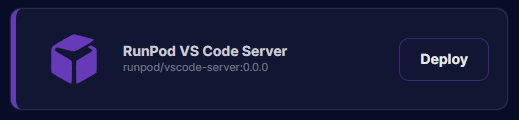
VS Code Server Pod Template

VS Code Server Pod Template

Step 2: Access the Container Logs

Within the "My Pods" section, find your pod, select "Logs", and then select "Container Logs". This will give you access to the logs of your VS Code Server.
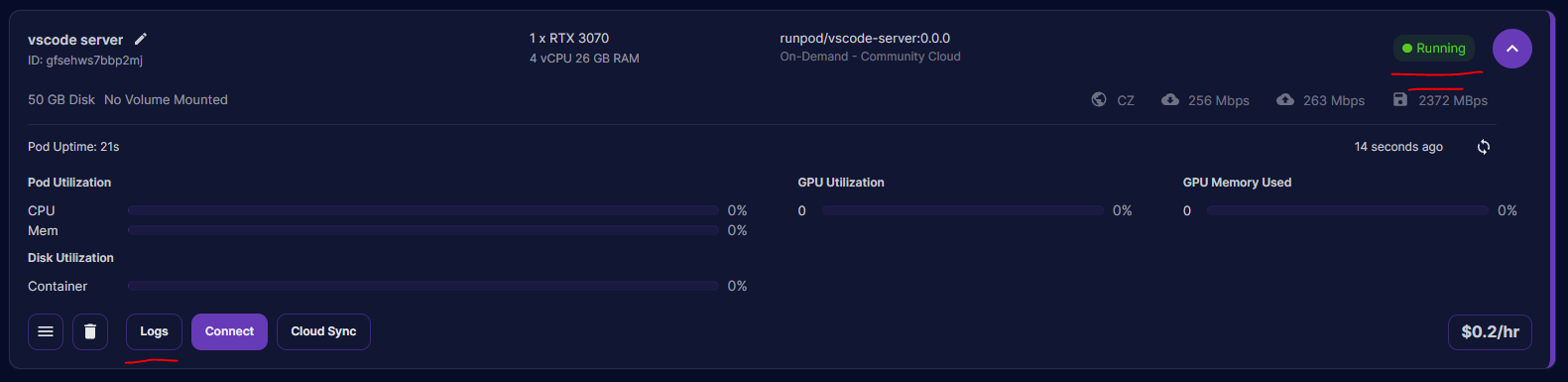
"My Pods" Page

"My Pods" Page

Step 3: Register Your VS Code Server

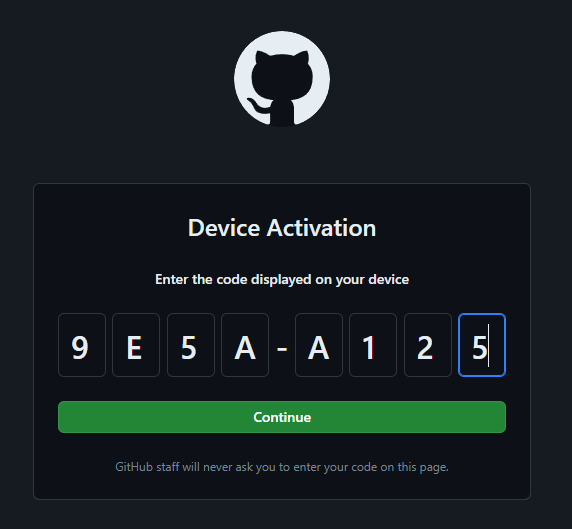
In your container logs, you will find a unique code for registering your VS Code Server. Copy this code, open a new window, and navigate to https://github.com/login/device. Paste the copied code into the provided field on this page. Before proceeding, ensure that there is a pause symbol in the lower right side of the log screen (not a play button). Click "Continue", authorize access, and your VS Code Server will be ready to use.
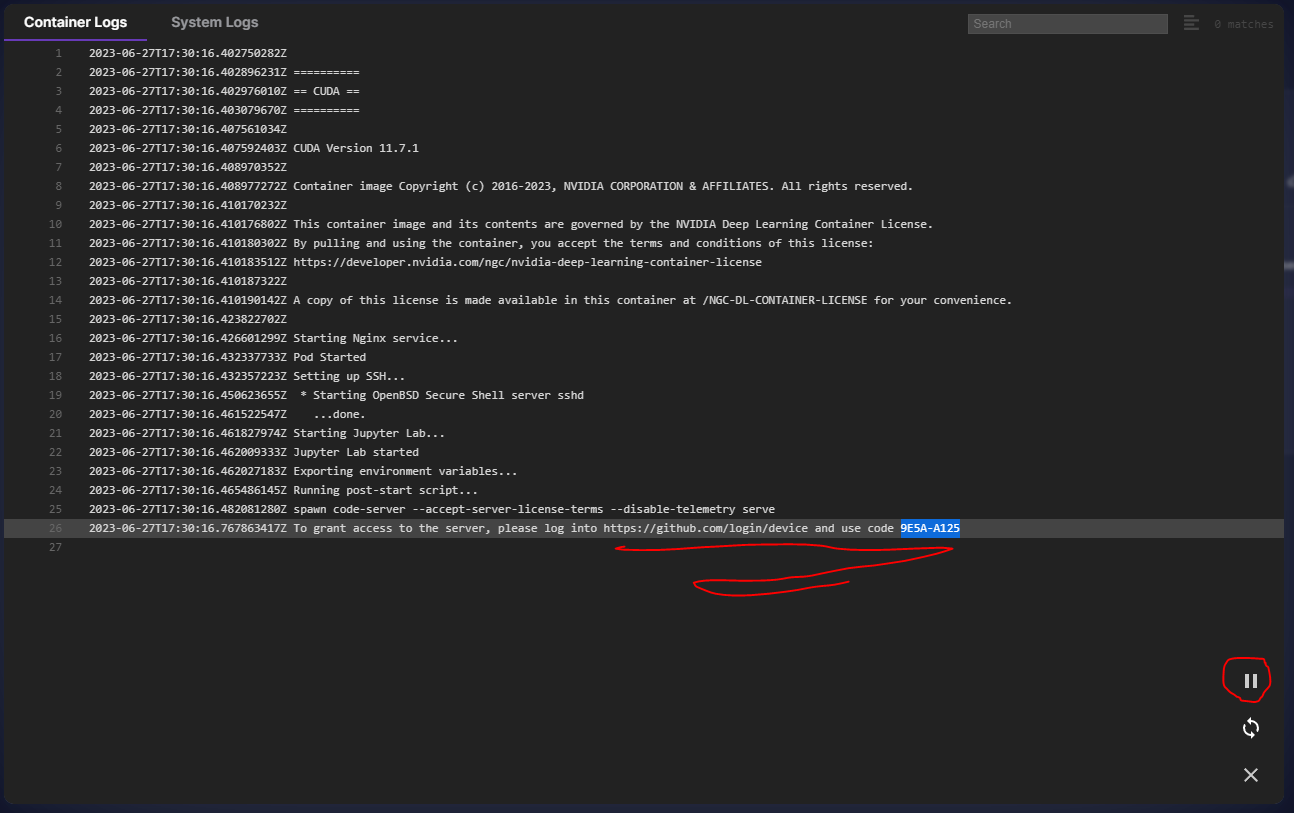
Runpod container logs with the code-server GitHub device login code highlighted and circled in red

GitHub Device Activation page with the eight-character device code entered

Container logs showing a VS Code tunnel being named and created on the pod

Step 4: Connect to the VS Code Server

Open VS Code on your local machine. In the "Remote Explorer" section, you should see an option to connect to the server. Follow the prompts to establish a connection to the VS Code Server running on your Runpod instance.
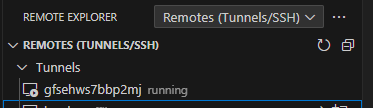
VS Code Remote Explorer showing the pod's tunnel listed as running

Congratulations! You are now directly connected to your Runpod instance using VS Code. Enjoy the familiar functionality of VS Code while also having the power to develop directly on a GPU-backed system!
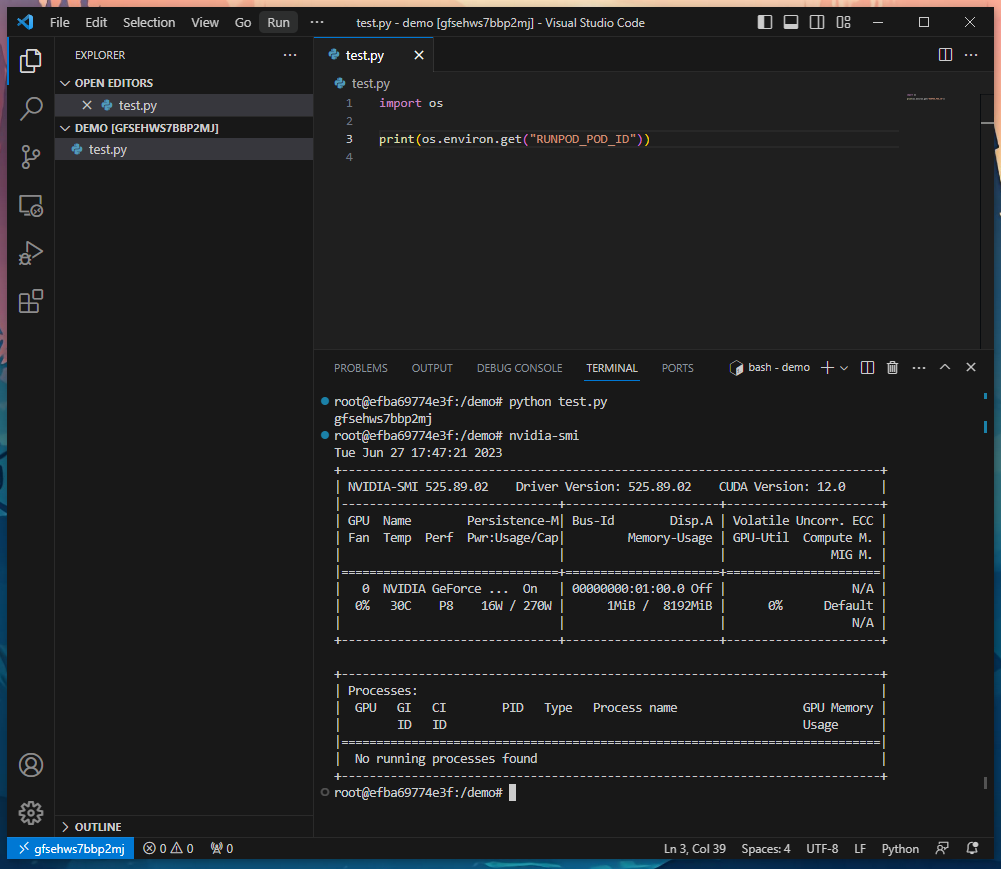
VS Code connected to a Runpod pod, running a test.py script and nvidia-smi in the integrated terminal

Author profile: Justin Merrell
