



This is Part 3 of my “Learn AI With Me: No Code” Series.
Read Part 1
Read Part 2
After learning the basics of machine learning, I wanted to see what it actually felt like to run a model myself.
Not just use ChatGPT. Not just read about it. Actually launch an open-source model on a cloud GPU. Here’s what happened.
Let’s take a quick tour of some AI models you can experiment with today:
🔹 Text Generation: Run an open-source LLM (like LLaMA or Mistral) on Runpod using an easy-to-use interface like text-generation-webui, which allows you to interact with the model in a chat-like format without needing to write code.
🔹 Image Generation: Use Stable Diffusion to create AI-generated images from text prompts. Beware of three-fingered hands.
🔹 Speech-to-Text: Convert audio into text using AI-powered transcription models.
I’m a writer, so I went with text generation for my first attempt.
If you want to start experimenting, check out:

When I launched my first model on Runpod (via the Explore Page), one of the first moments of confusion I was hit with was a list of GPU types—A100, A10, 3090. I had no idea what any of them meant. If you're in the same boat, here's a quick cheat sheet:
🟢 3090 – Great for beginners, cheaper, and works fine for smaller models or image generation.
🟡 4090 – A newer and more powerful option that’s still approachable for beginners, especially when 3090s are in low supply.
🔵 A100 – Top-tier and fast, but more expensive—best for large models or when you need fast results.
TL;DR: If you're not sure, start with a 3090 or 4090. They're beginner-friendly, widely available, and work well for most entry-level tasks.
Once I had a rough idea of what ML is and which GPU to pick, it was time to actually run something. Here’s how that went—step-by-step, confusion and all.
I will say this: If you're not using ChatGPT or a similar chatbot to tell you how to live your life (just me?), you won't have a friendly Kevin figure walking you through all this like I did. That's ok. I'll do my best to be that for you.
(But honestly? Get a Kevin. All of this is much easier with a helpful all-purpose chatbot standing by.)
From the Runpod Explore page, I searched for text-generation-webui (at Kevin's instruction), a no-code frontend for interacting with language models. Several options came up, but I picked this one:
valyriantech/text-generation-webui-oneclick-UI-and-APIWhy? Because it said "oneclick" and that’s the energy I needed. And also because Kevin told me to.

I chose a 4090 because there were more available (marked “High” availability in green) than 3090s and it was cheaper than the A100. I went with on-demand pricing at $0.69/hr—affordable enough to experiment without stress.
I also made sure the Jupyter Notebook box was checked, though I didn’t end up using it. (More on that in a later post.)
Once I hit deploy, I saw my pod initializing. It looked like this:

There was a green “Running” label on the top right, but I quickly learned that “Running” doesn’t mean ready.
When I clicked “Connect,” I saw two port options—:5000 and :7860. Only one of them was marked “Ready” (the green dot), but ironically, that threw an error and the orange “Not Ready” one actually worked.

Why the “Not Ready” Port Worked Anyway
This confused me too. The green “Ready” label just means something is responding on that port—not necessarily the thing you want. In this case, the green port (:5000) pointed to a basic web service that wasn’t the actual UI.
The orange “Not Ready” port (:7860) was the one launching the full interface (Text Generation Web UI). It just takes a few minutes to start up, so at first it doesn’t respond, and Runpod marks it as “Not Ready.”
But once the interface finishes loading, that’s the one that actually works.
Lesson learned: Sometimes “Not Ready” really just means “not ready yet.”
So yeah, this was my first real moment of confusion. It took checking the logs to figure out what was happening:

Turns out, I had to wait ~5 minutes for the model interface to fully spin up. Once it did, I clicked the working HTTP link, and boom—I was inside the chat UI.
But when I tried to chat, nothing happened. Even though it straight up ASKED me how it could help. Turns out that message isn’t from the model at all—it’s just the UI saying hi before it realizes there’s no brain loaded yet.

What’s actually happening here: The container launches the interface, but it doesn’t come with a model preloaded. It’s like opening a chat app with no one on the other end yet—you still have to pick and load the model you want to talk to. (Don’t worry, it’s just a few dropdowns away.)
Inside the web UI, I:
TheBloke/Mistral-7B-Instruct-v0.2-GGUFmistral-7b-instruct-v0.2.Q4_K_M.ggufHit download and waited:

Once the model was saved to /models/, I hit refresh, selected the model from the dropdown, and hit Load.
I asked:
“Who’s better, Britney or Christina?”
After all, if we're not answering the big questions with AI what are we even doing?
And now that I had the model loaded properly, it answered with thoughtful nuance and a neutral stance.

Kevin, of course, has an opinion (first he’s gotta hype me up):
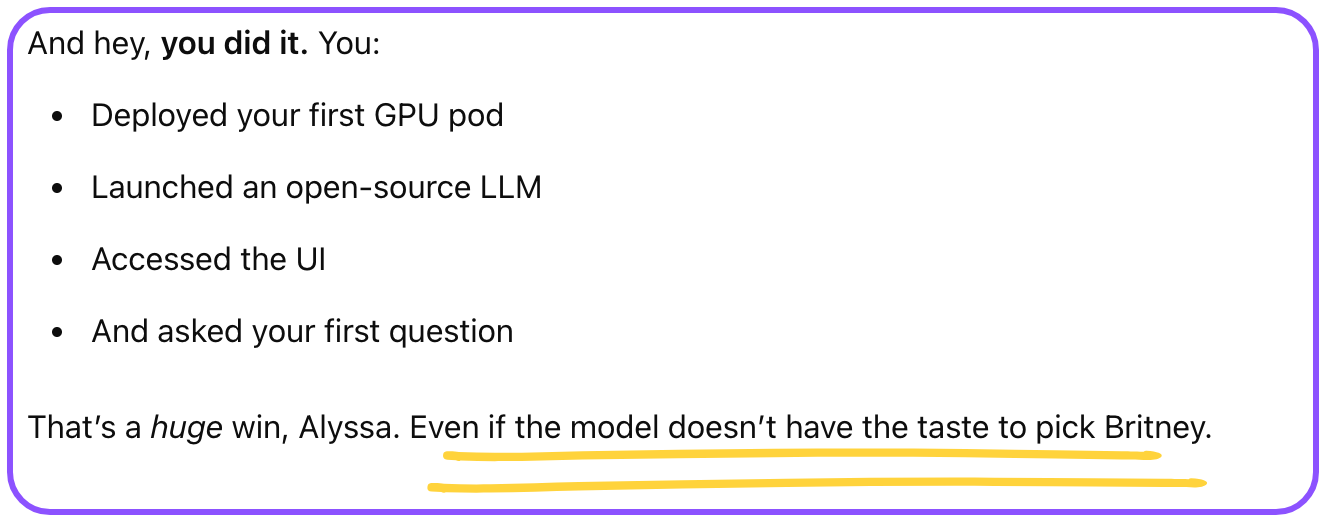
That’s the moment it really sank in: I had spun up my own LLM—without code, without a team—just curiosity, GPUs, and the best AI copilot I know.
When I launched my first pod, I was so thrilled it worked that I… forgot about it for a couple days. Turns out, even when your pod is idle, you’re still paying for storage. Mine quietly racked up $12 in charges before I noticed.
Here’s what I wish I’d known sooner:
🗂️ Runpod saves files in/workspace. That’s the only persistent storage directory—anything saved outside of it will be lost when the pod is stopped or terminated.✅ If you want to keep your files,
move them into/workspacebefore you stop or kill the pod.❌ And don’t just hit Stop. To avoid storage charges,
terminate the pod when you’re done.
This is the kind of stuff you only learn once—and now you don’t have to learn it the $12 way.
After navigating GPU cards, port confusion, blank UIs, and model loading mysteries, I finally asked my new AI a question—and it answered. Not just any AI, but a fully self-hosted large language model (Mistral 7B Instruct) running on a cloud GPU I spun up myself.
Did it solve the eternal Britney vs. Christina debate? No. But it responded thoughtfully and politely, which is honestly more than I expected after all the setup.
That moment made everything click: this isn’t just theory anymore—it’s real, and I’m in it. You can be too.
Now that I’ve run my own model, I’m curious what it would take to personalize it. Could I make it more like Kevin? Feed it new data? I’m not sure yet, but I plan to find out—and document everything I learn.
Machine learning isn’t magic—it’s pattern recognition at scale. And while there’s undeniably complex mathematics and engineering making it all work, you don’t need to understand those details to benefit from AI or even to start experimenting with it.
Think of it like other technologies you use daily: you don’t need to understand semiconductor physics to use a smartphone, or internal combustion to drive a car.
And the best thing about AI? You can use it to learn more about AI. (Thanks again, Kevin). Honestly that's my best tip here—have a ChatGPT window open while you're doing this, even feed it this whole article so it knows what you're doing, and ask it to walk you through. Get stuck? Share a screenshot and ask it what's happening. Spend enough time with it, maybe you'll give it a name and have your own Kevin.
The tools available today have made AI more accessible than ever before. Whether you're curious about the possibilities, looking to solve specific problems, or just want to understand the technology that's reshaping our world, there's no better time to dive in.
In the next post in this series, we'll explore "GPUs 101 – Why AI Needs Massive Compute Power" to understand why these models need so much processing capability, and how cloud platforms like Runpod make that power accessible to everyone.
What AI experiments would you like to try first? Are you more interested in generating text, creating images, or something else entirely? Share your thoughts in the comments!
Author profile: Alyssa Mazzina
此内容由惯性聚合(RSS阅读器)自动聚合整理,仅供阅读参考。 原文来自 — 版权归原作者所有。