






While you're undoubtedly familiar with the functions that Stable Diffusion includes that lets you derive images using other images such as input (img2img) you may find there's a certain level of being at the mercy of the model and simply constantly reiterating until you get something close to what you want. Have you ever wished you could take more direct control over the process and hopefully steer it closer to where you want? Well, through the magic of ControlNet, you can!
This process is brought to us once again through Bill Meeks, who has provided a comprehensive video guide in collaboration with Runpod. We highly suggest reviewing his video available on YouTube to get an overall grasp on the process. Below, we'll walk you through getting ControlNet installed in your own Runpod instance so you can do the same with your own artwork.
First, spin up a Stable Diffusion pod on Runpod like always - pick your favorite GPU loadout, and when creating the pod select the Stable Diffusion template.

Once you load up the pod, go to Extensions -> Available -> Search, and click "Load from" to retrieve the list of available plugins. Type in "controlnet" and click Install for the sd-webuinet-controlnet row.
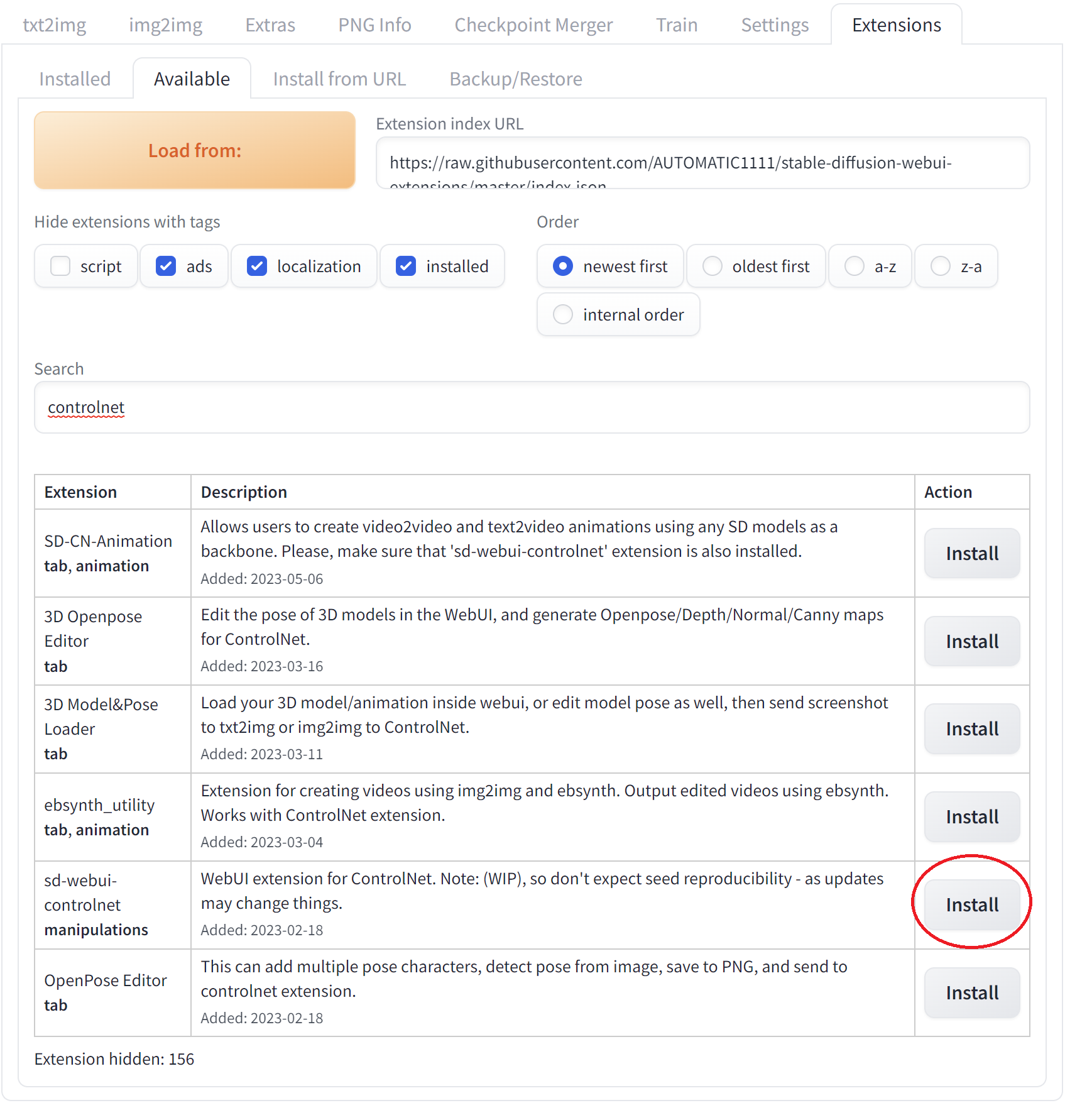
Under your My Pods screen, stop and reload the pod.

Once you enter your pod once again, you'll see the ControlNet dropdown, ready for use, and we're ready to move onto the meat of the article.
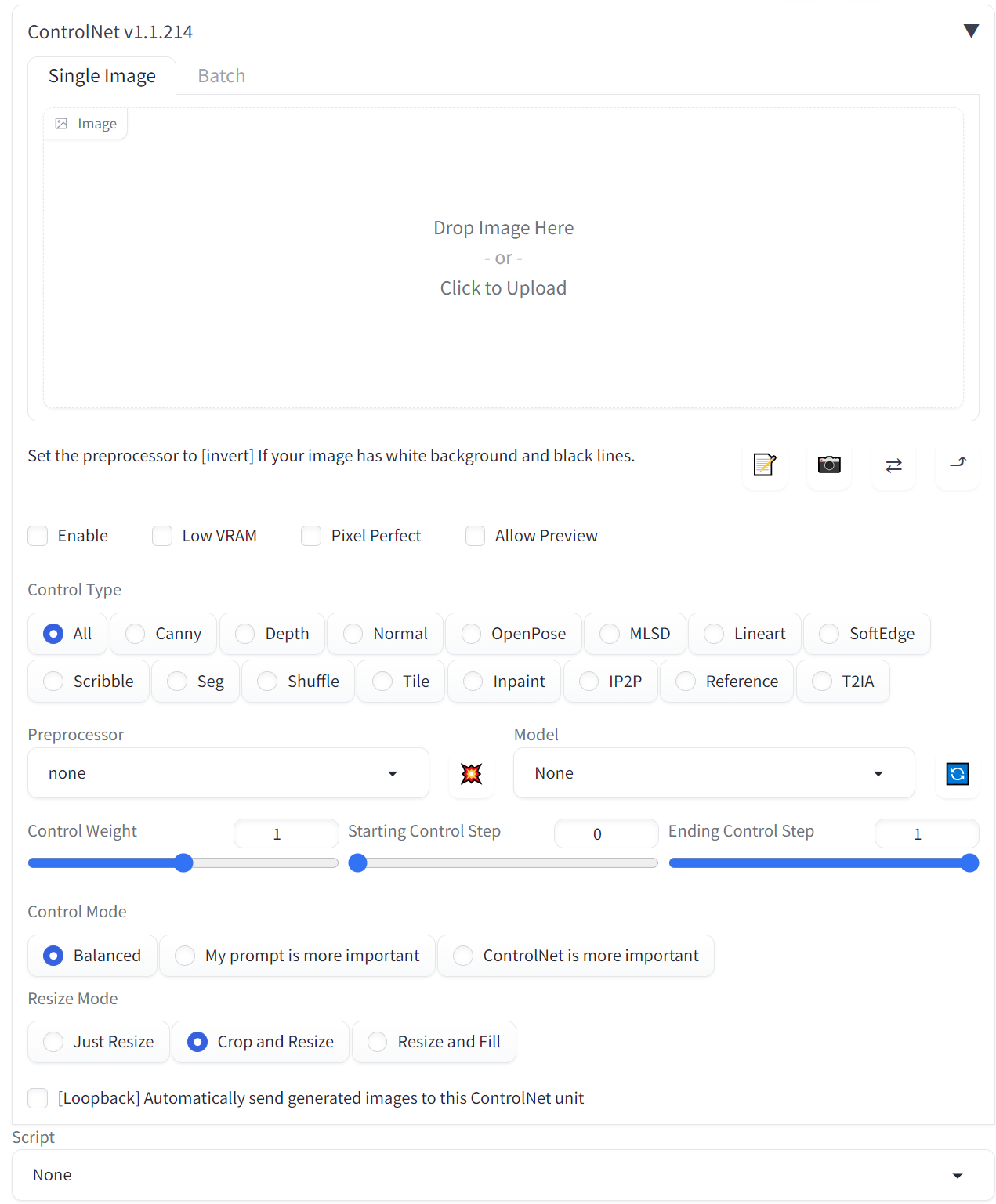
Under your ControlNet Preprocessor list, you'll see a pretty staggering number of options. Thankfully, Bill has done a lot of the legwork for us, so we can go through the most important ones.
reference_only
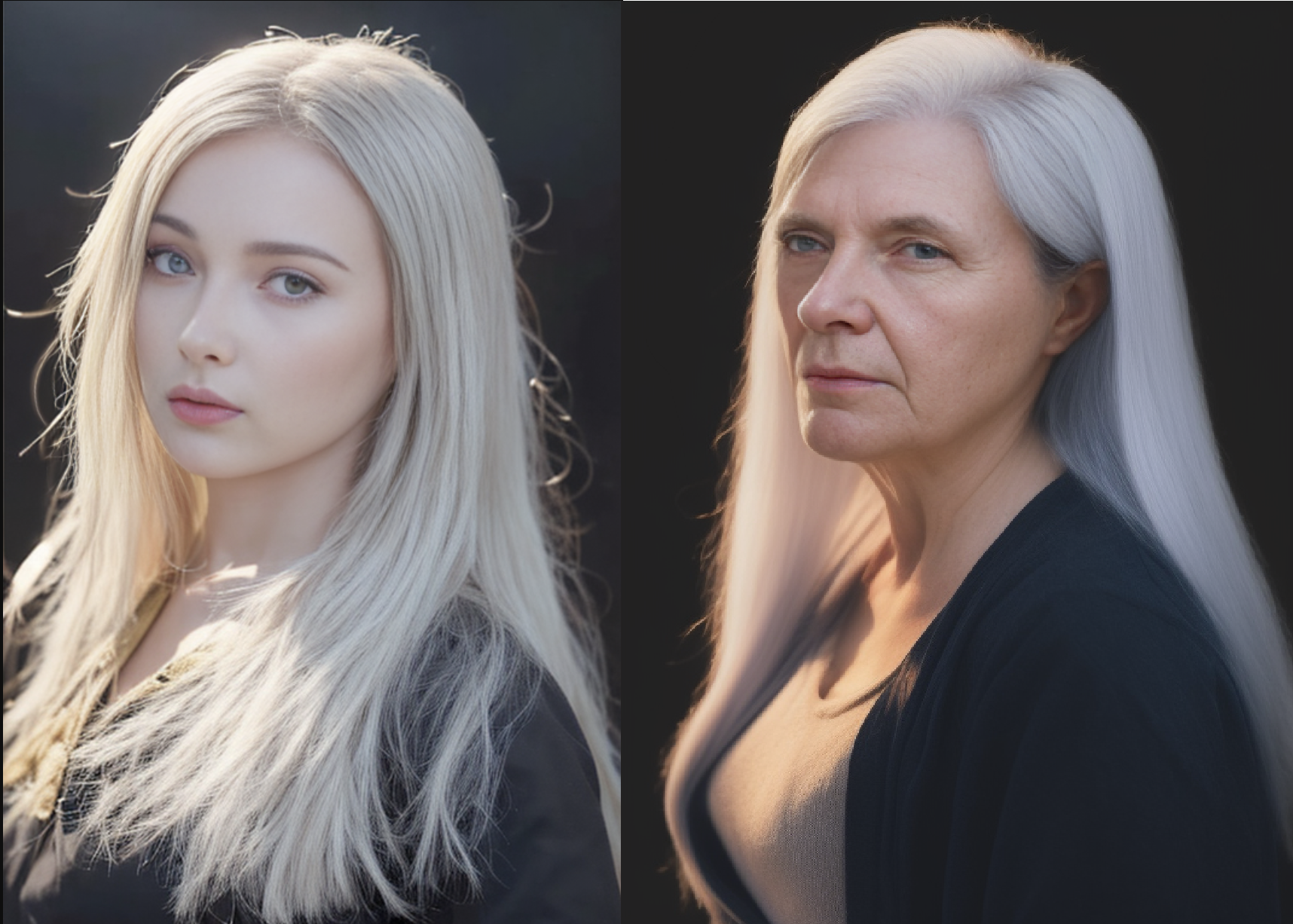
reference_only is a great way to simply perturb aspects of your images and create something that is ultimately in the same style, but just a little bit different. It's very similar to img2img, but ControlNet differs is it will attempt to adhere to the style given in the image, rather than simply, say, conjuring up an entirely different woman with brown hair when given a woman with brown hair.
Let's take this example image:
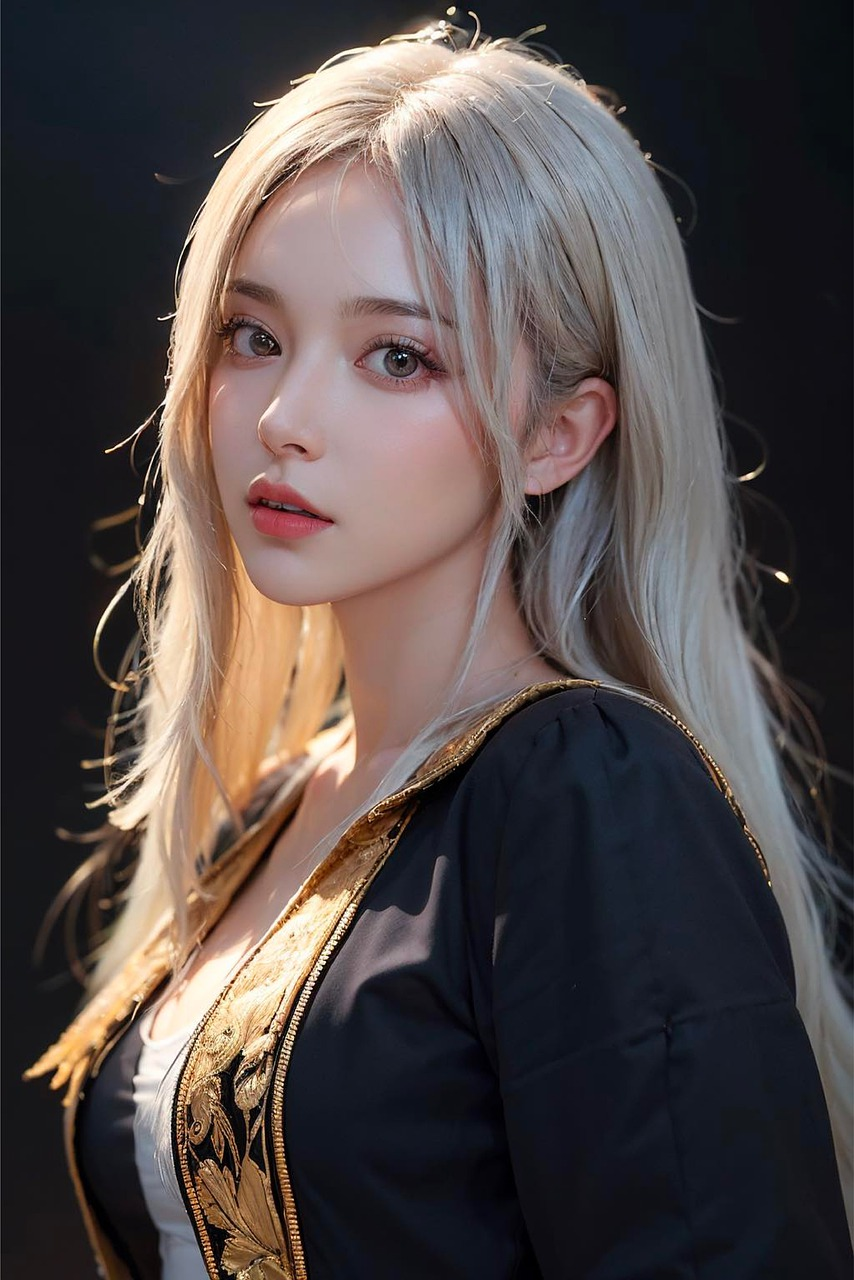
Now, I've taken this image and plugged it into ControlNet ref_only on the left, and standard img2img on the right, with the same simple prompt: "woman with silver hair looking at viewer, portrait, headshot" You can see that ControlNet will actually attempt to train itself on the image and incorporate the style, which means you get a subtle perturbation of what could essentially be considered the same woman. On the other hand, standard img2img will take the image as a prompt, then throw it out and "try to draw it from memory" for lack of a better term, meaning that instead of a subtle variation, you will get an entirely new woman.
ref_adain
ref_adain is something of a mouthful, and stands for "arbitrary style transfer in real_time with adaptive instance normalization." Let's take the green ALF character Bill used in his video:
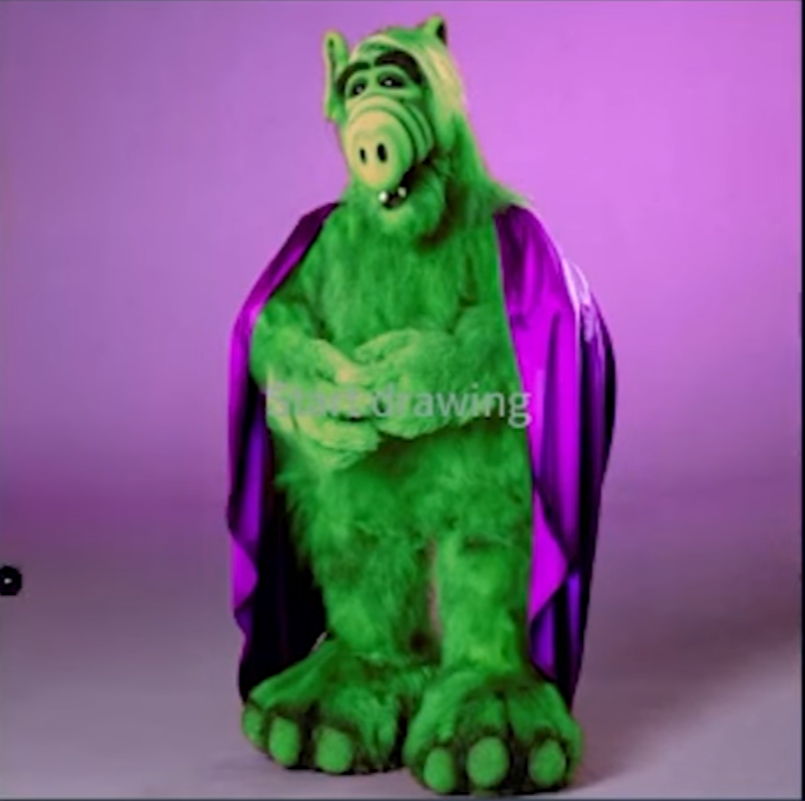
And here are the images he got using this preprocessor and the prompt: "portrait of a dark troll wizard with green fur all over his body and a purple cape"
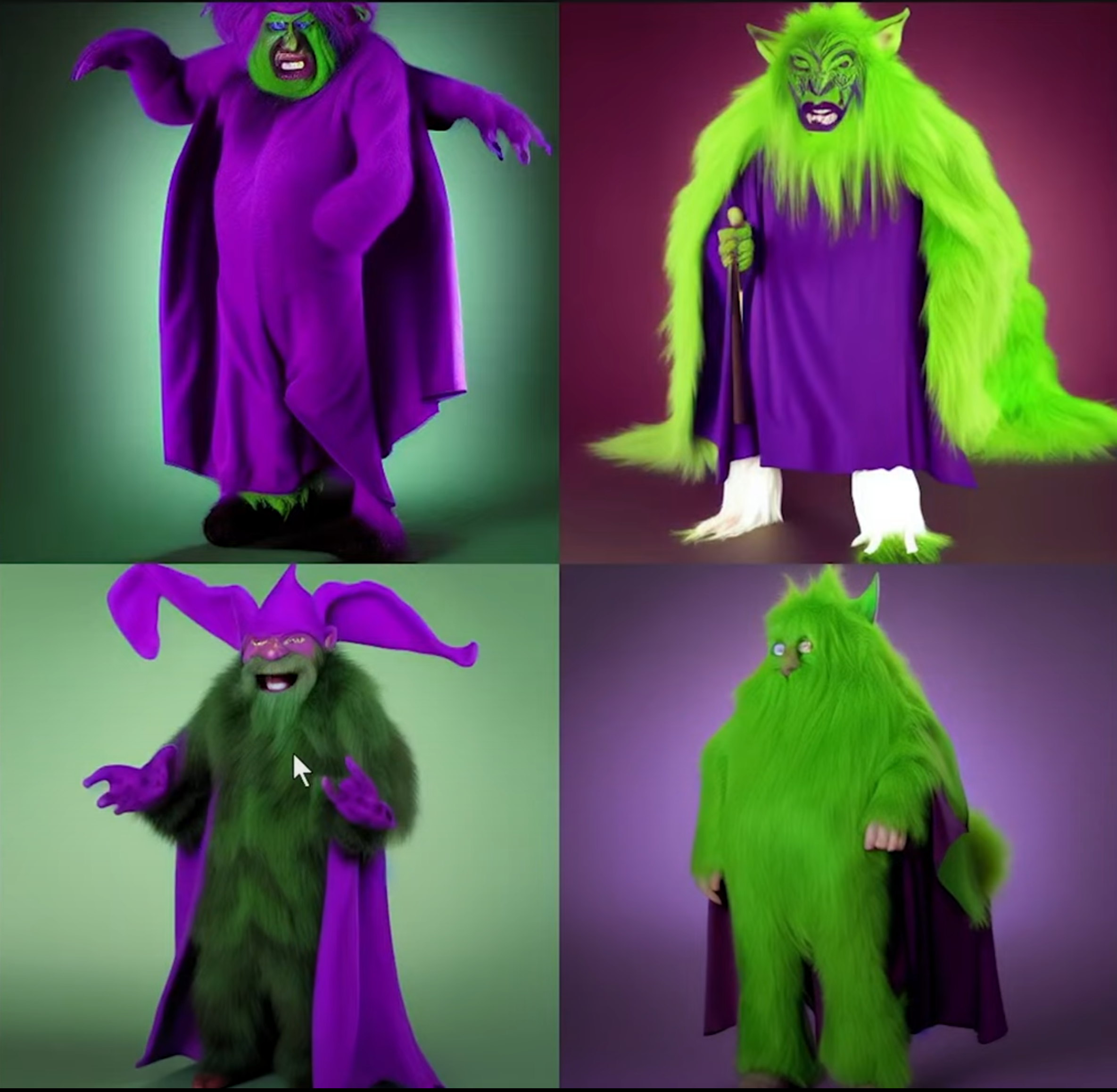
As you can see, this is a style transfer: the perturbations in this case are far more wide-reaching. The fur is a different color, the cape is a different style and a different shade, the background is a different color, yet the lighting strength in the background is very similar in all images, and the proportions and body shape of the creature are all relatively similar.
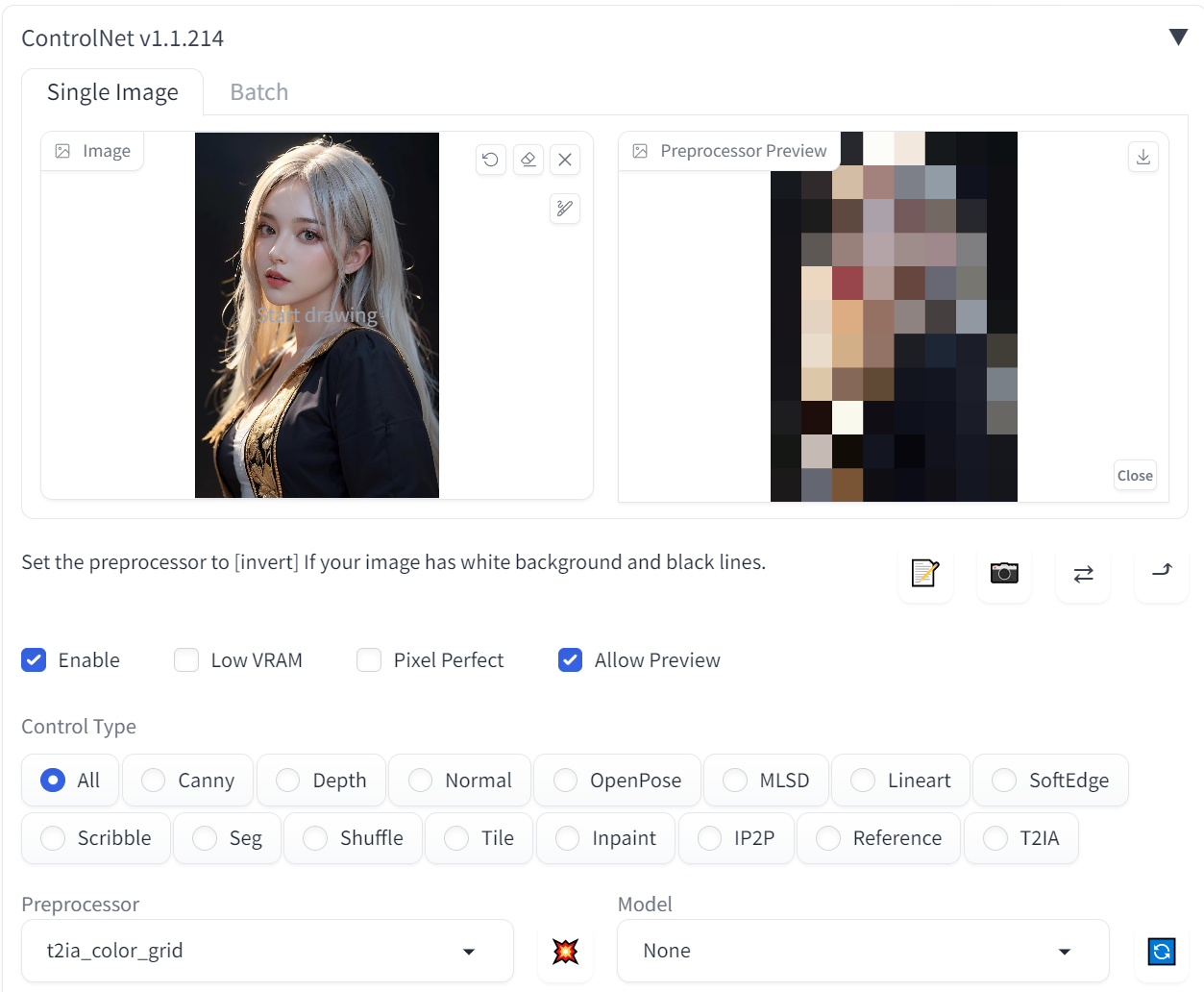
t2ia_color_grid
This is a very useful preprocessor that provides you a sampling of the colors used in a given image. Although it is more informational, if you have an understanding of color theory it is a great way to get a histogram of the hues present, which can further inform the direction you want to take an image. You can see that in t his image, there are primarily grays, earth tones, and highlights, which helps set a unified theme for the image in an aesthetic manner.
Using Multiple ControlNet Instances
You're not limited to using just one ControlNet at a time, mind you. You can use multiple instances to bring them all together at once. Mind you, there are a lot of moving parts involved, and it's going to take a lot of tweaking, but you can really get an unprecedented level of control over your images. Here's how Bill does it:
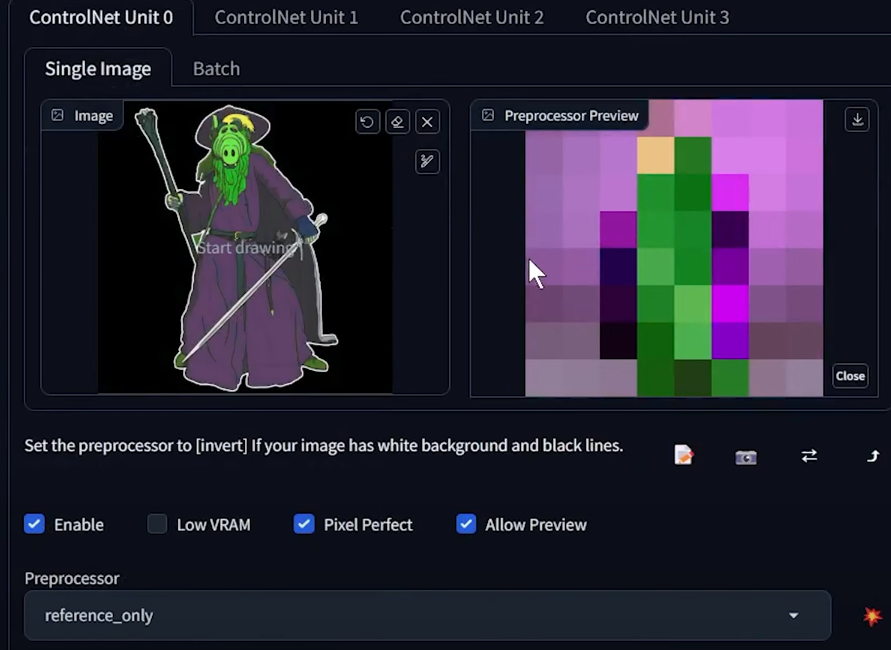
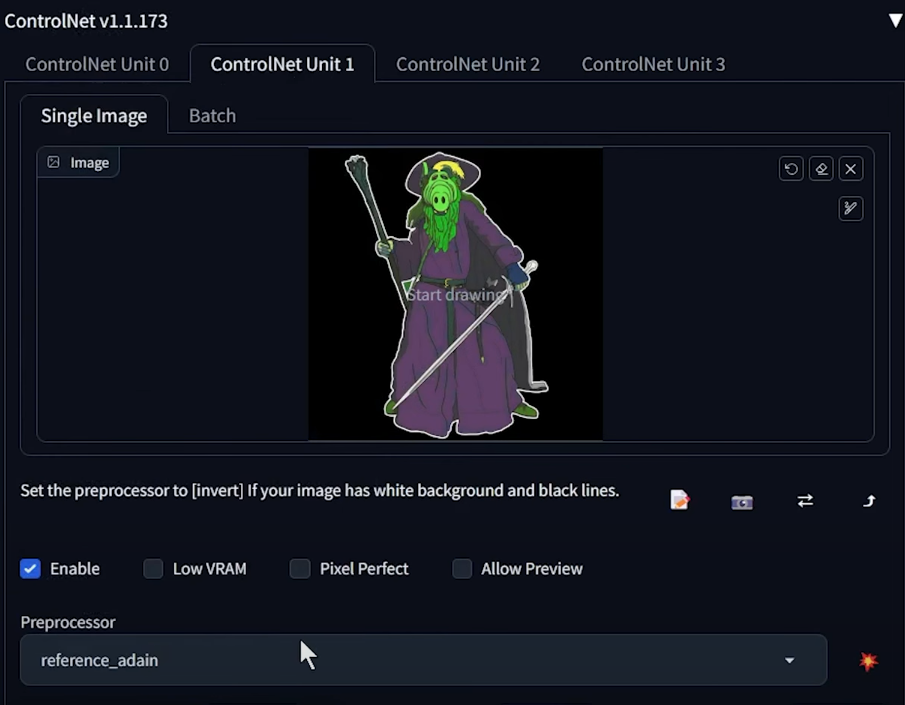
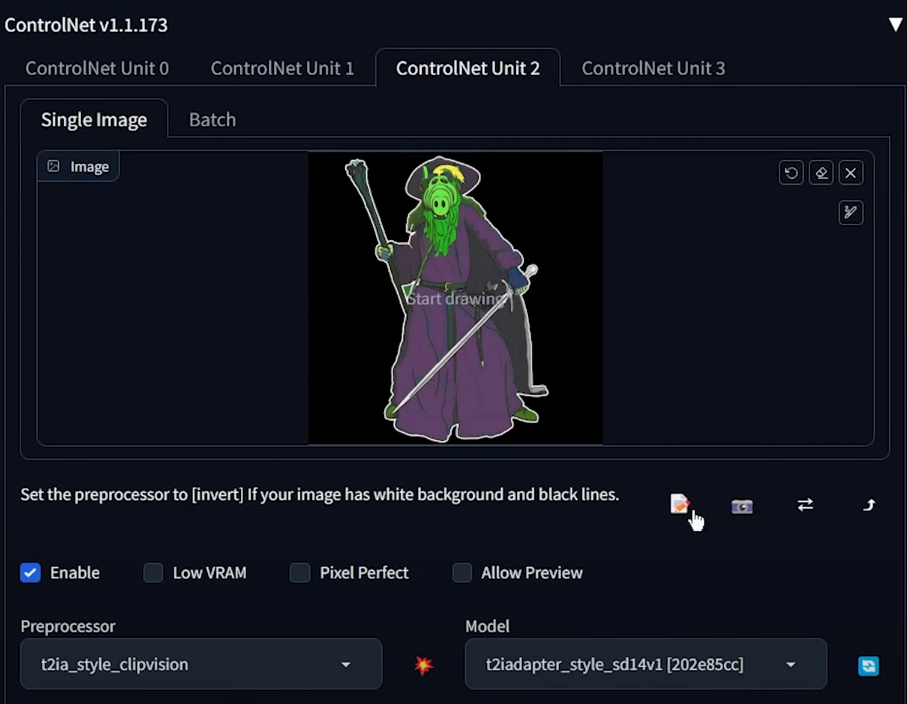
By using a specific preprocessor in each unit, he's able to inject more and more direction, combined with the iteration that Stable Diffusion requires, until he's able to get exactly what he wants out of it:
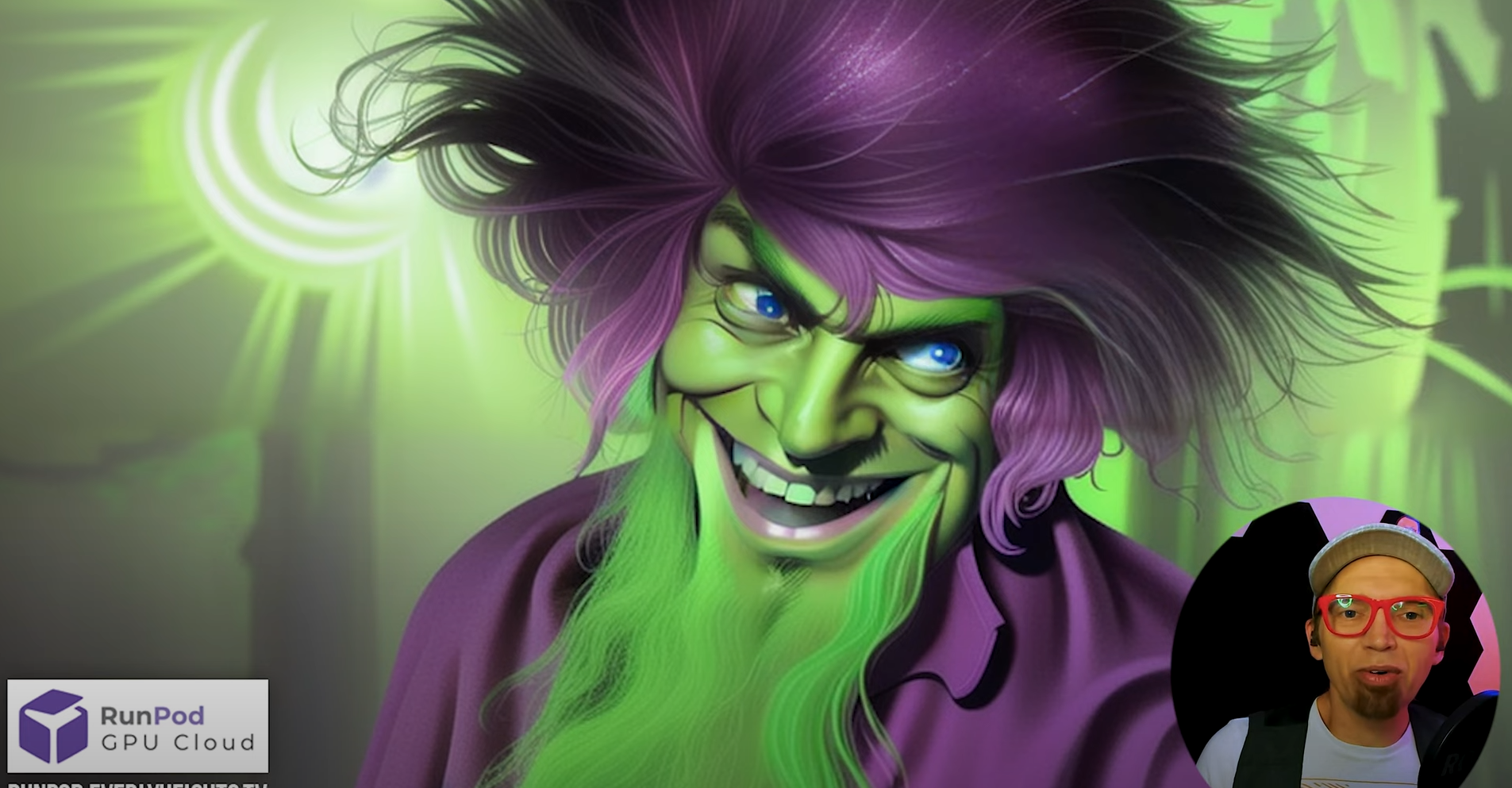
Once again, thank you to Bill for putting together this comprehensive video guide! Check out his other video guides on his channel as well as his other tools available for Stable Diffusion.
You can also reach out to our community of artists on our Discord for further guidance and direction, or just pop in to chat!
Author profile: Brendan McKeag
此内容由惯性聚合(RSS阅读器)自动聚合整理,仅供阅读参考。 原文来自 — 版权归原作者所有。