





While Runpod offers persistent volume storage for your pods, we understand that many users would like to have a cloud backup in order to avoid idle storage charges or to be able to move their work to a new pod if the need arises. Runpod Cloud Sync offers several integrations with cloud storage providers like AWS S3, Google Cloud Buckets, and Azure Blob Storage. In this blog post, I'll go through the simple steps to achieve a cloud backup using the Backblaze B2 cloud storage service, as it is very affordable and easy to use.
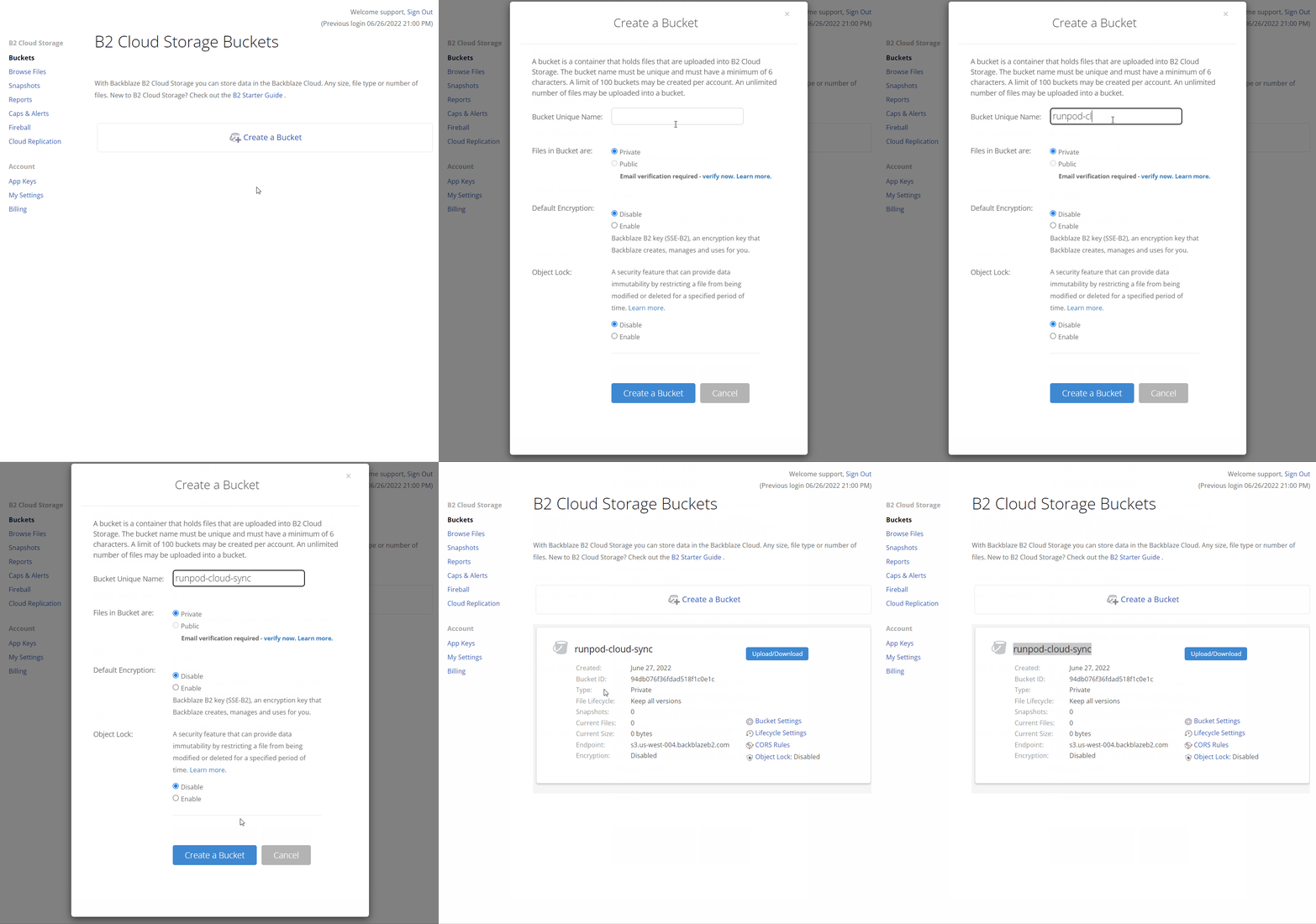
First, you'll need to create a bucket in Backblaze B2. You can do this by logging into your Backblze account and going to the 'Buckets' tab. Click on 'Create a Bucket', give it a name, and select the location for your data. Then click 'Create Bucket'.
Once your bucket has been created, you'll need to generate an account key. This will be used by Runpod to authenticate with Backblaze B2. To do this, go to the 'Account' tab and click on 'App Keys'. Then click 'Add a Key'. Give it a name and select the 'Read/Write' capability. Then click 'Create Key'.
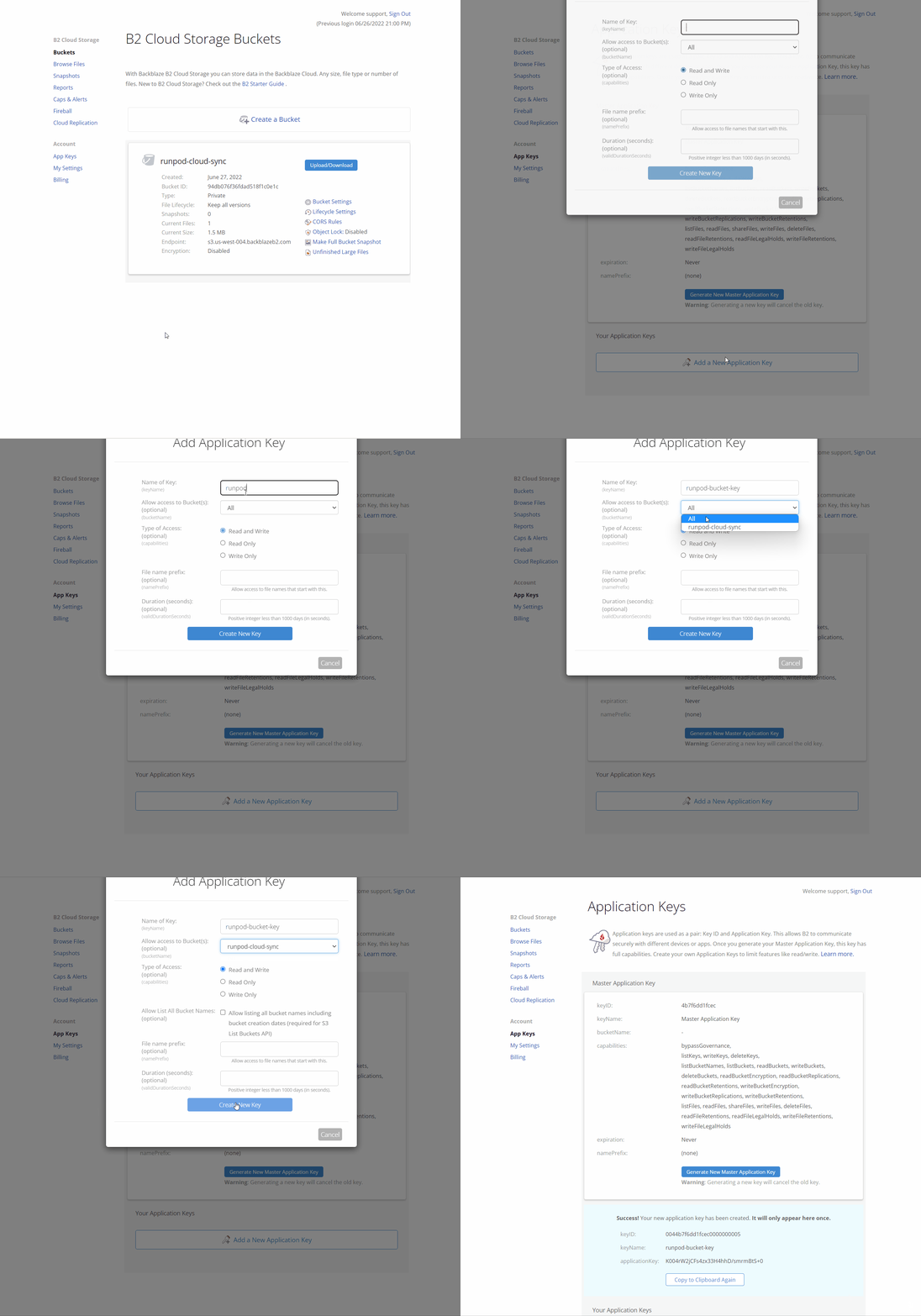
You'll then be given a key ID and an application key. Copy these down, as you'll need them in the next step.
Next, you'll need to go to your "My Pods" dashboard in Runpod. Here, you will want to click on the running Pod that you want to sync, and then choose the "Cloud Sync" button. You will then be presented with several integration options. Choose the Backblaze B2 option for this tutorial. In this case, I will be downloading from my bucket, but you can upload from your pod as well. Put in the keyID and applicationKey that you copied in the previous step as well as the bucket name that you chose in step 1. You can target specific folders in your pod as well as in your bucket by altering the paths. For example, you could choose runpod-cloud-sync/myFolder if you have a folder in your B2 bucket named myFolder, or /workspace/myStuff if you have a folder named myStuff in your pod.
Once you're satisfied with your settings, you can click the Copy button and it'll start the transfer. If you need to debug your transfer, you can click on the "Debug" button on the right to get some logs to help you figure out what is going on. In this example, I just copied a 1.5MB notebook file from my bucket to the pod. You can do the reverse to backup whatever folder you like from your pod to Backblaze!
Your workflow can then be:
1) Start a new pod
2) Download sync your B2 bucket folder to your pod
3) Do your thing
4) Afterwards, upload sync your pod folder to your B2 bucket
5) Feel free to exit, then terminate your pod!
Of course, you are always welcome to keep your volume storage saved on your exited pod, but B2 is a cheaper alternative if you don't mind taking a few extra steps and your data is relatively small.
I hope that this helps anyone looking to easily backup and restore their custom pod data!
Author profile: Zhen Lu
此内容由惯性聚合(RSS阅读器)自动聚合整理,仅供阅读参考。 原文来自 — 版权归原作者所有。