













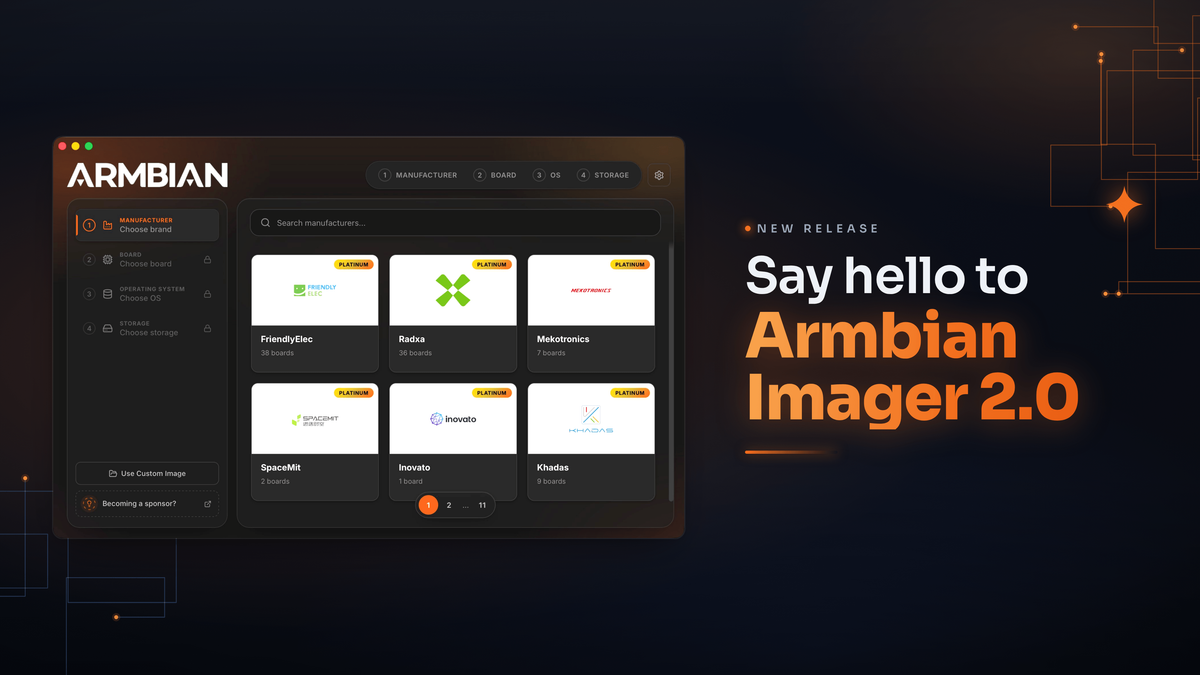
We're releasing Armbian Imager 2.0. We rebuilt the whole thing, the interface and the flashing engine underneath it. The part you'll notice first: your board boots already set up. Username, password, Wi-Fi, timezone, language. You tell Imager once, it writes that into the image, and the board comes up configured on first boot. No monitor, no keyboard, none of that blind first login.
Set it up once. It configures itself.
This is the big change in 2.0. You build a profile in settings: username and password, an SSH key, your Wi-Fi network and country code, timezone, locale, shell. Imager writes it straight into the image's filesystem while it flashes. Power on the board, it reads the profile and brings itself up. Qualcomm boards over QDL get the same treatment.
It's the difference between "flash, hook up a screen and keyboard, sit through the setup" and "flash, slot the card, switch on." I didn't expect to care this much about it, and now I can't flash without it.
Pick everything on one screen
The old pop-up windows are gone. In their place is a single animated flow: manufacturer, board, OS, device, all on one page that moves with you. You page through the board and vendor grids, the distro logos are drawn by hand, and the app glides instead of slamming between screens. Settings got the same redesign. So did the cache manager, which now shows where your gigabytes actually went, by category, and clears them in a tap.
Know what you're writing before you write it
Every image tells you what it is up front: build date, badges for the desktop and the kernel branch, a label when it ships with something preinstalled like the SDK build, openHAB, or Kali. Anything you've already downloaded carries a small check, so you don't pull it twice. If you want the trunk rolling releases, there's a filter for them, with a plain warning before you commit. And images that can't be written to a card, like the VM disk formats, simply aren't in the list.
Every write, checked byte for byte
The download is verified against its SHA256. After writing, the app reads the card back and compares it to the source, byte for byte. While that runs, your board floats over a warm glow that follows the progress, with one line telling you the stage instead of a wall of numbers. When the check turns green, it's because the data on the card matches. Not because we're optimistic.
Bring your own images, online or offline
Have an image of your own? Drop it in. We handle img, iso, xz, gz, bz2, and zst, and decompress before writing. Lose your connection partway through the day and Imager still works: the offline mode was reworked so your cache and your own files stay one click away.
The same app on Mac, Linux, and Windows
Same look and behavior on all three. On Mac it's a single universal build for Intel and Apple Silicon. Pick a light theme, a dark one, or let it follow the system. Eighteen languages, chosen automatically from your locale. Free and open source, the way it started.
Get it
Armbian Imager 2.0 is available now, free, on Mac, Linux, and Windows. It does the same job it always has, writing a good image to a card. The new part is what happens after: you power the board on, and it's already yours.