







A couple of years ago I got the Elgato Stream Deck XL. For those of you not familiar with the Stream Deck XL, it is a “macro” controller of sorts where each button is a LCD screen that you can fully customize in terms of both image and functionality. It connects to your PC or Mac via a USB cable and the software running on your computer is how you program each button.
There are many, many dozens of plugins to do almost anything imaginable with the Stream Deck. I’m not a gamer or streamer, so this post is focused on “productivity” uses of the Elgato Stream Deck XL. They also make a smaller version, which I initially bought. But I found so many uses that I quickly outgrew the smaller version. If you have the space, I strongly recommend starting with the XL as you will discover more and more uses over time.
I’m a Mac user, however most of the button functions I’m using are available to PC users as well. There are some Mac specific plugins like ones to run Apple Shortcuts, Apple scripts, etc. I am using the Stream Deck to launch a few Mac apps, which is super easy to do.
If you like the button images that I have, most of them are from the Fluency collection on icons8.com. The free 96×96 PNGs are perfect for the Stream Deck. The Stream Deck desktop app has a huge list of plugins, but there are also some outside of their app store. You can find the Unofficial Stream Deck Plugin list here.

My Stream Deck
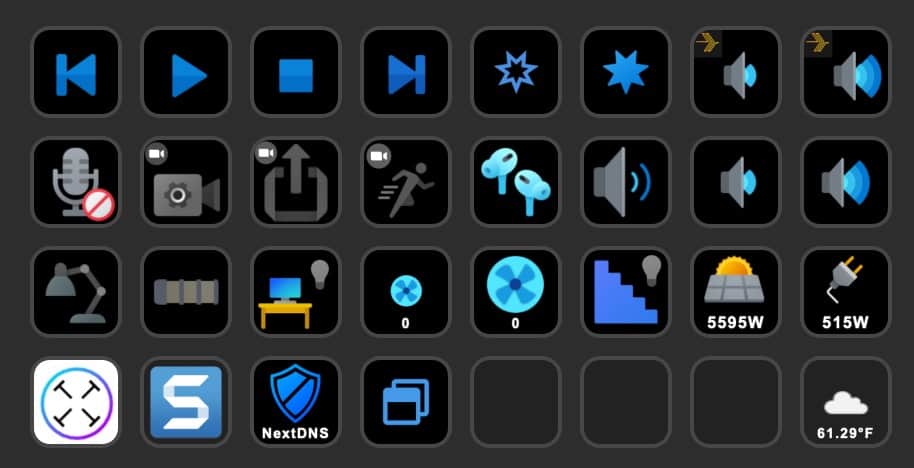
The image below is my current Stream Deck XL configuration. Out of the 32 buttons, all but three have a function. You can add multiple pages (and even folders), so you aren’t limited to a single layout. As I mentioned earlier, my layout is very productivity focused. So I have functions to control PlexAmp (music player), Zoom/Teams, audio mute/volume, smart home controls, launch apps/websites, and keep tabs on my solar production plus household power consumption. I will dive deeper into each each row to explain what plugins I’m using and what it does.
Music Controls

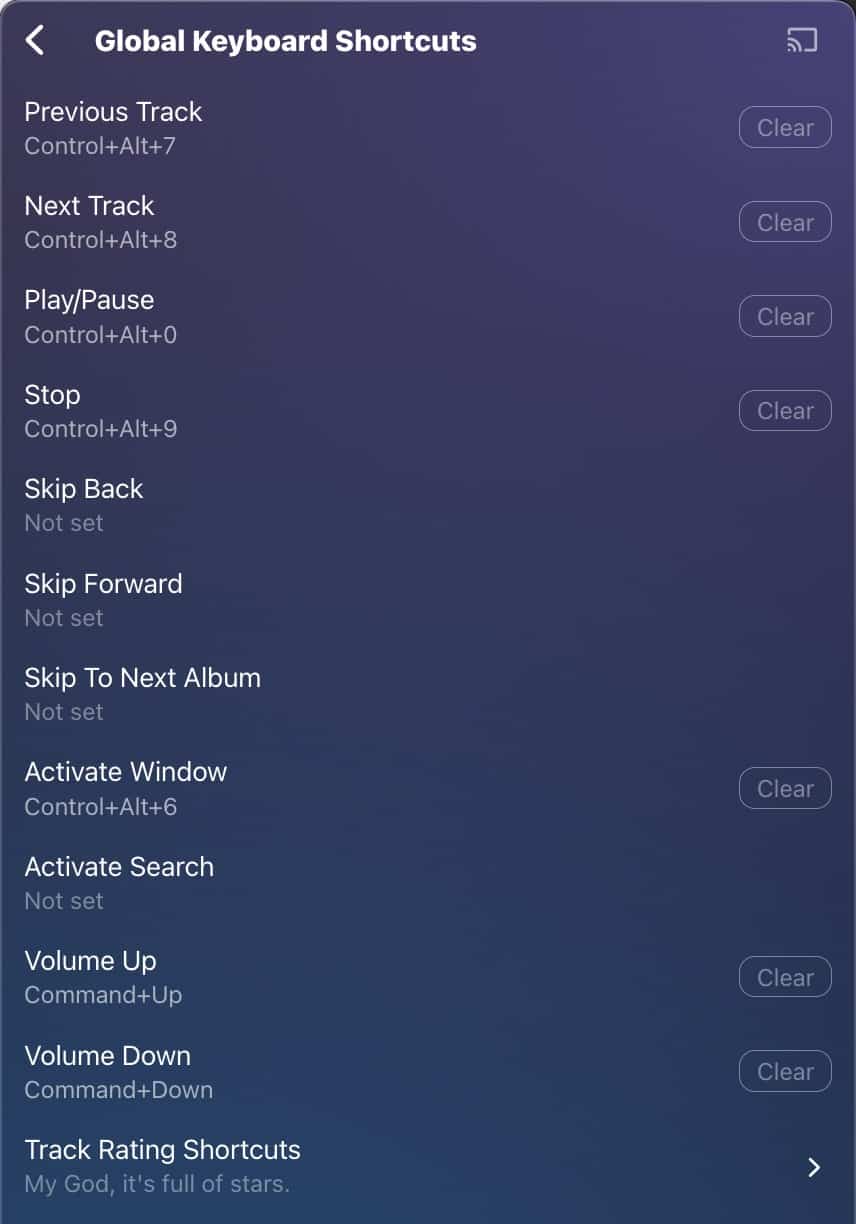
The top row of my Stream Deck is dedicated to PlexAmp controls (image above). PlexAmp is a music player that leverages a Plex server back-end, which is running on my Synology. The first four buttons, starting on the left, are playback controls:
- Previous Track (HotKey)
- Play (Multi action)
- Pause (Multi action)
- Next Track (HotKey)
The next four buttons control “star” ratings of music and volume. I have a dedicated DAC/Amp setup for my headphones, so the volume controls only change the DAC volume not the volume of other outputs.
- Rates a track “1” star and skips to the next track (Multi Action)
- Rates a track “5” stars and does not skip (HotKey)
- Headphone volume down (HotKey)
- Headphone volume up (HotKey)
PlexAmp is very configurable in terms of keyboard shortcuts, so you can control many aspects of player with your keyboard, or Stream Deck “hotkey” controls. For Play/Pause I actually use multi action controls. Why? When I press Play, PlexAmp starts playing and I disable the screensaver/screenlock via Amphetamine. This allows me to work on my corporate Mac while playing music on my personal Mac and the screen won’t lock due to inactivity. Pausing the playback disables Amphetamine, so the screen will lock normally.
Online Meetings & System Audio


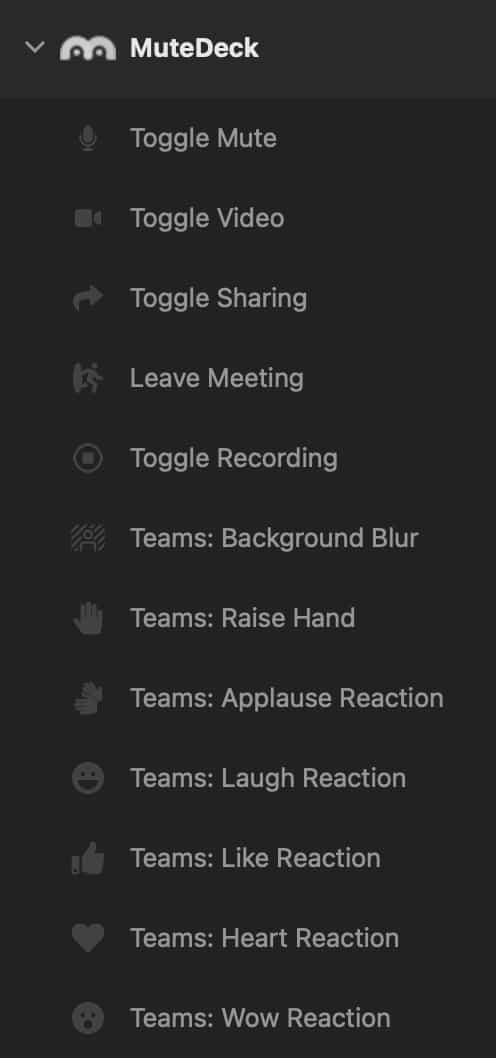
The next row on my Stream Deck is mostly used for online meetings (images above). The first four buttons are assigned to the MuteDeck add-on. MuteDeck is a paid app (Mac and PC) that gives you universal controls over Zoom, Teams, Google Meet, Webex, and other online meeting apps.
This is great, since common functions like mute and camera functions can be assigned to a single button, yet work across many conferencing platforms. These buttons also reflect the actual state of the function (e.g. muted or unmuted) with different images so you know at a glance what’s going on with your meeting. I used greyed out icons for their ‘disabled’ state, meaning I’m not joined to a meeting so the buttons have no function. If I join a meeting then the icons turn blue indicating that I’ve joined a meeting. MuteDeck has more functions than what I’m using. It has seven Teams specific actions like Raise Hand and background blur.
From left the right the first four buttons:
- Mute/Unmute microphone (MuteDeck)
- Start/Stop webcam (MuteDeck)
- Share/Unshare your screen (MuteDeck)
- Leave the meeting (MuteDeck)
The next four icons control system-level settings. The AirPods Pro button is a hot key for the Mac “ToothFairy” app. This allows you to assign a keyboard shortcut to connect/disconnect a Bluetooth device like my AirPods Pro 2. Unfortunately the icon can’t indicate if they are actively connected or not.
The next three icons control system audio function such as muting speakers and volume up/down. The speaker mute/unmute is a real time status, so if my speakers are muted I see a red “X” by the icon instead of soundwaves. The mute state always shows the current system state, so no matter how you mute/unmute the icon is accurate in real time. This is handled by the “Toggle Mute” plugin. System volume up/down are the basic Stream Deck multimedia controls.
The right four buttons are:
- AirPods connect/disconnect (Hotkey)
- System speaker mute/unmute (Toggle Mute)
- System volume down (multimedia)
- System volume up (multimedia)
Smart Home Controls


I’m really excited about this row, as its functionality is brand new as of this week! I’ve had a smart home for a while, using the Hubitat C8 controller along with Philips Hue lights, among other devices. And while I did control devices with the Hubitat and Hue Stream Deck plugins, their functionality was super limited and boring. I do NOT want limited nor boring.
A couple of weeks ago I installed Home Assistant, and really love its functionality. It has a very robust Stream Deck plugin which has opened up a new world of smart home control and status via the Stream Deck.
There are three things I really like about the Home Assistant plugin. 1) The icon state reflects the real world status of the light, no matter how I control the light be it physically, from the Stream Deck, or any other means like Apple Home. The status is updated instantly. 2) I love is the ability to display real time sensor data. In my case, I display the real time solar production and whole house power usage in watts. This updates every 15 seconds or so. 3) For fan controls it displays the real time speed of the fans, again, no matter how I control the fan. I can also long press a key to turn off the fan.
The possibilities here are endless. This whole row isn’t using a single Home Assistant automation. It’s just entity control and sensor data. So you could do a lot more complex controls if you wanted to. I also setup the button icons to have a different appearance whether the lights are on or off. This too is updated in real time, no matter what method I use to control the lights.
From left to right:
- Toggle BenQ Screenbar Halo monitor light (Home Assistant)
- Toggle desk rear LED strip (Home Assistant)
- Toggle all office lights (Home Assistant)
- Reduce ceiling fan speed (Home Assistant)
- Increase ceiling fan speed (Home Assistant)
- Toggle stairs lights (Home Assistant)
- Real-time solar production (Home Assistant)
- Real-time household power usage (Home Assistant)
The BenQ Screenbar Halo isn’t a smart device, so I have a z-wave smart outlet that turns it off and on. This outlet is paired to my Hubitat hub, but is then exposed to Home Assistant via API. Down the road I want to ditch z-wave and go all Thread/Matter.
App Shortcuts and Weather

The last row of my Stream Deck are application hot keys and weather. Text Sniper is a Mac OCR app that is more useful for me than Ventura’s Live Text. Snag-it is my go-to tool for screenshots. NextDNS is my pi-hole replacement that blocks ads, malware, and trackers at the DNS level. Moom is an awesome window management app for the Mac. The Moom hotkey snaps a set of pre-defined windows to their proper location. And the weather app shows real-time temp and sky information via Open Weather.
From left to right:
- Text Sniper (Hotkey)
- Snag-It (Hotkey)
- NextDNS (Website)
- Moom Profile (Moom profile activator)
- Real-time weather (Weather)
Summary
The Elgato Stream Deck is a very powerful productivity tool. The more you use it, the more you will discover ways to leverage its features. On a monthly basis my configuration changes slightly, depending on my needs. And now that I’ve discovered Home Assistant, that really opens up an entirely new world of possibilities.
There are over 100 plugins for the Stream Deck, so if you want to control something, you probably can. Plus you can do webhook calls, run scripts, etc. You can also have multiple pages, folders, and even setup multiple profiles that can be application specific. So if you launch, say Photoshop, you can have an entirely different configuration and can dedicate 32 (or more) buttons just to Photoshop functions.
If you have even the slightest interest in the Stream Deck, I urge you to get one. I am more productive and make more efficient use of my time with one. And I’ve just configured one page. I could be doing so much more! If budget and space allow, get the XL edition.

Related Posts


6 thoughts on “My Stream Deck Productivity Setup (2023 Edition)”
Marius
Hi, cool setup. Could you please share how you’re able to control the screenbar via Home Assistant? I was unable to find any details.
Sure! I have a smart plug that is controlled by Home Assistant. The Halo Screener has ‘last power state’ memory, so if the Halo was turned on when power was cut, it will turn on the next time power is back on.
Marius
Ah, makes sense. I did not think of the ‘previous state’ functionality. I’ll be implementing this as well!
Cool!
liam
When I set a hot key for Next Track on Plexamp It only works if the next song is on the same album as the current song playing. I have a playlist created in Plexamp with multiple Genres/albums/songs. How would I get it to play the next song in line?
Thanks.
Sounds like a Plexamp bug. I’d report the issue on the Plex forums. I’ve never had any issue with next/previous track working 100% of the time.