





Windows Terminal最近出了1.0版本,界面非常美观,但要配置好还是要下一番功夫,而且网上的教程都是互相抄,所以特将我的配置过程记录如下。
首先是字体,默认字体英文不错,但中文挺不好看的,而Windows Terminal不支持单字节字符和双字节字符配置不同的字体,所以我找到了一个合成字体的网站,将英文的Consolas字体和和中文的楷体合并成了一个字体,然后双击安装。在配置文件的defaults标签下修改fontFace为字体的名字,fontSize为字体的大小,这是使用了合成字体的界面: 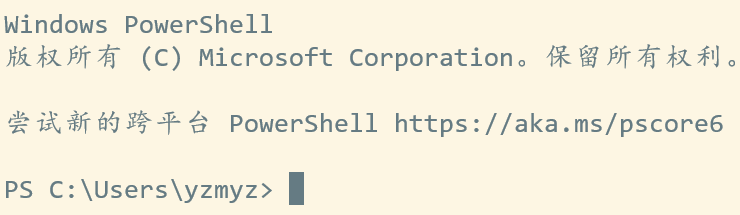
接着是背景图片,在配置文件的defaults标签下添加如下属性:
"backgroundImage": "D:\\images\\image.jpg",
"backgroundImageOpacity": 0.2,
"backgroundImageStretchMode": "uniformToFill",第一个属性是路径,第二个是透明度,第三个是拉伸方式,拉伸方式有四种取值,可以参考微软官方文档,建议使用uniformToFill,它能在保持图片分辨率的同时将图片拉伸充满窗口。
Windows Terminal自带可以更换的主题可以在官方github上面看到,因为我的背景图是暖色调的,所以我选择了Solarized Light这一主题,不过使用该主题会造成一些地方的颜色看不太清楚,比如此主题下运行vim的查找字符串高亮显示背景和文字的颜色就过于接近,看不清楚;我所使用的文件管理器vifm的当前行高亮也看不太清楚,PowerShell的一些字符也被背景掩盖,所以需要自己修改一下。这是我自己定制的Solarized Light主题:
        {
            "name": "My Solarized Light",
            "black": "#073642",
            "red": "#dc322f",
            "green": "#859900",
            "yellow": "#b58900",
            "blue": "#268bd2",
            "purple": "#d33682",
            "cyan": "#2aa198",
            "white": "#eee8d5",
            "brightBlack": "#002b36",
            "brightRed": "#cb4b16",
            "brightGreen": "#586e75",
            "brightYellow": "#657b83",
            "brightBlue": "#9ce3f8",
            "brightPurple": "#6c71c4",
            "brightCyan": "#859595",
            "brightWhite": "#fae7b3",
            "background": "#fdf6e3",
            "foreground": "#657b83"
        }
修改了brightBlue和brightCyan属性,同时将cursorColor属性改成了#657b83使得光标文字保持同个颜色,这个属性既可以出现在主题中也可以出现在前面的全局配置中,我放在前面了。如果还有显示不清楚的地方,可以用QQ的截图功能对想要修改的颜色区域进行取色,切换成十六进制后在主题中查找它对应的属性名然后修改。 以上可以解决各种程序的显示不清楚问题,但Powershell的问题本质上是Powershell语法高亮的问题,和Windows Terminal的主题无关,所以需要在PowerShell的配置文件里面修改。进入PowerShell,运行gvim $profile(gvim可以改成notepad等编辑器),然后输入下面的命令:
Set-PSReadLineOption -Colors @{
    Number = 'DarkBlue'
    Member = 'DarkBlue'
} -EditMode 'Vi'
其中将Number和Member这两个token的颜色改成蓝色,因为原来的颜色就是黄色,和Solarized Light的背景颜色混起来看不清楚,如果还有显示不清楚的token,可以参考MSDN进行修改,editmode参数的修改属于我的个人喜好,Emacs党可以把Vi换成Emacs,都不是的就去掉这个参数即可。
// This file was initially generated by Windows Terminal 1.0.1401.0
// It should still be usable in newer versions, but newer versions might have additional
// settings, help text, or changes that you will not see unless you clear this file
// and let us generate a new one for you.

// To view the default settings, hold "alt" while clicking on the "Settings" button.
// For documentation on these settings, see: https://aka.ms/terminal-documentation
{
    "$schema": "https://aka.ms/terminal-profiles-schema",

    "defaultProfile": "{0a920985-e2e7-4fe2-8610-f29c814c920a}",

    // You can add more global application settings here.
    // To learn more about global settings, visit https://aka.ms/terminal-global-settings

    // If enabled, selections are automatically copied to your clipboard.
    "copyOnSelect": true,

    // If enabled, formatted data is also copied to your clipboard
    "copyFormatting": true,
    "initialRows": 25,
    "initialCols": 80,

    // A profile specifies a command to execute paired with information about how it should look and feel.
    // Each one of them will appear in the 'New Tab' dropdown,
    //   and can be invoked from the commandline with `wt.exe -p xxx`
    // To learn more about profiles, visit https://aka.ms/terminal-profile-settings
    "profiles":
    {
        "defaults":
        {
            // Put settings here that you want to apply to all profiles.
            "fontFace": "KaiConsolas",
            "fontSize": 16,
            "cursorShape": "filledBox",
            "cursorColor": "#657b83",
            "backgroundImage": "D:\\images\\image.jpg",
            "backgroundImageOpacity": 0.2,
            "colorScheme": "My Solarized Light"
        },
        "list":
        [
            {
                // Make changes here to the powershell.exe profile.
                "guid": "{61c54bbd-c2c6-5271-96e7-009a87ff44bf}",
                "name": "Windows PowerShell",
                "commandline": "powershell.exe",
                "hidden": false
            },
            {
                "guid": "{0a920985-e2e7-4fe2-8610-f29c814c920a}",
                "hidden": false,
                "name": "Vifm",
                "commandline": "D:\\Apps\\vifm-w64-se-0.10.1-binary\\vifm.exe",
                "startingDirectory" : "D:\\"
            },
            {
                // Make changes here to the cmd.exe profile.
                "guid": "{0caa0dad-35be-5f56-a8ff-afceeeaa6101}",
                "name": "命令提示符",
                "commandline": "cmd.exe",
                "hidden": false
            },
            {
                "guid": "{2c4de342-38b7-51cf-b940-2309a097f518}",
                "hidden": false,
                "name": "Ubuntu",
                "source": "Windows.Terminal.Wsl"
            },
            {
                "guid": "{b453ae62-4e3d-5e58-b989-0a998ec441b8}",
                "hidden": false,
                "name": "Azure Cloud Shell",
                "source": "Windows.Terminal.Azure"
            }
        ]
    },

    // Add custom color schemes to this array.
    // To learn more about color schemes, visit https://aka.ms/terminal-color-schemes
    "schemes": [
        {
            "name": "My Solarized Light",
            "black": "#073642",
            "red": "#dc322f",
            "green": "#859900",
            "yellow": "#b58900",
            "blue": "#268bd2",
            "purple": "#d33682",
            "cyan": "#2aa198",
            "white": "#eee8d5",
            "brightBlack": "#002b36",
            "brightRed": "#cb4b16",
            "brightGreen": "#586e75",
            "brightYellow": "#657b83",
            "brightBlue": "#9ce3f8",
            "brightPurple": "#6c71c4",
            "brightCyan": "#859595",
            "brightWhite": "#fae7b3",
            "background": "#fdf6e3",
            "foreground": "#657b83"
        }
    ],

    // Add custom keybindings to this array.
    // To unbind a key combination from your defaults.json, set the command to "unbound".
    // To learn more about keybindings, visit https://aka.ms/terminal-keybindings
    "keybindings":
    [
        // Copy and paste are bound to Ctrl+Shift+C and Ctrl+Shift+V in your defaults.json.
        // These two lines additionally bind them to Ctrl+C and Ctrl+V.
        // To learn more about selection, visit https://aka.ms/terminal-selection
        // { "command": {"action": "copy", "singleLine": false }, "keys": "ctrl+c" },
        // { "command": "paste", "keys": "ctrl+v" },

        // Press Ctrl+Shift+F to open the search box
        { "command": "find", "keys": "ctrl+shift+f" },

        // Press Alt+Shift+D to open a new pane.
        // - "split": "auto" makes this pane open in the direction that provides the most surface area.
        // - "splitMode": "duplicate" makes the new pane use the focused pane's profile.
        // To learn more about panes, visit https://aka.ms/terminal-panes
        { "command": { "action": "splitPane", "split": "auto", "splitMode": "duplicate" }, "keys": "alt+shift+d" }
    ]
}
此内容由惯性聚合(RSS阅读器)自动聚合整理,仅供阅读参考。 原文来自 — 版权归原作者所有。