





In the era of LLM AI chat bots, this was suggested by ChatGPT as a solution for me to upgrade from Fedora 42 to 43. See this discussion for the context.
TL;DR. I moved my Citrix application from native to toolbox (Fedora’s version of distrobox), and it works well!
Here is how I did it in a step by step guide.
In the terminal console (Konsole?).
toolbox create --release 22.04 --distro ubuntutoolbox enter ubuntu-toolbox-22.04This creates a new container with Ubuntu 22.04 as the base. I chose this over Fedora because Ubuntu in general has better support with commercial partners such as Citrix. Besides, Ubuntu LTS enjoys a longer support than Fedora. Since my whole point here is to have a working Citrix receiver application (or Citrix Workspace Launcher), I need a container that is not going to be EOL anytime soon.
The second command enters the container, note that toolbox mounts the home directory and it is bidirectional. This works fine in my use case. If you don’t like that, you are better off using distrobox.
Now we can install the ICA client (assume that you’ve already downloaded the DEB package from Citrix website yourself).
sudo apt update
sudo dpkg -i Downloads/icaclient_<VERSION>_amd64.deb
sudo apt --fix-broken install
sudo dpkg-reconfigure locales
The last step here is important, especially if your language and keyboard layout is not English (US).
If the only thing you need is the receiver, run /opt/Citrix/ICAClient/wfica and fix any broken/missing dependencies with apt (it seems Citrix doesn’t declare the full dependencies in its package metadata). If you need the workspace launcher, then do the same, but for /opt/Citrix/ICAClient/selfservice.

You should be able to see the GUI dialog (it should work, out-of-the-box).
Taking KDE Plasma Desktop as an example, you can add desktop launchers by right clicking the Application Launcher (Linux’s version of Start menu) -> Edit Applications…
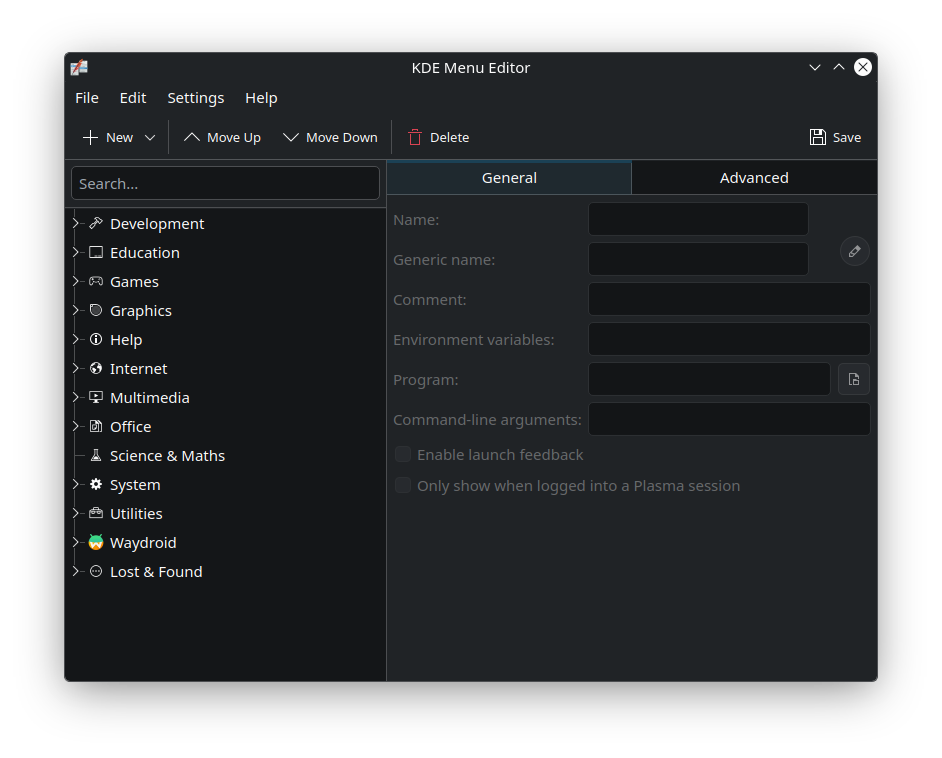
This launches KDE Menu Editor, now click New -> New Item… in the toolbar, and add a launcher for Citrix Receiver manually:
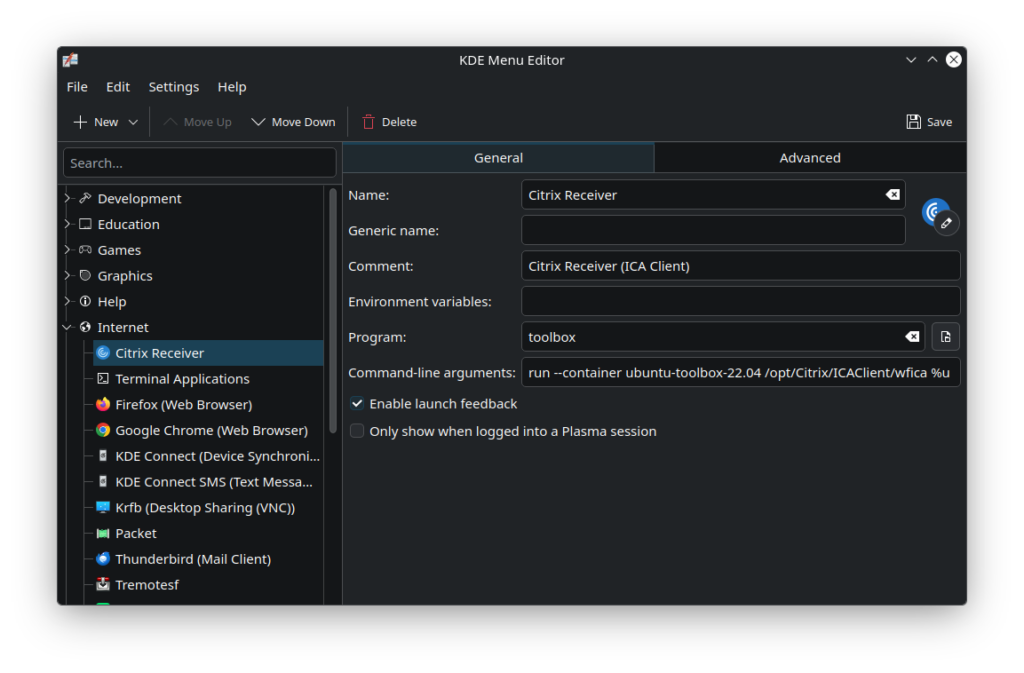
| Field | Value |
| Name | Citrix Receiver |
| Program | toolbox |
| Command-line arguments | run --container ubuntu-toolbox-22.04 /opt/Citrix/ICAClient/wfica %u |
You should adjust these based on your setup if you use distrobox other than toolbox, and if you use a different Linux distro or version.
Use selfservice other than wfica if you want a launcher for the workspace launcher instead of (or in addition to) the receiver.
Lastly, let’s associate the .ica files with the receiver. Once you have an .ica file downloaded, right click and choose to open it with other application.
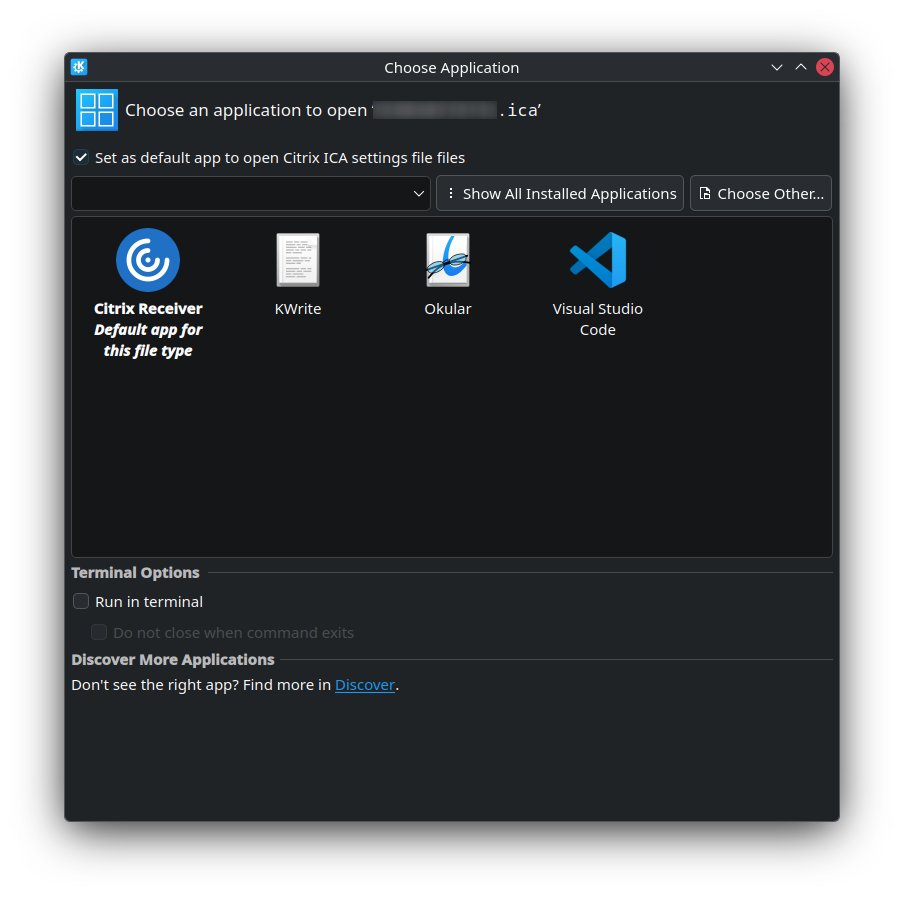
Click “Show All Installed Applications” if you don’t see Citrix in the list. Tick “Set as default app to open Citrix ICA settings file files”, then click Citrix Receiver.
If you want to use the stock icons from Citrix (as shown in the screenshot above), you can find them inside toolbox -> /opt/Citrix/ICAClient/icons, though to use them in the host (Fedora), you’ll need to copy them out.
Now I can remove ICAClient from the host, and do an upgrade from Fedora 42 to Fedora 43 (Kinoite):
sudo rpm-ostree remove ICAClient
sudo rpm-ostree rebase fedora:fedora/43/x86_64/kinoite
此内容由惯性聚合(RSS阅读器)自动聚合整理,仅供阅读参考。 原文来自 — 版权归原作者所有。