






Last Updated:
We show you how to test with Cookies in GTmetrix to bypass age gates, login pages, and more!
Overview
GTmetrix offers the ability to pass through cookie data in tests, and generate reports of logged-in pages or pages that use cookies to store user information and other preferences.
In this guide, we’ll show you how to view cookies, format them for use in GTmetrix, and how to test with them.
What Does the Cookies feature Do?
The Cookies feature in GTmetrix populates our browser with the inputted cookie data, allowing you to simulate a real user’s session i.e., load the page with specified user preferences.
This is useful in various situations, including:
- Testing logged-in pages
- You can pass the cookie session data to bypass the login screen.
- Bypassing age-gates on pages
- You can pass through cookie data to enable our browser to bypass the age-gate.
- This can be used to test page load behind the age verification modal.
- …any other cookie functionality on sites
- For example, you can pass through cookie data normally stored when a user consents to cookie usage on your site.

You can pass through cookies in GTmetrix and bypass things like age-gates for example, allowing you to test the full page behind the age-gate.
The Cookies feature in GTmetrix is not limited to the above use-cases.
In fact, if your site stores the page state (or any user preferences) using cookies and you want to initialize the GTmetrix test to that state, you can use the Cookies feature.
How to Obtain Cookie data
One way to obtain the desired cookie data is by going to your browser’s settings and viewing cookie history. In this guide, we’ll be showing you how to do this with Google Chrome.
Follow the instructions below to find your cookies:
1) Open up Chrome, load your page and generate the desired cookies
Once your page is loaded, do whatever is required to make the website generate the cookies data you wish to passthrough.
This could be logging into an account, clicking “Accept Cookies,” or inputting a birthdate for an age-gate.
Do not close this tab on your browser to ensure your browsing session stays alive.
If you wish to monitor this page, make sure you log in with a permanent session (Enabling the “Remember me” or “Keep me logged in” option).
Note: Please use a test account
While cookie information is stripped from the report, it’s still best to use a test account with limited privileges for security purposes.
2) Launch Chrome Developer Tools
While your site is open on your browser’s tab, launch DevTools, either by:
- Clicking on the “3 dots” on the top right-hand corner of your Chrome browser, then navigating to Developer Tools under “More Tools”. OR
- Pressing F12, or Ctrl + Shift + I (Command + Option + I on a Mac) on your keyboard.
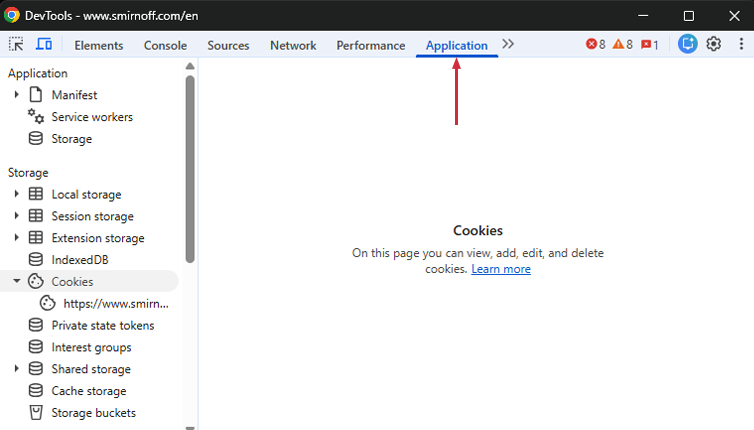
Launch DevTools and navigate to the Application tab.
Then click on the Application tab in the top menu.
3) In the Storage menu on the left, click on your site to display full list of cookies
You’ll find this option under the “Cookies” sub menu. Click on your site and a full list of your site’s cookies should be displayed.
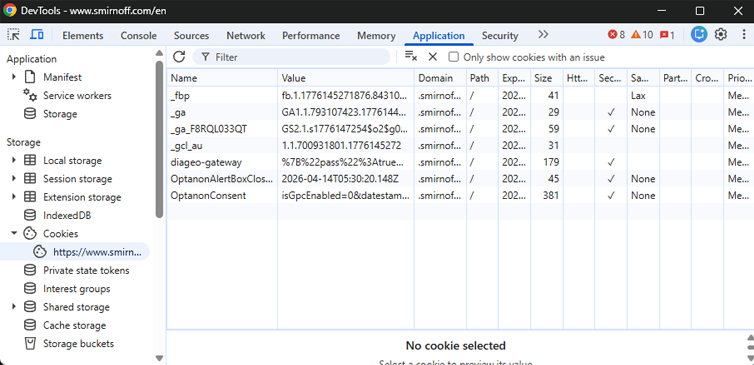
Click on your site in the Storage menu under “Cookies”, and you should see a full list of your site’s cookies.
4) Find the relevant cookie
You’ll need to find the cookie data related to what you’re trying to do (i.e., testing a logged-in session, bypassing age-gate, etc.).
Pay attention to the cookie names and look for prefixes or identifiers that hint at their functionality.
For example, logged-in session related cookies commonly contain some reference to the following:
- session
- logged_in
- user
- id
- sid
Here’s an example of what a cookie might be for an age verification modal:
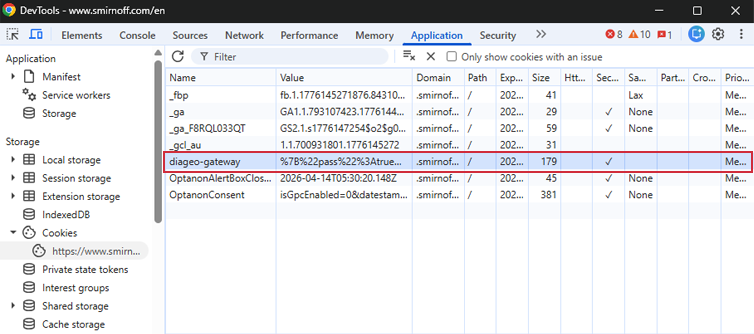
Scan the cookie names and values for identifiers that hint at functionality (e.g., age, login, gateway, etc.)
Make a note of all the cookie’s details, particularly the Name, Value, and Domain. If the httponly, samesite, and/or secure flags have been set, make note of that as well.
If you cannot find your relevant cookies, you may need to input all of the stored cookies for your site. More on this here.
Alternative ways to view cookies
Refer to this guide for instructions on viewing cookies in other browsers such as Firefox, Safari, and Microsoft Edge.
You can also use cookie viewer extensions like EditThisCookie to easily find your cookie data.
How to Format the Cookie Data for GTmetrix
Once you’ve identified your desired cookies, you’ll need to format them for usage in GTmetrix testing.
We’ll walk you through Basic and Advanced methods to getting your cookie data formatted properly.
Basic Format
The basic format for inputting cookies uses the following syntax:
cookiename=content
where cookiename and content are the Name and Content values for the particular cookie.
Note: If the host or path cookie options are not defined, the cookie will default to using the analyzed URL’s domain for host and / for path. More on this below.
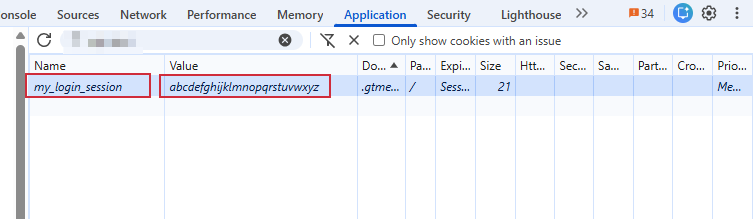
Copy the Name and Value here.
Examples
To input the cookie in the above screenshot, you would format it in the following way:
my_login_session=abcdefghijklmnopqrstuvwxyz
If you want to supply multiple cookies, you can do so by entering each cookie on a separate line:
my_login_session=abcdefghijklmnopqrstuvwxyz
my_session=gtmetrix%session%2026
Advanced Format
With the advanced format, you can specify cookie option(s), which are optional parameters specific to the cookie(s) defined on the same line.
The advanced format for inputting cookies uses the following syntax:
cookieoption=value cookiename=content
If you need to use multiple cookie options, you can separate them using a space, as follows:
cookieoption1=value cookieoption2=value cookiename=content
You can also supply multiple cookies along with cookie options. This can be done in two ways:
1) Multiple cookies on the same line
Each cookie can be specified on the same line by separating them using semicolons.
cookieoption=value cookiename1=content; cookiename2=content
2) Each cookie on a separate line
You can supply each cookie on a new line, provided you specify the cookie options as well.
cookieoption=value cookiename1=content
cookieoption=value cookiename2=content
Cookie options themselves use the following format:
cookieoption=value
There are 5 cookie options available:
Refer to this documentation to learn more on these cookie options.
Note: Specifying Host and Path is Optional
If the host or path cookie options are not defined, the cookie will default to using the analyzed URL’s domain for host and / for path.
Examples
Let’s say you have the below cookie with some of the flags selected.
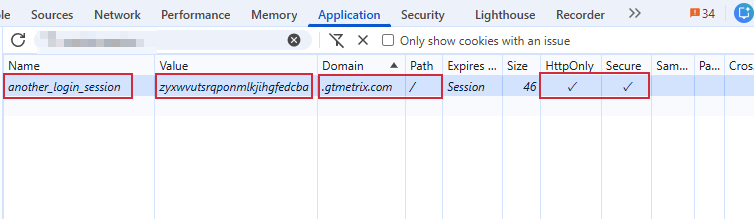
Copy the Name and Value here (Domain, and Path are optional). The httponly and secure flags also have to be set.
You would format the cookie data as follows:
host=gtmetrix.com path=/ httponly=1 secure=1 another_login_session=zyxwvutsrqponmlkjihgfedcba
Note that host and path default to the analyzed URL and / respectively if they are not supplied. So, you don’t need to specify them in this case and the below format would suffice:
httponly=1 secure=1 another_login_session=zyxwvutsrqponmlkjihgfedcba
Multiple cookie options examples
As mentioned earlier, multiple cookie options can be inputted in two ways:
1) Multiple cookies on the same line
httponly=1 secure=1 another_login_session=zyxwvutsrqponmlkjihgfedcba; my_login_session=abcdefghijklmnopqrstuvwxyz
2) Each cookie on a separate line
httponly=1 secure=1 another_login_session=zyxwvutsrqponmlkjihgfedcba
httponly=1 samesite=None secure=1 my_login_session=abcdefghijklmnopqrstuvwxyz
How to Test With Cookies in GTmetrix
You will need to be logged in to your GTmetrix account to use the Cookies feature.
Follow the steps below to test your page with cookies:
1) On the Dashboard, input your URL, and click on Analysis Options

Click on “Analysis Options” to expand the Analysis Options module.
2) Expand the Advanced Options field
Click the “Advanced Options” button to reveal the Cookies field to input your cookie data.
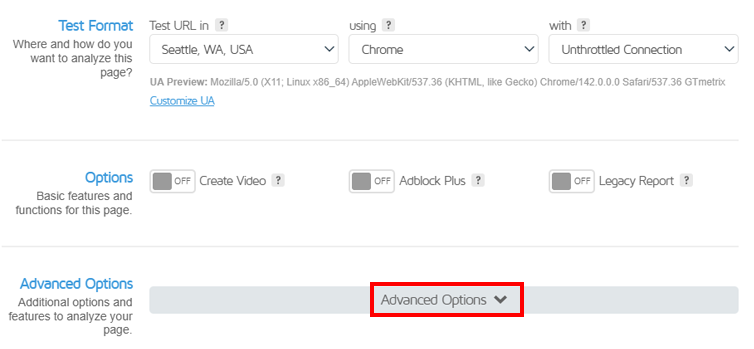
Expand the Advanced Options field to reveal the Cookies field.
3) Enter your cookie data in the Cookies field
Input your formatted cookies in the Cookies field.
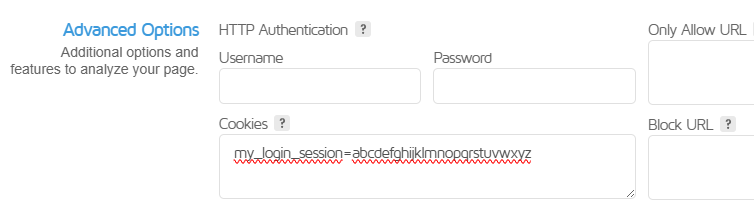
Input your cookie data in the GTmetrix format to analyze your page according to user preferences.
If you’re unsure which cookies to supply, there’s no harm in supplying all of your site’s cookies. Make sure that your cookie data is formatted for GTmetrix analysis.
Click on “Analyze“. GTmetrix should now use your cookie data to load the page with the desired user preferences.
Testing With All Cookies
You may discover that you cannot easily find the relevant cookie to generate the desired GTmetrix Report of your page.
In this case, you can try passing through all cookies your browser has stored for your page, and see if GTmetrix generates the desired result.
1) Find all of your website’s cookie data
Obtain your website’s cookie data with the methods described above.
2) Copy all the cookie data
Record all of your cookies one-by-one in the format described in the formatting section above.
If the list is very long, select the first cookie row and then press Ctrl + A to select all cookies, then copy paste them into a separate text file for easier editing.
For example, testing a standard logged-in WordPress install might look like this:
privacy[consent_types]=%5B%5D
wordpress_logged_in_9c3sdf3sdv123z44a=user%ABCDEFGHIJKLMNOP1234567
wordpress_sec_9c3sdf3sdv123z44a=user%ABCDEFGHIJKLMNOP1234567
wordpress_sec_65lvi4m22spac45a=user%12345678910abcdefghijk
wordpress_test_cookie=WP+Cookie+check
wp-settings-1=4co4lfo556ddlba
wp-settings-time-1=1617269605
Alternatively, use cookie viewer extensions like EditThisCookie to easily copy paste all your cookie data.
3) Test with the cookies in GTmetrix
Copy all of your formatted cookies into the Cookie field in your GTmetrix Analysis Options and see if your generated test yields the desired result.
If your test produces the desired result on your page, then one or more of those cookies are correct.
You can simply keep all the cookies for ongoing tests, or you clean up the cookie data by process of elimination, removing each one-by-one and re-testing so that you use only the relevant cookies in your tests.
Cookies May Expire
Keep in mind that not all cookies are permanent.
Depending on what cookies your site uses and how they’re set up, they may expire and require generation of new cookies for GTmetrix to continue testing pages successfully with cookies enabled.
You can find the expiry date when viewing the cookie data in your browser.
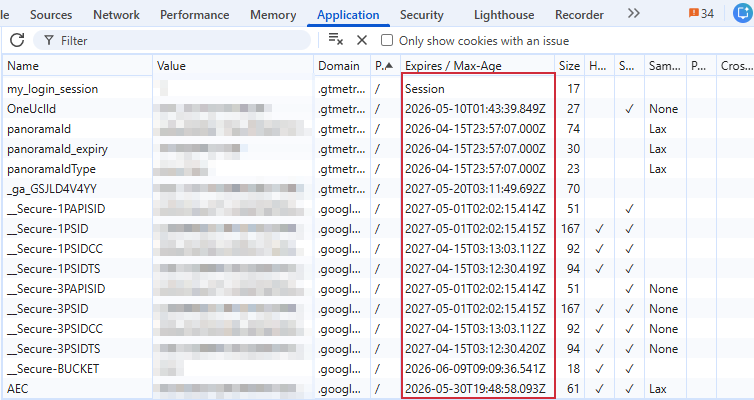
Some cookies expire in days while session cookies expire when the browsing session ends. You’ll need to re-input them.
Some cookies may expire after a few days or months while session cookies usually expire when the browsing session ends. This is particularly true for logged-in session data.
If you find your page no longer generates the desired result with cookies, then you may need to regenerate the cookie data and input them again in GTmetrix.
Monitored pages should use permanent cookies (Enabling the “Remember me” or “Keep me logged in” option) to ensure valid cookie data for longer periods.
Inputted Cookies Still Don’t Generate the Desired Result
If you’ve inputted your cookie data and find that GTmetrix still isn’t generating the desired result, your functionality may require more than just cookie data to work.
This is particularly the case when attempting to test behind a login screen, as web authentication can be done in a variety of ways.
Some of these additional methods include (but are not limited to):
- Web Storage (namely sessionStorage and localStorage)
Your page may utilize data that requires a specific storing method in the browser. GTmetrix does not currently have the ability to pass through such data when testing pages.
- HTTP header data
Your page may send additional data through HTTP request headers. GTmetrix does not currently have the ability to add or customize header data when testing pages.
If your page uses any other methods in the process to generate the functionality (i.e., log in, bypass age-gate, remembering navigation, etc.), then cookie data alone cannot reproduce the desired result.
Summary
In general, the testing methodology is the same for all cookies.
Depending on your page setup, you may need to pass through multiple cookies to get the desired page result to display. Keep in mind that cookies may expire and you may need to re-enter them.
The above examples serve as a guide to help understand how to find your own cookie data and format them for GTmetrix to test with.
Frequently Asked Questions (FAQ)
Here are some common questions about testing with cookies in GTmetrix.
What does the Cookies feature do?
It allows GTmetrix to load your page with predefined cookie data, simulating a real user session with saved preferences or login state.
Why would I test with cookies?
Common use cases include:
- Testing logged-in pages
- Bypassing age-gates or consent popups
- Simulating user preferences or saved states
How do I get cookie data from my browser?
Open your page, generate the desired state (e.g., log in/click on cookie consent/enter age in modal), then go to the Application tab of Chrome DevTools to view and copy cookie data.
Learn how to obtain cookie data.
What cookie details do I need?
At minimum you’ll need the Cookie’s name and value (i.e., content).
Optional fields include host, path, and httponly, secure, and samesite flags.
How do I format cookies for GTmetrix?
You can format your cookies with Basic or Advanced methods:
- Basic format:
cookiename=content- where
cookienameandcontentare the Name and Content values for the particular cookie. - If using multiple cookies, specify each cookie on a separate line.
- where
- Advanced format:
cookieoption=value cookiename=content- where you can specify
host,path,httponly,secure, andsamesitecookie options. - If using multiple cookies, separate them with semicolons or specify each cookie on a separate line.
- where you can specify
What are cookie options used for?
They define how cookies behave, such as:
- Which host/path they apply to
- Whether they are secure or restricted
- How they behave across requests
Where do I input cookies in GTmetrix?
Go to Analysis Options -> Advanced Options -> Cookies, then paste your formatted cookie data.
What if I don’t know which cookies to use?
You can try inputting all cookies from your browser, then refine by removing unnecessary ones.
Can I test logged-in pages with cookies in GTmetrix?
Yes, passing session cookies can let GTmetrix bypass login screens and test authenticated pages.
Do cookies expire?
Yes, some cookies (especially session cookies) expire quickly and may need to be regenerated.
Why is my test no longer working with cookies?
Your cookies may have expired, or the session is no longer valid. Generate fresh cookies and try again.
What if cookies don’t produce the expected result?
Your site may rely on additional mechanisms such as:
- localStorage or sessionStorage
- HTTP headers or authentication flows
GTmetrix cannot currently replicate these.
Should I use a real account for testing?
No, use a test account with limited permissions for security reasons.
Can I use cookies for monitoring?
Yes, but ensure you use persistent cookies (e.g., “Remember me”) so they remain valid over time.
Test with different countries, speeds and options
Get access to more Test Locations, Analysis Options and Connection Speeds!
Sign up for a Basic GTmetrix account and see how your site performs in more scenarios – It’s FREE!