



惯性聚合 高效追踪和阅读你感兴趣的博客、新闻、科技资讯
阅读原文 在惯性聚合中打开

推荐订阅源

D
DataBreaches.Net
有赞技术团队
有赞技术团队
Jina AI
Jina AI
H
Help Net Security
D
Docker
钛媒体:引领未来商业与生活新知
钛媒体:引领未来商业与生活新知
Blog — PlanetScale
Blog — PlanetScale
Hugging Face - Blog
Hugging Face - Blog
罗磊的独立博客
MyScale Blog
MyScale Blog
N
Netflix TechBlog - Medium
B
Blog RSS Feed
Martin Fowler
Martin Fowler
WordPress大学
WordPress大学
T
The Blog of Author Tim Ferriss
U
Unit 42
Cyber Security Advisories - MS-ISAC
MongoDB | Blog
MongoDB | Blog
美团技术团队
M
MIT News - Artificial intelligence
阮一峰的网络日志
阮一峰的网络日志
博客园 - 司徒正美
Microsoft Security Blog
IT之家
IT之家

James Zhan in real life.

Signal…Kind of Sucks as a Messaging App Weeknotes #5, August 17–23 Stop Trying to Distinguish AI-Generated Writing From Human Writing Because You Can’t Weeknotes #4, August 10–16 Weeknotes #3, August 3–9 Weeknotes #2, July 27–August 2 Weeknotes #1, July 20–26 “No AI” Statements Are Much More Than Mere Statements Do We Have a Future? To Comment Section or Not Re: “Bloggers, can we make better titles for our posts?” No, but maybe… Responsive List Spacing for Bear Blog Canada Day Sent Me to the Emergency Room Thank You, Canada Blog Redesign (V4) and a Deep-Dive Into Typography The Worst Way to Teach Your Child to Care About Their Culture Shoulder Bag Rabbit Hole: PGYTech OneGo Solo V2 (6L) vs Ulanzi Travel Sling V2 (PB038/B120) An Underrated Feature of MacBook Neo: A Colour-Accurate Display (Neo vs Apple Studio Display) New Coffee Grinder, New Coffee Knowledge and New Roaster I Tried Nespresso for the First Time as a Coffee Snob My Love for Light Roast Coffee | Coffee Questionnaire Failed McDonald Logo and a Lamp With a Clock—What the Hell Happened to Apple’s Icon Design?! First Week of RTO in All Its Hilarity (And Some Nice Things) Major Blog Redesign (V3) 2025 Was My Least Productive Year, But… How I Accidentally Became a Professional Audio Engineer
BusyCal: A Calendar and To-Do List Hybrid Mac App That Fi...
jameszhanirl · 2026-08-09 · via James Zhan in real life.

I don’t know how I can live 31 years of my life and not have a solid task management system for anything, but I really don’t. The only “system” I’ve had is called “pick-up-a-new-app-use-it-for-3-months-and-ditch-it-for-another-app.” Some of the apps I’ve churned through were Remember the Milk, todoist, Things 3, Sorted 3, Trello, MS Excel, Antinote, Notion and NotePlan. These are just the ones I can remember off the top of my head. I even went full pen-and-paper with a physical planner for a couple of years.

They all worked for a while but I just naturally stopped using them after a few months because they didn’t click with my brain for whatever reason. What I’ve learned is that I need an app that’s like a traditional calendar app, with day/week/month views and the ability to manage calendar events, but that also has a “daily tasks” function where each day has its own tasks.

Entered BusyCal. It looks and functions like a traditional calendar app, but you can add tasks, sticky notes, graphics/icons and banners on a per-day basis. This finally clicked with my chaotic brain.
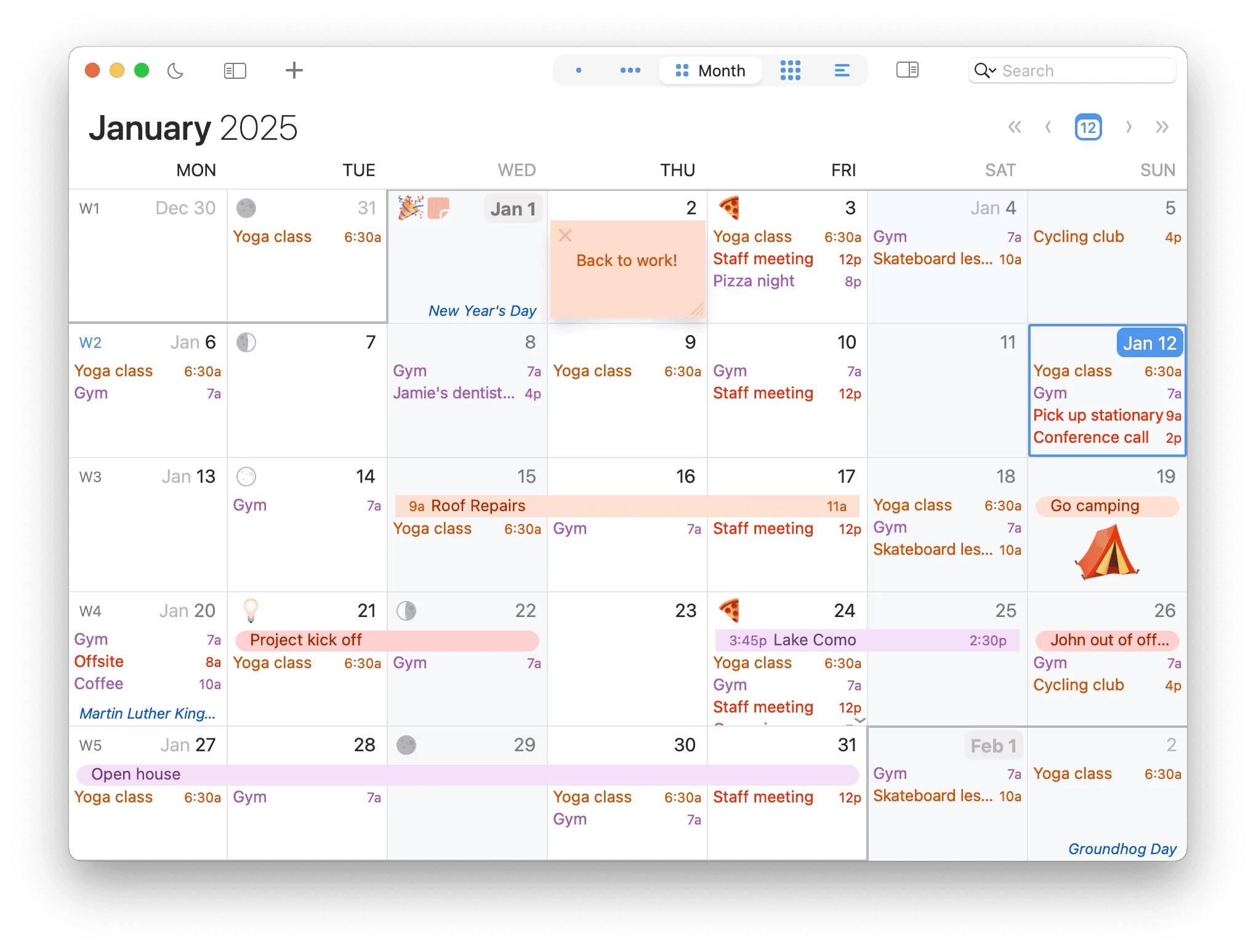
BusyCal screenshot

I work mostly in the Month view because I love that I can see what’s going on each day at a glance. It’s like I’m looking at my personal dashboard or command centre.
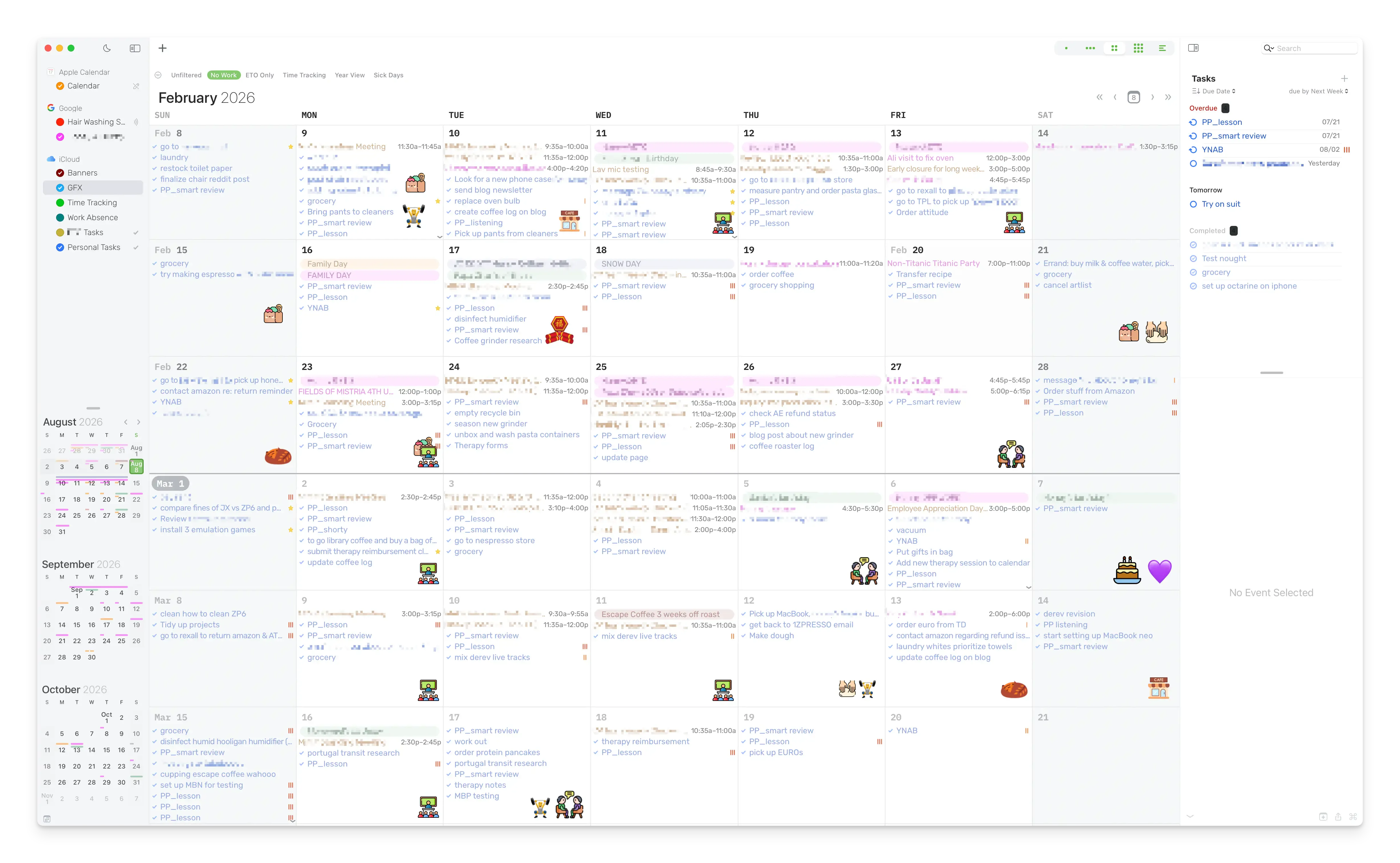
BusyCal screenshot
A screenshot of my February and March in BusyCal

In most to-do apps I’ve tried, you’re always looking at some kind of list, such as today’s to-do list, tomorrow’s list, this week’s list, the overdue list and so on, and those lists are almost always presented to you in isolation—you can’t see what you did yesterday or what you’ve planned to do 2 days or 2 weeks from now. My brain didn’t like this because it felt like I’m managing my life without context. Pulling up the calendar on a separate app felt like an interruption to my flow.

Working in BusyCal’s Month view gave me constant awareness of where I am in the week, month and year, and what tasks and events happened or are scheduled for which day. It’s awesome.

Here’re some other features I love in BusyCal:

  • Custom fonts (I use Rubik)
  • You can designate a calendar as a “holiday” calendar, whose events have a unique styling to setting themselves apart from regular events. I use this for short, date-sensitive notes that I can easily see at a glance in the month view, like the day a bag of coffee beans has de-gassed sufficiently and are ready to brew
  • Past and overdue tasks and events show how much time has elapsed—I use it to keep track of chores (When was the last time I sanitize the bathtub?), certain life events (Wow I’ve been working in my current job for over 3 years!) and habits (It’s been 3 weeks since I audited our bank accounts and budgets—it’s time to do it again)
  • Easily indicate if you’re adding a task or event in the quick entry (i.e., adding - before your text will register it as a task) and which calendar you’re adding the event/task to (i.e., adding /p will add the task/even to the calendar whose name starts with a p, like Personal in my case)
  • Smart filters, which are basically presets that allow you to switch among various configurations you set for different scenarios. For example, I have a preset that hides all calendars except the work one so I only see work-related tasks and events during a workday

And on top of all that, BusyCal

  • has a one-time purchase option (no subscription, YES!!) but is also included in Setapp;
  • is macOS-native, not Electron;
  • is not vibe-coded;
  • has received continuous updates since its initial release in 2009.

In case you wonder if I’m affiliated with BusyCal—nope, not in any shape or form. I just really love great apps; ones that have all the above are unfortunately becoming increasingly rare these days, and that makes me appreciate and cherish this gem even more.

Previous |


Reply via email. Subscribe to my blog via email or RSS feed.

#rabbit-holes