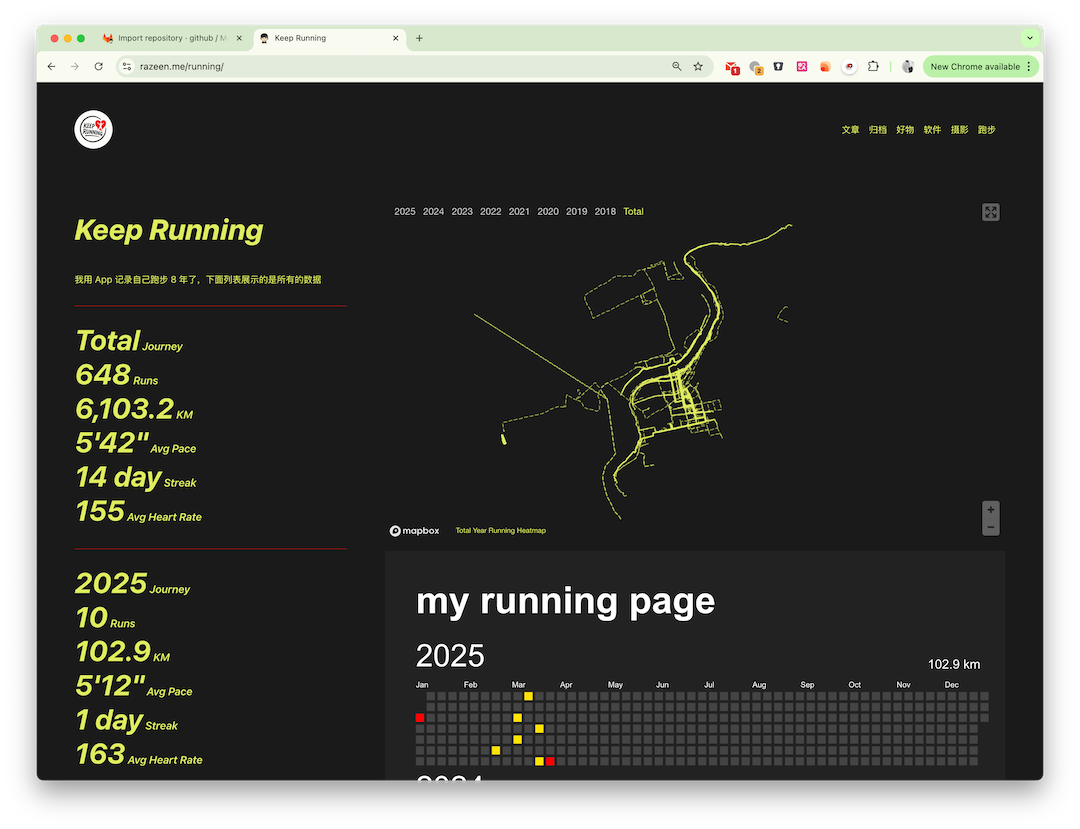
I’ve been following the Running Page project for a long time, and today I finally deployed it on my blog. Running Page is an open-source project that visualizes workout data, supports summarizing running records, generates heatmaps, and integrates with MapBox to display routes. This post will share how to automate the build and deployment of static pages using GitLab CI/CD and integrate Apple Shortcuts for one-click deployment.
The official documentation supports automatic deployment via Vercel (recommended) and GitHub Pages, but I prefer hosting it on my own server. Since I already have a GitLab setup, I decided to give it a try.
The required environment includes:
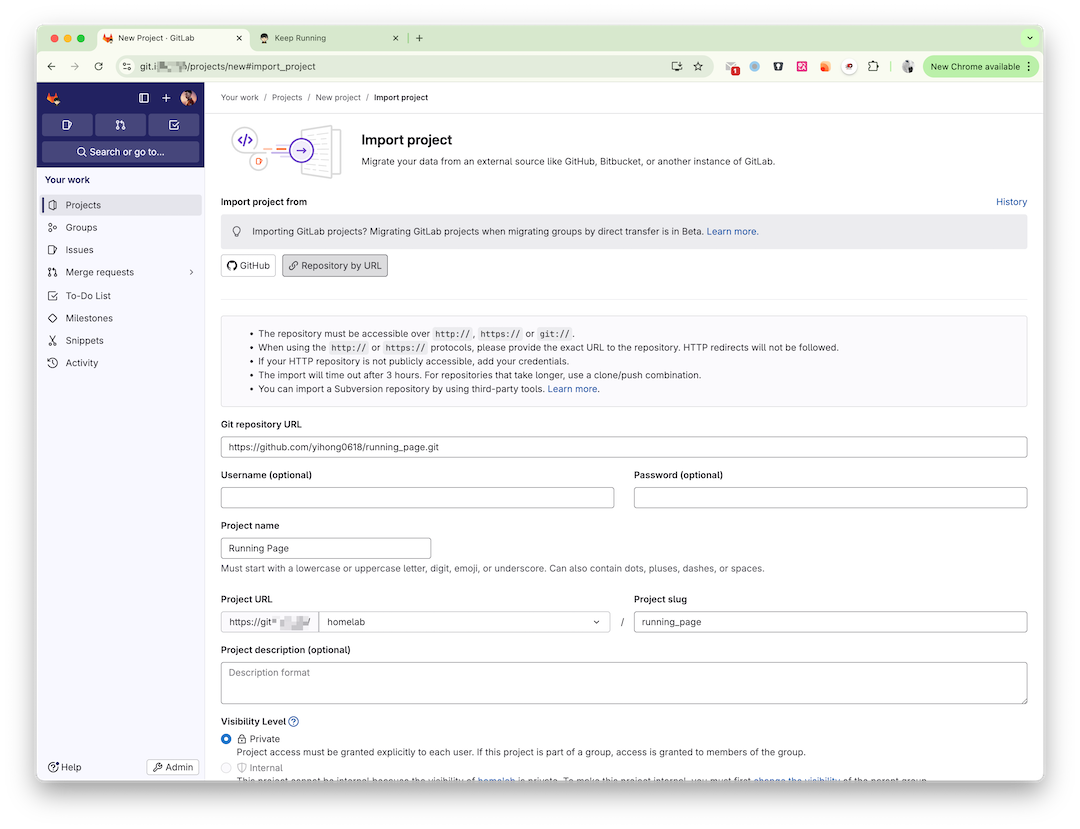
GitLab has a handy feature to directly import projects from GitHub. Using this, I imported the Running Page repository into my private repository.
I encountered two import failures, likely due to network issues. Retrying resolved the problem.
Running Page supports customizing site titles and other information. The official documentation provides detailed instructions, so I won’t elaborate here.
However, I recommend making modifications on a separate branch to facilitate future maintenance and updates.
Recently, ChatGPT’s image generation feature has been amazing. I created a new logo following the original style 😄
If you want to host the page in a subdirectory (e.g., /running/), set the PATH_PREFIX environment variable or directly modify vite.config.ts to base: process.env.PATH_PREFIX || '/running/'.
Next, automate the build process using CI/CD. The official repository’s Dockerfile can be used to build the static page. The steps are straightforward:
graph LR
    B[Build with Docker] --> C[Copy static files from Docker]
    C --> D[Save build artifacts]
    D --> E[Push files to server with rsync]
For security, add your credentials and server private key to the project’s Settings > CI/CD > Variables. I added three variables:
KEEP_LOGIN_PHONEKEEP_LOGIN_PASSWORDBLOG_SSH_PRIVATE_KEY (Generate a dedicated private key for deployment and configure the public key on the server).When adding variables, enable Masked and avoid enabling Protect variable unless your branch is protected; otherwise, the values won’t be accessible during builds.
Here’s the .gitlab-ci.yml configuration:
image: docker:latest

stages:
  - build
  - deploy

build:
  stage: build
  tags:
    - linux01
  script:
    - docker build --build-arg app=Keep --build-arg keep_phone_number=$KEEP_LOGIN_PHONE --build-arg keep_password=$KEEP_LOGIN_PASSWORD --build-arg YOUR_NAME="Razeen" -t running-page:$CI_COMMIT_SHA .
    - docker create --name temp_container running-page:$CI_COMMIT_SHA
    - docker cp temp_container:/usr/share/nginx/html ./dist
    - docker rm temp_container
    - mkdir -p artifacts
    - cp -r dist/* artifacts/
  artifacts:
    paths:
      - artifacts/
    expire_in: 1 week
  allow_failure: false

deploy:
  stage: deploy
  tags:
    - homelab01
  script:
    - mkdir -p ~/.ssh
    - echo "$BLOG_SSH_PRIVATE_KEY" > ~/.ssh/id_rsa
    - chmod 600 ~/.ssh/id_rsa
    - echo -e "Host *\n\tStrictHostKeyChecking no\n" > ~/.ssh/config
    - chmod 600 ~/.ssh/config
    - rsync -avz -e 'ssh -p 2222' --delete artifacts/ [email protected]:/www/running/
  dependencies:
    - build
  allow_failure: false
Configure the server’s nginx path:
location /running {
    root                        /www/;
    index                       index.html index.htm;
}
The above CI/CD configuration is ready, but it lacks a trigger. To simplify updates, I used Apple’s Shortcuts app.
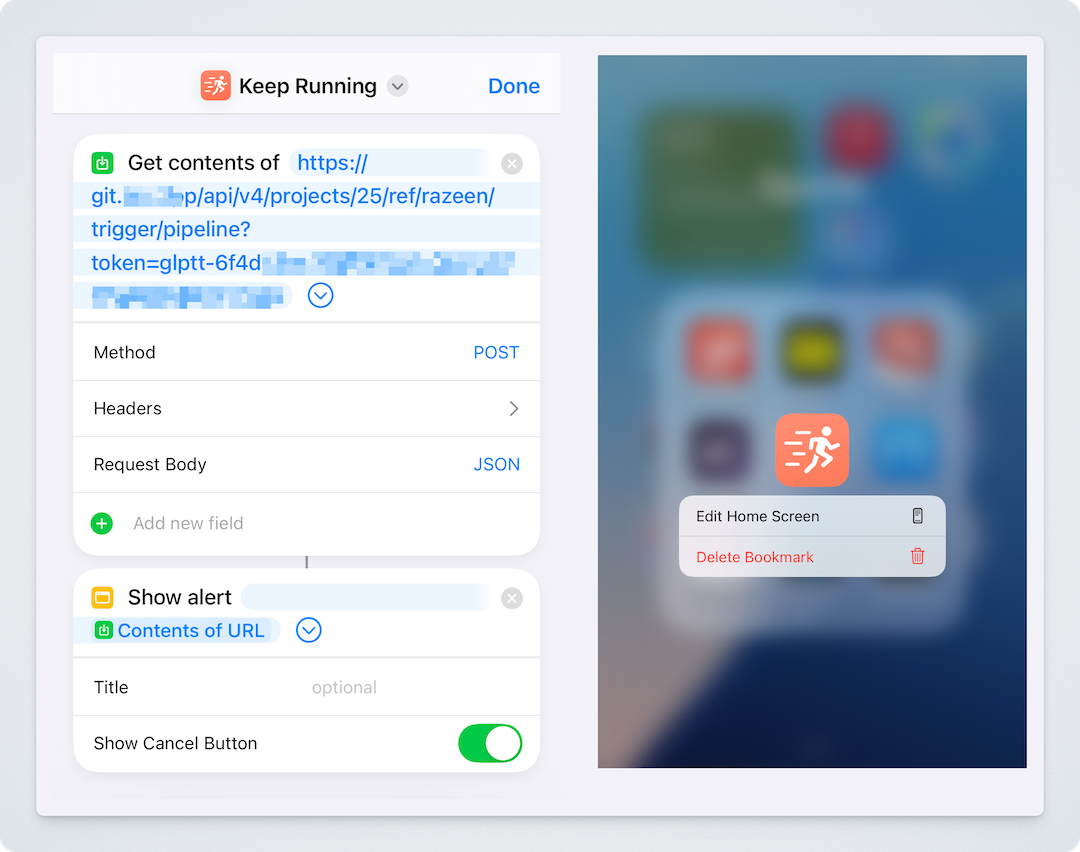
In the project settings under Settings > CI/CD > Pipeline trigger tokens, add a trigger token. Use the token to trigger the workflow via a POST request, e.g.:
# https://git.isw.app/ => GitLab URL
# 25 => Project ID
# REF_NAME => Branch or tag (I trigger a specific branch)
# glptt-xxxxx => Trigger token
https://git.razeen.app/api/v4/projects/25/ref/REF_NAME/trigger/pipeline?token=glptt-xxxxx
Use the “Get Contents of URL” action in Shortcuts to trigger the workflow with a POST request. Add a “Show Alert” action to display the response. Assign a logo to the shortcut, save it, and add it to your home screen for one-click triggering.
Add trigger conditions to the CI/CD configuration to handle web and trigger-based executions:
workflow:
  rules:
    - if: $CI_PIPELINE_SOURCE == "trigger"
      when: always
    - if: $CI_PIPELINE_SOURCE == "web"
      when: always
The previous steps automate builds and deployments, but I also want to keep my local repository in sync with GitHub. GitLab’s “Mirroring repositories” feature can sync with remote repositories, but the CE version only supports push mirroring. To enable pull mirroring, use CI.
sync-upstream:
  stage: sync
  tags:
    - m1max
  script:
    - git config --global user.name "GitLab CI"
    - git config --global user.email "[email protected]"
    - git clone https://oauth2:${REPO_TOKEN}@${CI_SERVER_HOST}/${CI_PROJECT_PATH}.git repo
    - cd repo
    - git checkout master
    - git remote add upstream https://github.com/yihong0618/running_page.git
    - git fetch upstream
    - git merge upstream/master -m "Merge upstream changes"
    - git push https://oauth2:${REPO_TOKEN}@${CI_SERVER_HOST}/${CI_PROJECT_PATH}.git master
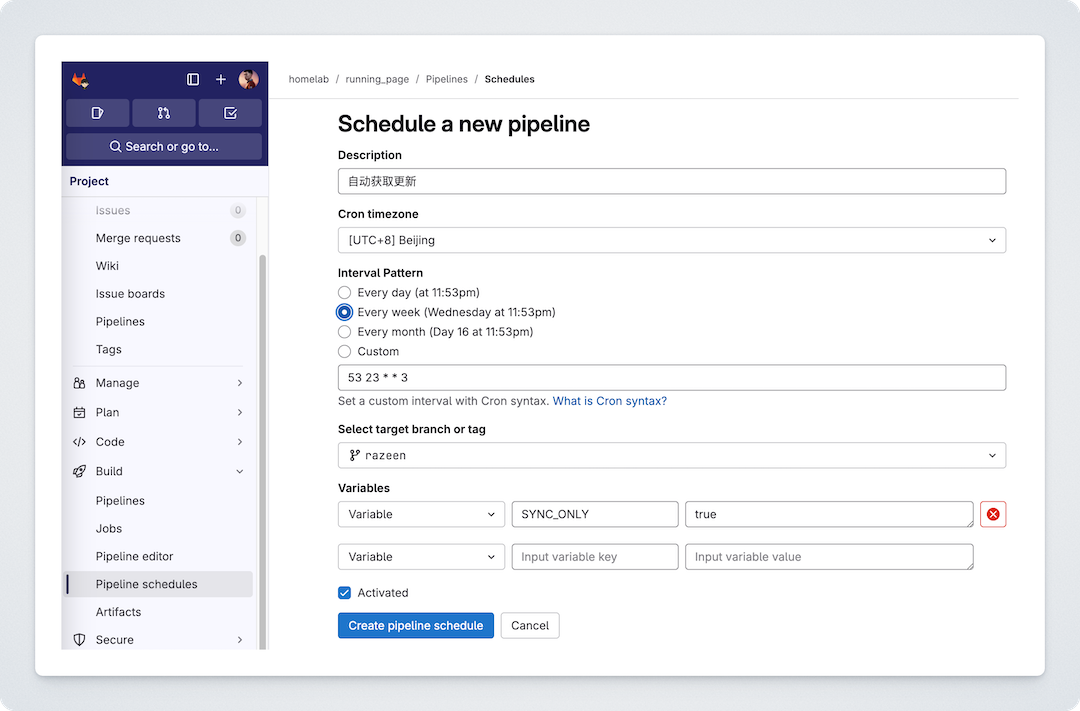
To ensure continuous updates, schedule a job in the background. Add conditions to distinguish between build and sync scenarios:
rules:
  - if: $CI_PIPELINE_SOURCE == "schedule" && $SYNC_ONLY == "true"
    when: always
  - if: $CI_PIPELINE_SOURCE == "web" && $CI_JOB_NAME == "sync-upstream"
    when: always
With this setup, I can now update my Running Page after every run with a single click. For better health and a more vibrant heatmap, let’s keep running!
As usual, here’s the complete .gitlab-ci.yml configuration. To prevent multiple builds and concurrent executions, I added a resource_group.
image: docker:latest

stages:
  - sync
  - build
  - deploy

variables:
  GIT_STRATEGY: clone

# 简化触发器配置
workflow:
  rules:
    - if: $CI_PIPELINE_SOURCE == "trigger"
      when: always
    - if: $CI_PIPELINE_SOURCE == "web"
      when: always
    - if: $CI_PIPELINE_SOURCE == "schedule"
      when: always

.build_template: &build_template
  resource_group: running-page-pipeline
  interruptible: false

deploy:
  <<: *build_template
  stage: deploy
  tags:
    - homelab01
  script:
    - mkdir -p ~/.ssh
    - echo "$BLOG_SSH_PRIVATE_KEY" > ~/.ssh/id_rsa
    - chmod 600 ~/.ssh/id_rsa
    - ls -la ~/.ssh
    - echo -e "Host *\n\tStrictHostKeyChecking no\n" > ~/.ssh/config
    - chmod 600 ~/.ssh/config
    - rsync -avz -e 'ssh -p 2222' --delete artifacts/ [email protected]:/www/running/
  dependencies:
    - build
  rules:
    - if: $CI_PIPELINE_SOURCE == "schedule" && $SYNC_ONLY == "true"
      when: never
    - if: $CI_PIPELINE_SOURCE == "web" && $CI_JOB_NAME == "sync-upstream"
      when: never
    - when: always
  allow_failure: false

build:
  <<: *build_template
  stage: build
  tags:
    - linux01
  script:
    - docker build --build-arg app=Keep --build-arg keep_phone_number=$KEEP_LOGIN_PHONE --build-arg keep_password=$KEEP_LOGIN_PASSWORD --build-arg YOUR_NAME="Razeen" -t running-page:$CI_COMMIT_SHA .
    - docker create --name temp_container running-page:$CI_COMMIT_SHA
    - docker cp temp_container:/usr/share/nginx/html ./dist
    - docker rm temp_container
    - mkdir -p artifacts
    - cp -r dist/* artifacts/
  artifacts:
    paths:
      - artifacts/
    expire_in: 1 week
  cache:
    key: ${CI_COMMIT_REF_SLUG}
    paths:
      - activities/
      - assets/
      - GPX_OUT/
      - TCX_OUT/
      - FIT_OUT/
      - Workouts/
      - run_page/data.db
      - src/static/activities.json
      - imported.json
    policy: pull-push
  rules:
    - if: $CI_PIPELINE_SOURCE == "schedule" && $SYNC_ONLY == "true"
      when: never
    - if: $CI_PIPELINE_SOURCE == "web" && $CI_JOB_NAME == "sync-upstream"
      when: never
    - when: always
  allow_failure: false

sync-upstream:
  stage: sync
  resource_group: repo-sync
  tags:
    - m1max
  script:
    - git config --global user.name "GitLab CI"
    - git config --global user.email "[email protected]"
    - git clone https://oauth2:${REPO_TOKEN}@${CI_SERVER_HOST}/${CI_PROJECT_PATH}.git repo
    - cd repo
    - git checkout master
    - git remote add upstream https://github.com/yihong0618/running_page.git
    - git fetch upstream
    - git merge upstream/master -m "Merge upstream changes"
    - git push https://oauth2:${REPO_TOKEN}@${CI_SERVER_HOST}/${CI_PROJECT_PATH}.git master
  rules:
    - if: $CI_PIPELINE_SOURCE == "schedule" && $SYNC_ONLY == "true"
      when: always
    - if: $CI_PIPELINE_SOURCE == "web" && $CI_JOB_NAME == "sync-upstream"
      when: always
  allow_failure: true
The configuration uses three runner tags: homelab01 and linux01 run on my home server, while m1max runs on my local machine. Ensure the necessary tools like Git are installed on the runners.
此内容由惯性聚合(RSS阅读器)自动聚合整理,仅供阅读参考。 原文来自 — 版权归原作者所有。