

惯性聚合 高效追踪和阅读你感兴趣的博客、新闻、科技资讯
阅读原文 在惯性聚合中打开

推荐订阅源

Application and Cybersecurity Blog
B
Blog RSS Feed
M
MIT News - Artificial intelligence
爱范儿
爱范儿
V
V2EX
雷峰网
雷峰网
D
Docker
美团技术团队
N
Netflix TechBlog - Medium
C
Cisco Blogs
T
Threatpost
K
Kaspersky official blog
P
Privacy International News Feed
W
WeLiveSecurity
T
Tor Project blog
Threat Intelligence Blog | Flashpoint
博客园 - 聂微东
F
Full Disclosure
Forbes - Security
Forbes - Security
V
Vulnerabilities – Threatpost
I
Intezer
有赞技术团队
有赞技术团队
freeCodeCamp Programming Tutorials: Python, JavaScript, Git & More
Google Online Security Blog
The Register - Security
GbyAI
GbyAI
Security Archives - TechRepublic
Help Net Security
Help Net Security
人人都是产品经理
人人都是产品经理
SecWiki News
SecWiki News
Cyberwarzone
Cyberwarzone
Vercel News
Vercel News
罗磊的独立博客
The Hacker News
The Hacker News
腾讯CDC
S
Security @ Cisco Blogs
cs.CL updates on arXiv.org
WordPress大学
WordPress大学
Recorded Future
Recorded Future
Apple Machine Learning Research
博客园 - 【当耐特】
小众软件
小众软件
Hacker News: Ask HN
Hacker News: Ask HN
P
Proofpoint News Feed
TaoSecurity Blog
TaoSecurity Blog
IT之家
IT之家
OSCHINA 社区最新新闻
OSCHINA 社区最新新闻
S
Security Affairs
C
Check Point Blog
cs.CV updates on arXiv.org

博客园 - 鸡毛信

改变你思维模式的书单 金字塔原理 BA的广度和深度 读书雷达 l 业务分析师(BA)篇 BA Practice Lead Handbook 1 - Why Is Business Analysis Taking The World By Storm? Making the Elephant Dance: Strategic Enterprise Analysis BABOK - 企业分析(Enterprise Analysis) BA - 读书雷达10本必读书 XMind十大最有用的功能 Excel中如何查找并列出所有链接(外部数据链接)? 在Excel里如何将多个工作簿合并到一个工作簿中 EXCEL 如何将多个工作表或工作簿合并到一个工作表 用Excel完成专业化数据统计、分析工作 需求 BA/PM Competency Module PPT 学习总结 PPT五大插件汇总下载 提高你30%的设计效率的PPT快捷键 PPT扁平化手册 2
How to easily concatenate text based on criteria in Excel? 如何将Excel中的文本按条件合并
鸡毛信 · 2016-08-08 · via 博客园 - 鸡毛信

To combine text with the unique ID numbers, you can extract the unique values first and then create a User Defined Function to combine the names based on the unique ID.

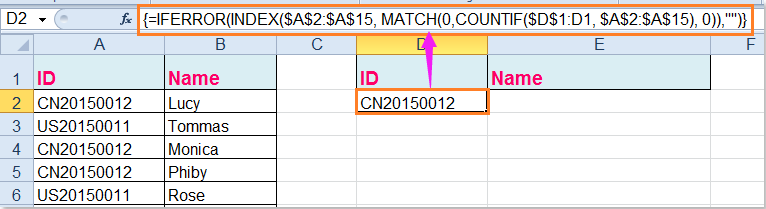
1. Take the following data as example, you need to extract the unique ID numbers first, please apply this array formula: =IFERROR(INDEX($A$2:$A$15, MATCH(0,COUNTIF($D$1:D1, $A$2:$A$15), 0)),""),enter this formula into a blank cell, D2 for example, then press Ctrl + Shift + Enter keys together, see screenshot:
doc combine text based on criteria 2

Tip: In the above formula, A2:A15 is the list data range you want to extract unique values from, D1 is the first cell of the column you want to put out the extracting result.

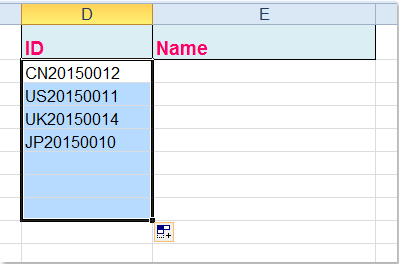
2. And then drag the fill handle down to extract all unique values until blanks displayed, see screenshot:
doc combine text based on criteria 3

3. In this step, you should create a User Defined Function to combine the names based on the unique ID numbers, please hold down the ALT + F11 keys, and it opens the Microsoft Visual Basic for Applications window.

4. Click Insert > Module, and paste the following code in the Module Window.

VBA code: concatenate text based on criteria

1

2

3

4

5

6

7

8

9

10

11

12

13

14

15

16

17

18

19

Function ConcatenateIf(CriteriaRange As Range, Condition As Variant, ConcatenateRange As Range, Optional Separator As String ","As Variant

Dim xResult As String

On Error Resume Next

If CriteriaRange.Count <> ConcatenateRange.Count Then

    ConcatenateIf = CVErr(xlErrRef)

    Exit Function

End If

For i = 1 To CriteriaRange.Count

    If CriteriaRange.Cells(i).Value = Condition Then

        xResult = xResult & Separator & ConcatenateRange.Cells(i).Value

    End If

Next i

If xResult <> "" Then

    xResult = VBA.Mid(xResult, VBA.Len(Separator) + 1)

End If

ConcatenateIf = xResult

Exit Function

End Function

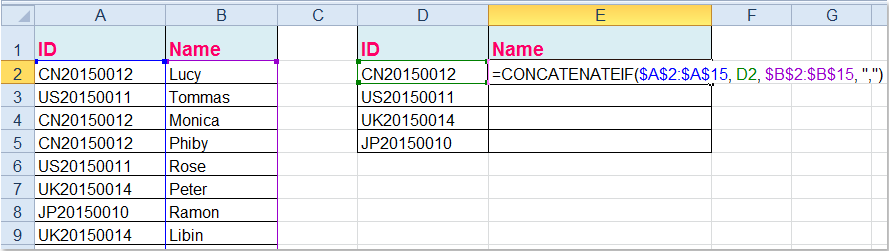
5. Then save and close this code, go back to your worksheet, and enter this formula into cell E2, =CONCATENATEIF($A$2:$A$15, D2, $B$2:$B$15, ",") , see screenshot:
doc combine text based on criteria 4

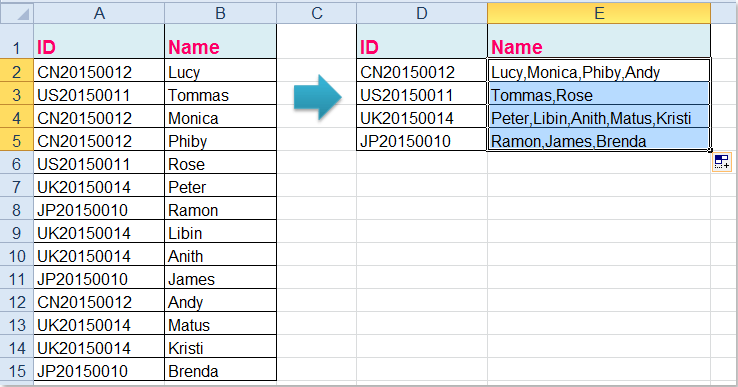
6. Then drag the fill handle down to the cells that you want to apply this formula, and all the corresponding names have been combined based on the ID numbers, see screenshot:
doc combine text based on criteria 5

Tips:

1. In the above formula, A2:A15 is the original data which you want to combine based on, D2 is the unique value you have extracted, and B2:B15 is the name column that you want to combine together.

2. As you can see, I combined the values which are separated by comma, you can use any other characters by changing the comma “,” of the formula as you need.

Link: https://www.extendoffice.com/documents/excel/2723-excel-concatenate-based-on-criteria.html