


惯性聚合 高效追踪和阅读你感兴趣的博客、新闻、科技资讯
阅读原文 在惯性聚合中打开

推荐订阅源

P
Privacy & Cybersecurity Law Blog
V
V2EX
月光博客
月光博客
奇客Solidot–传递最新科技情报
奇客Solidot–传递最新科技情报
The Register - Security
MongoDB | Blog
MongoDB | Blog
P
Privacy International News Feed
The Last Watchdog
The Last Watchdog
Security Archives - TechRepublic
美团技术团队
Stack Overflow Blog
Stack Overflow Blog
博客园 - 司徒正美
博客园 - 三生石上(FineUI控件)
V
Visual Studio Blog
cs.CV updates on arXiv.org
K
Kaspersky official blog
S
Secure Thoughts
T
Tenable Blog
Security Latest
Security Latest
The Cloudflare Blog
S
Security @ Cisco Blogs
H
Heimdal Security Blog
aimingoo的专栏
aimingoo的专栏
TaoSecurity Blog
TaoSecurity Blog
Blog — PlanetScale
Blog — PlanetScale
Microsoft Security Blog
Schneier on Security
Webroot Blog
Webroot Blog
G
Google Developers Blog
www.infosecurity-magazine.com
Scott Helme
Scott Helme
IT之家
IT之家
Latest news
Latest news
The Hacker News
The Hacker News
C
Check Point Blog
T
The Exploit Database - CXSecurity.com
H
Hackread – Cybersecurity News, Data Breaches, AI and More
腾讯CDC
C
CERT Recently Published Vulnerability Notes
NISL@THU
NISL@THU
N
News | PayPal Newsroom
Forbes - Security
Forbes - Security
P
Palo Alto Networks Blog
S
Security Affairs
S
Securelist
Google Online Security Blog
WordPress大学
WordPress大学
Last Week in AI
Last Week in AI
C
Cybersecurity and Infrastructure Security Agency CISA
A
About on SuperTechFans

博客园 - deerchao

Unity 在平面上播放含透明通道的视频(Play video with alpha channel on plane in unity) 域名迁移 错误721 -- 在虚拟机中连接VPN, 显示验证用户名和密码之后出错 - deerchao 繁体编码文本文件转换为简体编码的工具 生成VB多行字符串常量的工具 64位虚拟机Guest OS安装错误:0xC0000225 在64bit Win2008上运行Asp + Access网站 工具: 删除Visual Studio项目中文件链接,并把原文件复制到相应的目录 一个代表年月的类YearMonth Tip: Resharper 中 "Unknown Comment" 问题的解决办法 Struct与赋值 Tips 测试ConnectionString是否能连接上数据库服务器 奇怪的TreeView(WinForms)自动选中问题 From C# to VB MapPath的反函数(Reversing MapPath) A fast object clone class - using Expression.Compile() jQuery.combobox, 给文本框添加下拉选项的轻量级插件 jQuery.Excel, 使用Ctrl+方向键/Home/End在input表格中移动
CDTray, 打开,关闭光驱的系统托盘程序
deerchao · 2009-03-07 · via 博客园 - deerchao

今天买了一台内置刻录机,安装完成后发现机箱提供的面板设计不太合理:光驱门打开后,按钮就根本没有用了,因为它附着在门上,与光驱本身提供的开仓按钮根本连不上了,于是我只能用手推动光盘托才能把光驱门给关上. 

郁闷之余,写了一个小工具来解决这个问题:
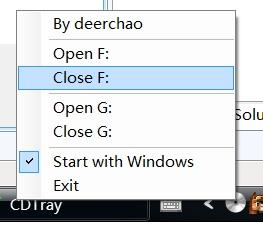
最核心的东西--开关光驱门,其实很简单:

Code
        public static void Open(string driveLetter)
        {
            
string returnString = "";
            mciSendStringA(
"set cdaudio!" + driveLetter + " door open", returnString, 00);
        }
public static void Close(string driveLetter)
        {
            
string returnString = "";
            mciSendStringA(
"set cdaudio!" + driveLetter + " door closed", returnString, 00);
        }

        [DllImport(

"winmm.dll", EntryPoint = "mciSendStringA")]
        
public static extern void mciSendStringA(string lpstrCommand, string lpstrReturnString, long uReturnLength, long hwndCallback);

上面的代码是从网上搜索得到的.我本来想判断一下光驱本身的状态--是开还是关,但是搜索了十来分钟,没找到相关资料,觉得这个也不是特别有必要,于是放弃了.

好了,下面就要获取系统里所有光驱了,其实很简单,一行代码就搞定:

Code
        public static string[] GetCDRoms()
        {
            
return DriveInfo.GetDrives().Where(x => x.DriveType == DriveType.CDRom).Select(x => x.Name).ToArray();
        }

为了让程序用起来更方便,我希望它能设置为随Windows自动启动.这个也没什么困难的,就是操作注册表而已,于是我从原来写的代码里扒出了一段,重新加工了一下:

Code
    class AutoLaunch
    {
        
string registryKey;public AutoLaunch(string registryKey)
        {
            
this.registryKey = registryKey;
        }
string GetRunningExePath()
        {
            
return Application.ExecutablePath;
        }
public bool Enabled
        {
            
get
            {
                
try
                {
                    RegistryKey key 
= Registry.CurrentUser.OpenSubKey("Software");
                    key 
= key.OpenSubKey("Microsoft");
                    key 
= key.OpenSubKey("Windows");
                    key 
= key.OpenSubKey("CurrentVersion");
                    key 
= key.OpenSubKey("Run"true);string cmdline = key.GetValue(registryKey) as string;
                    
if (cmdline == null)
                    {
                        
return false;
                    }
                    
else
                    {
                        
if (!string.Equals(cmdline, GetRunningExePath(), StringComparison.OrdinalIgnoreCase))
                            key.SetValue(registryKey, GetRunningExePath());
                        
return true;
                    }
                }
                
catch (NullReferenceException)
                {
                    
return false;
                }
            }
            
set
            {
                RegistryKey key 
= Registry.CurrentUser.OpenSubKey("Software");
                key 
= key.OpenSubKey("Microsoft");
                key 
= key.OpenSubKey("Windows");
                key 
= key.OpenSubKey("CurrentVersion");
                key 
= key.OpenSubKey("Run"true);if (value)
                {
                    key.SetValue(registryKey, GetRunningExePath());
                }
                
else
                {
                    key.DeleteValue(registryKey, 
false);
                }
            }
        }

    }

好了,现在可以做界面了.由于程序非常的简单,我选择了使用Windows Forms,而且决定一个窗口都不要,用户能看到的全部界面就是通知区域的一个图标.

那好的,在一个空白的Form上扔一个NotifyIcon,和一个ContextMenuStrip,并把NotifyIcon的ContextMenuStrip属性设置好.

然后就是我们的代码了,用于在Form的构造时,动态生成菜单内容:

Code
        AutoLaunch autoLaunch;
        
public Form1()
        {
            InitializeComponent();
            Init();
        }
private void Init()
        {

            ShowInTaskbar 

= false;
            WindowState 
= FormWindowState.Minimized;
            autoLaunch 
= new AutoLaunch("CDTool_deerchao");

            LoadMenu();
        }

Code
        private void LoadMenu()
        {
            var menuItems 
= new List<ToolStripItem>();

            menuItems.Add(

new ToolStripMenuItem
            {
                Text 
= "By deerchao",
            });
            menuItems.Add(
new ToolStripSeparator());foreach (var cd in CDDrive.GetCDRoms())
            {
                menuItems.AddRange(LoadMenu(cd).Cast
<ToolStripItem>());

                menuItems.Add(

new ToolStripSeparator());
            }

            var autoStart 

= new ToolStripMenuItem("&Start with Windows"null, (s, e) => autoLaunch.Enabled = ((ToolStripMenuItem)s).Checked)
            {
                CheckOnClick 
= true,
                Checked 
= autoLaunch.Enabled,
            };

            var exit 

= new ToolStripMenuItem("E&xit"null, (s, e) => Application.Exit());
            menuItems.Add(autoStart);
            menuItems.Add(exit);

            contextMenu.Items.AddRange(menuItems.ToArray());
        }

private IEnumerable<ToolStripMenuItem> LoadMenu(string cd)
        {
            var open 
= new ToolStripMenuItem("&Open " + cd.Substring(02), null, (s, e) => CDDrive.Open(cd));
            var close 
= new ToolStripMenuItem("&Close " + cd.Substring(02), null, (s, e) => CDDrive.Close(cd));yield return open;
            
yield return close;
        }

很好,现在运行起来就一切OK了.

但是,追求完美的我们怎么会如此轻易罢休呢..我们可以看到,代码里多处用到了Linq扩展方法,比如Where, Cast, Select, ToArray等. 而Linq则是.Net 3.5里才有的新东西..那意味着这个程序的用户,要去下载200多M的.Net 3.5安装程序,然后花两个小时来安装它,最后才能使用这个不到200K的小工具...

怎么办?打造山塞版的Linq吧,还好,我们使用到的Linq特性并不多,只要几十行代码就能完成:

Code
using System.Collections;
using System.Collections.Generic;namespace System.Linq
{
    
delegate TResult Func<TSource, TResult>(TSource source);static class Enumerable
    {
        
public static IEnumerable<T> Where<T>(this IEnumerable<T> source, Predicate<T> predict)
        {
            
foreach (var v in source)
                
if (predict(v))
                    
yield return v;
        }
public static IEnumerable<TDest> Cast<TDest>(this IEnumerable source)
        {
            
foreach (var v in source)
                
yield return (TDest)v;
        }
public static IEnumerable<TResult> Select<TSource, TResult>(this IEnumerable<TSource> source, Func<TSource, TResult> mapping)
        {
            
foreach (var v in source)
                
yield return mapping(v);
        }
public static List<T> ToList<T>(this IEnumerable<T> source)
        {
            
return new List<T>(source);
        }
public static T[] ToArray<T>(this IEnumerable<T> source)
        {
            
return ToList(source).ToArray();
        }
    }

}

namespace System.Runtime.CompilerServices
{
    
class ExtensionAttribute : Attribute
    {
    }
}

OK,把针对的.Net Framework版本改成2.0,砍掉不必要的引用项,重新编译,搞定!

现在唯一让我不爽的就是没有一个好图标了...好吧,我们从微软那里借一个来吧.操起刚Google来的图标编辑工具IcoFx,在File\Extract里选择C:\Windows\System32\imagers.dll,从里边挑选一个光盘图标,保存.

在项目里设置好图标以后,重新编译,That's All!

你可以从这里下载全部源代码.