


惯性聚合 高效追踪和阅读你感兴趣的博客、新闻、科技资讯
阅读原文 在惯性聚合中打开

推荐订阅源

S
Secure Thoughts
Security Latest
Security Latest
Simon Willison's Weblog
O
OpenAI News
GbyAI
GbyAI
L
LINUX DO - 最新话题
A
Arctic Wolf
T
Tor Project blog
G
GRAHAM CLULEY
I
InfoQ
博客园_首页
IT之家
IT之家
The Register - Security
Exploit-DB.com RSS Feed
P
Proofpoint News Feed
The GitHub Blog
The GitHub Blog
Blog — PlanetScale
Blog — PlanetScale
N
Netflix TechBlog - Medium
K
Kaspersky official blog
博客园 - 三生石上(FineUI控件)
S
SegmentFault 最新的问题
U
Unit 42
PCI Perspectives
PCI Perspectives
量子位
P
Palo Alto Networks Blog
S
Securelist
T
Troy Hunt's Blog
博客园 - 【当耐特】
Recorded Future
Recorded Future
K
KPMG report finds enterprise disconnect between AI and its ROI | CIO
S
Security Affairs
Engineering at Meta
Engineering at Meta
T
The Blog of Author Tim Ferriss
博客园 - 聂微东
罗磊的独立博客
N
News and Events Feed by Topic
人人都是产品经理
人人都是产品经理
B
Blog RSS Feed
NISL@THU
NISL@THU
C
Cisco Blogs
T
Threatpost
有赞技术团队
有赞技术团队
Forbes - Security
Forbes - Security
Hugging Face - Blog
Hugging Face - Blog
Last Week in AI
Last Week in AI
T
The Exploit Database - CXSecurity.com
Cloudbric
Cloudbric
Cyberwarzone
Cyberwarzone
Google DeepMind News
C
Cyber Attacks, Cyber Crime and Cyber Security

博客园 - 浅蓝

Anaconda docker c++ Ubuntu18.04安装Tensorflow1.14GPU matplotlib中color可用的颜色 配置VPN - 浅蓝 Ubuntu16.04 安装Tensorflow1.7过程记录二:安装CUDA及Tensorflow tensorflow 源码编译 Ubuntu16.04 安装Tensorflow1.7过程记录一:安装显卡驱动 深度学习实验记录 ubuntu16.04安装tensorflow1.3 深度学习开源代码链接 如何高效的学习 TensorFlow 代码? 谷歌发布了 T2T(Tensor2Tensor)深度学习开源系统 学习Tensorflow的LSTM的RNN例子 tensorflow nan TensorFlow数据读取 TensorFlow笔记之常见七个参数 tf-slim-mnist
TensorFlow升级到1.13
浅蓝 · 2019-04-05 · via 博客园 - 浅蓝

win10下:

安装后import tensorflow出错:tensorflow/python/lib/core/bfloat16.cc:675] Check failed: PyBfloat16_Type.tp_base != nullptr

只需numpy升级即可: pip insall numpy --upgrade

https://blog.csdn.net/u014357799/article/details/84106349

首先确认显卡驱动是否需要升级 : http://www.gongyesheji.org/?p=951

更新显卡驱动版本更新为最新,或者在安装CUDA的时候卸载掉之前有的nvidia GeForce Experience,然后使用CUDA的安装包重新装一次。有时候因为
CUDA的安装包里面含有显卡驱动程序。我个人是删掉所有显卡驱动之后重装的,如果你之前安装了CUDA发现提示说
status: CUDA DRIVER VERSION is insufficient for cuda runtime version 的报错,其原因是因为显卡驱动的版本过低,在此附上英伟达CUDA最低支持的显卡驱动版本对应表

Table 1. CUDA Toolkit and Compatible Driver Versions
CUDA ToolkitLinux x86_64 Driver VersionWindows x86_64 Driver Version
CUDA 10.1.105 >= 418.39 >= 418.96
CUDA 10.0.130 >= 410.48 >= 411.31
CUDA 9.2 (9.2.148 Update 1) >= 396.37 >= 398.26
CUDA 9.2 (9.2.88) >= 396.26 >= 397.44
CUDA 9.1 (9.1.85) >= 390.46 >= 391.29
CUDA 9.0 (9.0.76) >= 384.81 >= 385.54
CUDA 8.0 (8.0.61 GA2) >= 375.26 >= 376.51
CUDA 8.0 (8.0.44) >= 367.48 >= 369.30
CUDA 7.5 (7.5.16) >= 352.31 >= 353.66
CUDA 7.0 (7.0.28) >= 346.46 >= 347.62

有两种办法查看当前电脑的显卡驱动版本:

https://blog.csdn.net/li57681522/article/details/82491617

右键打开我的电脑,在左侧边栏有个高级系统设置,右下角有个环境变量,上方方框里面有个ADMINISTRATOR(你电脑用户名)的用户变量,里面有个path值,双击打开,点击右侧新建,加入:C:\Program Files\NVIDIA Corporation\NVSMI
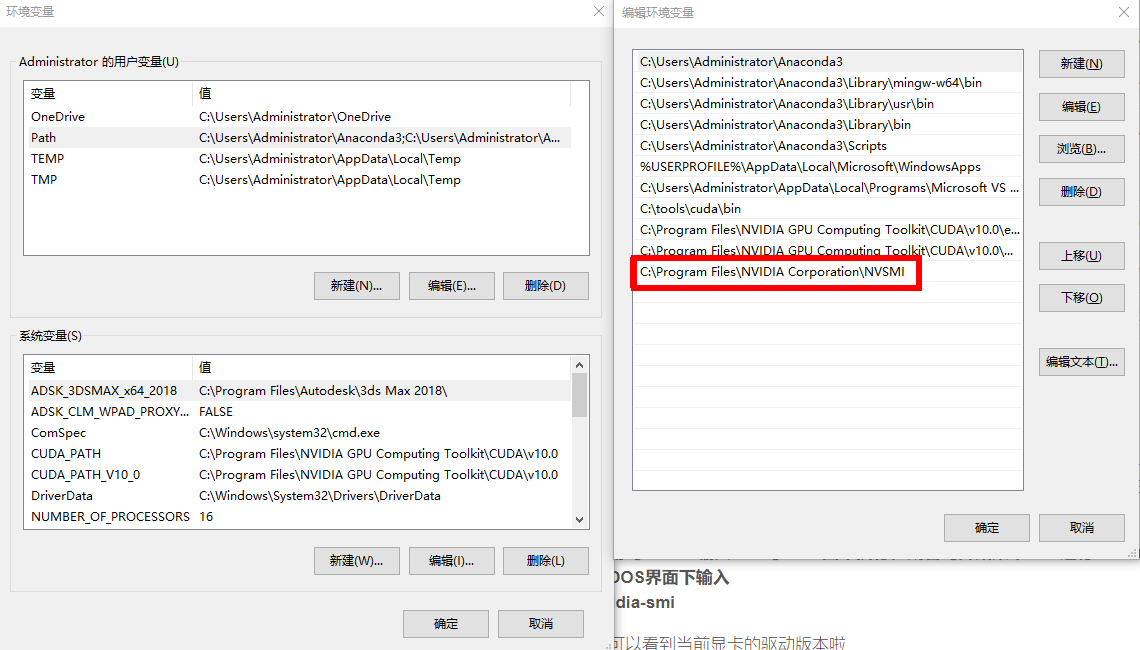
使用【win+R 输入cmd 】——回车执行,或者【开始菜单——运行——cmd】—— 回车执行
在DOS界面下输入
nvidia-smi

就可以看到当前显卡的驱动版本啦