


VMware Workstation Pro lets you run Windows, Linux, and BSD virtual machines on a single Windows or Linux PC. VMware Workstation Pro is great for developers and system admins, for software development, testing and deployment.
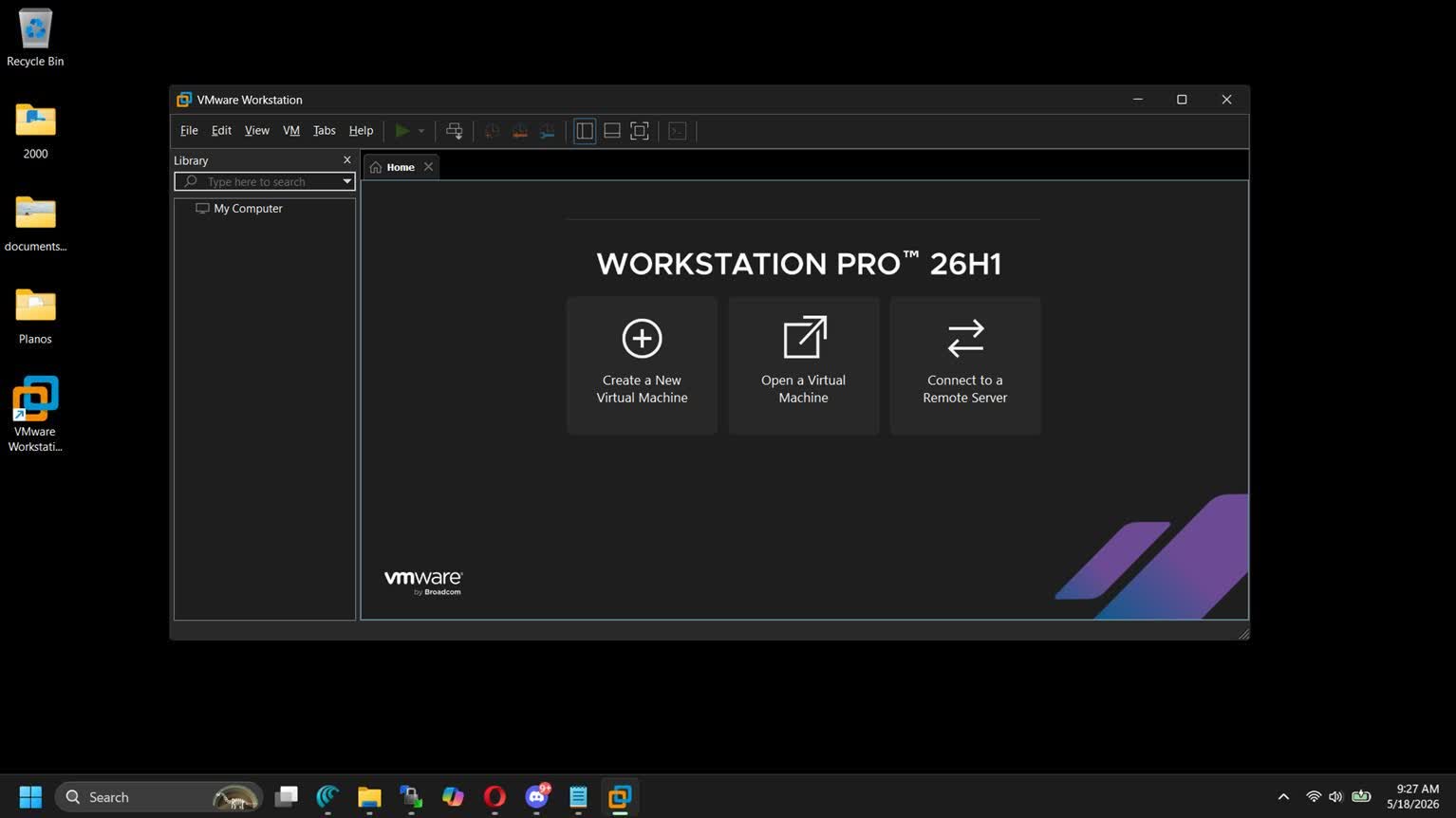
Build, test and demo software across an array of different devices, platforms and clouds.
IT professionals, developers and businesses rely on Workstation Pro every day to support their projects and customers. Workstation Pro makes it easy to run complex local virtual environments to simulate operating systems, platforms and clouds, all from the same desktop PC.
The licensing model changed in 2024 and Workstation Pro became free for all: commercial, educational, and for personal use. You can download VMware Workstation for free, with no license key required.
The VMware Workstation product line consists of two products: Workstation Pro and Workstation Player. Collectively they are referred to as 'VMware Workstation,' and when there are differences, they are called out.
Workstation Pro and Workstation Player share the same hypervisor technology, but with unique user interfaces for different types of use.
Workstation Pro is designed for IT professionals and developers, providing a more fully featured interface with capabilities for running multiple virtual machines at the same time. Workstation Pro can provide and configure virtual networking, create clones, connect to vSphere, show multiple VMs at the same time in a tabbed UI and more.
Workstation Player is designed for a single graphical VM operation, or for command line operation with 'vmrun' for running a different operating system in a secure isolated sandbox on a PC.
No, VMware Workstation uses your computer's file system and creates files that map to a virtual machine's disk drives, so there is no need to create a partition for each operating system. If you already have another OS with dual boot installed on your computer, you can use VMware Workstation to run the other OS in a virtual machine on your host operating system.
Instead of dual booting, you can run both operating systems simultaneously and seamlessly switch from one to another with a click of your mouse.
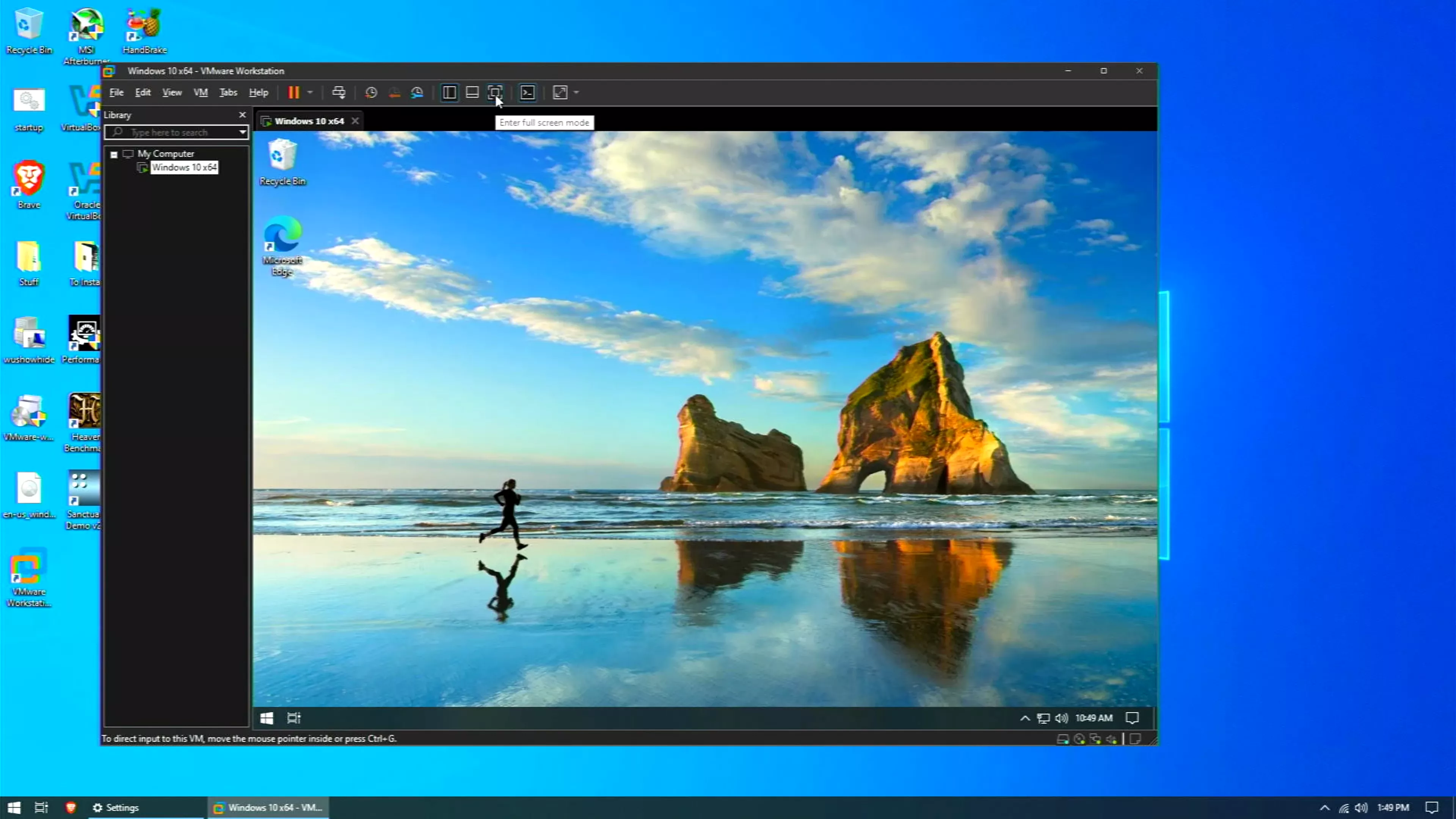
You can simply copy the entire VM folder (including the .vmx and .vmdk files) to the new host and open it using VMware Workstation Pro. Make sure both systems use compatible versions and consider choosing "I moved it" rather than "I copied it" when prompted, to preserve MAC addresses and settings.
Most recommend using a single virtual CPU "socket" and then assigning multiple cores to it (e.g. 1 × 4 cores) rather than splitting across many sockets, unless specific software licensing dictate otherwise.
Common reasons include insufficient host resources (RAM, CPU), lack of virtualization support (VT-x/AMD-V not enabled), or running multiple intensive VMs simultaneously. Performance can often be improved by allocating more resources, installing VMware Tools, enabling hardware virtualization in BIOS, and using SSD storage.
No, a snapshot only records the changes made to a VM since the snapshot was taken, so it's not a self-contained copy of the entire virtual machine. Snapshots are best used as short-term safety nets – for example, before applying an update or testing a configuration change. For actual backup, copy the entire VM folder to a separate location while the VM is powered off, or use dedicated backup software.
VMware Tools is a package of drivers and utilities that installs inside the guest operating system – not on the host. It significantly improves the VM experience: enabling higher screen resolutions, smoother mouse integration, clipboard sharing between host and guest, drag-and-drop file transfer, and better overall performance.
Run VMs and Containers on a Single PC
Deploy local OCI containers and Kubernetes clusters with VM isolation, virtual networking and virtual resource options through the new vctl CLI tool.
Develop and Test for Any Platform
Fix more bugs and ship quality code on time using Workstation Pro in development and testing. Virtualize nearly any x86 operating system available today on a desktop PC.
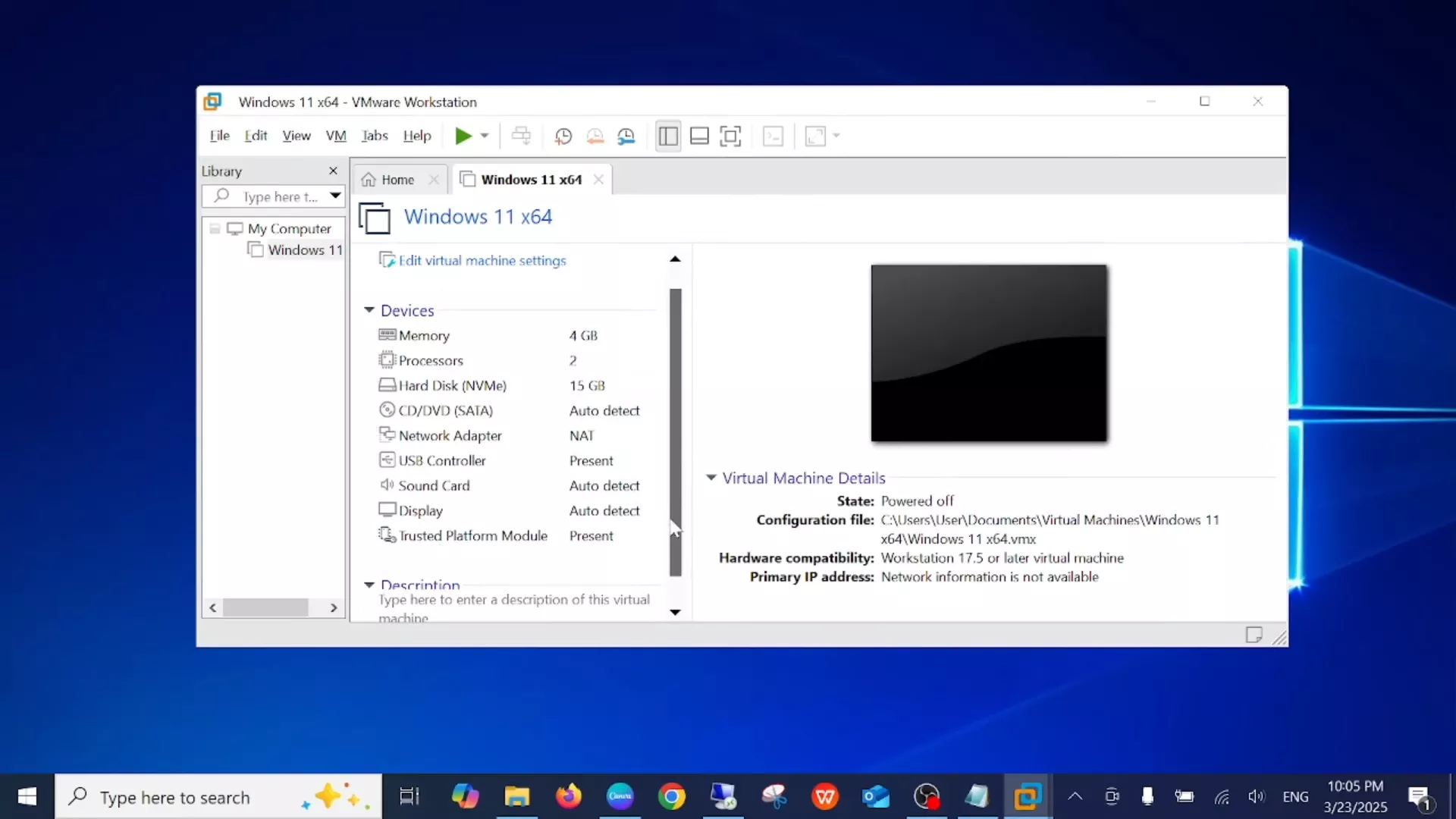
Enjoy Baked-In vSphere and ESXi Support
Run ESXi and vCenter as virtual machines on the desktop, and connect to a remote vSphere environment for quick VM access and basic management tasks.
Run Secure and Isolated Desktops
Run a secure second desktop with different privacy settings, tools and networking configurations for online protection, or to take "snapshots" that can be restored later.
Expand the Power of Your PC with Virtualization
Discover the true power and flexibility of your desktop or laptop computer with VMware Workstation. Reduce hardware costs by 50% or more by running multiple operating systems simultaneously on a single PC. Automate and streamline tasks to save time and improve productivity. Join the millions worldwide who use Workstation to:
Use Multiple Operating Systems Concurrently on the Same PC
VMware Workstation makes it simple to create and run multiple virtual machines on your desktop or laptop computer. You can convert an existing physical PC into a VMware virtual machine, or create a new virtual machine from scratch. Each virtual machine represents a complete PC, including the processor, memory, network connections and peripheral ports.
VMware Workstation lets you use your virtual machines to run Windows, Linux and a host of other operating systems side-by-side on the same computer. You can switch between operating systems instantly with a click of a mouse, share files between virtual machines with drag-and-drop functionality and access all the peripheral devices you rely on.
Take Snapshots & Videos of your Virtual Machines
With Workstation, you can take a "snapshot" that preserves the state of a virtual machine so you can return to it at any time. Snapshots are useful when you need to revert your virtual machine to a prior, stable system state. Workstation displays thumbnails of all your snapshots on a single screen, making it easy for you to track and revert to a previously saved snapshot.
You can even use Workstation 6 to record and play video files that capture all changes to a virtual machine over a period of time. This function is exclusive to VMware Workstation and is incredibly useful for software debugging, Help Desk forensics, sales demonstrations and training.
Run an Entire Multi-tier System on a Single Host Computer
Run multi-tier enterprise applications on a single piece of hardware by managing network-connected virtual machines with the Teams feature of Workstation 6. Teams let you create virtual network environments that include client, server and database virtual machines.
With Workstation Teams, you can turn an entire multi-tier environment on and off with a single click of the mouse button. Workstation displays live thumbnails of all connected virtual machines, enabling you to easily identify and switch between the virtual machines associated with a team.
Clone your Virtual Machines to Accelerate Deployment
Installing operating systems and applications can be time consuming. With clones, you can make many copies of a virtual machine from a single installation and configuration process. This capability makes it fast and simple to distribute standardized computing environments to employees and students, or to create a baseline configuration for testing.
Take Your Virtual Machines With You
New to Workstation is the ability to create and deploy secure virtual machines (called ACEs) with the ACE Option Pack. Mobility is one of the primary benefits of this option pack, as it enables users to securely take their desktops with them on portable media devices such as USB thumb drives.
VMware Fusion Pro 26H1 contains security and bug fixes.
Added support for guest operating systems.
This release resolves CVE-2026-41702. For more information on this vulnerability and its impact on Broadcom
products, see VMSA-2026-0003.
VMware Fusion Pro 25H2u1 Changelog
Guest operating systems
Host operating systems
Resolved Issues
Known Issues
VMware Workstation Pro 25H2u1
Resolved Issues
This issue is resolved in this release.
Known Issues
VMware Workstation Pro 25H2 Chaneglog
We're moving away from traditional version numbers (e.g., Workstation 17.6.x, Fusion 13.6.x) and adopting a new naming format – 25H2 – that reflects the year (2025) and the half of the year (H2). This provides consistency across releases and ensures clarity for customers.
The 25H2 release brings new tools and capabilities that simplify automation, enhance compatibility, and make day-to-day tasks faster and more reliable.
Running the latest workloads and platforms is critical for today's users. Workstation and Fusion 25H2 expand CPU, host, and guest OS compatibility so you can confidently virtualize on the newest technologies.
25H2 also delivers important refinements that make the platforms more stable, secure, and user-friendly. These fixes address common customer pain points across both Workstation and Fusion.
VMware Workstation Pro 17.6.4 provides the following new capabilities.
This release resolves CVE-2025-41236, CVE-2025-41237, CVE-2025-41238, and CVE-2025-41239.
This release resolves CVE-2025-2884.
The 17.6.3 release resolves CVE-2025-22224 and CVE-2025-22226. For more information on these vulnerabilities and their impact on Broadcom products, see VMSA-2025-0004.
此内容由惯性聚合(RSS阅读器)自动聚合整理,仅供阅读参考。 原文来自 — 版权归原作者所有。