惯性聚合 高效追踪和阅读你感兴趣的博客、新闻、科技资讯
阅读原文 在惯性聚合中打开

推荐订阅源

Forbes - Security
Forbes - Security
CTFtime.org: upcoming CTF events
F
Fortinet All Blogs
B
Blog
T
The Blog of Author Tim Ferriss
Engineering at Meta
Engineering at Meta
GbyAI
GbyAI
Y
Y Combinator Blog
Microsoft Azure Blog
L
LangChain Blog
Recent Announcements
U
Unit 42
Martin Fowler
Martin Fowler
M
MIT News - Artificial intelligence
让小产品的独立变现更简单 - ezindie.com
The Register - Security
Recorded Future
Recorded Future
C
Check Point Blog
V
V2EX
奇客Solidot–传递最新科技情报
奇客Solidot–传递最新科技情报
Hugging Face - Blog
Hugging Face - Blog
WordPress大学
WordPress大学
Google DeepMind News
酷 壳 – CoolShell
酷 壳 – CoolShell
F
Full Disclosure
小众软件
小众软件
A
About on SuperTechFans
云风的 BLOG
云风的 BLOG
宝玉的分享
宝玉的分享
Last Week in AI
Last Week in AI
有赞技术团队
有赞技术团队
MongoDB | Blog
MongoDB | Blog
爱范儿
爱范儿
P
Proofpoint News Feed
罗磊的独立博客
量子位
D
Docker
博客园_首页
D
DataBreaches.Net
Project Zero
Project Zero
博客园 - 司徒正美
Threat Intelligence Blog | Flashpoint
博客园 - Franky
Security Latest
Security Latest
cs.AI updates on arXiv.org
N
Netflix TechBlog - Medium
K
KPMG report finds enterprise disconnect between AI and its ROI | CIO
博客园 - 三生石上(FineUI控件)
H
Hackread – Cybersecurity News, Data Breaches, AI and More
大猫的无限游戏
大猫的无限游戏

土土哥的Blog

好久没有更新博客=。= 阿里巴巴国际无线技术部 - 招人啦~求iOS、Android、Java 转-阿里巴巴国际无线技术部 - 在这里遇见最好的自己 反编译分析并模拟实现methodSignatureForSelector方法 反编译分析Xcode8的Bug, release下连续两次调用有二级指针参数的空方法会Crash 有趣的Autolayout示例5-Masonry实现 在对象dealloc的后期执行Task-开源库TTGDeallocTaskHelper 用QuartzCode快速实现一个收藏动画 开源项目-拼图验证控件TTGPuzzleVerify的实现 Swift开源Mac App - BingWallPaper 有趣的Autolayout示例4-Masonry实现 翻译-为什么objc_msgSend必须用汇编实现 API返回结果设计经验与总结 结合访问Out Parameters出现EXC_BAD_ACCESS的例子,反编译汇编解读__autoreleasing 总结一些iOS项目中组织代码的方法 对组件化与模块化的思考与总结 开源项目-TTGTagCollectionView 有趣的Autolayout示例3-Masonry实现 Swift开源项目: TTGEmojiRate的实现 Swift写的库-TTGSnackbar 解决iOS项目的版本兼容问题-结合宏、Category和Runtime 用Runtime的手段填充任意NSObject对象的nil属性 有趣的Autolayout示例-Masonry实现 UITextView编辑时插入自定义表情-续-自定义表情图片的大小 RPC框架Thrift例子-PHP调用C++后端程序 GCD使用经验与技巧浅谈 为GCD队列绑定NSObject类型上下文数据-利用__bridge_retained(transfer)转移内存管理权 Enum-枚举的正确使用-Effective-Objective-C-读书笔记-Item-5 @autoreleasepool-内存的分配与释放 有关宏定义的经验与技巧-简化代码-增强Log Effective-Objective-C-读书笔记-Item-4-如何正确定义常量 UITextView编辑时插入自定义表情-简单的图文混编 关于评论不见了=。= Entity和Model的不同-关于代码的数据层 一次审核被拒的经历-关于iCloud到底应该备份什么数据 Block类型变量-缓存Http请求与回调 提升UITableView性能-复杂页面的优化 NSString的Copy与内存分配 利用NSProxy实现消息转发-模块化的网络接口层设计-原创 Effective-Objective-C-读书笔记-Item-3 Effective-Objective-C-读书笔记-Item-2 Effective-Objective-C-读书笔记-Item-1 iOS项目的目录结构-原创 Android开源库-LinkTextView-原创 第一篇Blog
有趣的Autolayout示例2-Masonry实现
土土哥 · 2015-08-08 · via 土土哥的Blog

前言

Masonry写的Autolayout示例又来了,仍然是三个小例子,分别是变高度的UITableViewCell、topLayoutGuide与bottomLayoutGuide,还有自定义的baseline,外加两个基本的知识点讲解,说不上“有趣”=。=,比较基础,写了很多,各位随意看看吧~

Github地址:
https://github.com/zekunyan/AutolayoutExampleWithMasonry
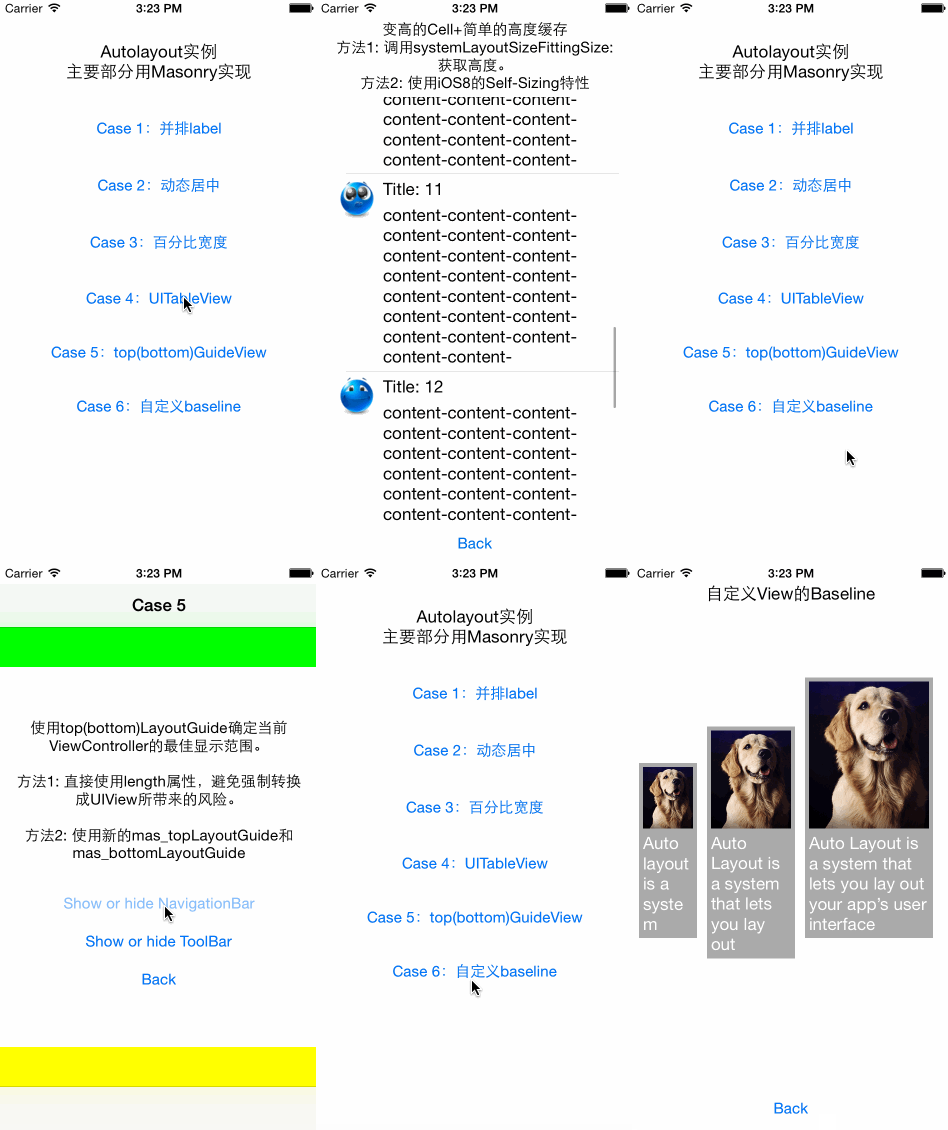
Gif示例

知识点

先讲讲两个知识点,很基础,但是很容易被忽略。

坐标系、top、right、offset

先看看Masonry的Github主页的示例代码:

1
2
3
4
5
6
7
8
UIEdgeInsets padding = UIEdgeInsetsMake(10, 10, 10, 10);

[view1 mas_makeConstraints:^(MASConstraintMaker *make) {
make.top.equalTo(superview.mas_top).with.offset(padding.top);
make.left.equalTo(superview.mas_left).with.offset(padding.left);
make.bottom.equalTo(superview.mas_bottom).with.offset(-padding.bottom);
make.right.equalTo(superview.mas_right).with.offset(-padding.right);
}];

代码的意思很简单,就是view1的上下左右边距为padding对应的值。

但是,为什么bottom、right的offset是负数呢?

其实无论是Autolayout还是直接写frame,最终的结果都是要把我们的控件按照正确的位置绘制在屏幕上,也就是说,在一个统一的坐标系下,如下:
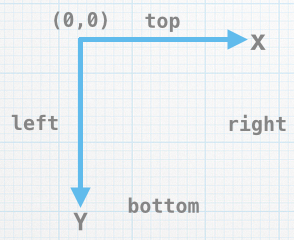
坐标系

而在Masonry里面,offset只是做了“加法”运算,举个例,上面的:

1
make.top.equalTo(superview.mas_top).with.offset(padding.top);

其实等于下面的式子:

1
view1.top = superview.top + padding.top;

转换到坐标系里面,即是:

1
view1顶部的y坐标 = superview顶部的y坐标 + padding.top;

所以,如果我们想view1的bottom距底部间距为10,按照offset的“加法运算”,应该是下面这样:

1
view1底部的y坐标 = superview底部的y坐标 + (-10);

所以,代码里面的bottom的offset是负数。right也是一个道理。

总的来说,就是布局的时候,始终要在坐标系下考虑。

约束的“等价”性

语文不好,还是用公式说明吧=。=
先看看Autolayout的基本公式:

1
viewA-attribute = viewB-attribute * multiplier + constant

这个公式,跟下面的是等价的:

1
viewB-attribute = (viewA-attribute - constant) / multiplier

这个转换是如此的简单,小学生都会=。=,只是为了说明,我们在设置约束的时候,既可以从ViewA的角度考虑,也可以从ViewB的角度,两者完全等价!。

说白了就是:“ViewA跟ViewB相距10”和“ViewB跟ViewA相距10”是一样的,如下两段代码,效果是一样的(注意正负数):

1
2
3
4
5
6
7
8
9

[view2 mas_makeConstraints:^(MASConstraintMaker *make) {
make.top.equalTo(view1.mas_bottom).with.offset(10);
}];


[view1 mas_makeConstraints:^(MASConstraintMaker *make) {
make.bottom.equalTo(view2.mas_top).with.offset(-10);
}];

更进一步说,就是约束只是两个View之间的关系,对于系统来说,ViewA和ViewB的地位是平等的,我们设置约束的时候,没有主次之分。

所以,我们在设置约束的时候,要从“整体”、“宏观”上考虑,更好地把握布局,避免重复约束。

Case 1: 变高UITableViewCell

变高的UITableViewCell,这是个永恒的话题=。=

不用Autolayout的话,计算Cell的高度的时候,就只能用sizeThatFits等方法,加上各种“魔鬼”数据的margin、padding来手动拼凑出Cell的高度。这种方法非常耗时,并且难以调试。

有了Autolayout,就再也不用手动算高度了~

UITableViewCell

先看看Cell的约束。

“自我约束”的Cell

既然要能让系统自己计算出Cell的高度,我们在设置约束的时候,就要让约束整体是“完整”、“自我约束”的。(这个很难用语言描述。。。)Cell里面的每一个View的大小、位置,都可以从约束中得到体现,而Cell的整体大小,也是从子View的约束综合计算得出的。

如下面的Cell:
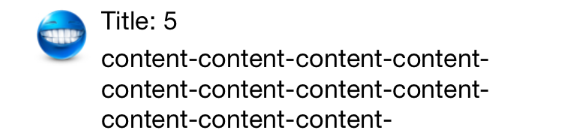
Cell

  1. 左上角的图片固定大小。
  2. 标题的Label只显示一行,固定高度。
  3. 内容的Label根据内容决定高度。
  4. 两个Label宽度整体随着Cell的宽度变化。

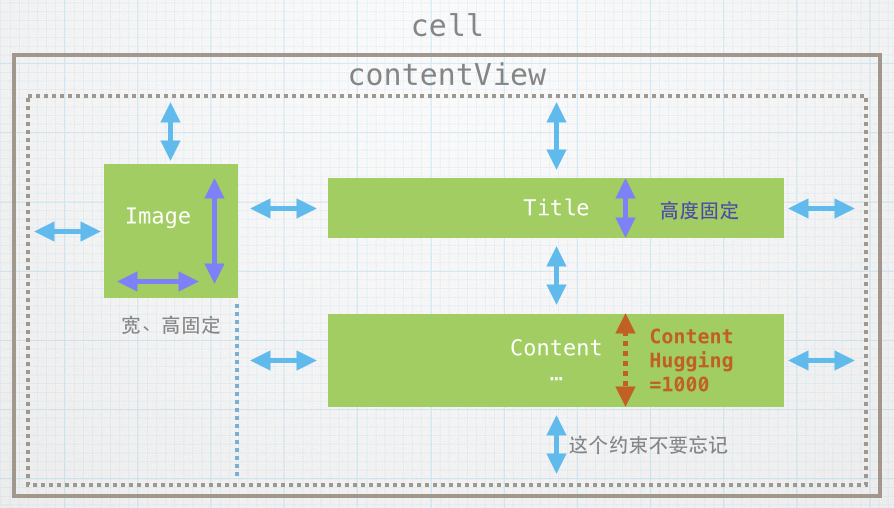
约束的设定如下:

约束示意

关键点:

  1. 内容Label的bottom和Cell的contentView的约束不可以省,因为cell的高度要由内部的约束决定,所以上下左右的约束一个不能少。
  2. 内容Label的高度随着内容变化,即cell的高度随内容变化,这个时候可以设置Label的ContentHugging的优先级最高。

UILabel的preferredMaxLayoutWidth

Autolayout下,UILabel在多行显示时,有个很“坑”的属性需要设定,就是preferredMaxLayoutWidth。

定义如下:

This property affects the size of the label when layout constraints are applied to it. During layout, if the text extends beyond the width specified by this property, the additional text is flowed to one or more new lines, thereby increasing the height of the label.

如果我们要使用Autolayout自动计算多行UILabel的高度,这个属性就必须在运行时指定,要不然系统计算不出UILabel的宽度,例如:

1
2

label.preferredMaxWidth = [UIScreen mainScreen].bounds.size.width - margin - padding;

手动计算宽度,感觉回到了没有Autolayout的时代=。=

Cell的关键代码

1
2
3
4
5
6
7
8
9
10
11
12
13
14
15
16
17
18
19
20
21
22
23
24
25
26
27
28
29
30
31
32
33
34
35

_avatarImageView = [UIImageView new];
[self.contentView addSubview:_avatarImageView];
[_avatarImageView mas_makeConstraints:^(MASConstraintMaker *make) {
make.width.and.height.equalTo(@44);
make.left.and.top.equalTo(self.contentView).with.offset(4);
}];


_titleLabel = [UILabel new];
[self.contentView addSubview:_titleLabel];
[_titleLabel mas_makeConstraints:^(MASConstraintMaker *make) {
make.height.equalTo(@22);
make.top.equalTo(self.contentView).with.offset(4);
make.left.equalTo(_avatarImageView.mas_right).with.offset(4);
make.right.equalTo(self.contentView).with.offset(-4);
}];


CGFloat preferredMaxWidth = [UIScreen mainScreen].bounds.size.width - (16 + 4) * 2 - 44 - 4;


_contentLabel = [UILabel new];
_contentLabel.numberOfLines = 0;
_contentLabel.preferredMaxLayoutWidth = preferredMaxWidth;
[self.contentView addSubview:_contentLabel];

[_contentLabel mas_makeConstraints:^(MASConstraintMaker *make) {
make.top.equalTo(_titleLabel.mas_bottom).with.offset(4);
make.left.equalTo(_avatarImageView.mas_right).with.offset(4);
make.right.equalTo(self.contentView).with.offset(-4);
make.bottom.equalTo(self.contentView).with.offset(-4);
}];

[_contentLabel setContentHuggingPriority:UILayoutPriorityRequired forAxis:UILayoutConstraintAxisVertical];

UITableView

再看看UITableView。

用systemLayoutSizeFittingSize:获取Cell的高度

在设定好Cell的约束以后,就可以用systemLayoutSizeFittingSize:方法获取Cell的实际高度,它的参数可以设定为两个系统常量,如下:

  1. UILayoutFittingCompressedSize: 返回合适的最小大小。
  2. UILayoutFittingExpandedSize: 返回合适的最大大小。

模板Cell

为了在- (CGFloat)tableView:(UITableView *)tableView heightForRowAtIndexPath:(NSIndexPath *)indexPath方法中计算Cell的高度,我们需要一个专门用于计算高度的Cell实例,可以说算是Cell的“模板”。一般来说,这个实例可以设置成函数的static变量,并只在第一次使用时初始化一次。

简单缓存高度

为了避免每次滑动时计算高度,可以将Cell的高度缓存下来。如,保存在每一行对应的数据Model(Entity)中,例如:

1
2
3
4
5
6
7
@interface Entity : NSObject

@property (copy, nonatomic) NSString *title;


@property (assign, nonatomic) CGFloat cellHeight;
@end

每次要获取高度时,就可以先检查一下是否有缓存,减少计算量。

设置estimatedRowHeight以减少首次显示的计算量

默认情况下,首次显示之前,系统都会一次性全部计算出所有Cell的高度,这简直不能忍啊!要是有10000行,那岂不是要卡死=。=

所以iOS 7以后,UITableView有了一个新的属性:estimatedRowHeight。

从属性名上就可以看出,这个属性可以为Cell预先指定一个“估计”的高度值,这样的话,系统就可以先按照估计值布局,然后只获取显示范围内的Cell的高度,这样就不会一次性计算全部的了。

关键代码

1
2
3
4
5
6
7
8
9
10
11
12
13
14
15
16
17
18
19
20
21
22
- (CGFloat)tableView:(UITableView *)tableView heightForRowAtIndexPath:(NSIndexPath *)indexPath {
static Case4Cell *templateCell;

static dispatch_once_t onceToken;
dispatch_once(&onceToken, ^{
templateCell = [tableView dequeueReusableCellWithIdentifier:NSStringFromClass([Case4Cell class])];
});


Case4DataEntity *dataEntity = _data[(NSUInteger) indexPath.row];


[templateCell setupData:dataEntity];


if (dataEntity.cellHeight <= 0) {

dataEntity.cellHeight = [templateCell.contentView systemLayoutSizeFittingSize:UILayoutFittingCompressedSize].height + 1;
}

return dataEntity.cellHeight;
}

iOS 8的新特性

iOS 8大大简化了Cell的高度计算,只要设置好Cell的约束,添加下面几行代码:

1
2
tableView.rowHeight = UITableViewAutomaticDimension
tableView.estimatedRowHeight = 80

然后:

1
2
3
4
- (CGFloat)tableView:(UITableView *)tableView heightForRowAtIndexPath:(NSIndexPath *)indexPath {

return UITableViewAutomaticDimension;
}

对!就只用这么几行代码就行!

Case 2: topLayoutGuide和bottomLayoutGuide

是什么

topLayoutGuide和bottomLayoutGuide都是iOS 7以后,UIViewController的属性。

在文档、头文件中,topLayoutGuide和bottomLayoutGuide的定义如下:

1
2
@property(nonatomic,readonly,retain) id<UILayoutSupport> topLayoutGuide NS_AVAILABLE_IOS(7_0);
@property(nonatomic,readonly,retain) id<UILayoutSupport> bottomLayoutGuide NS_AVAILABLE_IOS(7_0);

而UILayoutSupport的定义更是简单:

1
2
3
@protocol UILayoutSupport <NSObject>
@property(nonatomic,readonly) CGFloat length;
@end

以topLayoutGuide为例

The topLayoutGuide property comes into play when a view controller is frontmost onscreen. It indicates the highest vertical extent for content that you don’t want to appear behind a translucent or transparent UIKit bar (such as a status or navigation bar). This property implements the UILayoutSupport protocol and you can employ it as a constraint item when using the NSLayoutConstraint class.

简单来说,topLayoutGuide表示当前页面的上方被status bar、navigation bar遮挡的部分。同理,bottomLayoutGuide表示下方被遮挡的部分。

如下图:
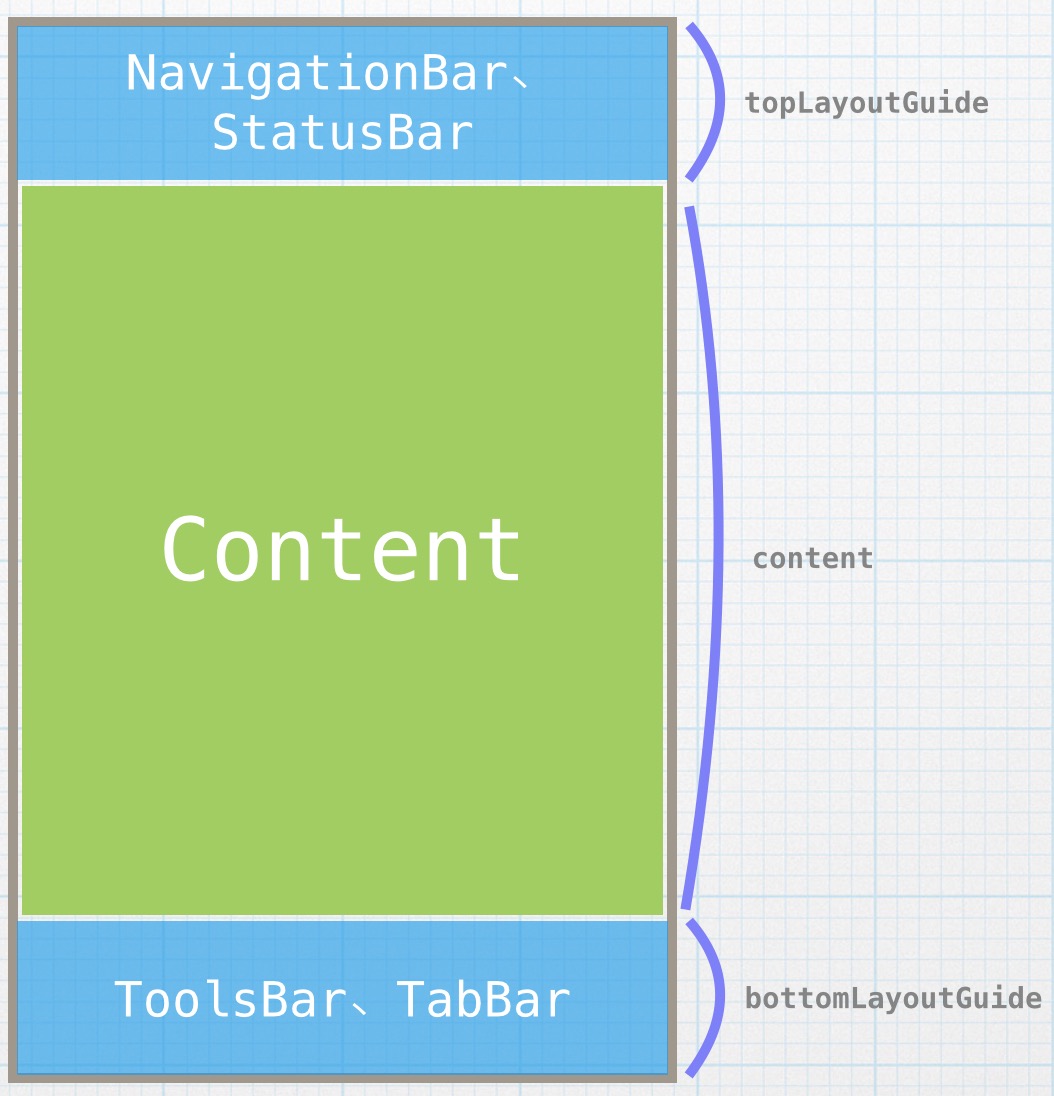
topLayoutGuide和bottomLayoutGuide

解决的问题

有些时候,一个ViewController可能单独显示出来,也可能内嵌在UINavigationController里面显示出来。在这两种情况下,页面的“可视范围”是不一样的,很明显,NavigationBar会遮挡住一部分,用了UITabBarController时,tabBar也会遮挡住下方一部分。再加上各种Bar都可以隐藏,情况会变得更复杂。

难道要为每种情况去写一份布局代码?

如何使用

为了解决上面的问题,就需要在设置约束时,加进topLayoutGuide和bottomLayoutGuide。

用法1: 强制转换为UIView

定义上,topLayoutGuide和bottomLayoutGuide都是id,但是实际中是什么呢?跟UIView有什么关系?
看看如下代码的运行结果:

1
NSLog(@"%d", [self.topLayoutGuide isKindOfClass:[UIView class]]);

结果是:”1”

也就是说,在运行期间,topLayoutGuide和bottomLayoutGuide就是UIView的子类

所以,第一种方法就是强制转换成UIView,直接运用在Masonry的约束里面,正如较旧的Masonry官方示例中的一样:

1
2
3
4
5
6
[topView makeConstraints:^(MASConstraintMaker *make) {
// 强制转换
UIView *topLayoutGuide = (id)self.topLayoutGuide;
make.top.equalTo(topLayoutGuide.mas_bottom)
// ...
}]

但是这样存在着风险,万一哪天苹果改变了topLayoutGuide和bottomLayoutGuide的实现方法,这么用就Crash了=。=

用法2: 直接使用length属性

第二种方法,就是直接使用UILayoutSupport定义的length属性。
这个时候就有个地方要特别注意,在运行到viewDidLoad的时候,length的值是0,因为这个时候界面还没有被绘制,所以一个解决方法就是在ViewController的updateViewConstraints方法里面去使用length值添加约束。如下:

1
2
3
4
5
6
7
8
- (void)updateViewConstraints {
[_topView mas_updateConstraints:^(MASConstraintMaker *make) {
// 直接利用其length属性
make.top.equalTo(self.view.mas_top).with.offset(self.topLayoutGuide.length);
}];

[super updateViewConstraints];
}

用法3: 使用新版的mas_topLayoutGuide和mas_bottomLayoutGuide

Masonry的新版中,为UIViewController增加了一个新的Category: MASAdditions,增加了mas_topLayoutGuidemas_bottomLayoutGuide两个方法,这样的话,我们就可以优雅的使用topLayoutGuide和bottomLayoutGuide了~

1
2
3
4
5
[_topView mas_makeConstraints:^(MASConstraintMaker *make) {
// 不用强制转换,也不用在updateViewConstraints里面更新了
make.top.equalTo(self.mas_topLayoutGuide)
// ...
}]

示例

直接看Demo吧,比较简单。

Case 3: 自定义baseline

最后一个Case,讲讲baseline。

baseline,翻译过来就是“基线”,在Autolayout里面对应着NSLayoutFormatAlignAllBaseline,也是一种对齐的标准。例如,UIButton的baseline就是内部的文字,如果一排button按照baseline对齐的话,就是下面这样:
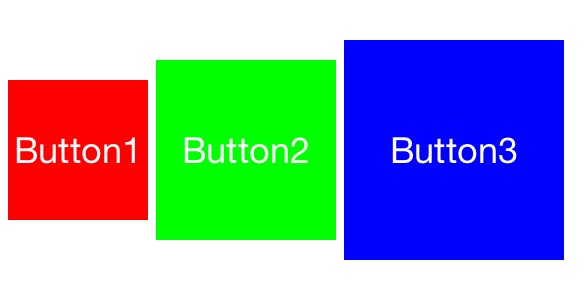
按钮按照baseline对其

对于自定义的View来说,baseline默认就是整个view的底部,如果想改变baseline的话,可以重写UIView的viewForBaselineLayout,返回当成baseline的view即可。

如下面的自定义view:
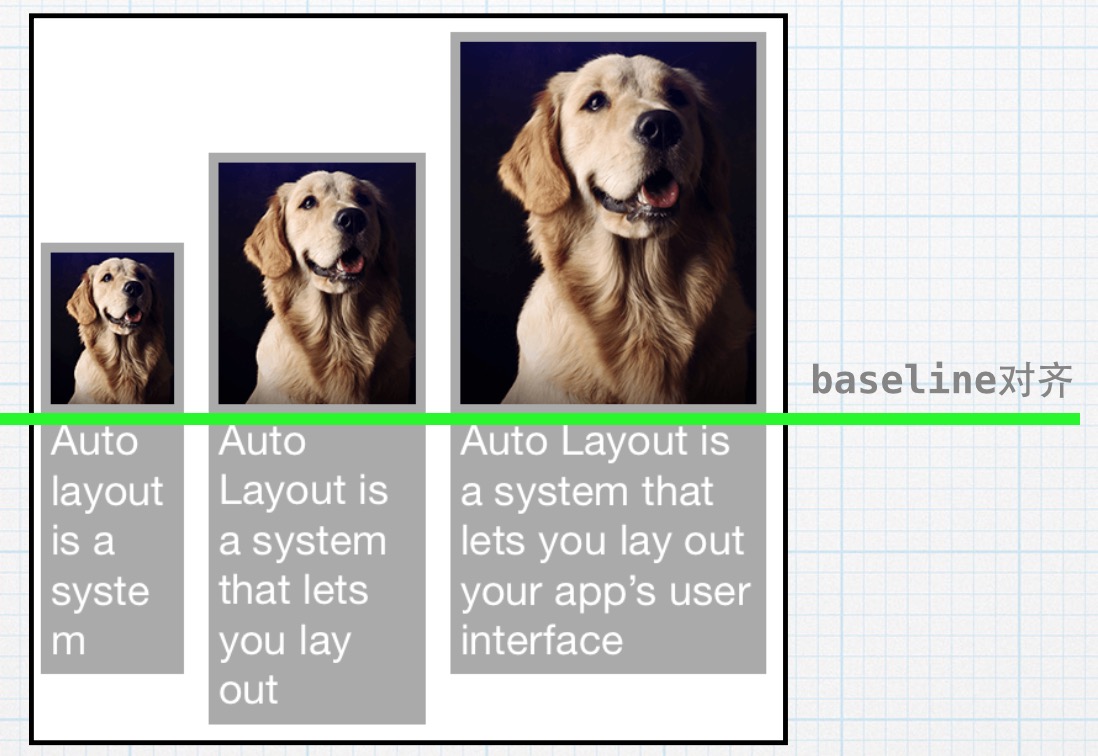
自定义baseline

很明显,baseline就是显示图片的UIImageView,代码也很简单:

1
2
3
4
5


- (UIView *)viewForBaselineLayout {
return _imageView;
}

灵活的使用baseline,可以更加方便的进行布局。

总结

写了好长,能全部看完的朋友,嗯,你是个优秀的程序员=。=

后面打算用Swift的SnapKit把所有的Case全部实现一次。

参考