



This article is also available in Chinese 简体中文.
In this post, I will show you how you can build a functional AI application quickly with Gradio's reload mode. But before we get to that, I want to explain what reload mode does and why Gradio implements its own auto-reloading logic. If you are already familiar with Gradio and want to get to building, please skip to the third section.
To put it simply, it pulls in the latest changes from your source files without restarting the Gradio server. If that does not make sense yet, please continue reading.
Gradio is a popular Python library for creating interactive machine learning apps. Gradio developers declare their UI layout entirely in Python and add some Python logic that triggers whenever a UI event happens. It's easy to learn if you know basic Python. Check out this quickstart if you are not familiar with Gradio yet.
Gradio applications are launched like any other Python script, just run python app.py (the file with the Gradio code can be called anything). This will start an HTTP server that renders your app's UI and responds to user actions. If you want to make changes to your app, you stop the server (typically with Ctrl + C), edit your source file, and then re-run the script.
Having to stop and relaunch the server can introduce a lot of latency while you are developing your app. It would be better if there was a way to pull in the latest code changes automatically so you can test new ideas instantly.
That's exactly what Gradio's reload mode does. Simply run gradio app.py instead of python app.py to launch your app in reload mode!
Gradio applications are run with uvicorn, an asynchronous server for Python web frameworks. Uvicorn already offers auto-reloading but Gradio implements its own logic for the following reasons:
if gr.NO_RELOAD: code-block that you can use to mark code that should not be reloaded. This is only possible because Gradio implements its own reloading logic.I will now show you how you can use Gradio reload mode to quickly build an AI App.
Our application will allow users to upload pictures of documents and ask questions about them. They will receive answers in natural language. We will use the free Hugging Face Inference API so you should be able to follow along from your computer. No GPU required!
To get started, let's create a barebones gr.Interface. Enter the following code in a file called app.py and launch it in reload mode with gradio app.py:
import gradio as gr

demo = gr.Interface(lambda x: x, "text", "text")

if __name__ == "__main__":
    demo.launch()
This creates the following simple UI.

Since I want to let users upload image files along with their questions, I will switch the input component to be a gr.MultimodalTextbox(). Notice how the UI updates instantly!
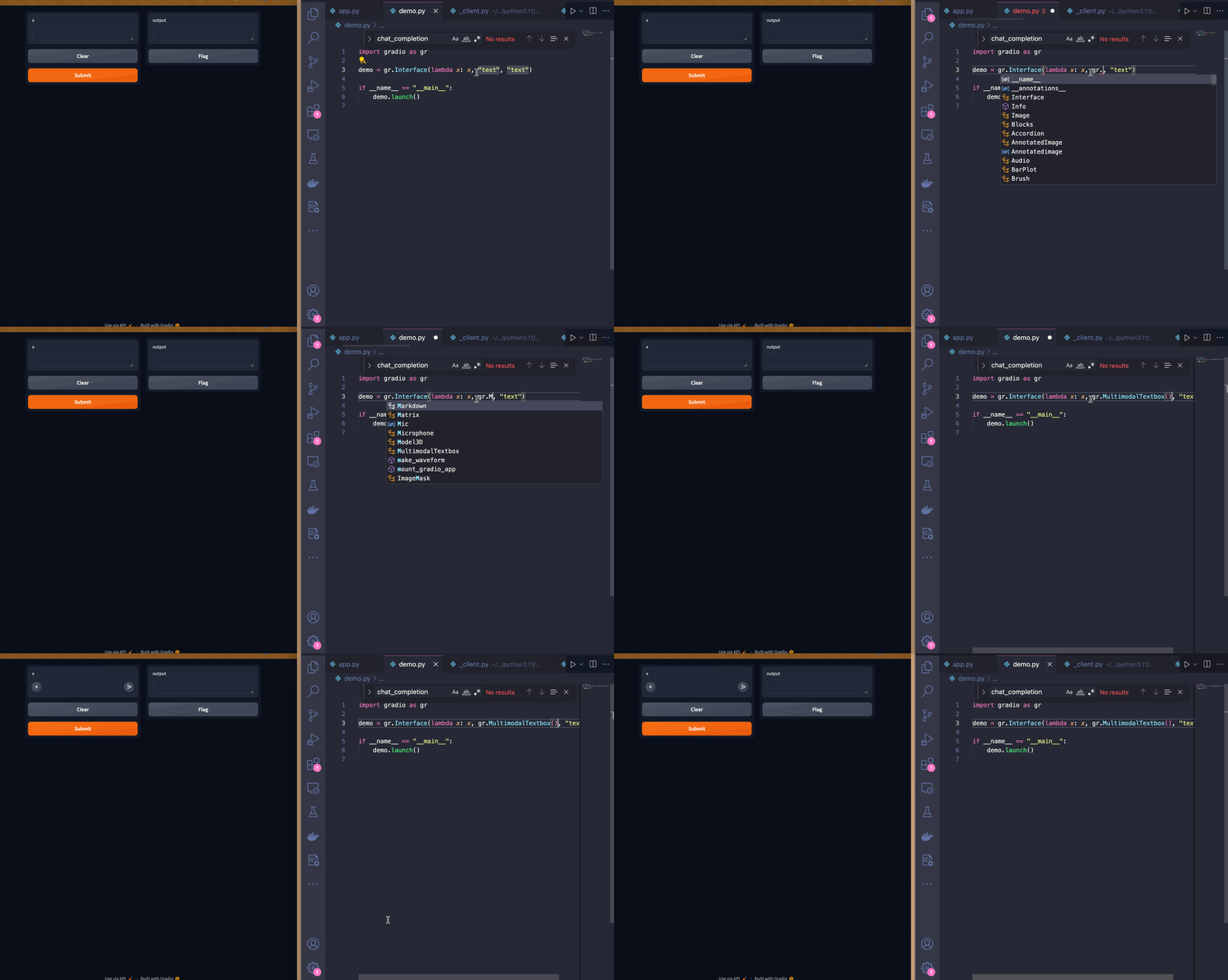
This UI works but, I think it would be better if the input textbox was below the output textbox. I can do this with the Blocks API. I'm also customizing the input textbox by adding a placeholder text to guide users.
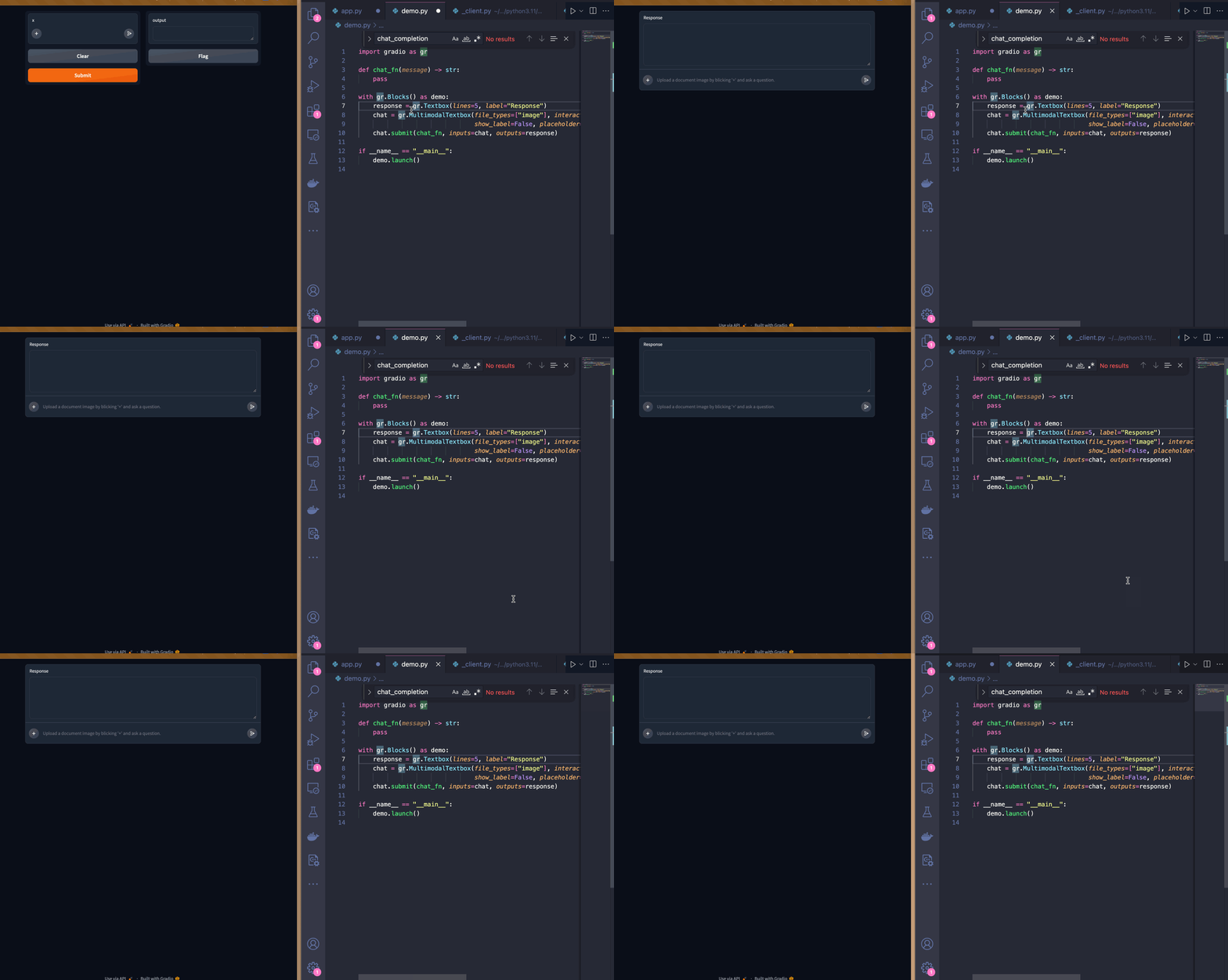
Now that I'm satisfied with the UI, I will start implementing the logic of the chat_fn.
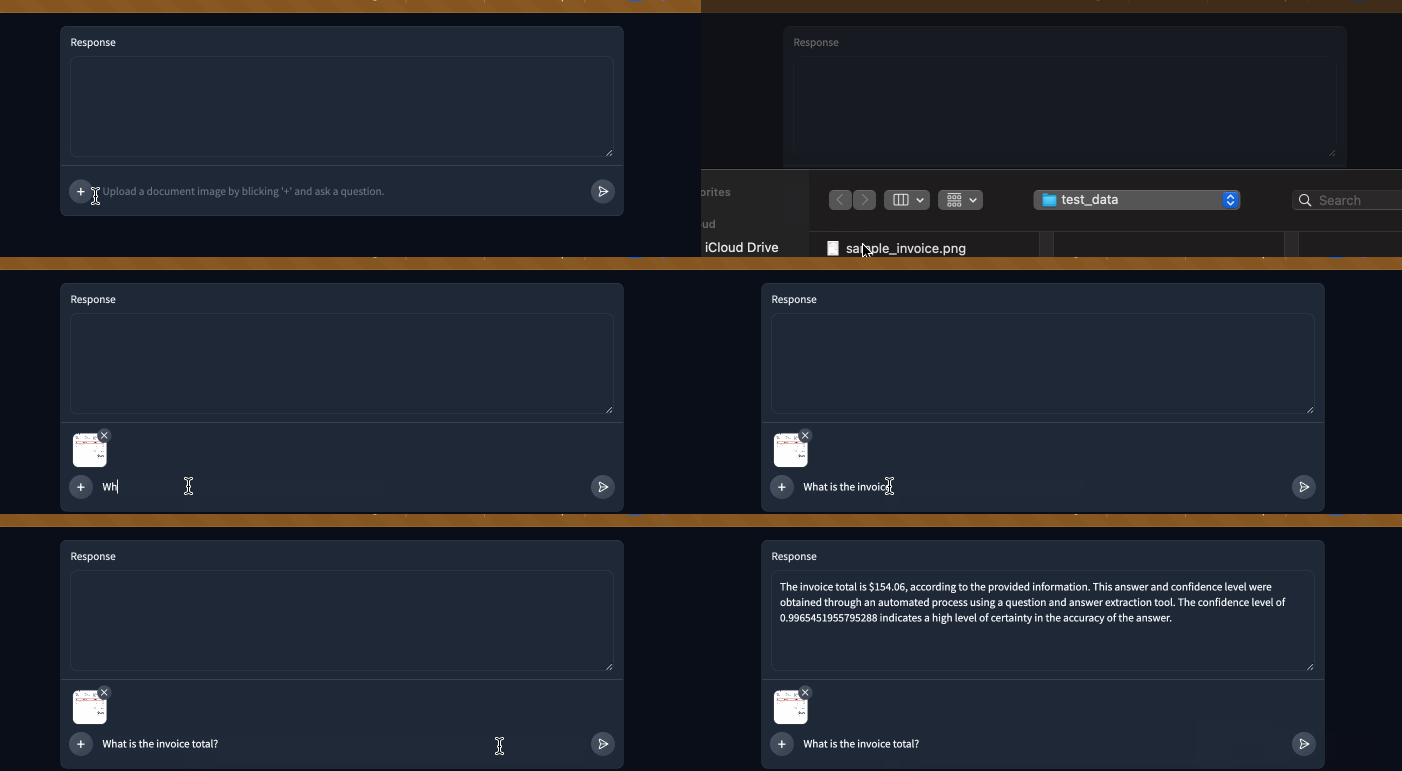
Since I'll be using Hugging Face's Inference API, I will import the InferenceClient from the huggingface_hub package (it comes pre-installed with Gradio). I'll be using the impira/layouylm-document-qa model to answer the user's question. I will then use the HuggingFaceH4/zephyr-7b-beta LLM to provide a response in natural language.
from huggingface_hub import InferenceClient

client = InferenceClient()

def chat_fn(multimodal_message):
    question = multimodal_message["text"]
    image = multimodal_message["files"][0]

    answer = client.document_question_answering(image=image, question=question, model="impira/layoutlm-document-qa")

    answer = [{"answer": a.answer, "confidence": a.score} for a in answer]

    user_message = {"role": "user", "content": f"Question: {question}, answer: {answer}"}

    message = ""
    for token in client.chat_completion(messages=[user_message],
                           max_tokens=200,
                           stream=True,
                           model="HuggingFaceH4/zephyr-7b-beta"):
        if token.choices[0].finish_reason is not None:
           continue
        message += token.choices[0].delta.content
        yield message
Here is our demo in action!
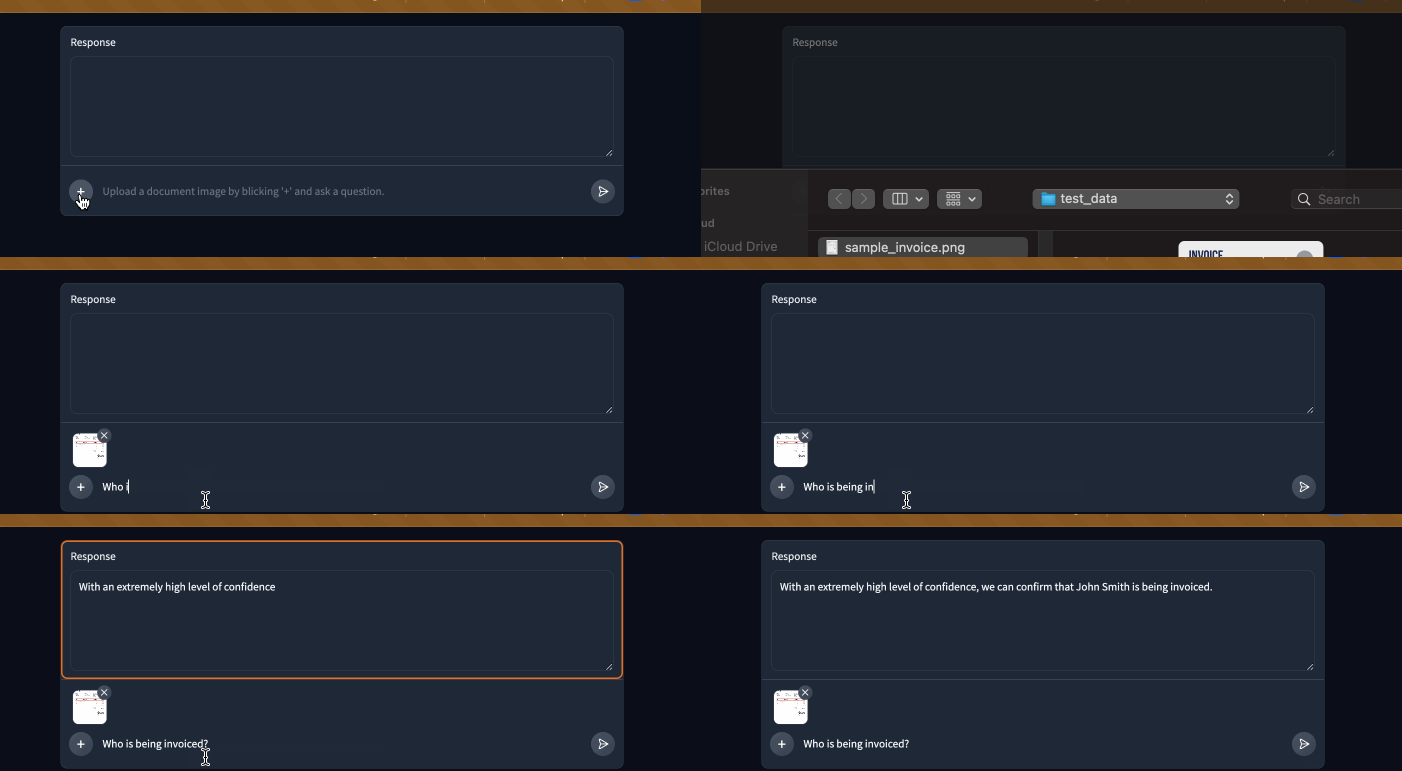
I will also provide a system message so that the LLM keeps answers short and doesn't include the raw confidence scores. To avoid re-instantiating the InferenceClient on every change, I will place it inside a no reload code block.
if gr.NO_RELOAD:
    client = InferenceClient()

system_message = {
    "role": "system",
    "content": """
You are a helpful assistant.
You will be given a question and a set of answers along with a confidence score between 0 and 1 for each answer.
You job is to turn this information into a short, coherent response.

For example:
Question: "Who is being invoiced?", answer: {"answer": "John Doe", "confidence": 0.98}

You should respond with something like:
With a high degree of confidence, I can say John Doe is being invoiced.

Question: "What is the invoice total?", answer: [{"answer": "154.08", "confidence": 0.75}, {"answer": "155", "confidence": 0.25}

You should respond with something like:
I believe the invoice total is $154.08 but it can also be $155.
"""}
Here is our demo in action now! The system message really helped keep the bot's answers short and free of long decimals.
As a final improvement, I will add a markdown header to the page:
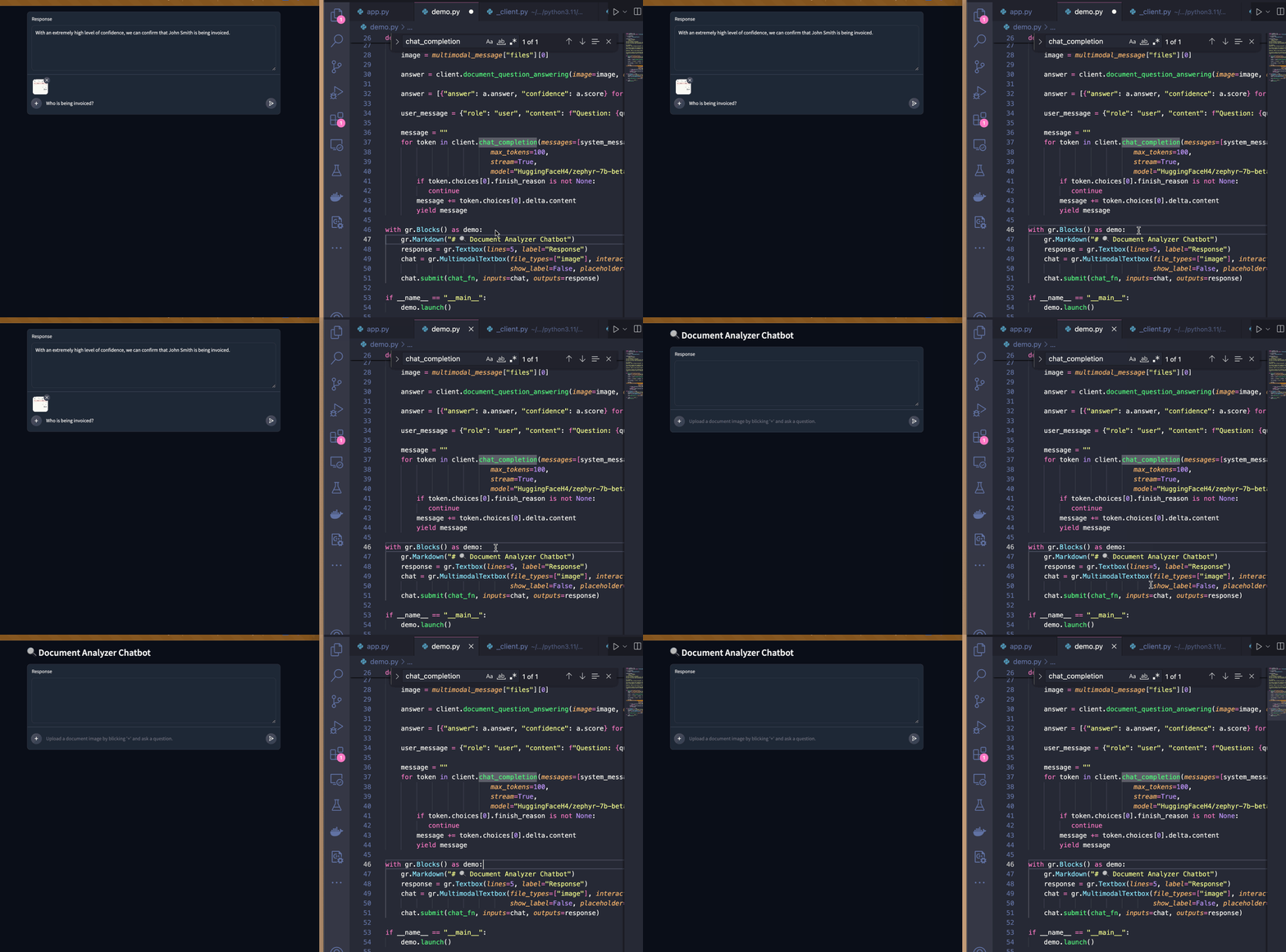
In this post, I developed a working AI application with Gradio and the Hugging Face Inference API. When I started developing this, I didn't know what the final product would look like so having the UI and server logic reload instanty let me iterate on different ideas very quickly. It took me about an hour to develop this entire app!
If you'd like to see the entire code for this demo, please check out this space!
此内容由惯性聚合(RSS阅读器)自动聚合整理,仅供阅读参考。 原文来自 — 版权归原作者所有。