


I want to share a way of working, which, using just your keyboard enables you to not only move the windows of an application around with ease, but crucially, switch between applications too.
Want to watch a video version of this? It’s on my YouTube channel here: https://youtu.be/s6vIP_1GrE4
So, as I have things currently, I can press:
Hyper + k for Kitty (my preferred Terminal/Neovim)
Hyper + g for Google Chrome
Hyper + c for Sublime Text
Hyper + p for Final Cut Pro
Hyper + f for Finder
Hyper + s for Safari
The mnemonic can obviously suit however suits you best.
So that’s opening and switching. Then I can manage the window size and position too.
Here are the window size and positioning shortcuts I have:
Hyper + 1 puts the application 1920 * 1080 at the top left (for HD screen recordings) Hyper + 3 for the first third Hyper + 6 for the second two thirds Hyper + 9 for the last third Hyper + arrows move the window to one side or another of the screen. If you have multiple screens, press it again at one side of the screen and it will move to the next screen Hyper + 0 makes the window maximised
No more alt-tab, no more dragging windows to the correct position; I never do that any more! Plus with this method there is no slow annoying transition; it’s instant.
To accomplish this I use a couple of tools. Neither are expensive, but if you are very price sensitive, you may be able to substitute for cheaper alternatives which I’ll mention shortly. However, the two I use are Rectangle Pro, which is £8.29 for me in the UK and Alfred with the Powerpack which costs £34. I find those two help my productivity in so many ways, I’m totally happy with the cost.
There are a few tools you can probably accomplish this same approach with; you might prefer to use Keyboard Maestro and Raycast for example. Whichever you choose the goal remains the same. You want to be able to open or switch to your most used apps with a single keypress, and position the windows of said apps just as easily.
Setup Rectangle
Let’s look at Rectangle Pro first, as that’s the easy part. This is where we set moving any window to where we want it.
Inside Preferences, you want to use Keyboard Shortcuts, and then go down the list, setting any of the existing window sizes to something that makes sense to you. I have mine set to Hyper plus Left or Right arrows to move a window to either side, then Hyper and a number for other splits. I only ever tend to have thirds so I have Hyper + 6 for the first two thirds, Hyper + 9 for the last third, and Hyper + 0 for maximise. To move a Window to a second display, I just press Hyper + Right or Left an extra time and Rectangle handles sending it on to the next display.
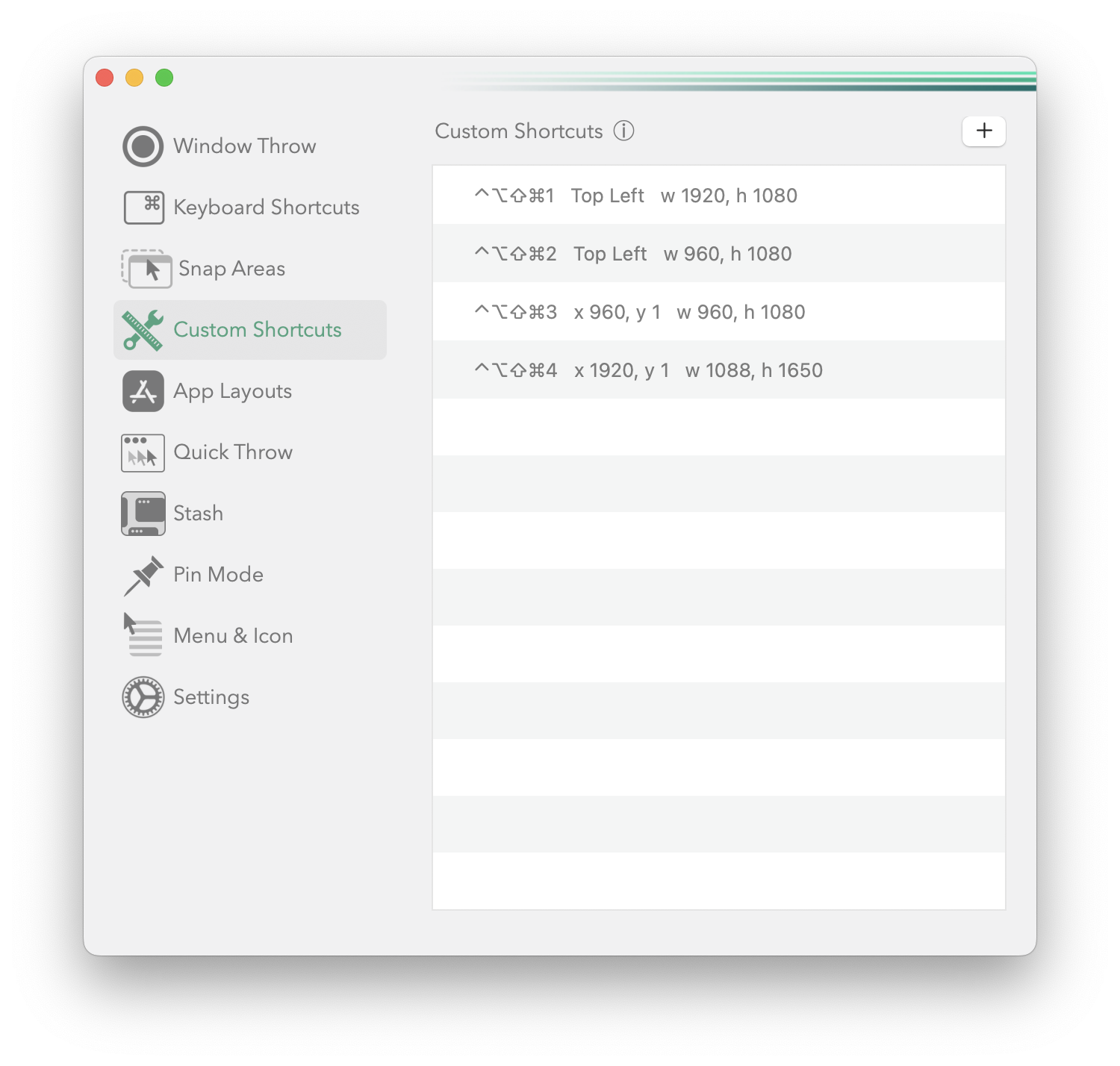
If you want something very specific, Rectangle can handle that. Use the Custom Shortcuts section, click the plus, and set your preference. I have Hyper +1 to open a 1920*1080 window, starting at the top left of the display. You can obviously use this to do whatever you like.
Setup Alfred
The Alfred part can seem a little more involved but it doesn’t take long and then you never have to touch it.
We want to set some shortcuts to either open an application when triggered, or if it is open already, focus it. That way we can switch between applications without moving our hands from the mouse.
Open the Alfred Preferences, and click on Workflows.
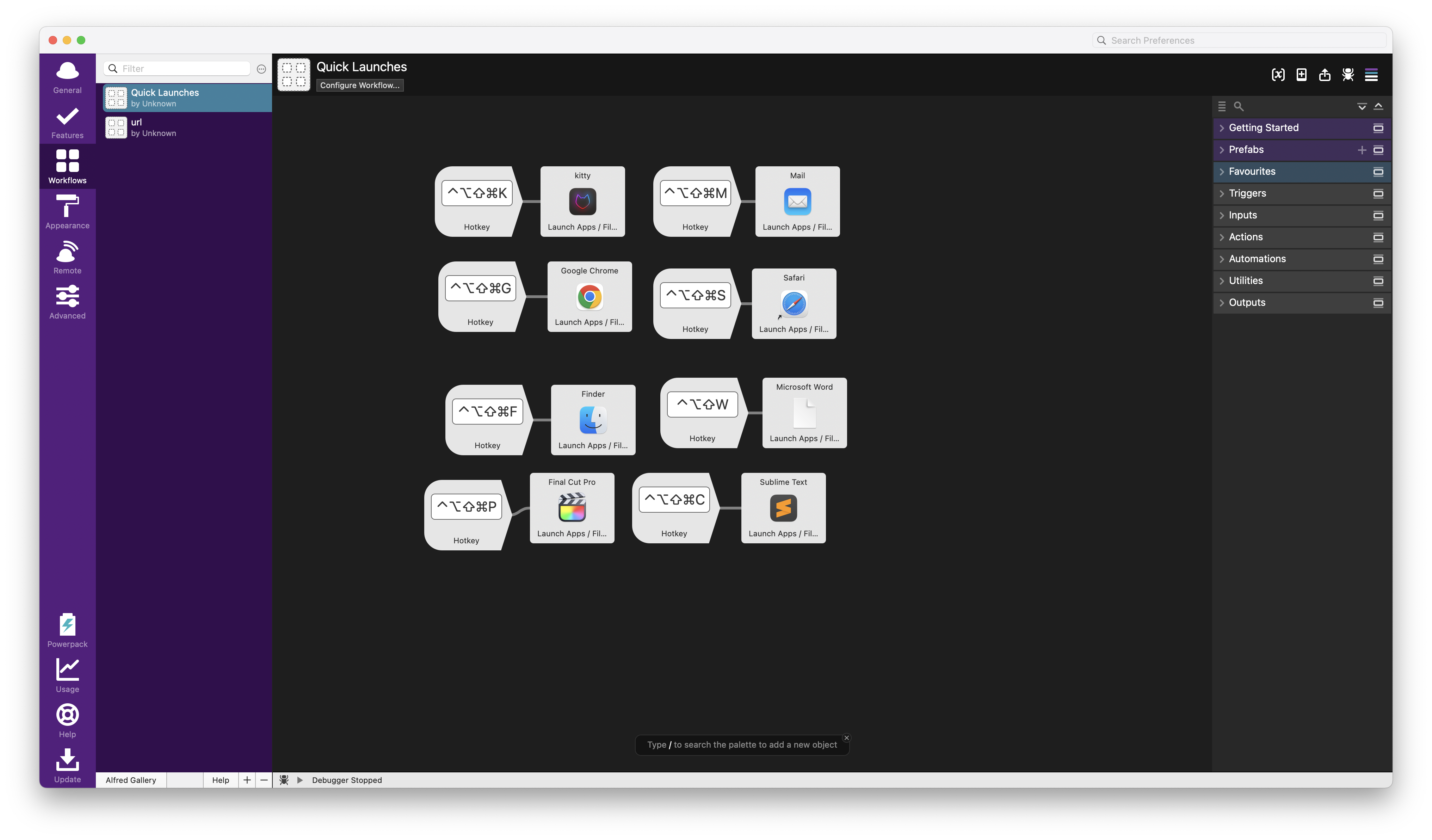
What I tend to do is right-click, choose Triggers, and then Hotkey. Then you want to record your shortcut, so I’ll do Hyper + C. Make sure that is set to Pass through to workflow. That’s your shortcut setup. Now we need to link that shortcut to an Action. Right-click again and choose, Actions, Launch Apps/Files, and you will get a Finder like window. Click the little plus at the bottom right, and browse to the Application you want you shortcut to open. Then choose Open and then Save. Now all you need to do is link the two. Select your shortcut, hold down the Option/alt key and click on the Launch Apps box you want to link it to. That’s it. If you try that shortcut now, it should open the app in question, or focus it if already open.
Now, I only use a few different Applications, so all of mine I have managed to map to Hyper and a single key, such as Hyper + k for Kitty, or Hyper + F for Finder. You do you and map it to something that makes sense for you.
Once that is in place you now have the means to open and switch to any of your most used apps but also resize their windows and send them to other displays with absolute ease.
Conclusion
I’ve found this approach absolutely wonderful, and I find it far more effective and simple than something like Yabai or Hammerspoon. I know they aren’t doing exactly the same thing, and I do appreciate that you can do things like Sway in the macOS space but what I have here is very low hassle and makes me incredibly productive.
Give it a whirl and let me know how you find it.