







If you want to take some first steps into the mad rabbit hole of ergonomic keyboards, I can recommend the Kinesis mWave.
Let me give you a rundown of the features, and then I’ll get to my thoughts on it.
Features
The mWave is a ergonomic mechanical keyboard that will set you back $119. Unlike many of Kinesis’s other boards, like the Advantage360, the mWave is a unibody, rather than split into two distinct halves. It’s ‘tenkeyless’ which just means you don’t have a physical number-pad on one side. But it’s got all the keys you could realistically want and I don’t think you will miss the number pad, and I’ll explain why shortly. You have a Function key row, and many of those keys come pre-programmed with helpful shortcuts, so you press one of them to go to the Desktop, or take a screengrab, or skip song etc.
The frame is plastic and it rises slightly in the middle, like a wave , providing built in tenting, so your hands rest a little more at an angle, rather than completely flat by default. For many people, but not all, that revised positioning of the hands can alleviate discomfort caused from repetitive strain injuries, and it also has a built in, slightly squishy palm wrest for added comfort.
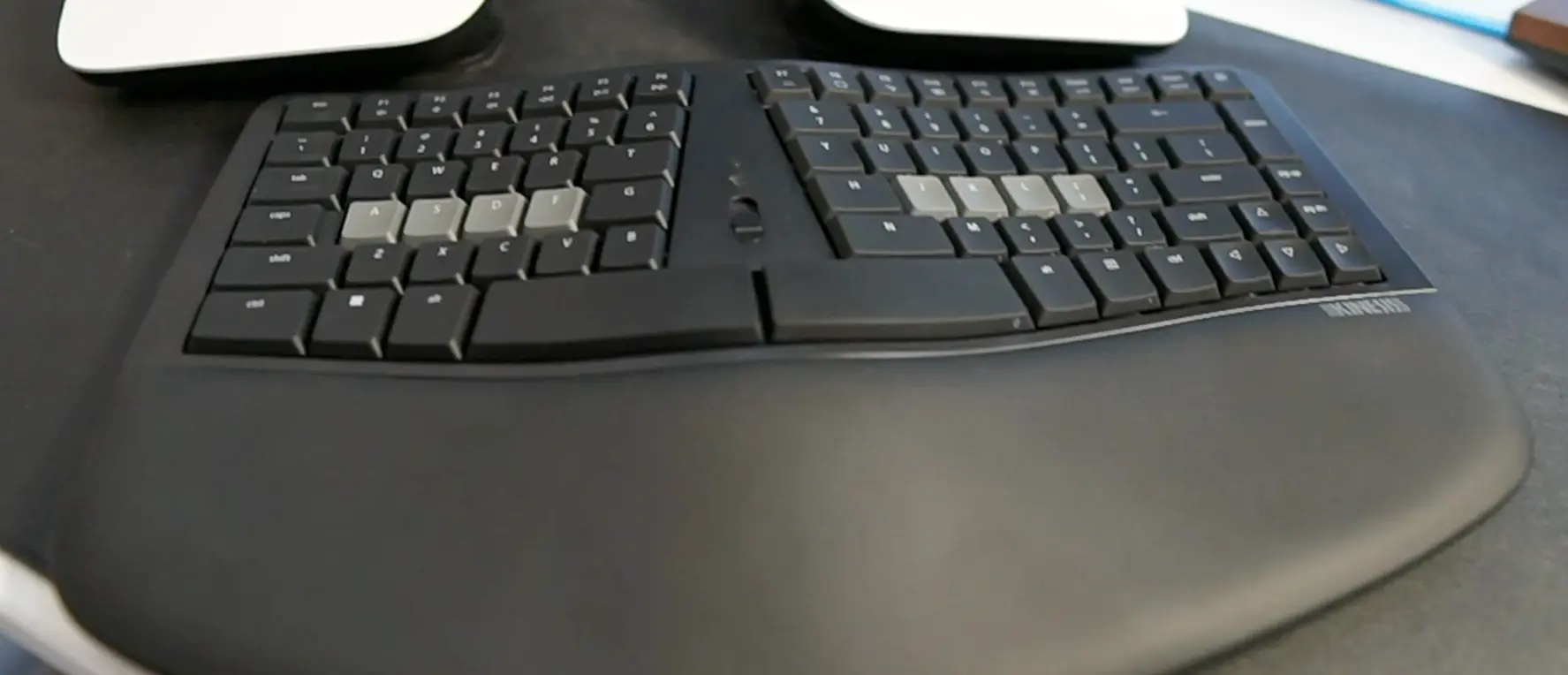
You can connect the keyboard wired or wireless with Bluetooth. The Bluetooth side of things supports connecting to two different devices.
You can program the layout of the mWave via a graphical web interface. I hesitate to say ‘fully programmable’ as there are a few uber geeky things you can’t do with it but we will come to that.
When using it wired, you can turn on the white backlight for the keys, which you can set to low, medium or high intensity, or disable entirely.
It’s got low profile Gateron KS-33 mechanical switches. They aren’t hotswap so you can’t change them out for different kinds of switches. The brown KS-33 are tactile switches, rather than clicky or linear which gives them just a little feedback as you type. The feel of the KS-33 in general is somewhere between an MX switch and a choc switch in terms of travel. If you are watching this and you are not a keyboard nerd, in simpler terms… it’s kind of halfway between something like a laptop keyboard where there is hardly any travel, and a full on mechanical keyboard like Nedry uses.
When you order, you can choose a Mac or PC option. It’s essentially the same hardware, just a different color, the Mac option being white, with the relevant printed keys for Option and Command and such, and the PC version being black with printed keys for Alt and Windows. Both have grey keys for the homing row keys, where you fingers rest, and I think they look great.
I’m on a Mac but still went for the black, because I don’t like how quickly I tend to make white boards look grubby. In either case, you can also buy additional blank keycaps for just $35, and they look like this on the board.
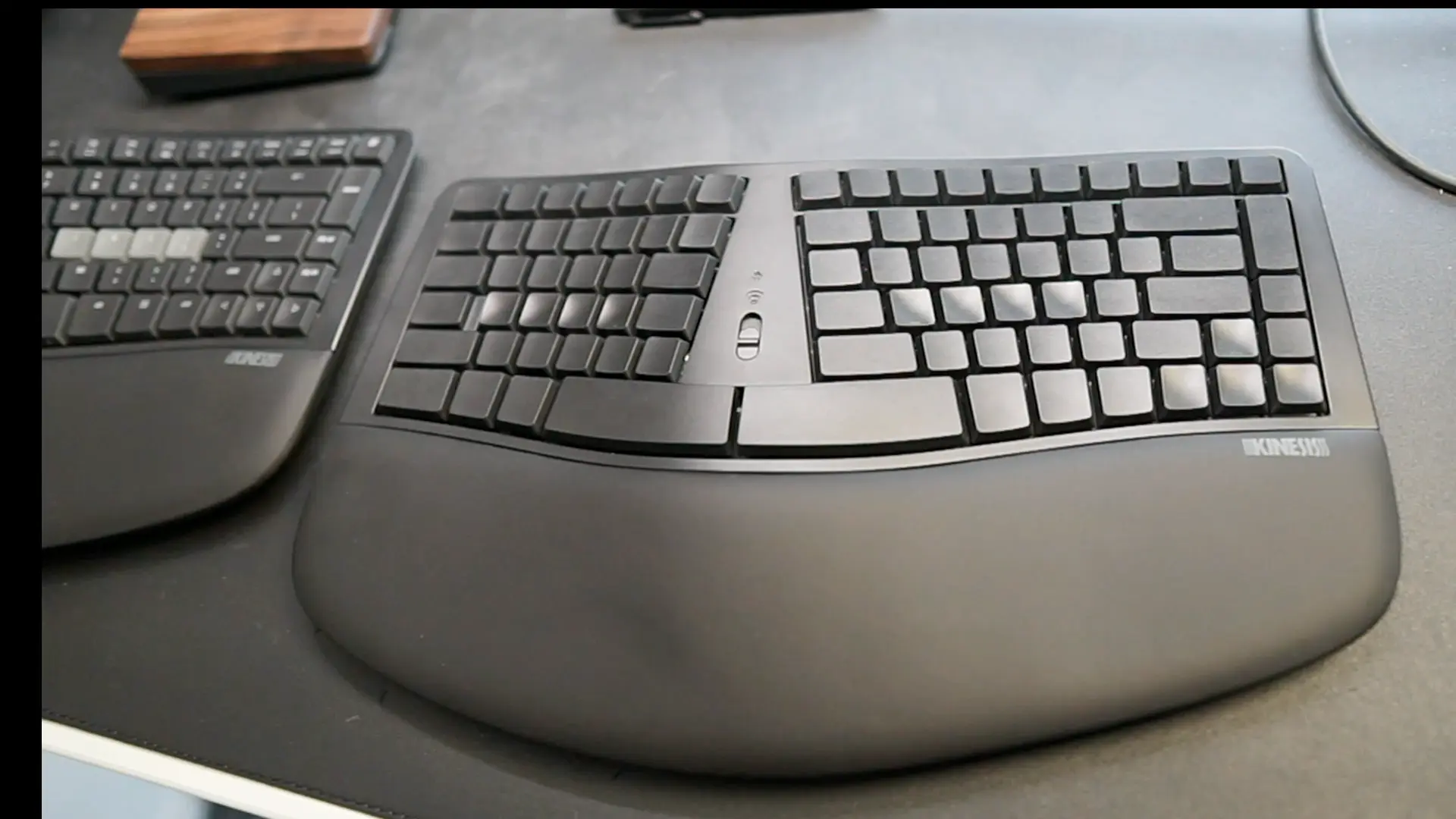
Or, if you want the black or white keyboard, but don’t want the wrong system keys if you are on the opposite operating system, you can buy a pack of macOS relevant keycaps for Command, Option and such in black, or a 12 pack of PC keys for Windows in white for $25. That’s really good value.
What you should know, is if you use an alternative keyboard layout like Colemak as I do, or maybe Dvorak or a different language, you will want the blanks. Many of the keys on the mWave are specific shapes for their location, so you can’t just necessarily swap the printed ones around to match your layout.
So, that’s the features covered. What’s it actually like?
Opinion
Although it’s not designed to be a travel board. It is pretty light, at 780g minus batteries, and you can get it in most decent size backpacks as its only about 39cm or 15.5 inches at its longest point, so if you commute between two places of work with a pack, you don’t need to think about needing two of them.
As I mentioned, the white backlighting is only possible when the keyboard is wired, which explains how the mWave is able to go 12-18 months on one set of AA batteries when using it in Bluetooth mode. If using it wirelessly, the manual recommends sliding the switch to the bottom position when not in use. I haven’t been using the mMave anything like 12-18 months but I always forget to put the switch to the bottom and I have certainly not encountered any signs of needing to replace the batteries yet, and it goes to sleep after 5 mins of activity in Bluetooth mode anyway. Switching between modes is as simple as moving the big switch in the middle. Top is the first paired bluetooth device, middle is the second paired Bluetooth device, and the bottom is the wired position. The mWave ships with a USB-C to USB-A cable. I’d personally prefer a C to C cable but any other C to C cable you have will do the job.
It has a nice sound as you type. It is certainly not silent but I don’t think it is unpleasant if you will be working in a shared environment, although the space bars are a little louder than the other keys. In the YouTube version of this review, you can hear me typing on the mWave compared to a Macbook Pro 16" for comparison. I actually really like the sound, it makes me want to type on it more.
Some things I really like are the big fat split keys at the bottom; I use one for space and the other for return, and they are very satisfying to use. I also really appreciate the home row keys, where your fingers naturally sit when paused. All four on each side have a nice scoop to them, as well as the index finger key also having a bar across. That makes it easy to feel your way back into the correct typing position. And, another nice touch is the arrow keys at bottom right have the same scoped design, with a bar on the ‘up’ arrow key. Little details but makes it nice to use day to day.
Programming the layout
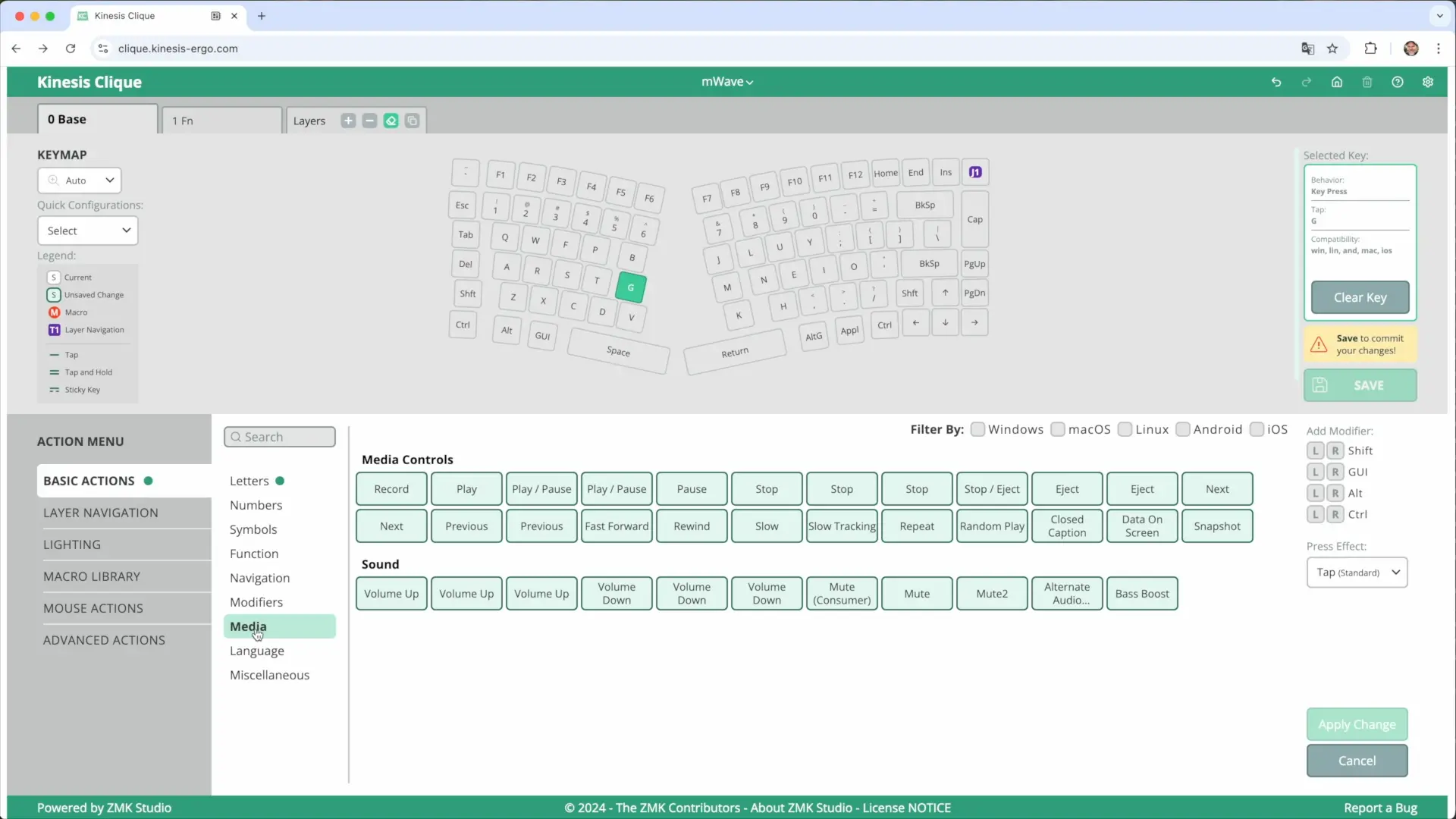
The Clique software, which sits on top of ZMK firmware, lets you adjust the layout in virtually anyway you like. You connect through a chromium browser, tap the top-right and CAPS LOCK keys to unlock the board, and then the sky is pretty much the limit. I was able to get my preferred, slightly modified version of Colemak on there quickly by using the standard Colemak, and then moving a couple of keys around. You click ‘Apply’ which lets you make the change and test it out, and then ‘Save’ to save it to the board. There is no need to download files and such. You just click ‘Save’ and its on the board. Very civilised. If it all goes horribly wrong, you can just click the little drop-down at the top and ‘Restore the default keymap’.
The only very slight shortcoming is that you can’t do something like home row mods currently with the mWave, where you hold in one of the home row keys to get a modifier like shift, control or option. But lets be honest, if you’re nerdy enough to be doing that, you likely won’t be wanting a keyboard like this. This is the kind of ergonomic keyboard for 90% of people who want to try an ergonomic keyboard. It hits all the essential points like tenting, palm rest, real homing keys, multiple connection and programmable, without getting into the weeds and making it inaccessible to average users.
But pretty much anything else, programming wise, this board gives you a nice simple way of achieving it. This is a major differentiator to the similar ergo keyboards from Logitech and the like. It’s a level of customisability way beyond what they offer.
Layout
I really like the layout, even though I generally prefer a physically split board, and while I don’t usually find any benefit from tented boards, it certainly doesn’t cause me any discomfort either. I was able to get comfortable with this board in no time. I don’t generally opt for negative tilt either, although the mWave does support it. It comes with little magnetic feet that just click on, raising the front edge. Works well enough.
I am a big fan of palm rests, that’s something that is generally table stakes for me when using a board now, and I appreciate it’s built in and the squishiness is very nice.
Conclusion
This is a very good value ergo keyboard. If you are looking for something to replace one of the MS Sculpt boards of old, or you like the look of the Logitech K680 but want something more compact, or something far more programmable, look no further. This is it. If that sounds you, you don’t need to watch anymore, just go and order one and enjoy it. Kinesis have been around for years, their support is exceptional, and this has a 2 year guarantee. You’re in safe hands.
If you are wondering whether this board is going to help with your RSI issues I’ve got some tough news for you. Nobody knows. Not for sure. The pattern I see quite often is that when people hit these issues, they either opt for something like the mWave and their issues are alleviated enough that they get on with life. Or, they spend months and years trying different keyboards and setups before eventually ending on a solution that no-one would have predicted at the outset. For example, I tend to develop thumb pain issues when using boards with key wells over prolonged periods. On paper that makes little sense, key well boards are considered the gold standard of ergonomic comfort but there you go – I tend to stick with flatter boards now just because they work for me.
So, no one can tell you this will save your pain but this style of keyboard has worked for, and helped plenty of people in that very same scenario. If you are in the US they have a 60-day money-back guarantee too.
Personally, this isn’t going to be my daily driver. I’m too used to a column based keyboard layout now, with the keys in distinct columns like Kinesis’s own Advantage360, whereas the mWave is designed to be accessible to the masses by using a staggered layout, like 99% of other keyboards on the planet.
That said, it would absolutely be the keyboard that I would recommend a colleague if they complained about their standard keyboard.
The mWave is very competitively priced against boards of the same type, it’s good quality, and crucially, programmable along with giving you a proper mechanical keyboard feel.