


I spent years teaching CSS layout on this blog. I put everything I know into The Layout Maestro course: 70+ lessons and 150+ interactive examples that teach you how to think CSS layouts, not just memorize syntax.
Recently, while editing some CSS in Opera inspector, I noticed a CSS property called writing-mode, that was the first time I knew of it. After some research, I learned that its purpose is for vertical language scripts, like Chinese or Japanese. However, the interesting thing is that when using it with English, we can create a vertical text very easily.
The writing-mode property defines whether lines of text are laid out horizontally or vertically and the direction in which blocks progress. As of MDN
Browser agents that support this propery will have horizontal-tb as the default value. This works for horizontal language scripts like: English, French, Arabic.. etc
We will explore the value of vertical-lr, lr stands for (Left to right).
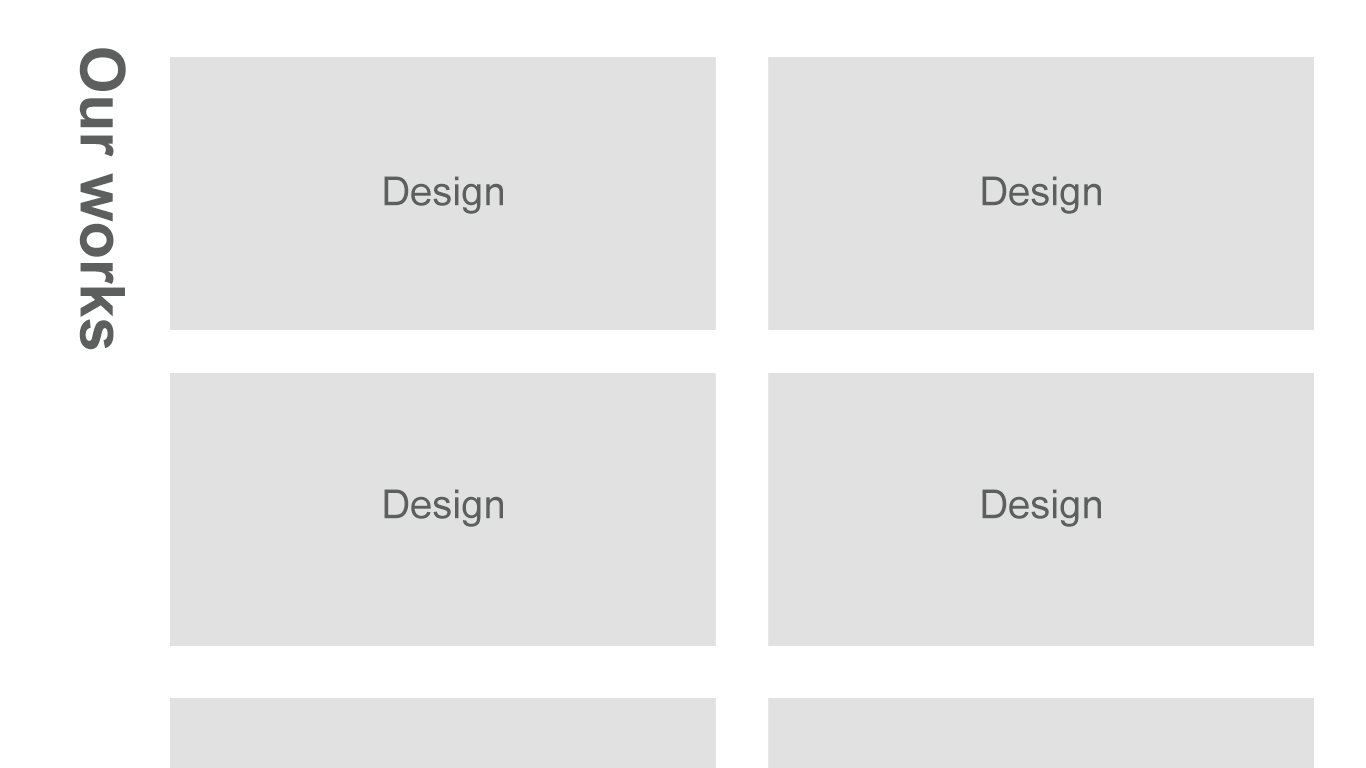
In the above design, we have a section title that is rotated 90deg around the top left of it’s origin. If you want to do this without CSS writing-mode, we need to do the following:
position:relative.position: absolute.transform-origin: left top.transform: rotate(90deg).{% highlight html %}
{% endhighlight %}
{% highlight css %} .wrapper { position: relative; padding-left: 70px; }
.section-title { position: absolute; left: 0; transform-origin: left top; transform: rotate(90deg); } {% endhighlight %}
A lot of work to do for such design, right? Lets explore how this could be done using CSS writing-mode:
{% highlight css %} .section-title { writing-mode: vertical-lr; } {% endhighlight %}
We’re done! :D As you see, there is no need to position anything or add padding as we did. Checkout the demo below:
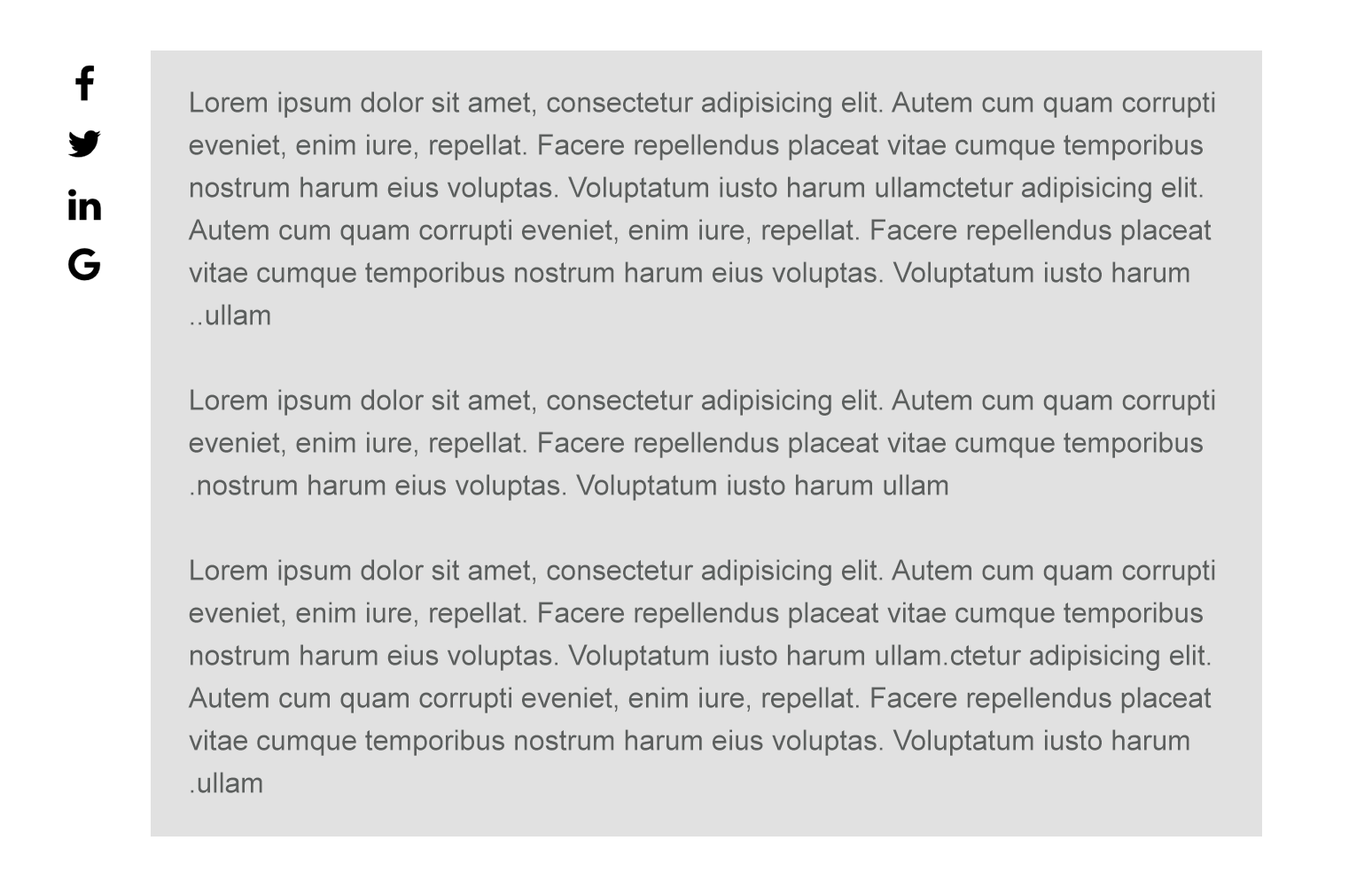
With the above design, we have a sharing widget that is placed vertically beside the content. It’s true that we can make this easily without CSS writing-mode, but the interseting thing is that when using it with the social widget, we will get the ability to vertically center it (left, center or right).
As in the example, the social widget is vertically aligned to the top of its parent. By changing CSS text-align propery, we can change the position of it. For example:
{% highlight css %} .social-widget { writing-mode: vertical-lr; text-align: right; } {% endhighlight %}
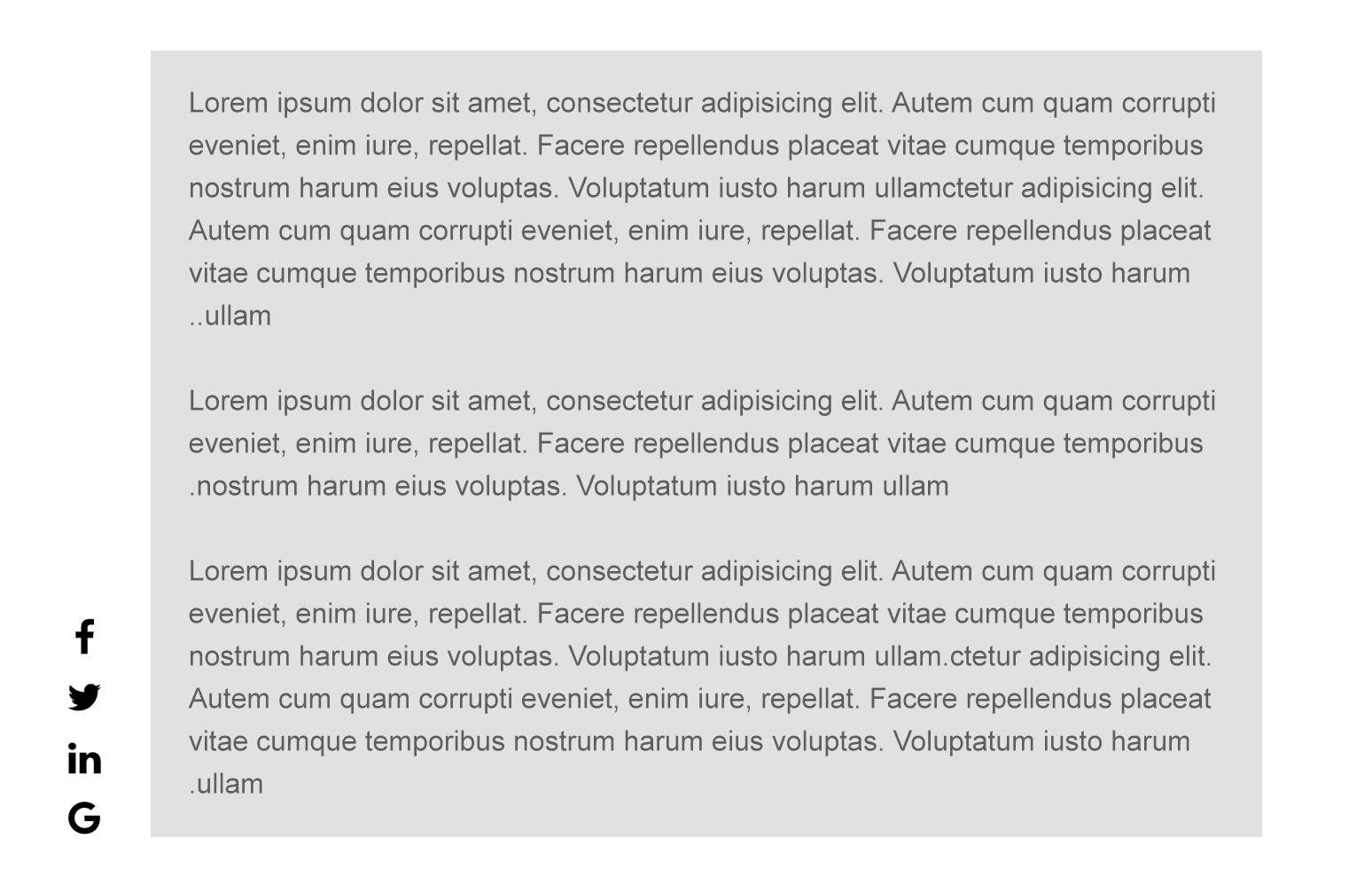
This will align it to the bottom of it’s parent! Easy, right? In the next example, it will be centered vertically.
{% highlight css %} .social-widget { writing-mode: vertical-lr; text-align: center; } {% endhighlight %}
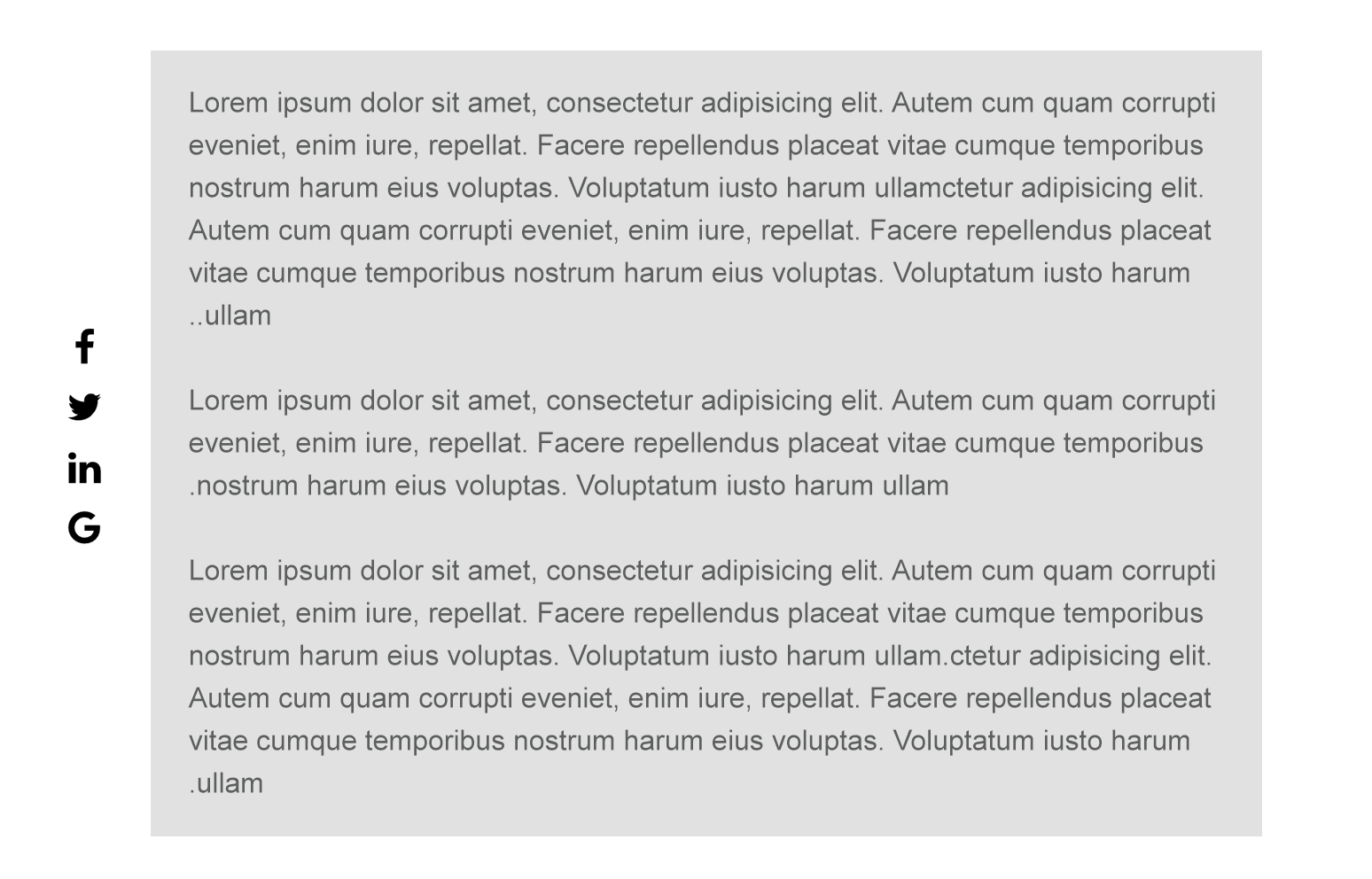
And here is the demo for the social widget:
Disclaimer: I stopped using icon fonts and switched to SVG, I’m using the icon fonts for the sake of the demo only.
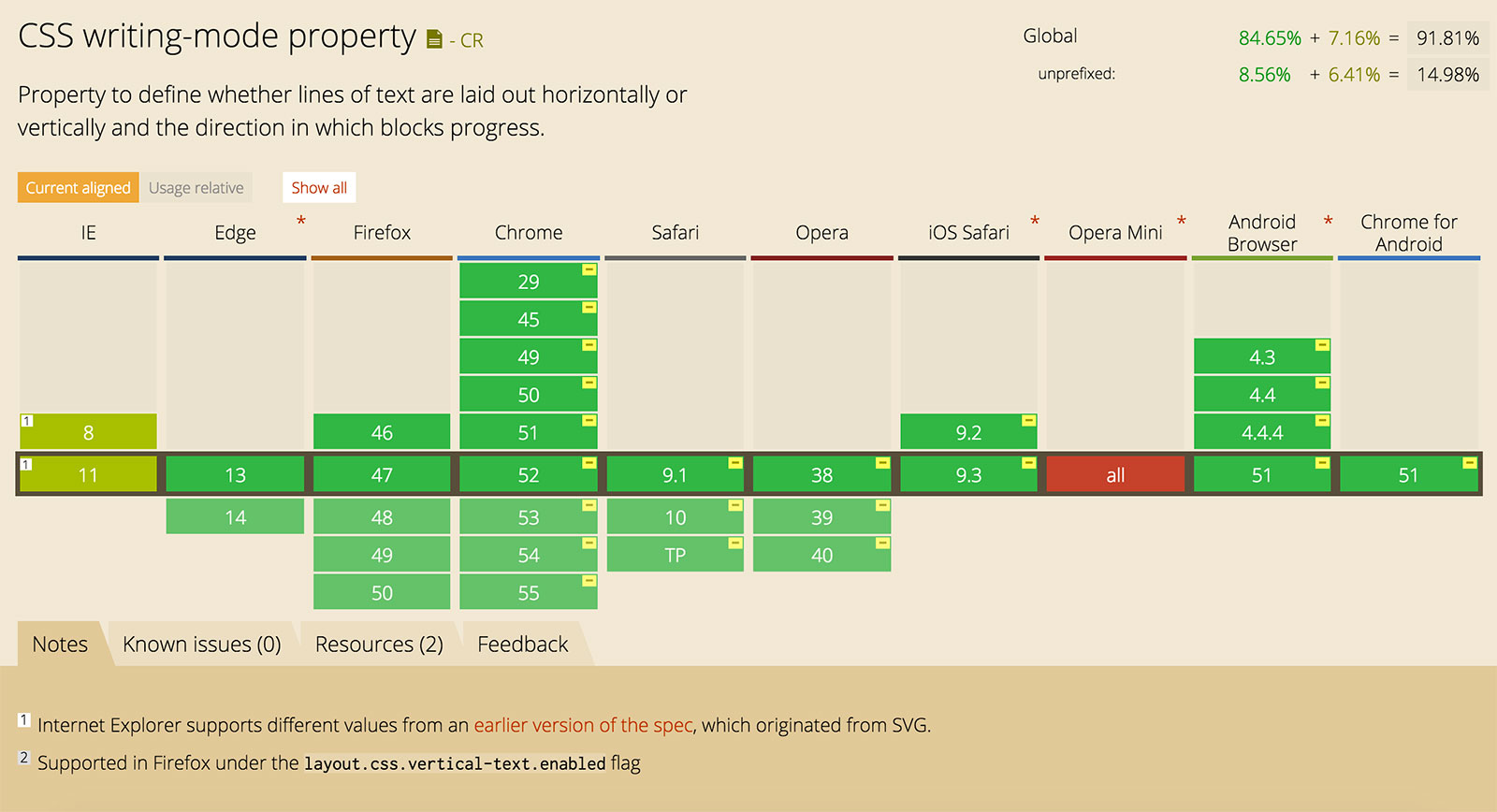
The global support is 84.65% and this is really good. You can use the property today in order to get benefit like we did in our examples.
Look at that green! :)
{% include share.html text = “CSS Writing Mode” link = “https://ishadeed.com/article/css-writing-mode/” %}
Thank you for reading.
此内容由惯性聚合(RSS阅读器)自动聚合整理,仅供阅读参考。 原文来自 — 版权归原作者所有。