


This is a continuation from WebGL Fundamentals. Before we continue I think we need to discuss at a basic level what WebGL and your GPU actually do. There are basically 2 parts to this GPU thing. The first part processes vertices (or streams of data) into clip space vertices. The second part draws pixels based on the first part.
When you call
var primitiveType = gl.TRIANGLES;
var offset = 0;
var count = 9;
gl.drawArrays(primitiveType, offset, count);
The 9 there means "process 9 vertices" so here are 9 vertices being processed.
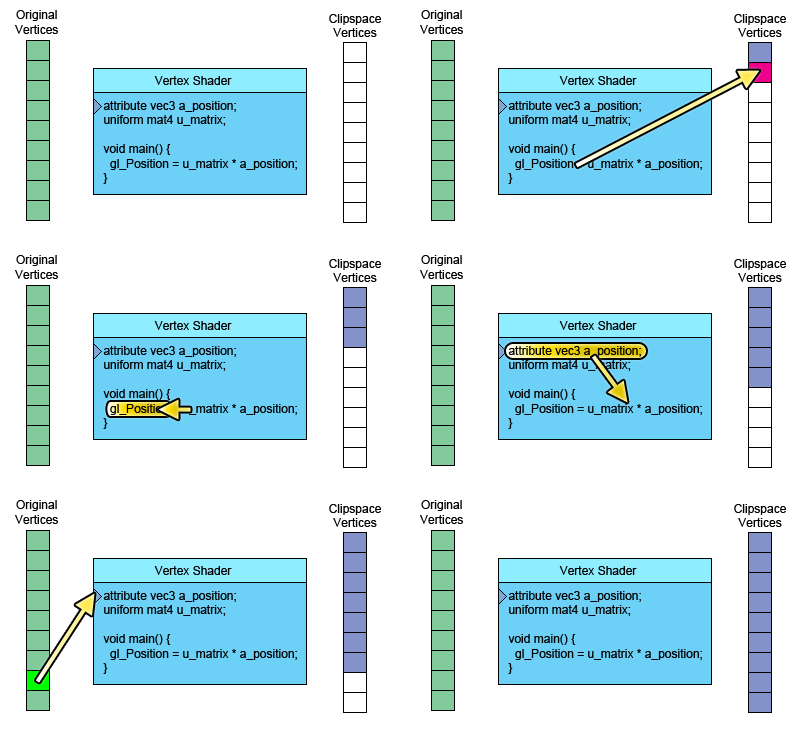
On the left is the data you provide. The vertex shader is a function you
write in GLSL. It gets called once for each vertex.
You do some math and set the special variable gl_Position with a clip space value
for the current vertex. The GPU takes that value and stores it internally.
Assuming you're drawing TRIANGLES, every time this first part generates 3
vertices the GPU uses them to make a triangle. It figures out which
pixels the 3 points of the triangle correspond to, and then rasterizes the
triangle which is a fancy word for “draws it with pixels”. For each
pixel it will call your fragment shader asking you what color to make that
pixel. Your fragment shader has to set a special variable gl_FragColor
with the color it wants for that pixel.
That’s all very interesting but as you can see in our examples up to this point the fragment shader has very little info per pixel. Fortunately we can pass it more info. We define “varyings” for each value we want to pass from the vertex shader to the fragment shader.
As a simple example, let's just pass the clip space coordinates we computed directly from the vertex shader to the fragment shader.
We'll draw with a simple triangle. Continuing from our previous example let's change our rectangle to a triangle.
// Fill the buffer with the values that define a triangle.
function setGeometry(gl) {
  gl.bufferData(
      gl.ARRAY_BUFFER,
      new Float32Array([
             0, -100,
           150,  125,
          -175,  100]),
      gl.STATIC_DRAW);
}
And we have to only draw 3 vertices.
// Draw the scene.
function drawScene() {
  ...
  // Draw the geometry.
  var primitiveType = gl.TRIANGLES;
  var offset = 0;
  var count = 3;
  gl.drawArrays(primitiveType, offset, count);
}
Then in our vertex shader we declare a varying to pass data to the fragment shader.
*varying vec4 v_color;
...
void main() {
  // Multiply the position by the matrix.
  gl_Position = vec4((u_matrix * vec3(a_position, 1)).xy, 0, 1);

  // Convert from clip space to color space.
  // Clip space goes -1.0 to +1.0
  // Color space goes from 0.0 to 1.0
*  v_color = gl_Position * 0.5 + 0.5;
}
And then we declare the same varying in the fragment shader.
precision mediump float;

*varying vec4 v_color;

void main() {
*  gl_FragColor = v_color;
}
WebGL will connect the varying in the vertex shader to the varying of the same name and type in the fragment shader.
Here's the working version.
Move, scale and rotate the triangle. Notice that since the colors are computed from clip space they don't move with the triangle. They are relative to the background.
Now think about it. We only compute 3 vertices. Our vertex shader only gets called 3 times therefore it's only computing 3 colors yet our triangle is many colors. This is why it's called a varying.
WebGL takes the 3 values we computed for each vertex and as it rasterizes the triangle it interpolates between the values we computed for the vertices. For each pixel it calls our fragment shader with the interpolated value for that pixel.
In the example above we start out with the 3 vertices
| Vertices | |
|---|---|
| 0 | -100 |
| 150 | 125 |
| -175 | 100 |
Our vertex shader applies a matrix to translate, rotate, scale and convert to clip space. The defaults for translation, rotation and scale are translation = 200, 150, rotation = 0, scale = 1,1 so that's really only translation. Given our backbuffer is 400x300 our vertex shader applies the matrix and then computes the following 3 clip space vertices.
| values written to gl_Position | ||
|---|---|---|
| 0.000 | 0.660 | |
| 0.750 | -0.830 | |
| -0.875 | -0.660 | |
It also converts those to color space and writes them to the varying v_color that we declared.
| values written to v_color | ||
|---|---|---|
| 0.5000 | 0.830 | 0.5 |
| 0.8750 | 0.086 | 0.5 |
| 0.0625 | 0.170 | 0.5 |
Those 3 values written to v_color are then interpolated and passed to the fragment shader for each pixel.
v_color is interpolated between v0, v1 and v2
We can also pass in more data to the vertex shader which we can then pass on to the fragment shader. So for example let's draw a rectangle, that consists of 2 triangles, in 2 colors. To do this we'll add another attribute to the vertex shader so we can pass it more data and we'll pass that data directly to the fragment shader.
attribute vec2 a_position;
+attribute vec4 a_color;
...
varying vec4 v_color;

void main() {
   ...
  // Copy the color from the attribute to the varying.
*  v_color = a_color;
}
We now have to supply colors for WebGL to use.
  // look up where the vertex data needs to go.
  var positionLocation = gl.getAttribLocation(program, "a_position");
+  var colorLocation = gl.getAttribLocation(program, "a_color");
  ...
+  // Create a buffer for the colors.
+  var colorBuffer = gl.createBuffer();
+  gl.bindBuffer(gl.ARRAY_BUFFER, colorBuffer);
+  // Set the colors.
+  setColors(gl);
  ...

+// Fill the buffer with colors for the 2 triangles
+// that make the rectangle.
+function setColors(gl) {
+  // Pick 2 random colors.
+  var r1 = Math.random();
+  var b1 = Math.random();
+  var g1 = Math.random();
+
+  var r2 = Math.random();
+  var b2 = Math.random();
+  var g2 = Math.random();
+
+  gl.bufferData(
+      gl.ARRAY_BUFFER,
+      new Float32Array(
+        [ r1, b1, g1, 1,
+          r1, b1, g1, 1,
+          r1, b1, g1, 1,
+          r2, b2, g2, 1,
+          r2, b2, g2, 1,
+          r2, b2, g2, 1]),
+      gl.STATIC_DRAW);
+}
At render time setup the color attribute
+gl.enableVertexAttribArray(colorLocation);
+
+// Bind the color buffer.
+gl.bindBuffer(gl.ARRAY_BUFFER, colorBuffer);
+
+// Tell the color attribute how to get data out of colorBuffer (ARRAY_BUFFER)
+var size = 4;          // 4 components per iteration
+var type = gl.FLOAT;   // the data is 32bit floats
+var normalize = false; // don't normalize the data
+var stride = 0;        // 0 = move forward size * sizeof(type) each iteration to get the next position
+var offset = 0;        // start at the beginning of the buffer
+gl.vertexAttribPointer(
+    colorLocation, size, type, normalize, stride, offset)
And adjust the count to compute 6 vertices for 2 triangles
// Draw the geometry.
var primitiveType = gl.TRIANGLES;
var offset = 0;
*var count = 6;
gl.drawArrays(primitiveType, offset, count);
And here's the result.
Notice that we have 2 solid color triangles. Yet we're passing the values in a varying so they are being varied or interpolated across the triangle. It's just that we used the same color on each of the 3 vertices of each triangle. If we make each color different we'll see the interpolation.
// Fill the buffer with colors for the 2 triangles
// that make the rectangle.
function setColors(gl) {
  // Make every vertex a different color.
  gl.bufferData(
      gl.ARRAY_BUFFER,
      new Float32Array(
*        [ Math.random(), Math.random(), Math.random(), 1,
*          Math.random(), Math.random(), Math.random(), 1,
*          Math.random(), Math.random(), Math.random(), 1,
*          Math.random(), Math.random(), Math.random(), 1,
*          Math.random(), Math.random(), Math.random(), 1,
*          Math.random(), Math.random(), Math.random(), 1]),
      gl.STATIC_DRAW);
}
And now we see the interpolated varying.
Not very exciting I suppose but it does demonstrate using more than one attribute and passing data from a vertex shader to a fragment shader. If you check out the image processing examples you'll see they also use an extra attribute to pass in texture coordinates.
Buffers are the way of getting vertex and other per vertex data onto the
GPU. gl.createBuffer creates a buffer.
gl.bindBuffer sets that buffer as the buffer to be worked on.
gl.bufferData copies data into the buffer. This is usually done at
initialization time.
Once the data is in the buffer we need to tell WebGL how to get data out of it and provide it to the vertex shader's attributes.
To do this, first we ask WebGL what locations it assigned to the attributes. For example in the code above we have
// look up where the vertex data needs to go.
var positionLocation = gl.getAttribLocation(program, "a_position");
var colorLocation = gl.getAttribLocation(program, "a_color");
This is also usually done at initialization time.
Once we know the location of the attribute we then issue 3 commands just before drawing.
gl.enableVertexAttribArray(location);
That command tells WebGL we want to supply data from a buffer.
gl.bindBuffer(gl.ARRAY_BUFFER, someBuffer);
That command binds a buffer to the ARRAY_BUFFER bind point. It's a global variable internal to WebGL
gl.vertexAttribPointer(
    location,
    numComponents,
    typeOfData,
    normalizeFlag,
    strideToNextPieceOfData,
    offsetIntoBuffer);
And that command tells WebGL to get data from the buffer that is currently
bound to the ARRAY_BUFFER bind point, how many components per vertex (1 - 4),
what the type of data is (BYTE, FLOAT, INT, UNSIGNED_SHORT, etc...),
the stride which means how many bytes to skip to get from one piece of data to the
next piece of data, and an offset for how far into the buffer our data is.
Number of components is always 1 to 4.
If you are using 1 buffer per type of data then both stride and offset can always be 0. 0 for stride means "use a stride that matches the type and size". 0 for offset means start at the beginning of the buffer. Setting them to values other than 0 is more complicated and though it has some benefits in terms of performance it's not worth the complication unless you are trying to push WebGL to its absolute limits.
I hope that clears up buffers and attributes.
You might want to take a look at this interactive state diagram for another way of understanding how WebGL works.
Next let's go over shaders and GLSL.
The normalize flag is for all the non floating point types. If you pass in false then values will be interpreted as the type they are. BYTE goes from -128 to 127, UNSIGNED_BYTE goes from 0 to 255, SHORT goes from -32768 to 32767 etc...
If you set the normalize flag to true then the values of a BYTE (-128 to 127) represent the values -1.0 to +1.0, UNSIGNED_BYTE (0 to 255) become 0.0 to +1.0. A normalized SHORT also goes from -1.0 to +1.0 it just has more resolution than a BYTE.
The most common use for normalized data is for colors. Most of the time colors only go from 0.0 to 1.0. Using a full float each for red, green, blue and alpha would use 16 bytes per vertex per color. If you have complicated geometry that can add up to a lot of bytes. Instead you could convert your colors to UNSIGNED_BYTEs where 0 represents 0.0 and 255 represents 1.0. Now you'd only need 4 bytes per color per vertex, a 75% savings.
Let's change our code to do this. When we tell WebGL how to extract our colors we'd use
  // Tell the color attribute how to get data out of colorBuffer (ARRAY_BUFFER)
  var size = 4;                 // 4 components per iteration
*  var type = gl.UNSIGNED_BYTE;  // the data is 8bit unsigned bytes
*  var normalize = true;         // normalize the data
  var stride = 0;               // 0 = move forward size * sizeof(type) each iteration to get the next position
  var offset = 0;               // start at the beginning of the buffer
  gl.vertexAttribPointer(
      colorLocation, size, type, normalize, stride, offset)
And when we fill out our buffer with colors we'd use
// Fill the buffer with colors for the 2 triangles
// that make the rectangle.
function setColors(gl) {
  // Pick 2 random colors.
  var r1 = Math.random() * 256; // 0 to 255.99999
  var b1 = Math.random() * 256; // these values
  var g1 = Math.random() * 256; // will be truncated
  var r2 = Math.random() * 256; // when stored in the
  var b2 = Math.random() * 256; // Uint8Array
  var g2 = Math.random() * 256;

  gl.bufferData(
      gl.ARRAY_BUFFER,
      new Uint8Array(   // Uint8Array
        [ r1, b1, g1, 255,
          r1, b1, g1, 255,
          r1, b1, g1, 255,
          r2, b2, g2, 255,
          r2, b2, g2, 255,
          r2, b2, g2, 255]),
      gl.STATIC_DRAW);
}
Here's that sample.
此内容由惯性聚合(RSS阅读器)自动聚合整理,仅供阅读参考。 原文来自 — 版权归原作者所有。