










This short tip teaches you how you can disable Catalina upgrade notifications in the System Preference’s Dock icon and the ‘Upgrade Now’ prompt in the Software Update pane in macOS. You may want to do so, if you are not ready for the upgrade (such as Catalina compatibility issues etc) and if the notifications annoy you. These are just a few reasons why you’d want to stop macOS Catalina from showing up in Software Updates on your Mac. Since you want to disable this, you also would not want to see the red notification bubbles indicating that you have updates available. Do you also want to turn off upgrade notification badges in the dock? Then this article is for you.
How to Disable Update Notification in Software Update
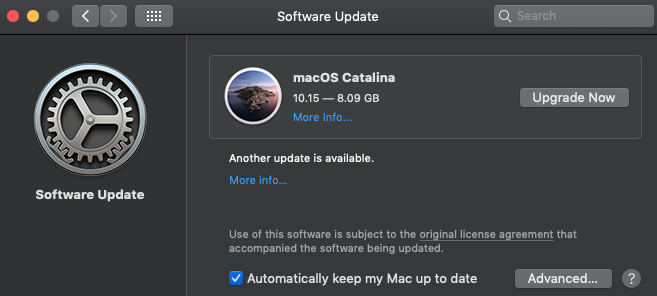
This is very easy to do:
Please follow the steps:
1. Close the System Preferences app.
2. Open the Terminal app (Applications / Utilities; or you may use Spotlight)
3. Enter the following command and press enter. You may have to enter your password.
sudo softwareupdate --ignore "macOS Catalina"
4. Catalina Upgrade notice will disappear now. You will see the when you open System Preferences (Apple menu > System Preferences > Software Update)
However, you may want to undo this later when you are ready to upgrade. You can do so easily as well. Here is how:
1. Again open the Terminal app.
2. And enter the following command and hit enter (again you may have to enter your password):
sudo softwareupdate --reset-ignored
This will make Catalina Upgrade appear again.
How to disable Catalina Update Badge Notifications (the red bubble icon) in the dock
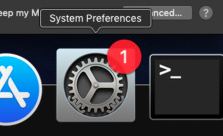
1. Open the Terminal app.
2. Enter the following command and hit enter
defaults write com.apple.systempreferences AttentionPrefBundleIDs 0
3. Now you will need to restart the dock by entering the following command in the Terminal and pressing enter:
killall Dock
4. The dock will restart and you will not see the notifications badges.
