


Remove Tactical Mode slow-motion from Final Fantasy VII Rebirth combat captures so the whole fight plays at uniform real-time speed.
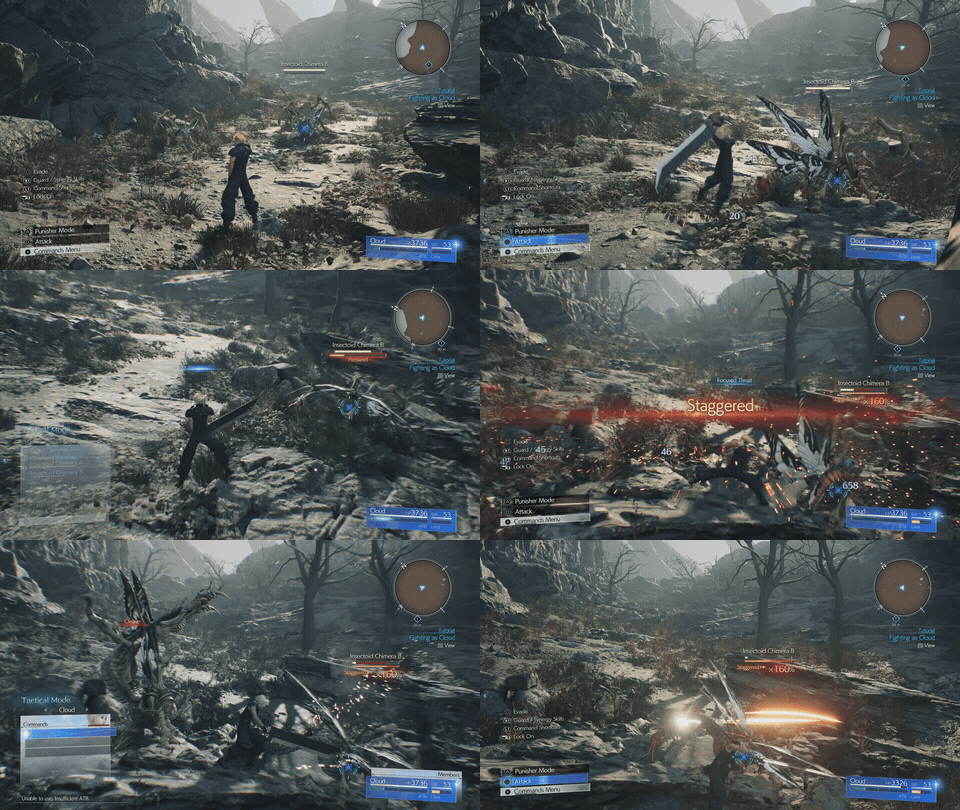
Cloud mid-fight in Rebirth, with the Tactical Mode slow-motion removed so the whole clip runs at uniform real-time speed. Even the long command-menu pauses compress to just a second or two when sped up ~100×, blending seamlessly into the real-time combat — no jarring cut where the speed changes.
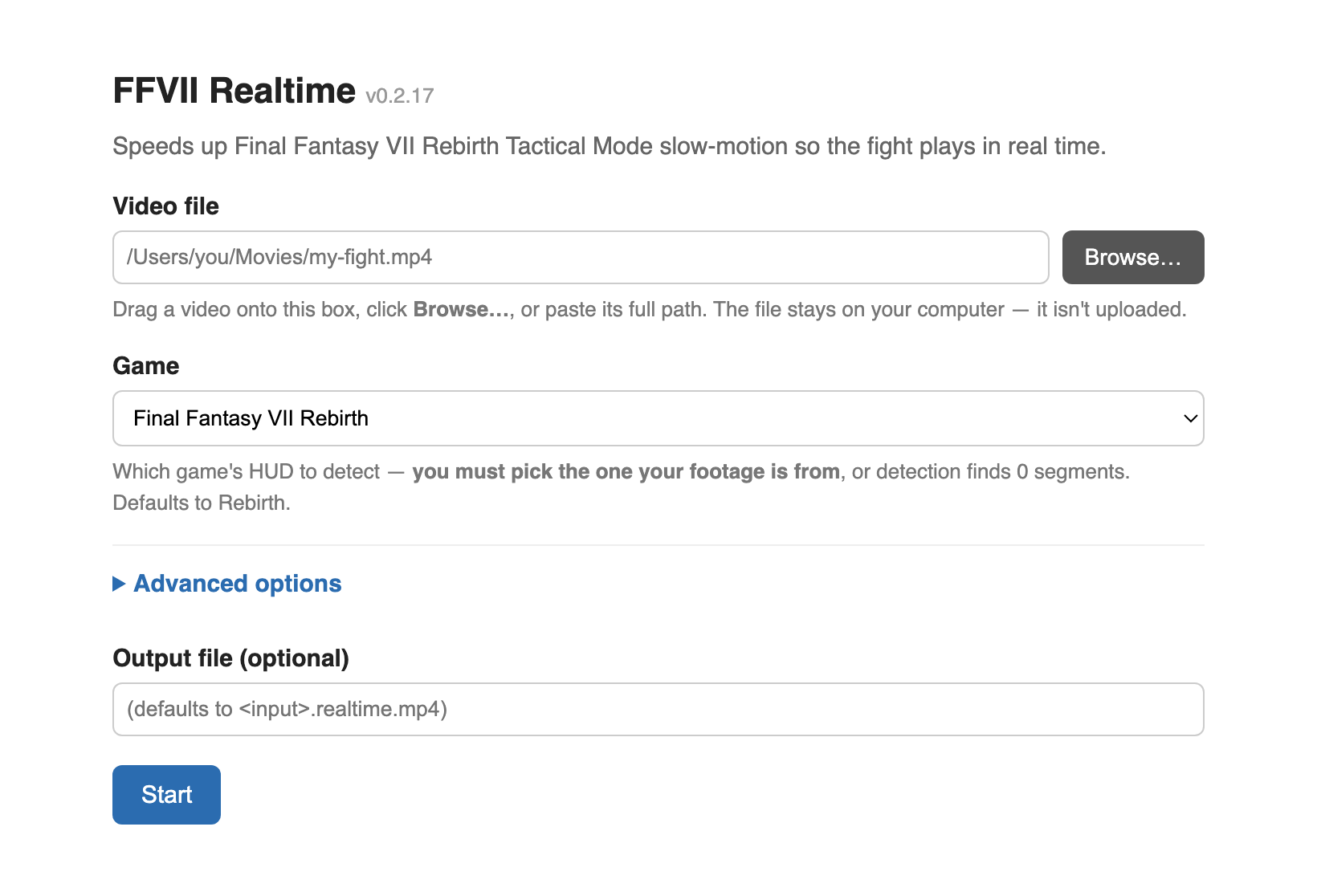
The included local app: drag in a video, pick the game, hit Start. Everything else lives under "Advanced options," and nothing is uploaded — it all runs on your machine.
Watch the full example on YouTube: before — the fight as captured, with Tactical Mode slow-motion · after — the same fight sped up to real time.
In Rebirth, opening the Tactical Mode command menu drops the game into heavy slow-motion (apparently 100x slower than real-time) while you pick your actions. It's great to play, but these pauses, especially long ones, aren't much fun to watch in a recording. FFVII Realtime automatically finds those slow-motion segments and speeds only them back up, leaving the rest of the fight untouched, so the whole thing flows at one natural pace.
Example: a 1:55:00 capture became ~1:09:00 of continuous, full-speed combat — around 570 Tactical Mode segments (~47 minutes of slow-motion) detected and sped up, fully audio-synced.
How it works
- Detect — a computer-vision pass (OpenCV) scans every frame and recognizes Tactical Mode two ways: the on-screen L2/R2 button prompts at their fixed positions, and the "Tactical Mode" header text above the command menu. Both are made robust to bright/gray/busy backgrounds by combining color + white-mask + black-mask matching, and a motion check confirms the scene is actually in slow-motion (so a stray match during fast action can't trigger a false speed-up). The header-text signal means solo boss fights work too: those have no party, so the L2/R2 allies prompt never appears — but the menu header still does.
- Render — FFmpeg re-times each detected segment (
setptsfor video,atempofor audio, kept exactly in sync), speeding up the slow-motion while normal-speed combat passes through untouched, then stitches it all back together. - Bridge the audio — speeding a Tactical segment up ~100× compresses its audio to a fraction of its length — a fast, unusable sliver (a quick menu-open is sub-frame; even a long pause collapses to about a second) — so the sound would cut out and jump straight from before the menu to after it. Instead, each seam is filled with an equal-power crossfade between the real audio going into the slow-motion and the real audio coming out of it. Both play briefly at once, so the sound never drops — and over a long segment, where those two moments are pulled from genuinely different points in the music, they blend into a natural swell rather than a hard cut. The rebuilt track is then tempo-locked to the finished video so picture and sound can't drift. (Turn it off with
--no-bridge-sound.) → How does the sound stay seamless? breaks the crossfade down step by step.
Detection normalizes any 16:9 resolution to 1080p internally, so the bundled templates work at 1080p / 1440p / 4K. Rendering happens at your source's native resolution.
Install & Quick Start
One line, everything bundled:
pipx install ffvii-realtime     # installs the `ffvii-realtime` command, isolated
ffvii-realtime gui              # opens the browser app
That's the whole setup: FFmpeg ships with it — nothing else to install. Drag your video into the app (or click Browse…, or paste its full path), set the speed-up factor, click Start — the finished file is saved next to the original.
This can take a while, even for short videos. Detection scans the whole file and then the video is re-encoded, so give it time and watch the progress bar — it isn't stuck. (Longer captures scale up from there.)
Requires Python 3.8+. No pipx? Install it,
or just use pip install ffvii-realtime (pipx only adds isolation). On Windows, check
"Add python.exe to PATH" when installing Python.
Prefer the command line? After installing, the one-shot is (pass --game to match your footage):
ffvii-realtime fix my-fight.mp4 --game rebirth -o my-fight.realtime.mp4
See Command-line usage for previews, ranges, and other games.
Command-line usage
Specify the game your footage is from. Detection is HUD-specific and defaults to Rebirth. For Remake or Revelation captures you must pass
--game remakeor--game revelation(in the browser UI, choose it from the Game dropdown). The wrong game finds 0 segments.
# already installed via `pipx install ffvii-realtime` (contributors: `pip install -e .`)

# ALWAYS pass --game to match your footage: rebirth | remake | revelation.
# (It's optional and defaults to rebirth, but set it explicitly so non-Rebirth
#  footage isn't silently missed — the wrong game finds 0 segments.)

# the usual one-shot: detect slow-mo and render the real-time version
ffvii-realtime fix my-fight.mp4 --game rebirth -o my-fight.realtime.mp4

# Remake / Revelation footage:
ffvii-realtime fix my-remake-fight.mp4 --game remake
ffvii-realtime fix my-revelation-fight.mp4 --game revelation

# verify settings on a short window first (recommended)
ffvii-realtime preview my-fight.mp4 --game rebirth --range 4:40-5:20 -o test.mp4

# process only a section of the video (also makes detection faster),
# and mute the sped-up slow-mo audio
ffvii-realtime fix my-fight.mp4 --game rebirth --range 24:00-26:30 --tac-vol 0%

# separate steps — only `detect` needs --game; `render` reuses the saved intervals
ffvii-realtime detect my-fight.mp4 --game rebirth -o intervals.json
ffvii-realtime render my-fight.mp4 -i intervals.json -o out.mp4

# launch the browser UI (choose the game from the dropdown)
ffvii-realtime gui
Options
--game rebirth|remake|revelation— which game's HUD to detect. Set this to match your footage — detection is HUD-specific, so the wrong value finds 0 segments. Defaults torebirth.--range MM:SS-MM:SS— process only that section of the video; also speeds up detection since only that span is scanned.--tac-vol— volume of the sped-up Tactical-Mode audio, as a percentage (10%,0%for silent,100%for full) or a 0–1 fraction. Default10%. (Ignored when seam bridging is on, since bridging replaces that audio.)--no-bridge-sound— turn off seam audio bridging. By default, speeding up a Tactical segment would make its audio cut out and jump; bridging instead crossfades the real before/after ambient across the seam so the sound stays continuous. On by default.--bridge-width(seconds, default0.35) tunes the crossfade half-width.--lead— start the speed-up this many seconds before the menu is detected, to cover the panel slide-in. Default0.2.--force— overwrite the output file if it already exists. By default the tool refuses, so you can't clobber a previous result by accident (the browser UI asks for confirmation instead).
The speed-up factor
--factor defaults to 100, which matches the game's default "Tactical Mode Slowdown" setting. If you changed that setting, your slow-motion is faster or slower, so pick a different factor. The easiest way to dial it in: run preview on a stretch with a long Tactical Mode and try a couple of values — when the sped-up sections look like normal-speed combat, that's your number. (Higher = snappier; the slow-mo is aggressive, so values in the 50–150 range are typical.)
Note: the default of 100× was arrived at by trial and error — rendering a tactical segment at several factors and picking the one that looks like real-time. It is not an officially documented figure, and the actual slowdown almost certainly differs per game and per in-game "Tactical Mode Slowdown" setting. If you know (or have measured) the real slowdown factors for any of the selectable Tactical Mode speed settings in any of these games, please open an issue — that input is very welcome and would let the tool ship accurate per-setting defaults.
Caveats
- Tested on Remake, Rebirth, and even Revelation footage The detection keys on the game's own UI, so it should work on any footage as long as the correct game (Remake, Rebirth, or Revelation) is specified — but please run
previewon your own video before committing to a full render. - 16:9 only. Ultrawide/non-16:9 captures will warn and may misdetect (the HUD anchors differently).
- Custom HUD settings (scale/opacity accessibility options) could shift the badge positions and break detection. Standard HUD is assumed.
- Pauses / loading / results screens are static (never slow-motion), so they're correctly left alone — they'll appear at full length in the output.
- A real character movement that happens during a slow-motion stretch becomes near-instantaneous when compressed — occasionally a character may appear to "jump." That's inherent to compressing slow-motion that contains motion, not a glitch.
Requirements
- Python 3.8+
- Everything else is installed automatically:
numpy,opencv-python-headless, and FFmpeg (bundled viaimageio-ffmpeg). If you already have your own FFmpeg on PATH — or set$FFVII_FFMPEG/$FFVII_FFPROBE— it's used in preference to the bundled build.
License
ffvii-realtime is dual-licensed (see LICENSING.md):
- GNU AGPL-3.0 for open-source use (see LICENSE) — free to use and modify, but if you distribute it or run a modified version as a network service, your version must also be released under the AGPL (source available).
- Commercial license for proprietary/commercial use without the AGPL's copyleft obligations — contact Rob Esris (open an issue on this repo).
Copyright © 2026 Rob Esris.
Appendix: How does the sound stay seamless?
Speeding a Tactical segment up ~100× compresses its own audio to a fraction of its length — too fast to keep — so the naive result is the sound cutting out and jumping from the audio before the menu to the audio after it. Bridging replaces each of those seams with a short crossfade of the real audio so the track never drops. It's the least intuitive part of the project, so here's the full picture. (Code: build_bridged_track in bridge.py.)
The track is rebuilt in two passes. First, every real-time (1×) segment is copied from the source verbatim. Then each sped-up seam — a run of Tactical Mode compressed to a fraction of its length — is filled in with a crossfade.
The crossfade straddles the seam; it isn't at it. This is the key surprise. Call the crossfade half-width fade_half (≈0.35 s by default) and sped_up_len the length the whole Tactical run collapses to after the speed-up (a quick menu-open is sub-frame; a long, drawn-out pause still comes out around a second). The crossfade region is fade_len = 2·fade_half + sped_up_len wide: it starts fade_half before the seam (overwriting the tail of the preceding real-time audio), spans the sped-up run, and ends fade_half after the run (lapping into the following real-time audio).
Two excerpts of the real source audio are blended across that region:
entering— the audio around the moment the slow-mo began (entering the menu)leaving— the audio around the moment the slow-mo ended (leaving it)
mixed as entering·cos(½π·ramp) + leaving·sin(½π·ramp), with ramp sweeping 0→1. That's an equal-power crossfade: cos² + sin² = 1, so perceived loudness stays constant — no dip in the middle.
output →   …prev real-time audio │  sped-up run  │ next real-time audio…
                                  ▲seam           ▲run ends
 crossfade  [═══════════════════════════════════════════]
            seam − fade_half                  run ends + fade_half
 ramp:      0 ──────────────────────────────────────────► 1
 you hear:  entering ─────────► (both together) ─────────► leaving
Moment by moment:
- At the left edge (
ramp = 0,fade_halfbefore the seam): pureentering, and it's the same samples already sitting there, so the crossfade begins as a perfect copy of itself — no click, nothing audible yet. - Through the sped-up run:
leaving(the audio from where the slow-mo ends) fades up asenteringfades down, so the "after" audio starts before the on-screen speed-up does — a little sound is deliberately edited ahead of the visual seam. For a quick menu-open the run is a sliver, so the seam sits near the midpoint and you hear a ~50/50 blend right at it; for a long pause the blend plays out over the ~second the run occupies. - At the right edge (
ramp = 1,fade_halfpast where the run ends): pureleaving, again matching the untouched audio there.
Because both edges equal the real audio they overwrite, the splice itself is silent — the only thing you consciously hear is the crossfade swell in the middle (~0.7 s for a quick menu, a bit longer for a drawn-out pause) where the two moments overlap.
Why long segments sound richer than short blips. The crossfade widens with the run (~0.7 s for a quick menu, a bit more for a long pause), but what really changes is that entering and leaving are pulled from source positions separated by the slow-mo's real elapsed duration. For a short blip they're nearly the same instant → a seamless continuation. For a long Tactical segment they're genuinely different points in the battle track — different notes and harmony — so overlapping them produces beating/phasing that reads as a tremolo. (FF7's battle music already has tremolo strings, which compounds it.) It's two real recordings interfering, not a synthesized effect, which is why it sounds musical.
It never eats too much. fade_half is clamped to at most half of the shorter neighbouring real-time segment, so when two Tactical runs are close together the crossfade shrinks to fit and never chews through more than half the real audio on either side.
Staying locked to the picture. The rebuilt track is then tempo-nudged (a pitch-preserving atempo, ~0.07%) to match the finished video's exact duration — audio (whole samples at 44.1 kHz) and video (whole frames) quantize on different grids and would otherwise drift apart over a long clip.