








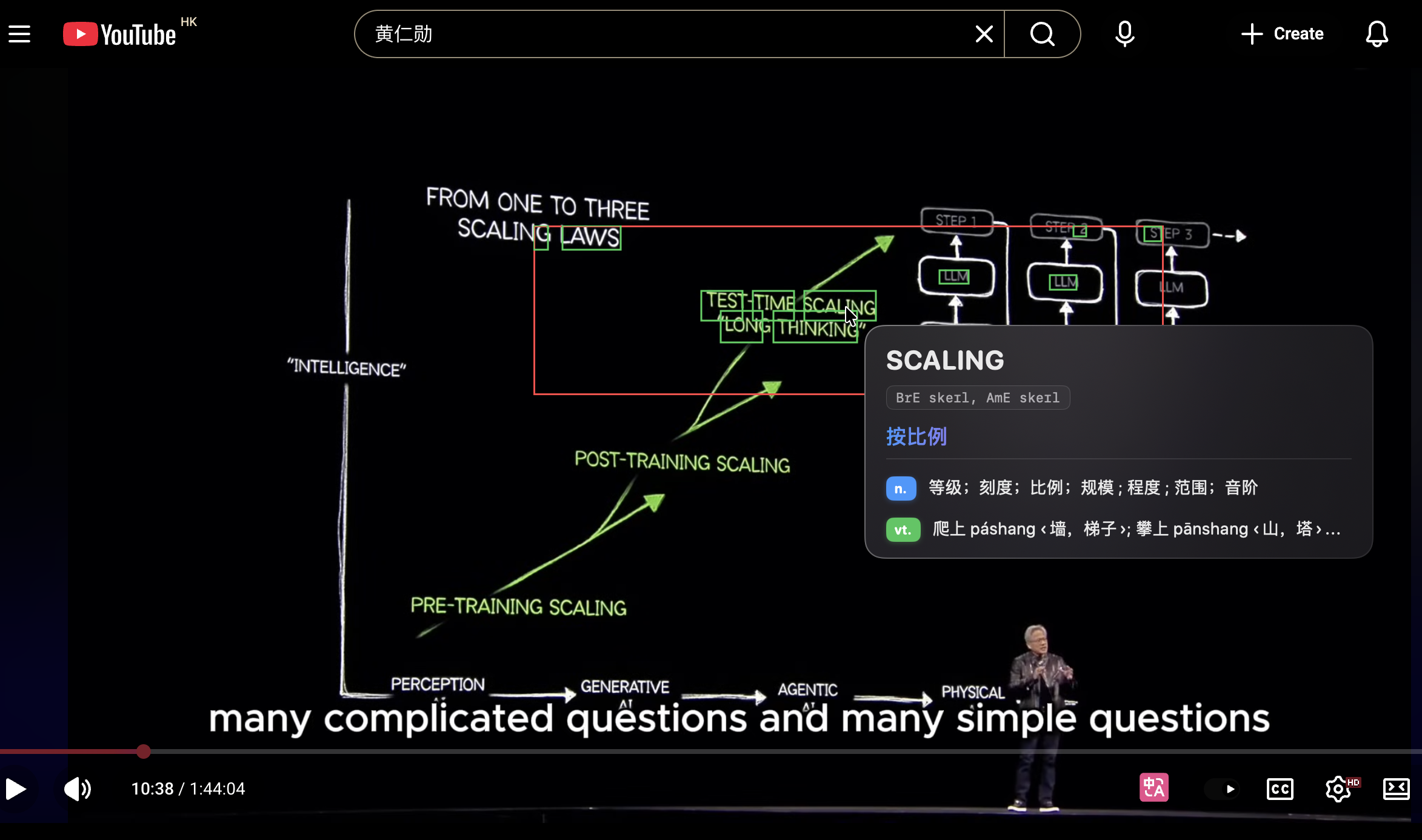
最近在写一个 macOS 平台的快速翻译软件 SnapTra Translator,核心体验是“按住快捷键,把鼠标悬停在文字上就能看到翻译气泡”。这背后离不开 OCR:先把屏幕上一小块区域截下来,再用 Vision 把文字识别出来,最后根据光标位置选中最接近的单词。
这篇文章把我在项目里的实践整理成一份“可落地”的 macOS OCR 指南:既讲思路,也给关键代码和避坑点。
在 macOS 上做 OCR,本质是:
Vision 是系统级 OCR,稳定、轻量、无需额外模型;ScreenCaptureKit 是更现代的截屏方式,能更好控制采样区域与性能。
我在 SnapTra Translator 里采用了“光标周围小范围截屏”的策略:
这套链路让它能做到“点哪翻哪”,而不是整屏 OCR。
下面是项目里截取光标周围画面的核心逻辑,使用 ScreenCaptureKit 获取一张 CGImage:
final class ScreenCaptureService {
    let captureSize = CGSize(width: 520, height: 140)

    func captureAroundCursor() async -> (image: CGImage, region: CaptureRegion)? {
        let mouseLocation = NSEvent.mouseLocation
        guard let screen = NSScreen.screens.first(where: { NSMouseInRect(mouseLocation, $0.frame, false) }) else {
            return nil
        }
        let rectInScreen = captureRect(for: mouseLocation, in: screen.frame, size: captureSize)
        let cgRect = convertToDisplayLocalCoordinates(rectInScreen, screen: screen)

        let display = try await getDisplay(for: displayID)
        let filter = SCContentFilter(display: display, excludingWindows: [])
        let configuration = makeConfiguration(for: cgRect, scaleFactor: screen.backingScaleFactor)
        let image = try await SCScreenshotManager.captureImage(contentFilter: filter, configuration: configuration)
        return (image, CaptureRegion(rect: rectInScreen, screen: screen, displayID: displayID, scaleFactor: scaleFactor))
    }
}
这段代码的重点是:只抓一个小矩形区域,不做整屏截图,性能会好很多。
Vision 的识别部分非常直接:
final class OCRService {
    func recognizeWords(in image: CGImage, language: String) async throws -> [RecognizedWord] {
        try await Task.detached(priority: .userInitiated) {
            let request = VNRecognizeTextRequest()
            request.recognitionLevel = .accurate
            request.usesLanguageCorrection = true
            if #available(macOS 13.0, *) {
                request.revision = VNRecognizeTextRequestRevision3
                request.automaticallyDetectsLanguage = true
            } else {
                request.recognitionLanguages = [language]
            }

            let handler = VNImageRequestHandler(cgImage: image)
            try handler.perform([request])
            return OCRService.extractWords(from: request.results ?? [])
        }.value
    }
}
几个小点:
recognitionLevel = .accurate 适合需要高精度的翻译场景usesLanguageCorrection 能提升英文识别的可读性automaticallyDetectsLanguage,可以更自然地识别混合文本Vision 返回的通常是“文本行”,但翻译场景需要更细粒度。
SnapTra 里我做了两步:
ApplePay → Apple + Pay)同时,我没有直接使用 Vision 的 boundingBox(for:),因为它对自定义分词并不稳定,而是用“字符比例”计算 box,保证稳定性。
// 始终使用字符比例计算边界框,确保稳定性
// Vision 的 boundingBox(for:) 对自定义分词(CamelCase)支持不稳定
private static func boundingBoxByCharacterRatio(_ textBox: CGRect, text: String, for range: Range<String.Index>) -> CGRect? {
    let totalCount = text.count
    let startOffset = text.distance(from: text.startIndex, to: range.lowerBound)
    let endOffset = text.distance(from: text.startIndex, to: range.upperBound)
    let startFraction = CGFloat(startOffset) / CGFloat(totalCount)
    let endFraction = CGFloat(endOffset) / CGFloat(totalCount)
    let x = textBox.minX + textBox.width * startFraction
    let width = textBox.width * (endFraction - startFraction)
    return CGRect(x: x, y: textBox.minY, width: width, height: textBox.height)
}
OCR 的输出是多个单词加 bounding box。为了实现“鼠标指哪翻哪”,我做了两件事:
这样可以在密集文本里也保持稳定体验。
只要涉及屏幕截图,就需要 Screen Recording 权限。项目里通过 CGPreflightScreenCaptureAccess() 判断当前权限,并提供快捷跳转系统设置:
func requestAndOpenScreenRecording() {
    CGRequestScreenCaptureAccess()
    openPrivacyPane(anchor: "Privacy_ScreenCapture")
}
体验上,我会在权限状态变化后自动刷新,并在未授权时提示用户。
“看不到”是 OCR 调试最大的阻力。SnapTra 里做了一个 Debug OCR Region 开关:
这可以直观观察“截屏区域是否对齐”、“识别结果是否偏移”,非常推荐在早期就加上。
如果你要做一个“屏幕取词 + 翻译”的 macOS 工具,推荐的最小链路是:
我在 SnapTra Translator 里踩过的坑、做过的取舍,都尽量写在上面了。OCR 看似简单,但真正落地到“手感很好”的产品,细节真的很多。
如果你也在做 macOS OCR 或翻译工具,欢迎交流想法。
转载请注明来源,欢迎对文章中的引用来源进行考证,欢迎指出任何有错误或不够清晰的表达。可以在下面评论区评论,也可以邮件至 [email protected]
此内容由惯性聚合(RSS阅读器)自动聚合整理,仅供阅读参考。 原文来自 — 版权归原作者所有。