











准备
首先进入Google Colab,点选“代码执行程序”,将GPU改为T4,以确保算力足够。
VLLM-Based
然后安装相关环境:
! pip install uv #安装UV以保证安装速度
!uv pip install vllm --torch-backend=auto --extra-index-url https://wheels.vllm.ai/nightly #安装VLLM
安装ai模型。到Hugging Face Hub上选用模型并部署。这里笔者使用2026年2月刚刚发布的新模型Qwen3.5-0.8B,参数量选择使用0.8B的小模型来加快速度。同时声明类型为float16以适应T4 GPU。
# 为防止出现错误,升级相关库:
!pip install --upgrade grpcio
!pip install --upgrade protobuf
!vllm serve Qwen/Qwen3.5-0.8B --port 8000 --tensor-parallel-size 1 --max-model-len 262144 --dtype float16 #安装Qwen3.5-0.8B安装时间大概需要30mins+。(但是最终等不及放弃了,接下来将会使用LLaMA演示)
LLaMA Factory
如果使用LLaMA Factory部署将会非常方便。
如果使用LLaMA Factory,则运行文档中提供的代码:
%cd /content/
%rm -rf LLaMA-Factory
!git clone --depth 1 https://github.com/hiyouga/LLaMA-Factory.git
%cd LLaMA-Factory
%ls
!pip install -e .[torch,bitsandbytes]
import torch
try:
assert torch.cuda.is_available() is True
except AssertionError:
print("Please set up a GPU before using LLaMA Factory: https://medium.com/mlearning-ai/training-yolov4-on-google-colab-316f8fff99c6")import json
%cd /content/LLaMA-Factory/
NAME = "Llama-3"
AUTHOR = "LLaMA Factory"
with open("data/identity.json", "r", encoding="utf-8") as f:
dataset = json.load(f)
for sample in dataset:
sample["output"] = sample["output"].replace("{{"+ "name" + "}}", NAME).replace("{{"+ "author" + "}}", AUTHOR)
with open("data/identity.json", "w", encoding="utf-8") as f:
json.dump(dataset, f, indent=2, ensure_ascii=False)升级相关库,安装Chinese库以供预测:
!pip install --upgrade transformers
!pip install rouge_chinese
部署Board:
%cd /content/LLaMA-Factory/
!GRADIO_SHARE=1 DISABLE_VERSION_CHECK=1 llamafactory-cli webui
# 注意设置取消环境版本检查
执行
得到board地址,打开,调整Fine-tuning参数。设置checkpoint_path = 留空,如果报错,第一次微调时就填”Qwen/Qwen2.5-0.5B”(和Model Path一致)(原本打算使用3.5-0.8B模型,但发现T4的GPU带不动)
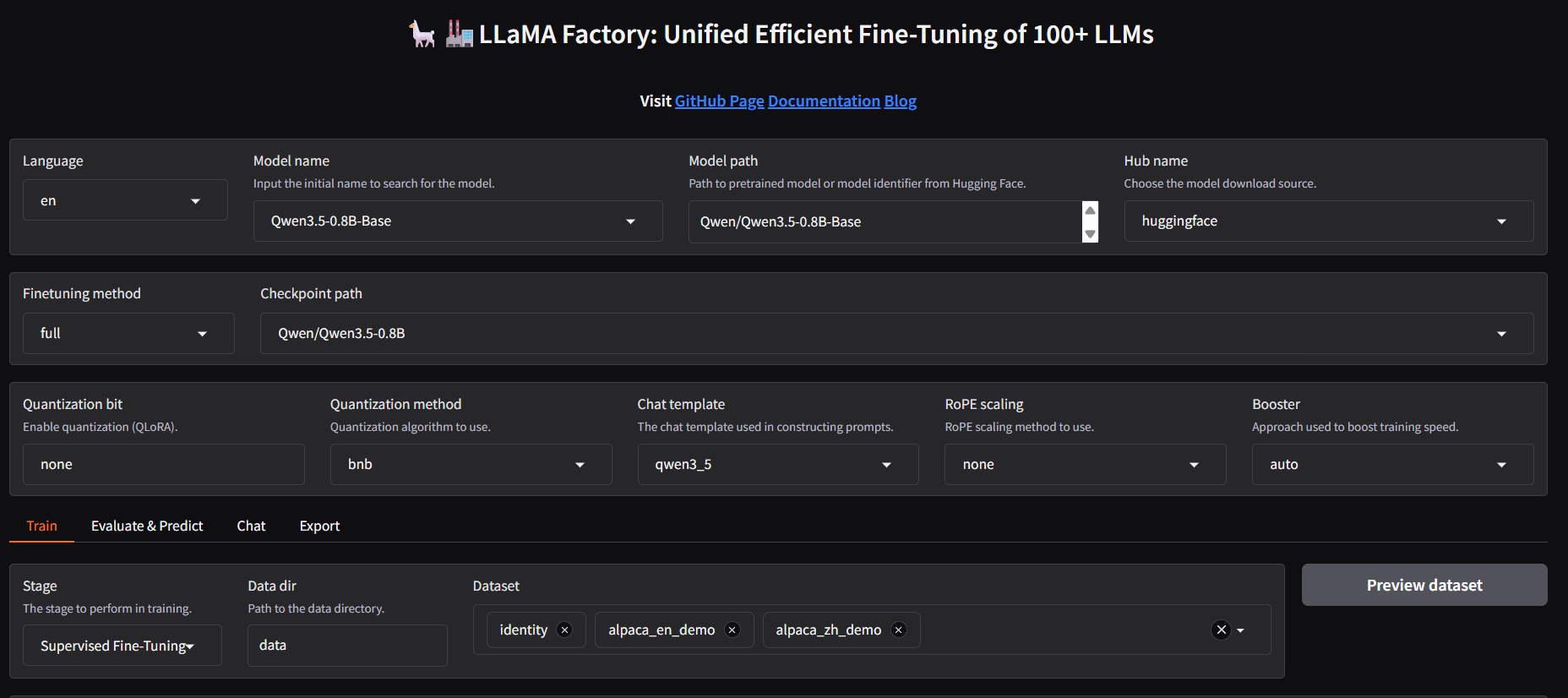
其余保持不变即可,其中的Training model可以根据自己的喜好选择。Learning rate(控制在训练过程中每次更新权重的幅度), Batch size(每次前向/反向传播过程中使用的训练样本数量), Number of epochs(整个数据集在训练过程中被模型训练的次数)等等都可以自己手动调整来观察训练的结果变化。
然后滑动到页面底部,选择“start”开始Fine-tuning。这个过程大概持续30~40min。
完成之后,点选到Evaluate & Predict选项卡查看模型效果,之后可以再选择其余的Finetuning method,以体验不同Finetuning模式下的差异。最后可以自己到Chat选项卡体验成品效果,和自己训练的模型对话。
保存模型
在Colab中运行如下代码以保存工作目录下的模型及日志:
!zip -r my_folder.zip /content/LLaMA-Factory/saves # 结尾为要压缩的目标文件夹from google.colab import files
files.download("my_folder.zip")或者只保留日志文件:
!cd /content/LLaMA-Factory/saves && find . -type f \( -name "*.json" -o -name "*.jonl" -o -name "*.txt" -o -name "*.yaml" -o -name "*.bin" -o -name "*.png" \) | zip -@ ../elected_files.zip