
惯性聚合 高效追踪和阅读你感兴趣的博客、新闻、科技资讯
阅读原文 在惯性聚合中打开

推荐订阅源

D
Docker
Apple Machine Learning Research
OSCHINA 社区最新新闻
OSCHINA 社区最新新闻
博客园 - 三生石上(FineUI控件)
月光博客
月光博客
freeCodeCamp Programming Tutorials: Python, JavaScript, Git & More
WordPress大学
WordPress大学
Hugging Face - Blog
Hugging Face - Blog
钛媒体:引领未来商业与生活新知
钛媒体:引领未来商业与生活新知
M
MIT News - Artificial intelligence
腾讯CDC
B
Blog RSS Feed
H
Help Net Security
J
Java Code Geeks
有赞技术团队
有赞技术团队
Y
Y Combinator Blog
博客园_首页
Last Week in AI
Last Week in AI
博客园 - 【当耐特】
博客园 - Franky
B
Blog
MongoDB | Blog
MongoDB | Blog
博客园 - 叶小钗
Martin Fowler
Martin Fowler

9to5Mac

Apple permanently closing three US stores, here’s when [Updated] Apple Arcade just added 4 new ad-free games with these titles now available At least for now, Liquid Glass in Pixelmator Pro remains a Creator Studio exclusive Apple @ Work: How to add an existing Mac to Apple Business Manager without wiping it Hands-on: SkyDex turns your daily weather check into a Pokémon adventure App Store fight continues as Apple and Epic clash over court-ordered stay OpenAI says to update Mac apps including ChatGPT and Codex as security precaution Apple TV in-person ‘experience’ coming later this month in LA New iPhone Fold leaks cover ‘Ultra’ name, launch timing, more Report: Apple tops global smartphone market for first time in Q1 as overall shipments drop Car Keys in Apple Wallet coming soon to major new vehicle brand Apple previews AI, accessibility, and AirPods Pro 3 research for CHI 2026 April 10, 2026 – Apple Store closures, more VSCO report explores how photographers perceive, adopt, and actually use AI XChat, X’s standalone messaging app, launching soon with these features Apple TV has three shows with finales this week, here’s what’s ending iOS 26.4 adds setting to let you change new Liquid Glass effect Hands-on: Satechi’s 3-in-1 Qi2 charger brings 25W of power with a clean Apple aesthetic [Video] iOS 27 adding new ‘Siri’ app to Home Screen: Here are the rumored features Deals: All 15-inch M5 MacBook Air models $150 off, Series 11 $99 off, Nomad leather iPhone 17 cases, more Amazon launches ‘Prime Video Ultra’ with new features, higher price How the Mac changed the way I clear mental clutter YouTube Premium is getting a US price hike of up to $4/month Tribit StormBox Micro 3: My favorite travel speaker just got better and cheaper FBI used iPhone notification data to retrieve deleted Signal messages Adobe’s low-processing camera app expands support to select iPads and the iPhone 17e New Apple TV movie starring Keanu Reeves now available to stream Apple collector showcases 50 years of Mac startup sounds [Video] WhatsApp is bringing Status updates to the top of the Chats tab iOS 26’s Messages app got a big upgrade for an essential feature
watchOS 26 added hypertension alerts for Apple Watch, her...
Ryan Christo · 2026-05-06 · via 9to5Mac

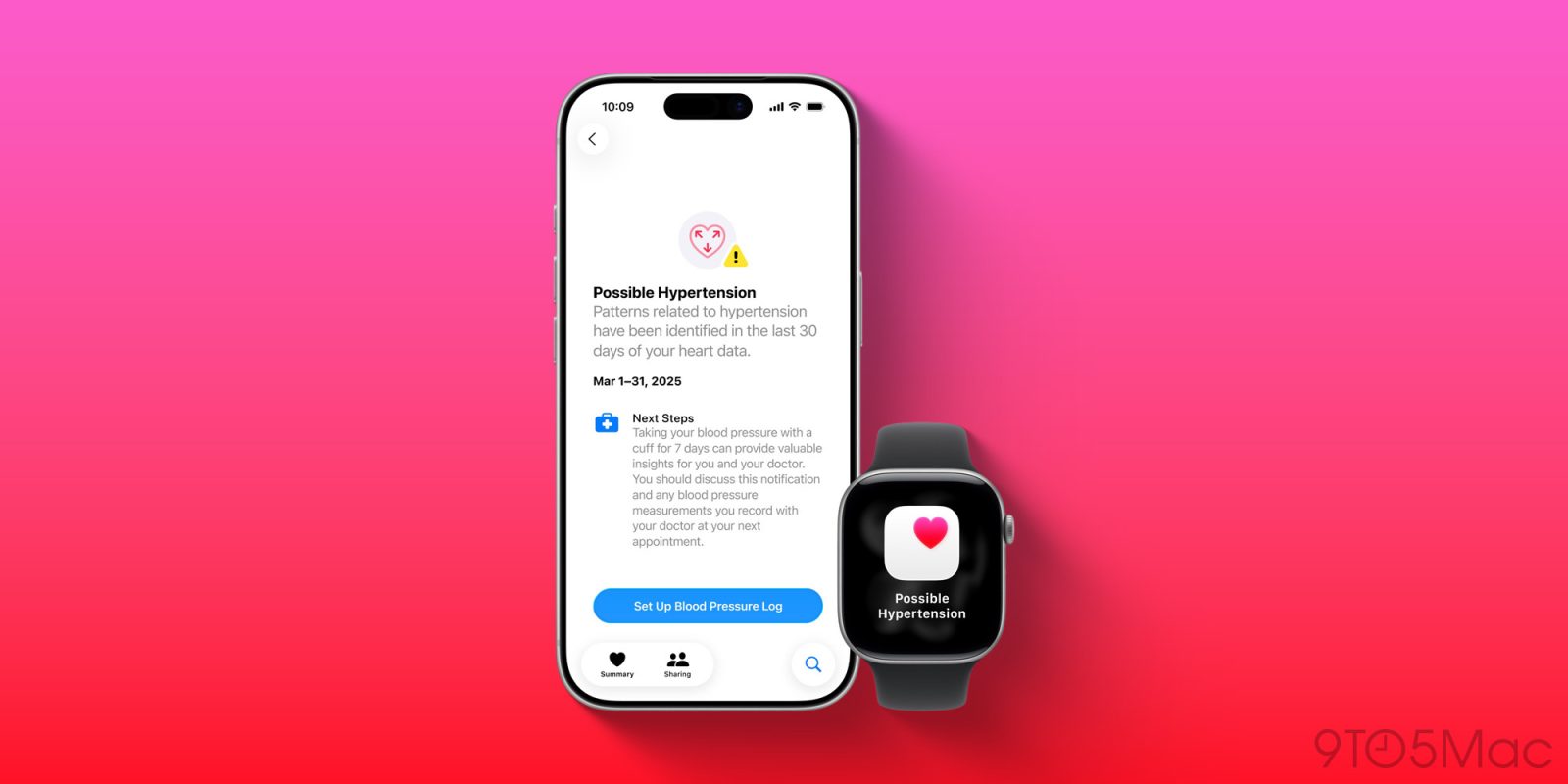
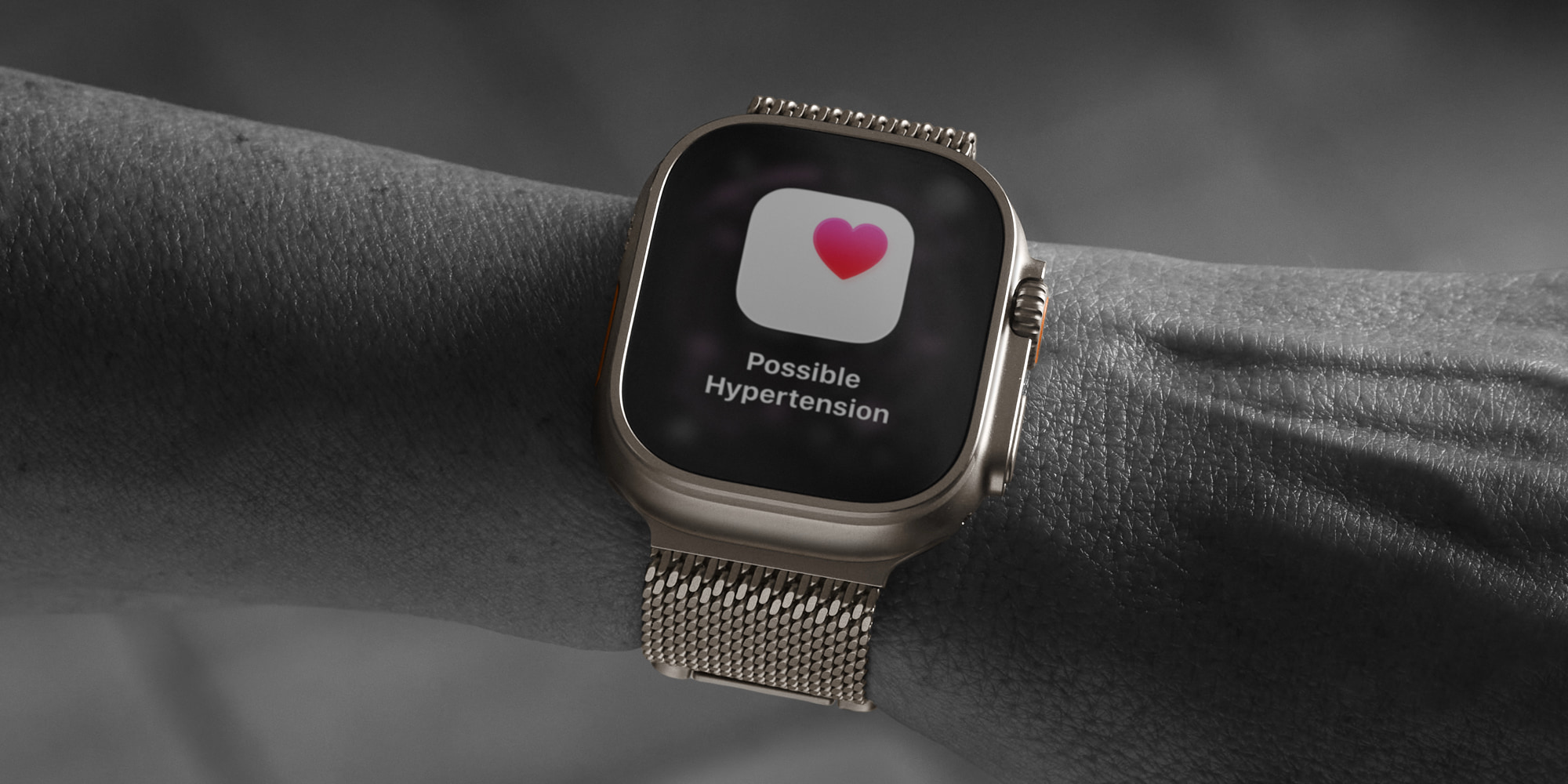
watchOS 26 introduced a new hypertension detection feature not only for Apple Watch Ultra 3 and Series 11, but for select older Apple Watch models too. Here’s how to set it up, and which models are compatible.
Compatibility requirements for Apple Watch hypertension alerts

Hypertension notifications are available in watchOS 26 for the following Apple Watch models:

  • Apple Watch Series 11
  • Apple Watch Series 10
  • Apple Watch Series 9
  • Apple Watch Ultra 3
  • Apple Watch Ultra 2

To activate the feature, you will also need an iPhone 11 or later that’s running iOS 26.

Apple has some additional listed requirements to use the feature:

  1. Wrist Detection must be enabled on your Apple Watch
  2. You must be 22 years or older, not pregnant, and have not been diagnosed with hypertension

The activation process for hypertension notifications involves confirming most of these details when prompted.
How to use hypertension feature in watchOS 26

Once you have met all of the requirements listed above, here’s what Apple says you need to do to enable hypertension notifications.

Follow these simple steps:

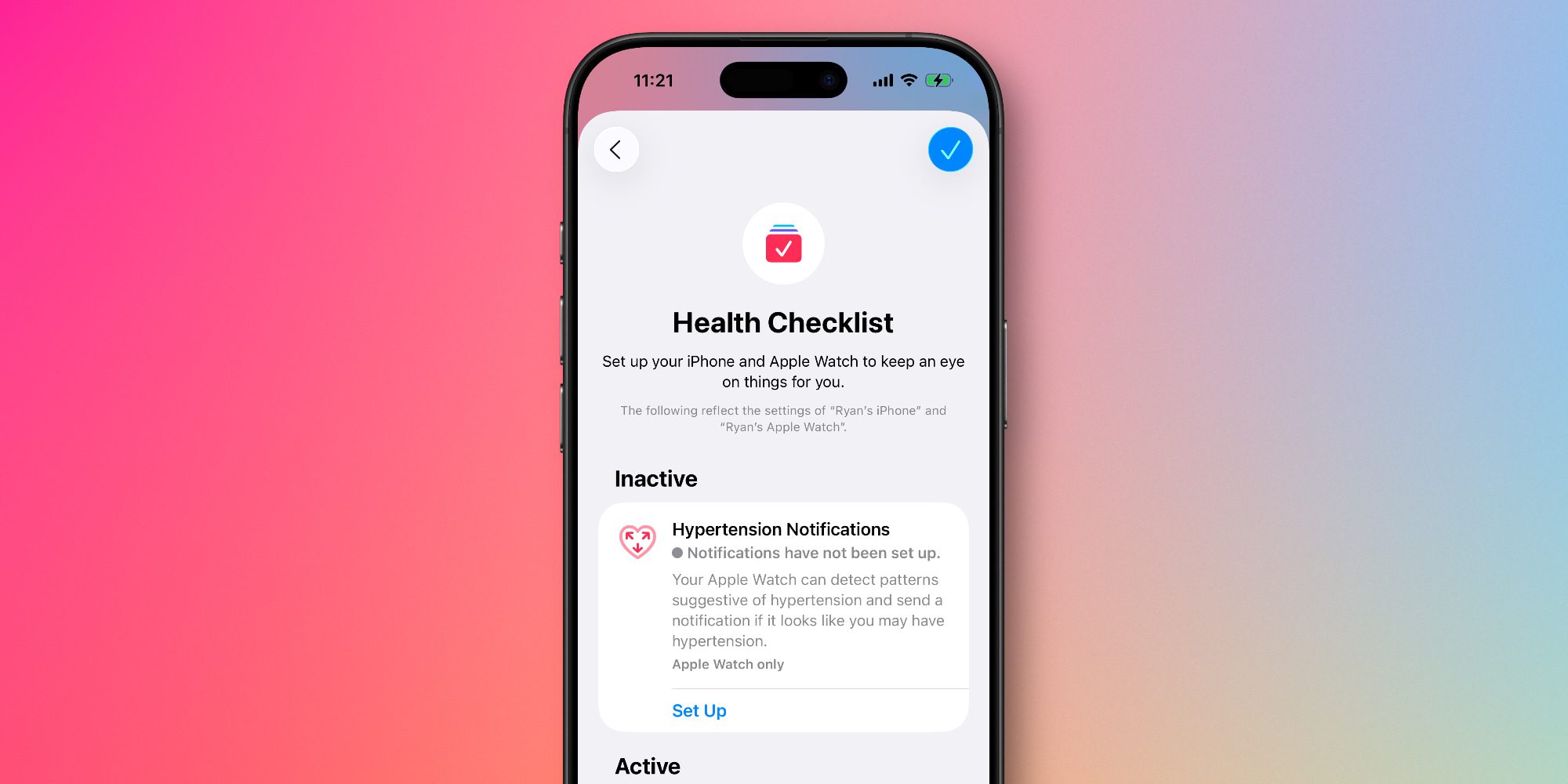
  1. On your iPhone, open the Health app
  2. Tap your profile icon in the upper corner
  3. Under Features, tap ‘Health Checklist’
  4. Tap ‘Hypertension Notifications’
  5. Confirm your age and if you’ve ever been diagnosed with hypertension, then tap Continue
  6. Tap Next to follow the onscreen prompts to learn how the notifications work
  7. Tap Done

After walking through the setup process, you won’t start getting hypertension notifications immediately.

That’s because Apple needs 30 days to gather initial data before it can accurately predict whether you might be demonstrating a pattern of hypertension.

Apple explains:

Your Apple Watch can analyze data collected by the optical heart sensor and notify you if it detects a pattern of hypertension. This is done over 30 day evaluation periods, starting from the day you set up hypertension notifications.

For more information, visit the full support document on Apple’s website.

Have you been using the new hypertension detection feature in watchOS 26? Let us know in the comments.


Best Apple Watch accessories

Add 9to5Mac as a preferred source on Google Add 9to5Mac as a preferred source on Google

FTC: We use income earning auto affiliate links. More.