


Table of contents
In this post, we’ll explore the top three React PDF viewers, highlighting their features, ideal use cases, and how to get started. Among them, Nutrient Web SDK emerges as a standout option for developers seeking advanced capabilities. Let’s dive in!
React has become the go-to library for building dynamic, interactive web applications, and developers often need efficient, customizable solutions for displaying PDF documents. Whether you’re building a document management system, an e-commerce site with downloadable reports, or a viewer for scanned content, selecting the right React PDF viewer is crucial for performance and user experience.
Why choosing the right PDF viewer matters
When it comes to React PDF viewers, it’s not just about displaying documents. You need a solution that’s fast, flexible, and easy to integrate into your existing workflow. The best PDF viewers reduce development time, ensure smooth performance, and offer an intuitive user experience.
1. Nutrient Web SDK
Nutrient Web SDK is a cutting-edge solution for handling PDF documents in React applications. It combines high-performance rendering with advanced features, making it an excellent choice for both small-scale projects and enterprise applications.
Key features of Nutrient React PDF viewer
- Fast rendering — Ensures smooth performance, even for large files.
- Customizable UI — Save time with prebuilt, well-documented APIs to match your exact needs.
- Annotation tools — Draw, highlight, comment, and add notes with more than 15 prebuilt tools.
- Multiple file types — View PDFs, MS Office documents, and image files client-side.
- Advanced tools — Take advantage of features like editing, digital signatures, form filling, and real-time collaboration.
- Dedicated support — Accelerate deployment with direct assistance from our developers.
With these features, Nutrient is the clear choice for React developers who want a powerful yet easy-to-use PDF viewer.
Ideal use cases
- Enterprise dashboards — For editing, annotating, and collaborating on PDFs.
- e-Learning platforms — Delivering course materials with interactive features like annotations and quizzes.
- Life sciences — Managing research papers, clinical data, and patient records.
- Legal — Handling contracts, case files, and secure document collaboration.
- Healthcare — Managing medical records, prescriptions, and secure sharing.
- Government — Managing forms, permits, and reports with digital signing.
- Finance — Processing contracts and financial documents with annotation and secure signing.
Getting started with Nutrient
Follow the steps outlined below to integrate Nutrient into your React app.
- To set up your project, create a new React app using Vite:
npm create vite@latest nutrient-react-example -- --template react
cd nutrient-react-example
- Add the Nutrient library:
- The Nutrient Web SDK loads its WebAssembly and supporting files from a local path, so you need to copy them to the public folder. Start by installing the required copy plugin:
npm install -D rollup-plugin-copy
Then, update your Vite configuration (vite.config.ts) to copy the SDK’s asset files during build:
import { defineConfig } from "vite";
import react from "@vitejs/plugin-react";
import copy from "rollup-plugin-copy";
export default defineConfig({
plugins: [
copy({
targets: [
{
src: "node_modules/@nutrient-sdk/viewer/dist/nutrient-viewer-lib",
dest: "public/",
},
],
hook: "buildStart",
}),
react(),
],
});
- Now that everything is set up, you’ll render a PDF using the Nutrient SDK.
Basic usage in App.tsx:
import { useEffect, useRef } from "react";
function App() {
const containerRef = useRef(null);
useEffect(() => {
const container = containerRef.current;
let cleanup = () => {};
(async () => {
const NutrientViewer = (await import("@nutrient-sdk/viewer")).default;
// Unload any previous instance.
NutrientViewer.unload(container);
if (container && NutrientViewer) {
NutrientViewer.load({
container,
document: "/example.pdf",
baseUrl: `${window.location.protocol}//${
window.location.host
}/${import.meta.env.PUBLIC_URL ?? ""}`,
});
}
cleanup = () => {
NutrientViewer.unload(container);
};
})();
return cleanup;
}, []);
return <div ref={containerRef} style={{ height: "100vh", width: "100vw" }} />;
}
export default App;
You can also render a different file by changing the document path or making it dynamic.
Once everything is configured, start your app:
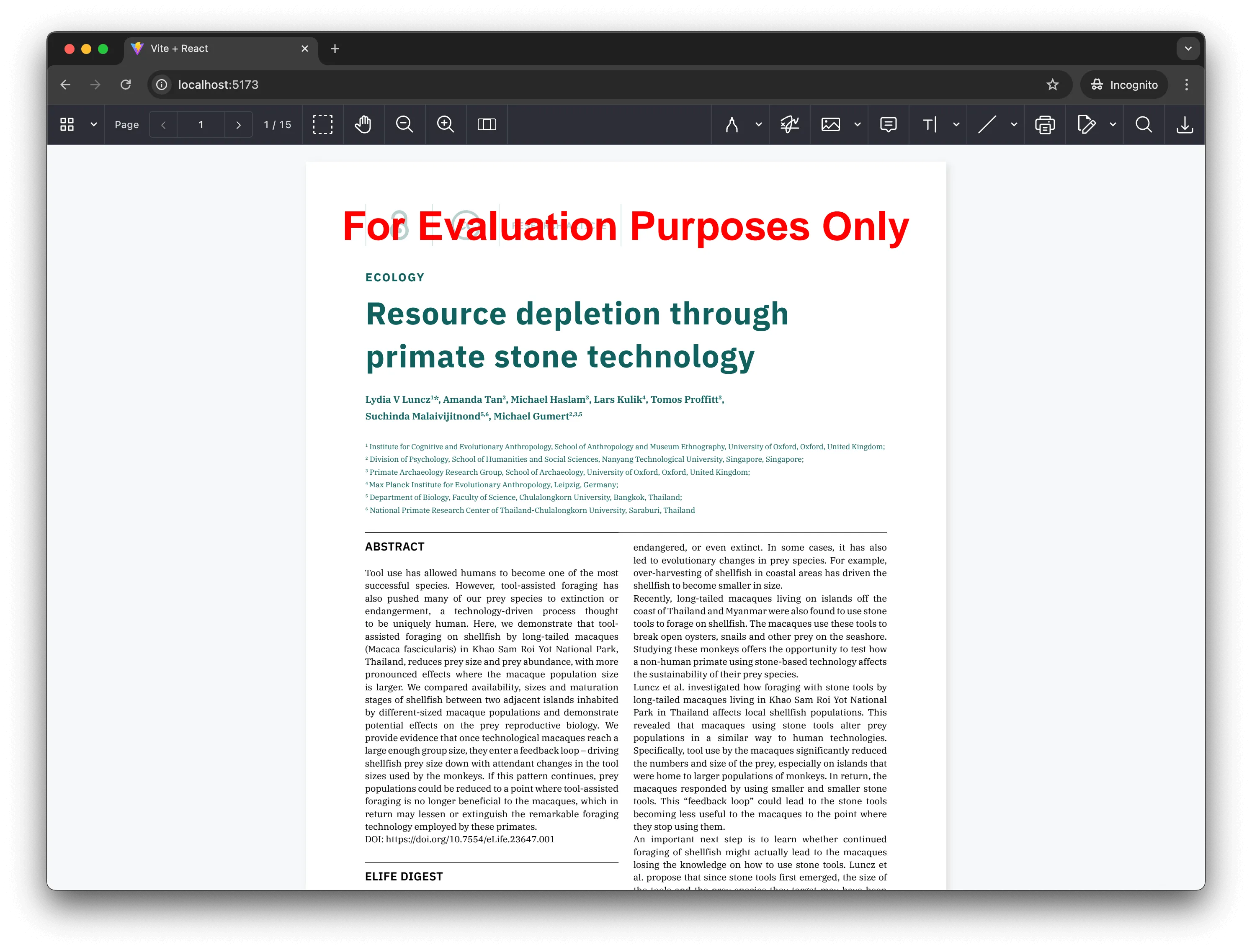
Note that because Nutrient is a commercial product, you’ll see a Nutrient Web SDK evaluation notice on the document. To get a license key, contact Sales.
Related resources:
- How to build a React.js file viewer
- How to add digital signatures to PDFs using React
- How to build a React Word (DOC and DOCX) viewer
- React PDF annotations — A complete overview
- How to display a PDF in React
2. React-PDF
React-PDF(opens in a new tab) is a lightweight library that allows you to render PDF documents in React applications. It’s perfect for developers who want a simple yet effective way to display PDFs with minimal setup.
Key features of React-PDF
- Minimal setup — React-PDF offers a clean and easy-to-use API, allowing for quick integration.
- PDF viewing — View PDF documents with navigation controls such as zoom, page navigation, and more.
- Cross-platform compatibility — Works across different devices and screen sizes, ensuring broad compatibility.
Ideal use cases
- Basic applications — Perfect for apps that require simple PDF viewing features.
- Rapid prototyping — Great for quickly adding PDF viewing capabilities to projects with minimal setup.
Getting started with React-PDF
- Install React-PDF:
- Import and use the library:
import { Document, Page } from "react-pdf";
const App = () => (
<div>
<Document file="/path/to/document.pdf">
<Page pageNumber={1} />
</Document>
</div>
);
export default App;
For a detailed guide on creating a PDF viewer with React-PDF, check out React PDF viewer using React-PDF.
3. PDF.js in React
PDF.js(opens in a new tab), developed by Mozilla, is a popular open source library for rendering PDF documents. It’s highly customizable, making it ideal for React applications that require full control over the PDF viewing experience.
Key features of PDF.js
- Open source — Free, with extensive community support.
- High-quality rendering — Accurate and detailed PDF rendering.
- Customizable — Developers can tweak the functionality and design.
Ideal use cases
- Custom solutions — Perfect for tailored PDF viewers.
- Developer-driven apps — Great for developers who prefer working with open source tools.
Getting started with PDF.js
- Install PDF.js:
- Create a
useEffecthook to load and render a PDF page in your React component:
"use client";
import { useEffect, useRef } from "react";
export default function App() {
const canvasRef = useRef(null);
const renderTaskRef = useRef(null); // Ref to store the current render task.
useEffect(() => {
let isCancelled = false;
(async function () {
// Import pdfjs-dist dynamically for client-side rendering.
const pdfJS = await import("pdfjs-dist/build/pdf");
// Set up the worker.
pdfJS.GlobalWorkerOptions.workerSrc =
window.location.origin + "/pdf.worker.min.mjs";
// Load the PDF document.
const pdf = await pdfJS.getDocument("example.pdf").promise;
// Get the first page.
const page = await pdf.getPage(1);
const viewport = page.getViewport({ scale: 1.5 });
// Prepare the canvas.
const canvas = canvasRef.current;
const canvasContext = canvas.getContext("2d");
canvas.height = viewport.height;
canvas.width = viewport.width;
// Ensure no other render tasks are running.
if (renderTaskRef.current) {
await renderTaskRef.current.promise;
}
// Render the page into the canvas.
const renderContext = { canvasContext, viewport };
const renderTask = page.render(renderContext);
// Store the render task.
renderTaskRef.current = renderTask;
// Wait for rendering to finish.
try {
await renderTask.promise;
} catch (error) {
if (error.name === "RenderingCancelledException") {
console.log("Rendering cancelled.");
} else {
console.error("Render error:", error);
}
}
if (!isCancelled) {
console.log("Rendering completed");
}
})();
// Cleanup function to cancel the render task if the component unmounts.
return () => {
isCancelled = true;
if (renderTaskRef.current) {
renderTaskRef.current.cancel();
}
};
}, []);
return <canvas ref={canvasRef} style={{ height: "100vh" }} />;
}
As you can see, you can only display the first page of your document by default. If you need additional functionality — such as page navigation, search, or annotations — you’ll need to implement it yourself. PDF.js offers a straightforward way to render PDFs in React, with customizable features and support for large documents, making it a great choice for web applications.
For a more detailed guide on integrating PDF.js with React, check out our How to build a React.js PDF viewer with PDF.js blog post.
Comparison
The following table compares the features of the three React PDF viewers.
| Feature | Nutrient React PDF viewer | React-PDF | PDF.js |
|---|---|---|---|
| Performance | High | Moderate | High |
| Customization | Extensive | Limited | Extensive (manual) |
| Ease of integration | Easy | Easy | Complex (manual setup) |
| UI components | Built-in | None | None |
| Multiple viewing modes | Yes | No | Yes (custom setup) |
| Cross-browser compatibility | Yes | Yes | Yes |
| Developer documentation | Extensive | Good | Moderate |
| Annotations/markups | Yes | No | Yes (custom setup) |
| File size/weight | Light | Moderate | Heavy |
Read on for a more in-depth comparison of how these React PDF viewers measure up against one another.
1. Nutrient React PDF Viewer vs. React-PDF
- Performance
Nutrient offers faster and more responsive rendering than react-pdf, making it the preferred choice for handling large or complex PDF files efficiently.
- Integration
react-pdf provides a straightforward API for rendering PDFs in React applications, but it requires additional setup for advanced features, such as a customizable UI and complex interactions. Nutrient React PDF viewer simplifies this process with a more streamlined integration approach, making it faster and easier for developers to get started.
- Features
Nutrient React PDF viewer offers an array of advanced features, including real-time annotation syncing, multiple viewing modes, and comprehensive CSS customization. It also supports hybrid rendering for optimal performance across different devices and environments. In comparison, react-pdf provides basic functionality, requiring more manual configuration for complex features like annotations or specialized UI components.
2. Nutrient React PDF Viewer vs. PDF.js
- Performance
Nutrient Web SDK utilizes hybrid rendering for both client and server-side, ensuring smooth viewing of large files (500 MB+) on low-powered devices with real-time annotation syncing. In contrast, PDF.js relies on client-side rendering, which depends on the browser’s capabilities, making it less efficient for large files or complex documents.
- Features
Nutrient Web SDK offers a fully customizable, production-ready viewer with a configurable ViewState, extensive CSS customization, and built-in features like multiple viewing modes and annotations. PDF.js provides basic rendering and a simple viewer but requires significant manual customization to enable advanced features like UI components or annotations.
- Integration
Nutrient Web SDK is easy to integrate with existing applications, offering out-of-the-box functionality without the need for low-level rendering tasks. Meanwhile, PDF.js requires more setup and manual configuration to implement a fully functional viewer, especially for advanced features or customizations.
Try Nutrient React PDF viewer today!
Ready to get started? Explore a demo to see how the Nutrient React PDF viewer works in action.
For a more detailed implementation guide, check out our getting started guide and start integrating Nutrient into your project today.
Conclusion
Selecting the right PDF viewer for your React application depends on your project’s requirements. For robust performance, advanced features, and seamless integration, Nutrient React PDF viewer is the ultimate choice. If your needs are simpler, react-pdf provides a quick and easy solution, while PDF.js caters to developers seeking complete customization.
No matter your choice, these tools ensure a smooth user experience, allowing you to focus on building powerful, engaging applications.
FAQ
For complex projects requiring advanced features like annotations, bookmarks, and high-performance rendering, Nutrient React PDF viewer is the top choice. It offers extensive customization and easy integration.
Yes, React-PDF is ideal for applications needing simple PDF viewing capabilities. It’s lightweight and easy to integrate, making it perfect for basic use cases.
Yes, PDF.js is a powerful tool for developers who want full control over the PDF viewing experience. However, it requires manual implementation for features like navigation and annotations.
Nutrient React PDF viewer stands out with built-in annotation tools, enabling highlights, comments, shapes, and more.
- Nutrient React PDF viewer — High-performance rendering, even for large files.
- React-PDF — Moderate performance for smaller documents.
- PDF.js — High performance but depends on manual setup for optimization.
- Top five JavaScript PDF viewers — Comparison of the best JavaScript PDF viewer libraries
- PDF.js vs. Nutrient — In-depth comparison for enterprise web apps
- Open source vs. proprietary PDF SDKs — How open source libraries compare to commercial solutions
See all product comparisons on the SDK comparison page.