










Performing a reauthentication with passkeys
Reauthentication might happen for the following reasons:
You’ll use passkeys that you set up in the previous section to reauthenticate the user in each of these situations. The WebAuthn API call is the same in all three cases, but the UI treatment that you provide is slightly different. Since the particular account is specified by you, the platform will not offer the user to select a different account on your service.
Let’s look at the UI for the last case first: when it’s time to re-authenticate for a sensitive action, check whether you have a credential ID for at least one passkey for the user.
If no such credential ID is available, serve a traditional login challenge suitable for reauthentication, for example:
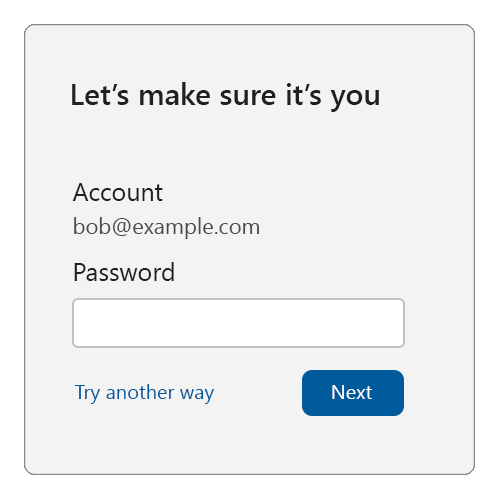
We recommend that on this login challenge page, users can’t change their account identifier. Also, the login challenge should be something that an unauthorized user of the device can’t pass.
If, however, you do find at least one passkey credential ID for the user, then you can use passkeys for reauthentication:
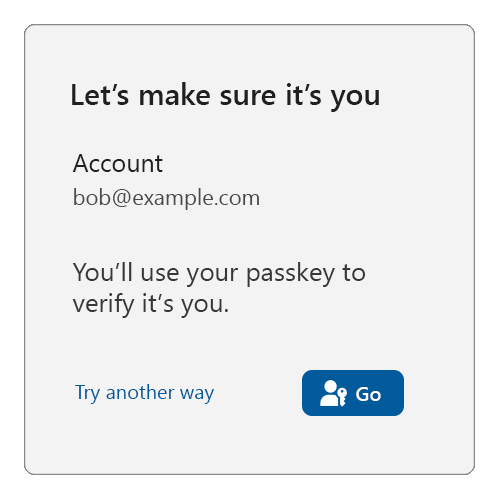
When the user is ready (in the above example, when they click on the “Go” button), call navigator.credentials.get(), passing in all the user’s passkey credential IDs:
navigator.credentials.get({
  publicKey: {
    challenge: ...,
    rpId: ...,
     allowCredentials: [{
      type: "public-key",
      id: new UInt8Array([21, 31, 56, ...]).buffer,
    }, {
      type: "public-key",
      id: new UInt8Array([21, 31, 56, ...]).buffer,
    }, {
      ...
    }],
    // see note below
    userVerification: "preferred",
  }
});
NOTE: Be sure to read the guidance around userVerification from the previous page
If the user instead clicks on “Try another way”, you should offer them other sign in methods (password, etc.) to reauthenticate them (assuming the user has such other sign in methods available to them).
Now let’s look at the case where the reauthentication is triggered because the user logged themselves out, or the relying party expired the user’s session. To facilitate this, the relying party would have to keep some form of user session state reminding them of the account that used to be signed in, even when they consider the user signed-out (this could be achieved using browser artifacts such as cookies or local storage).
Note that a relying party may choose to treat signing-out as a comprehensive action and thus delete all references to the user’s identity. Such a relying party ought to treat a subsequent sign-in like an account bootstrap, and repeat the steps explained above.
You, as the relying party, might then serve a sign-in page like this:
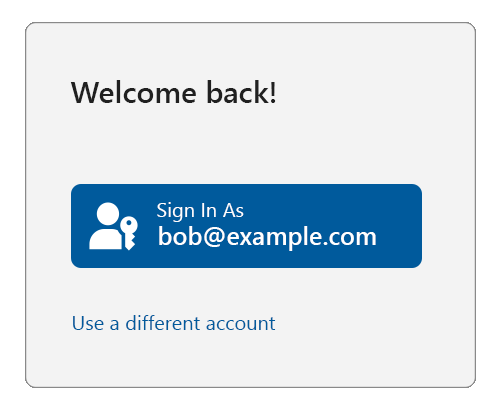
If the user clicks on “Use a different account”, then you should enter an account bootstrap flow as explained on the previous page, repeating the steps in Bootstrapping an account , where the platform will let them select which account they want to use.
In this case, you should also give the user the ability to completely remove the suggested account from being listed on the sign-in page.
But if the user clicks the “Sign in as” button, check whether you have at least one passkey credential ID associated with the user. If no credential ID is available, serve a traditional login challenge suitable for reauthentication, for example:
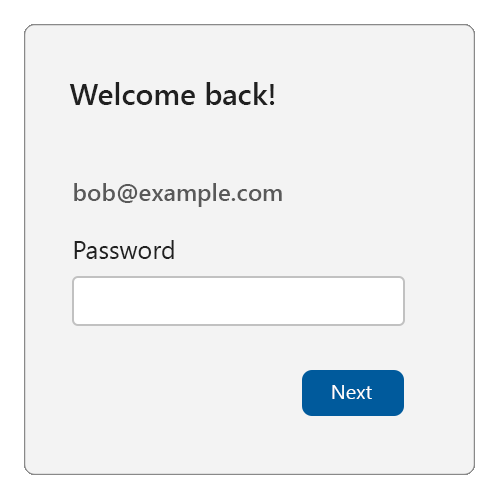
If, however, you do find at least one passkey credential ID for the user, then you can use passkeys for reauthentication:
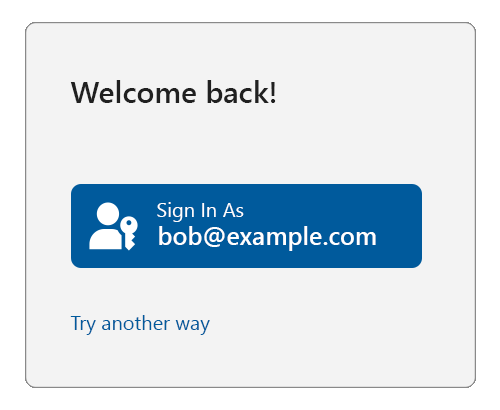
When the user is ready (in the above example, when they click on the “Go!” button), call navigator.credentials.get(), exactly as shown above (i.e., by passing in all the user’s passkey credential IDs).
If the user instead clicks on “Try another way”, you should offer them other sign in methods (password, etc.) to reauthenticate them.
此内容由惯性聚合(RSS阅读器)自动聚合整理,仅供阅读参考。 原文来自 — 版权归原作者所有。