


Ever wanted to try invoke ai's awesome stable diffusion infinite canvas out, but didn't want to go through the hassle of installing a bunch of stuff? Maybe you just don't have a local GPU that can run it fast enough? No worries, we've got you covered with our easy deploy template for invoke ai!
If you don't have a powerful Nvidia GPU at home or you just don't want to go through the hassle of installing a bunch of drivers and managing dependencies, here's a really easy way to get started with invoke ai!
Just make sure to go to https://www.runpod.io/ and sign up for an account. Load up as little as $10 to get started.
I would recommend picking a 3090 GPU for this.
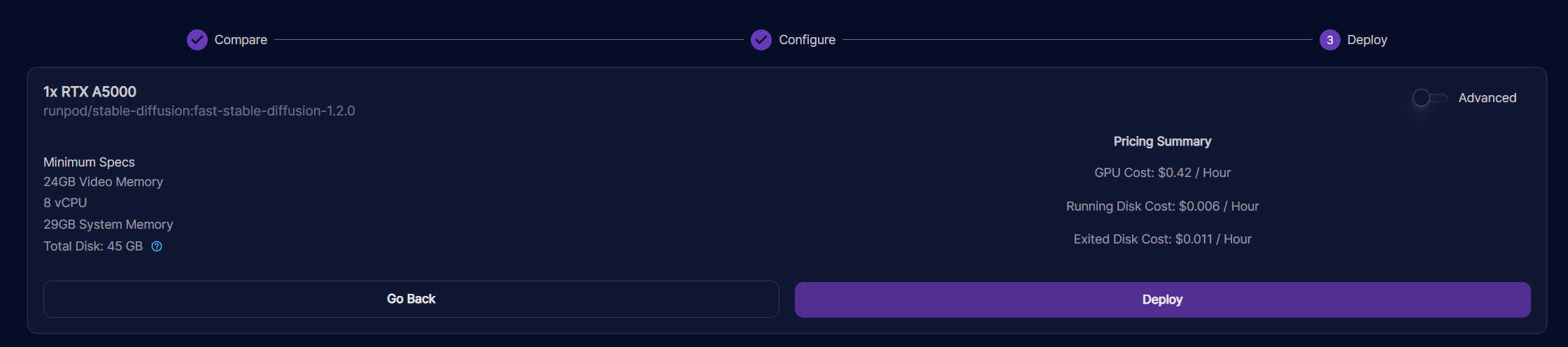
You can configure other settings to your liking, like requesting more disk space, or you can leave everything else default!
Deploy your instance through the UI, or you can click here to automatically load the template.
Go to your "My Pods" dashboard.
The new Invoke AI template does take a bit longer to set up, so this could take a few minutes or more depending on your pod's internet connection and CPU speed; please be patient! The older one started faster, but was harder to keep up to date with the latest features.
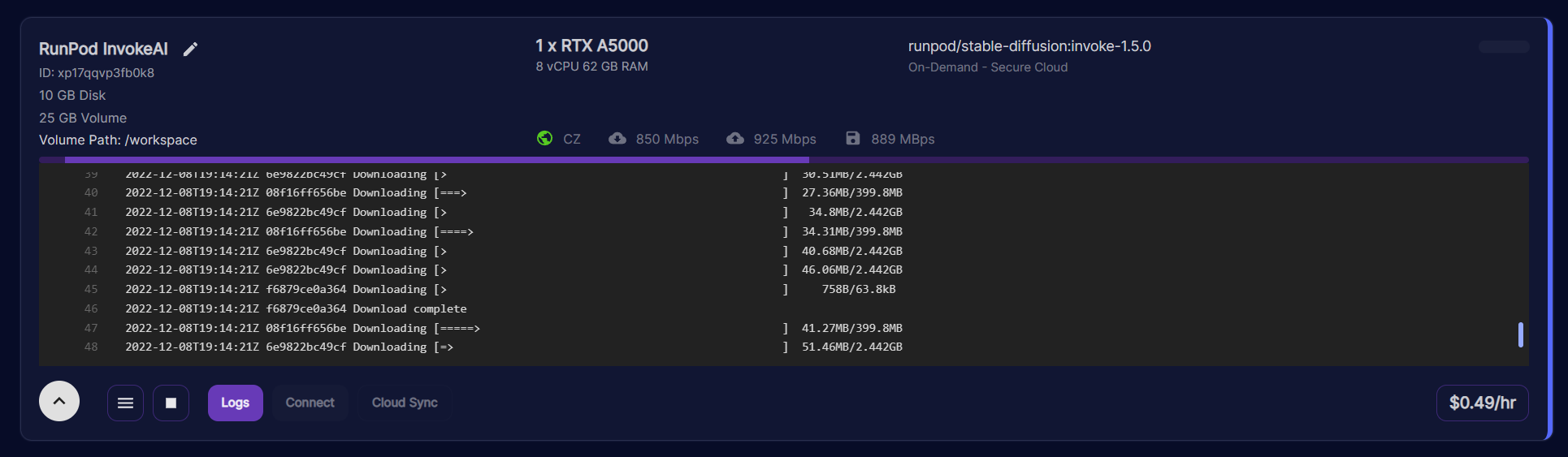
You will know when your pod is ready when the CPU Utilization drops to 0%. This may take a minute or two.
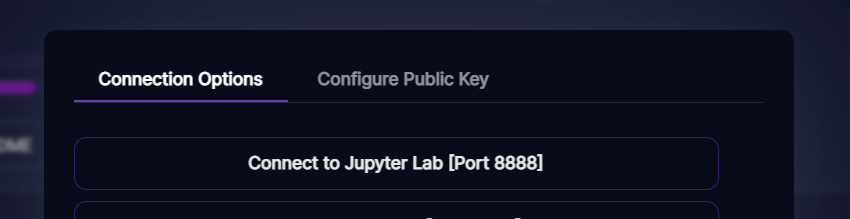
After a few minutes, you can click Connect and then connect to jupyter lab:
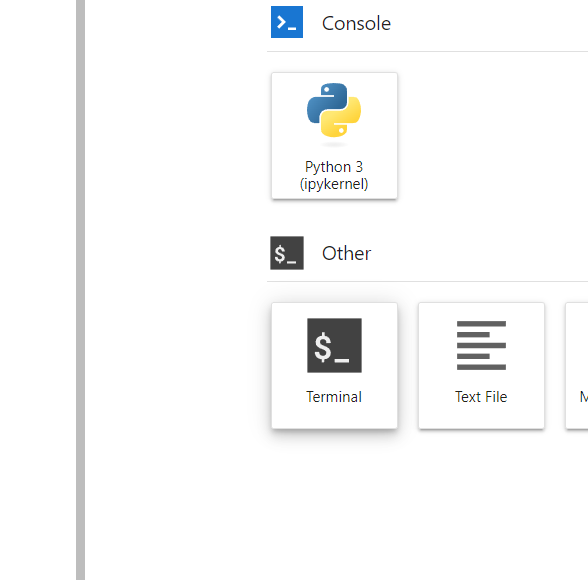
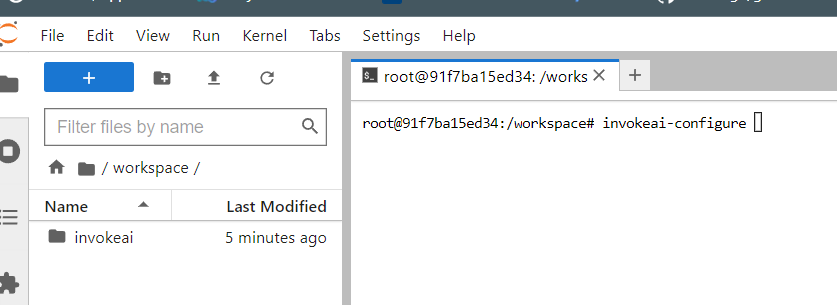
Once you're in jupyter, start a terminal tab:
Then type invokeai-configure in your terminal window:
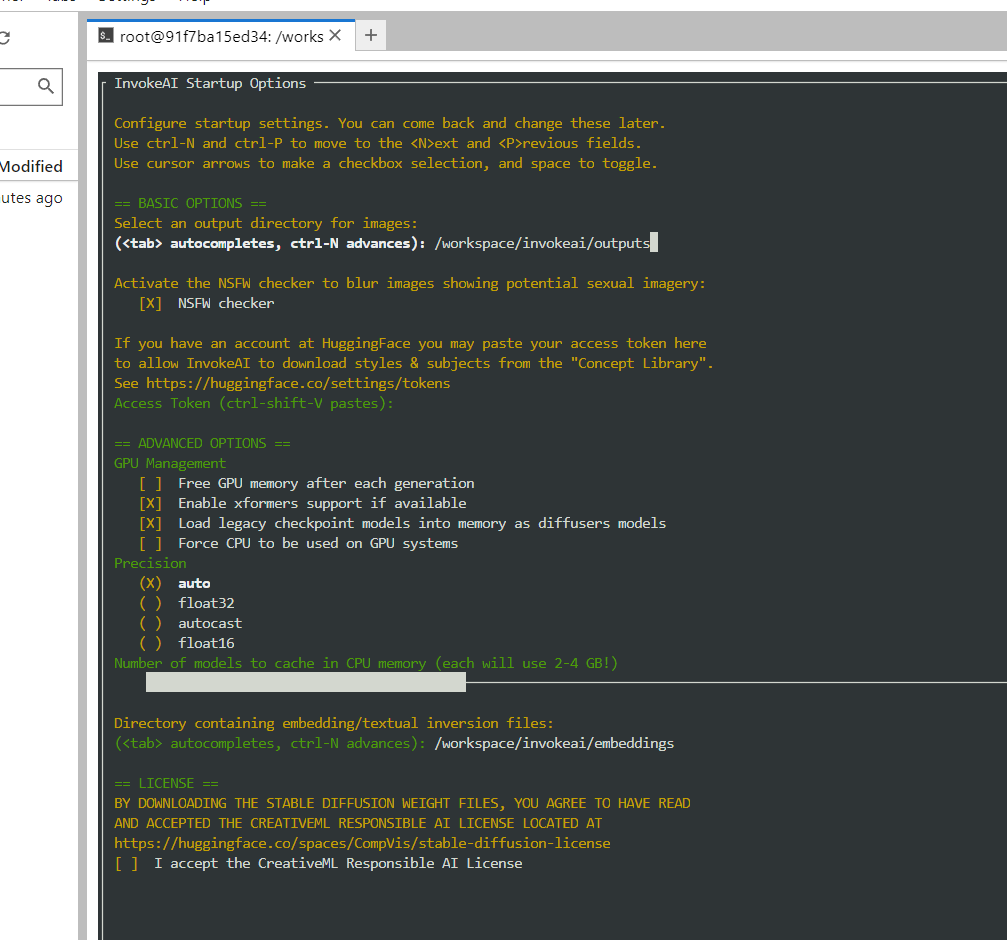
You should be presented with a menu of configuration options. Go through the menu options and make your choices to customize your invokeai experience.
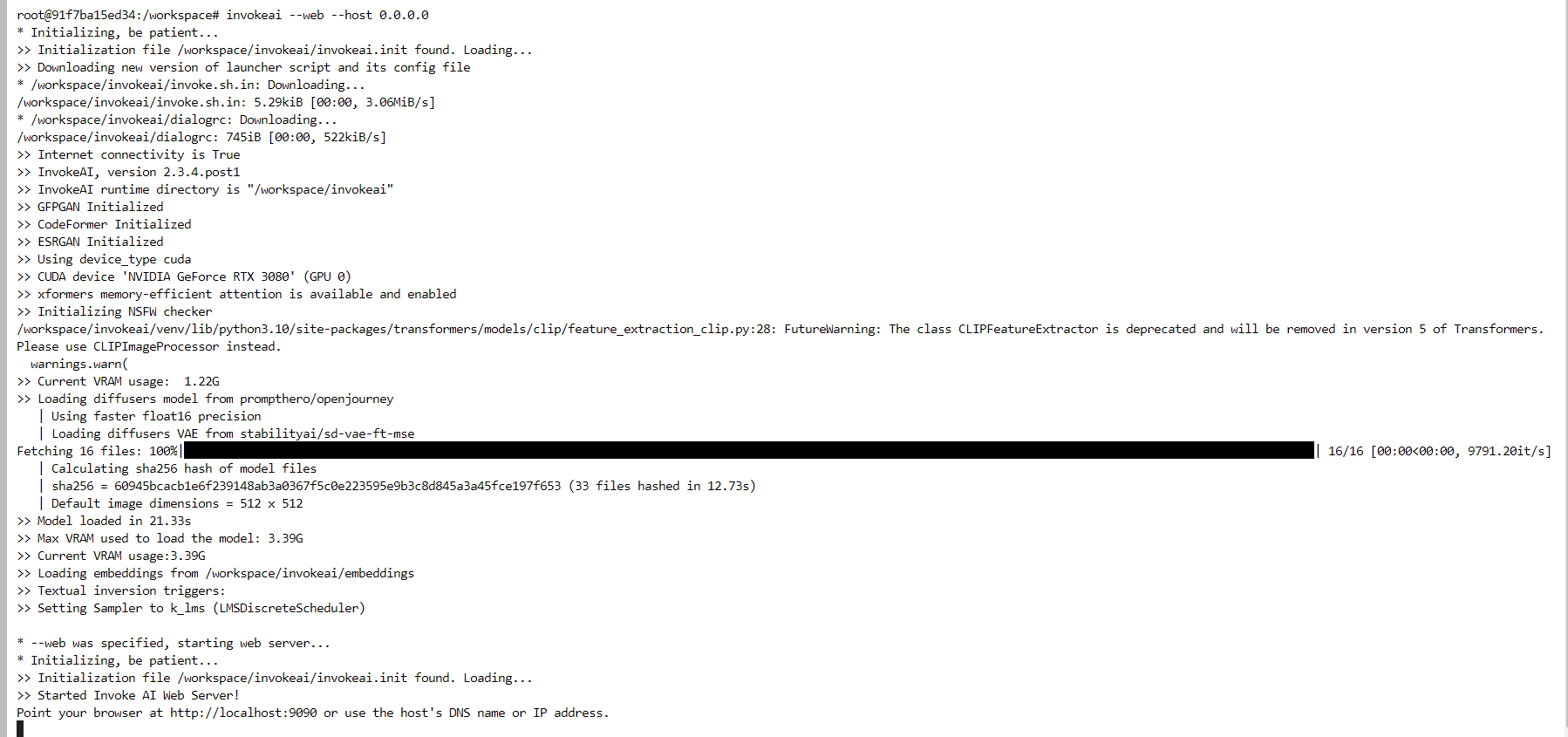
Once this is complete, you should be able to launch the invoke UI by typing invokeai --web --host 0.0.0.0
in a terminal window.
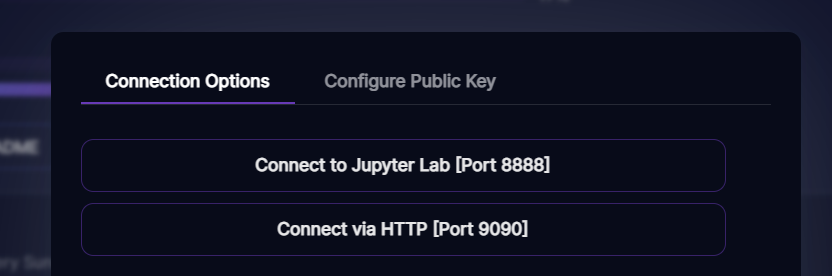
Go back to your pod dashboard, where you can now connect via port 9090
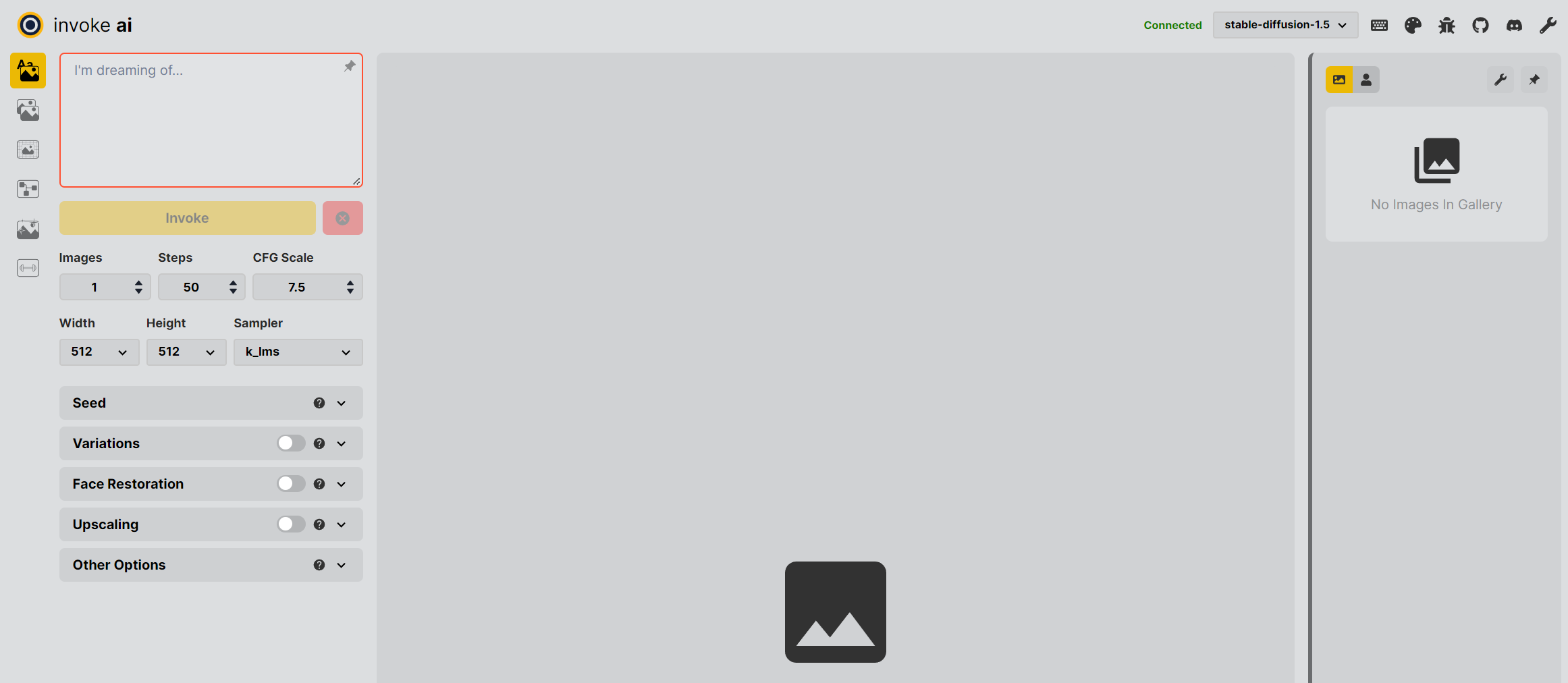
You should then be directed to the invoke ai starting page
Here are some cool videos made by the Invoke team showcasing their UI!
If you have any questions, or would just like to join the Runpod community, please visit us in Discord.
Ever wanted to try invoke ai's awesome stable diffusion infinite canvas out, but didn't want to go through the hassle of installing a bunch of stuff? Maybe you just don't have a local GPU that can run it fast enough? No worries, we've got you covered with our easy deploy template for invoke ai!
If you don't have a powerful Nvidia GPU at home or you just don't want to go through the hassle of installing a bunch of drivers and managing dependencies, here's a really easy way to get started with invoke ai!
Just make sure to go to https://www.runpod.io/ and sign up for an account. Load up as little as $10 to get started.
I would recommend picking a 3090 GPU for this.
You can configure other settings to your liking, like requesting more disk space, or you can leave everything else default!
Deploy your instance through the UI, or you can click here to automatically load the template.
Go to your "My Pods" dashboard.
The new Invoke AI template does take a bit longer to set up, so this could take a few minutes or more depending on your pod's internet connection and CPU speed; please be patient! The older one started faster, but was harder to keep up to date with the latest features.
You will know when your pod is ready when the CPU Utilization drops to 0%. This may take a minute or two.
After a few minutes, you can click Connect and then connect to jupyter lab:
Once you're in jupyter, start a terminal tab:
Then type invokeai-configure in your terminal window:
You should be presented with a menu of configuration options. Go through the menu options and make your choices to customize your invokeai experience.
Once this is complete, you should be able to launch the invoke UI by typing invokeai --web --host 0.0.0.0
in a terminal window.
Go back to your pod dashboard, where you can now connect via port 9090
You should then be directed to the invoke ai starting page
Here are some cool videos made by the Invoke team showcasing their UI!
If you have any questions, or would just like to join the Runpod community, please visit us in Discord.
Author profile: Zhen Lu
此内容由惯性聚合(RSS阅读器)自动聚合整理,仅供阅读参考。 原文来自 — 版权归原作者所有。