惯性聚合 高效追踪和阅读你感兴趣的博客、新闻、科技资讯
阅读原文 在惯性聚合中打开

推荐订阅源

Google DeepMind News
I
InfoQ
Engineering at Meta
Engineering at Meta
D
DataBreaches.Net
L
LangChain Blog
Cyber Security Advisories - MS-ISAC
奇客Solidot–传递最新科技情报
奇客Solidot–传递最新科技情报
Recent Announcements
GbyAI
GbyAI
爱范儿
爱范儿
Microsoft Security Blog
腾讯CDC
美团技术团队
罗磊的独立博客
Microsoft Azure Blog
WordPress大学
WordPress大学
T
The Blog of Author Tim Ferriss
freeCodeCamp Programming Tutorials: Python, JavaScript, Git & More
雷峰网
雷峰网
M
MIT News - Artificial intelligence
D
Docker
MongoDB | Blog
MongoDB | Blog
F
Fortinet All Blogs
博客园 - 叶小钗

Derek Seaman's Tech Blog

SmartWings Blinds Review: Matter over Thread Zebra Shades Aqara Camera Hub G350: World’s First Matter v1.5 Camera ESPHome: Micro-Air EasyStart Integration ESPHome: Introducing the Seeed Studio Xiao ESP32-C5 Seeed Studio ESP32 Showdown: C3 vs. C6 vs. S3 (ESPHome Edition) Home Assistant: Updating Aqara FP300 Zigbee Firmware How-To: Using my ESPHome Bluetooth IRK Capture Package Vibe Coding: My ESPHome Bluetooth IRK Capture Tool Home Assistant: Track Who’s in Each Room with ESPHome + Bermuda BLE 3-2-1-1 Go: Implementing Foolproof Backups Proxmox Backup Server (PBS) 4.0 Blog Series How To: Proxmox Backup Server 4 as a Synology VM How To: Backblaze B2 as a Proxmox Backup Server 4 S3 Datastore How To: Synology NFS for Proxmox Backup Server Datastore (2025) How To: Proxmox Backup Server 4 (VM) Installation How MVNOs Like US Mobile Can Save You Money on Your Cell Phone Bill Data Brokers Exposed: How to Opt Out and Secure Your Personal Data Digital Privacy Decoded: Simple Ways to Secure Your Information Part 2: Ruckus Unleashed (200.18+) Best Practices Guide Part 1: Ruckus Unleashed (200.18+) Best Practices Guide 3-2-1 Go: A Step-by-Step Guide to Implementing Foolproof Backups Geek Chic Eyewear: My Optometrist Saga, Eyewear Collection & More Geek Chic Eyewear: Optometry Tools, Eye Health and Insurance Geek Chic Eyewear: Understanding Lens Materials and Designs Essential Tips for a Stable Matter over Thread Network Aqara U200 Thread/Matter/Homekey Smart Lock Impressions Home Assistant: The Ultimate Light Automation Blueprints 6 GHz Wi-Fi: Are Your Devices ready for Standard Power? Demystifying Ruckus Home Wi-Fi: Getting Started Guide Mastering Home Wi-Fi: A Guide to Predictive RF Planning
Getting your Cloudflare DNS Zone API Key and Account ID
2023-04-09 · via Derek Seaman's Tech Blog

If you are using Cloudflare DNS and need to get a DNS Zone API key and Account ID, this post is for you. Why would you need this information? There are two primary reasons that come to mind:

  • You are using Dynamic DNS (DDNS) and want to update an A record in your domain to be your public home IP address.
  • You are using Letsencrypt, snap, certbot or ACME to issue trusted SSL certificates for your domain and you want to use DNS validation (vs. HTTP authentication).

Why get a DNS Zone API token vs. a global token? A global token has “root” like access to your Cloudflare account. This is way more permission than any DDNS or Letsencrypt services need and is a big security risk. You should only scope API tokens to the bare minimum access required to do the job.

Tip: Cloudflare DNS is free, and does NOT require that you use Cloudflare as your domain registrar. You can use any registrar you want and configure it to use the Cloudflare DNS servers for free. 
Get Cloudflare Account ID

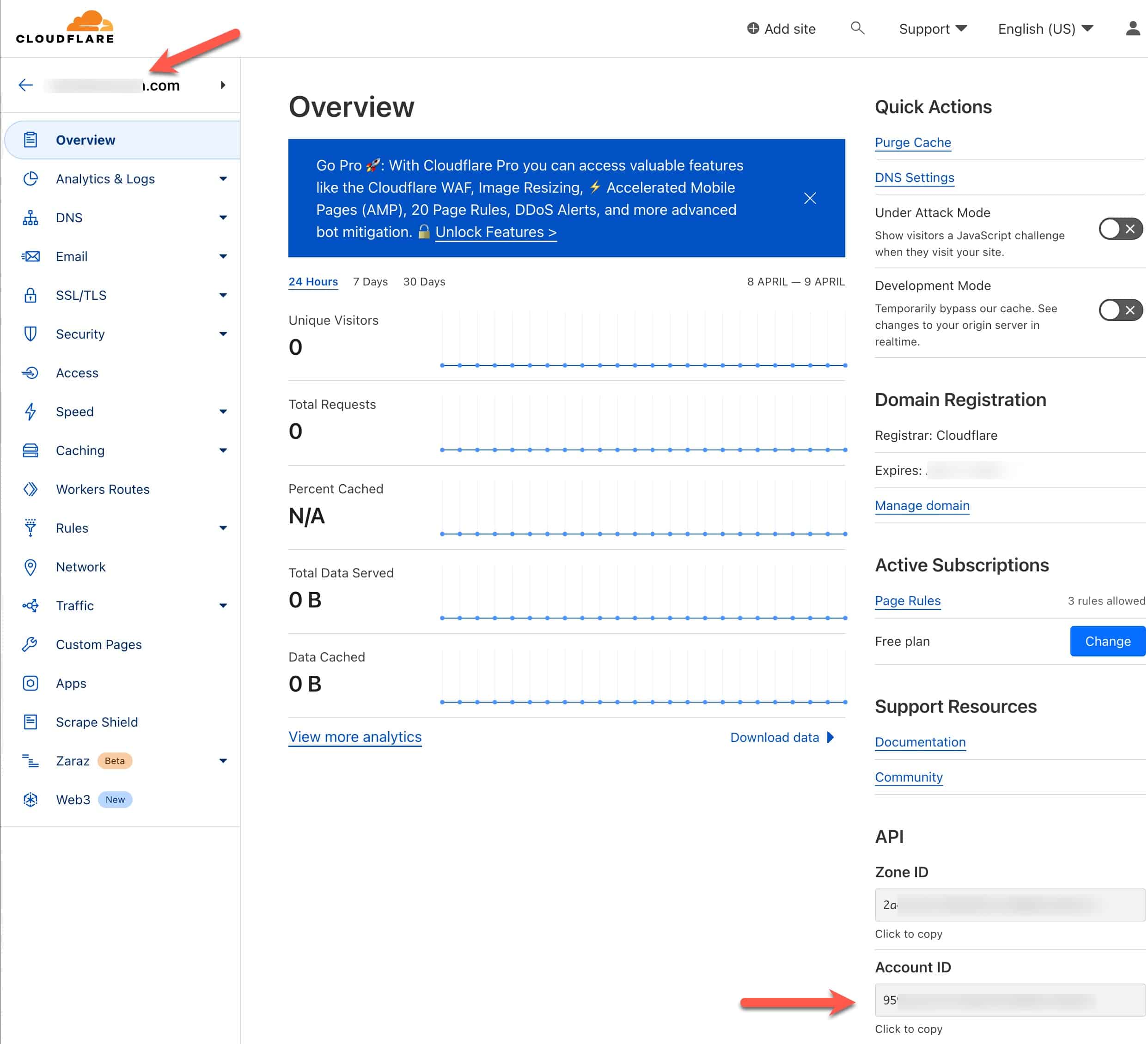
  1. Login to Cloudflare and on the Home page click on the domain you want to obtain the zone API token for.
  2. In the right most column locate API. Under API copy the Account ID and save it.

Create Cloudflare Zone API Token

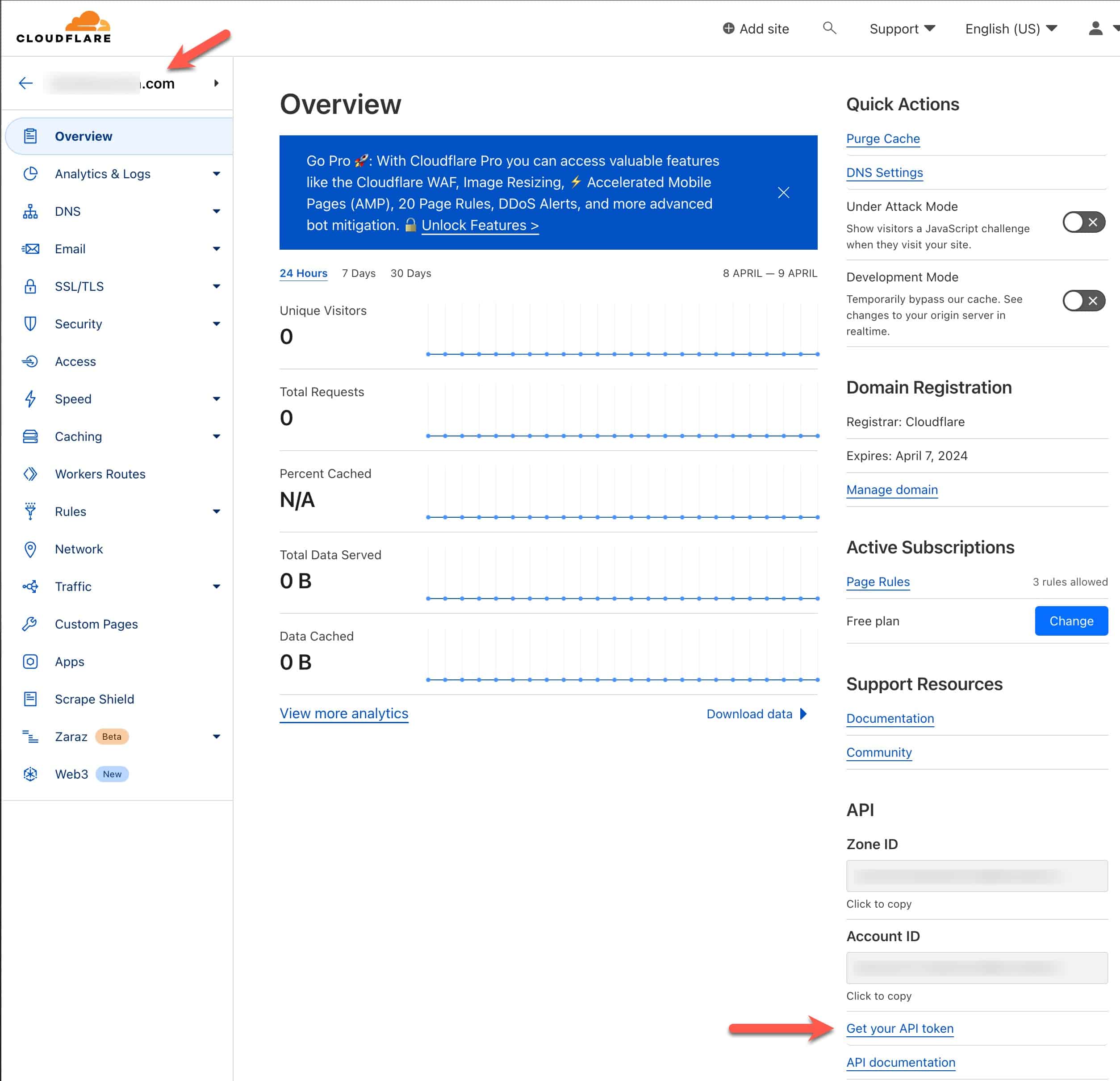
  1. While still in the same zone you want to create the token for, in the lower right corner click on Get your API token.

2. On the next page click on Create Token.
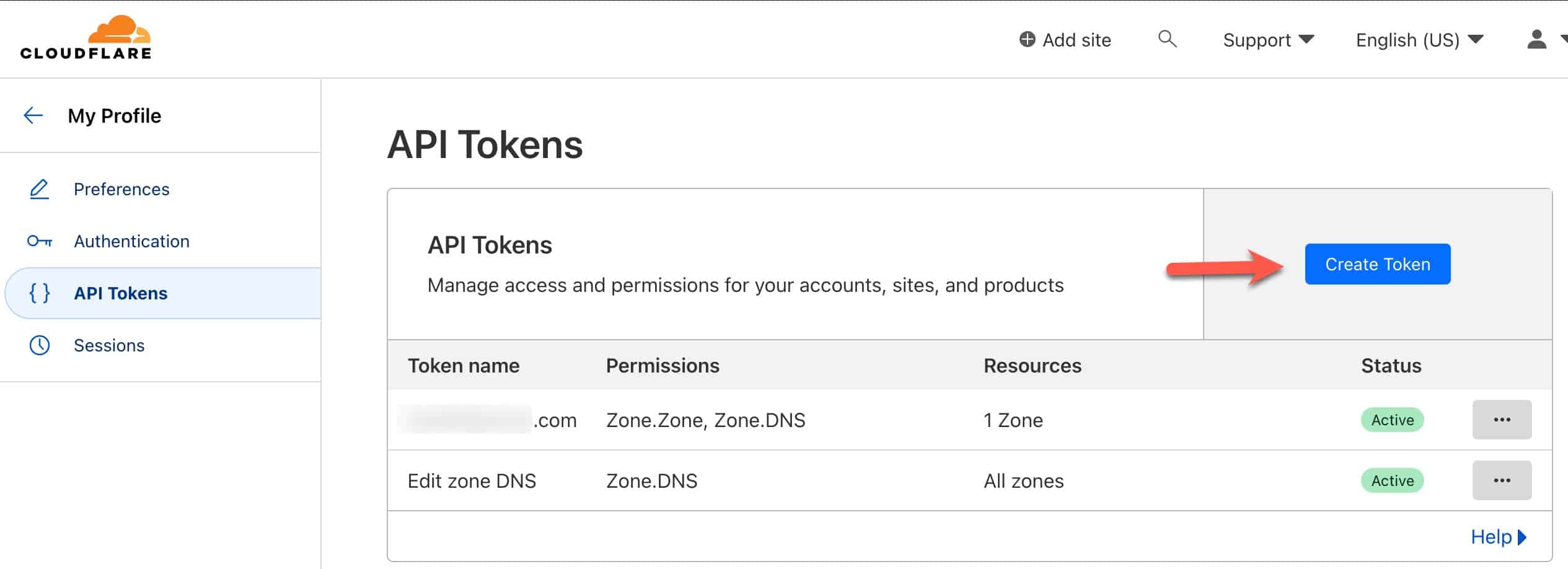
3. On the API Tokens screen next to Edit zone DNS click on Use Template.
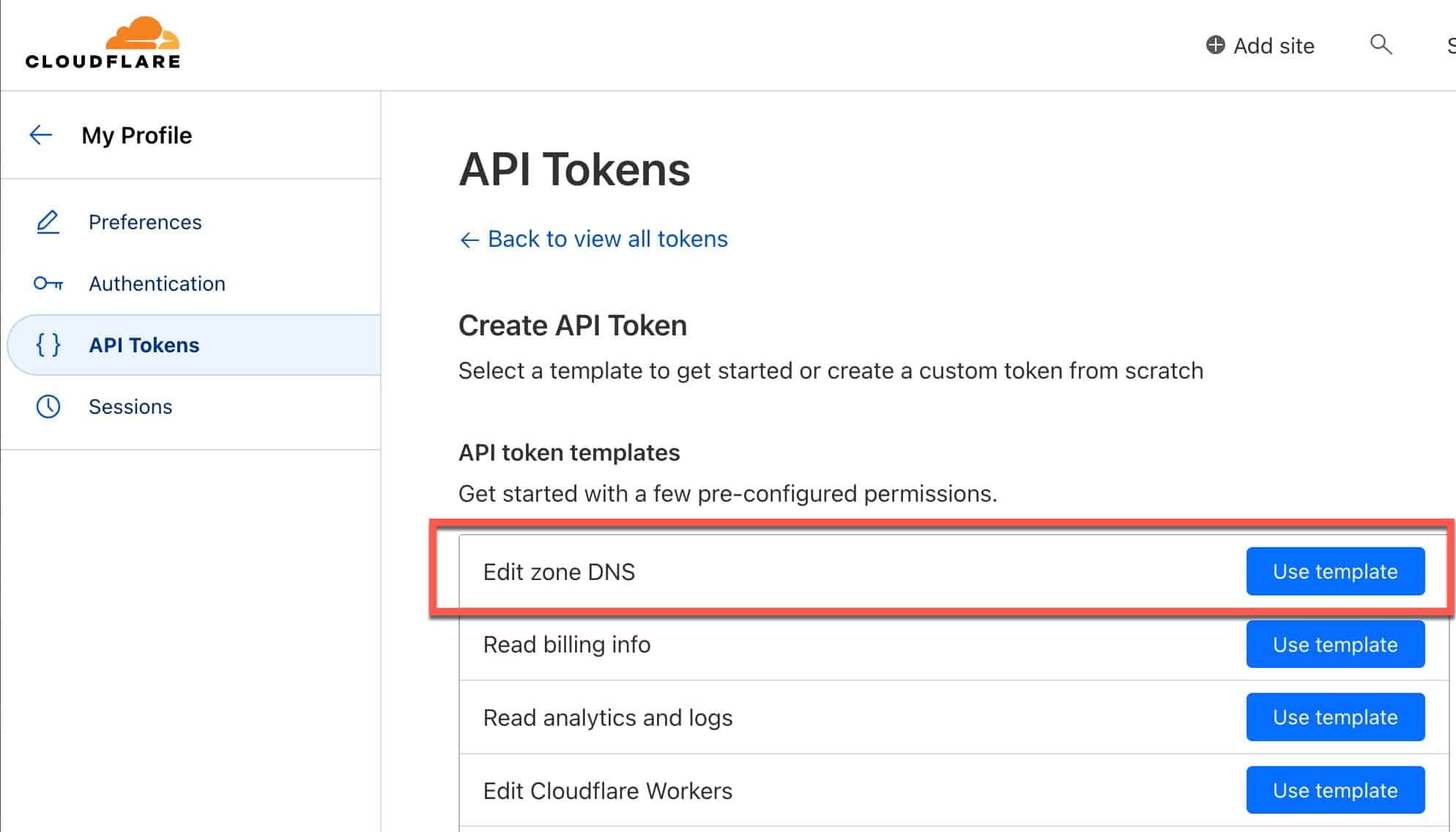
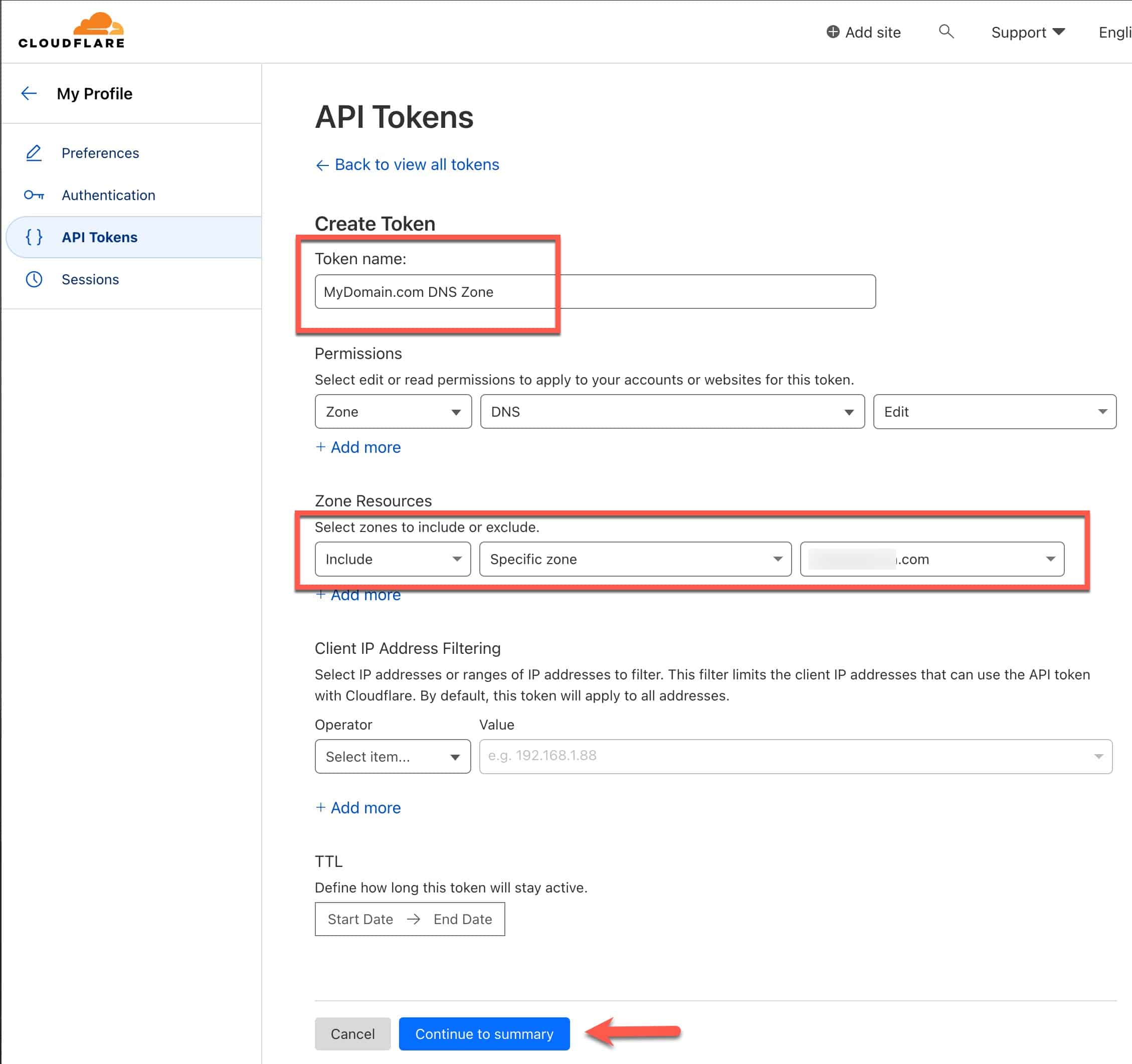
4. Create a name for your token. I suggest using a name such as FQDN DNS Zone (e.g. mydomain.com DNS Zone).
5. Under Zone Resources use the domain drop down to select the domain you want to create the API token for.
6. Click on Continue to summary

7. Review the API Tokens summary and click Create Token.
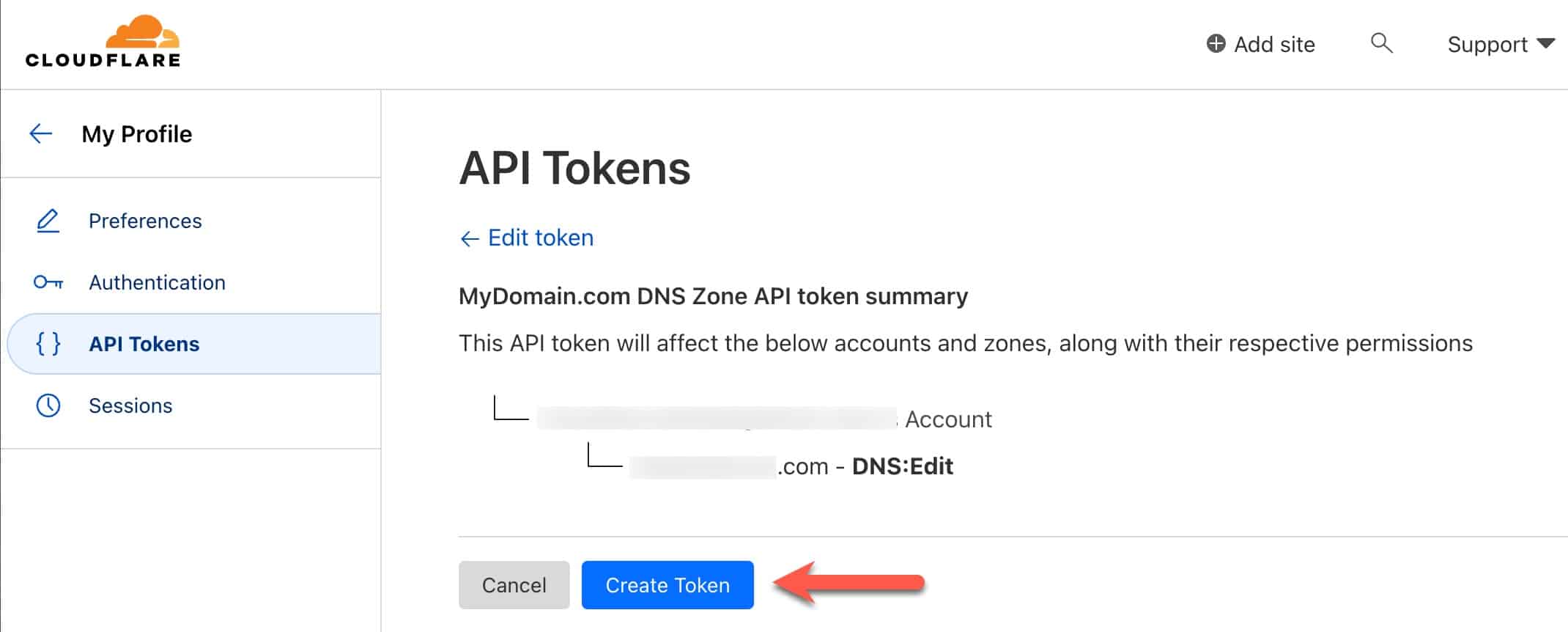
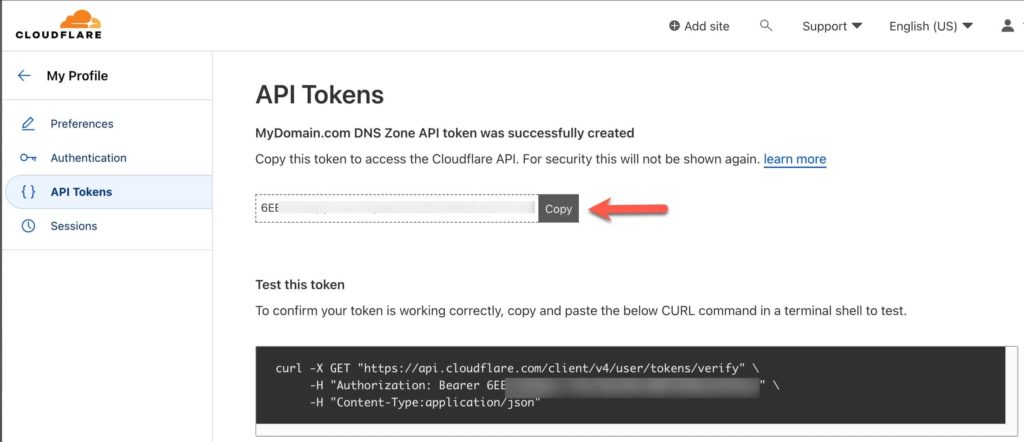
8. Copy the API token to and save it in a safe place, like a password manager. It will never be displayed again. 
Summary

Getting your Cloudflare Zone API key and Account ID is very straight forward. Using a Zone API key is much more secure than using a Global API key. You can use this information for Dynamic DNS (DDNS) or services such as Letsencrypt to issue trusted SSL certificates for your domain.