惯性聚合 高效追踪和阅读你感兴趣的博客、新闻、科技资讯
阅读原文 在惯性聚合中打开

推荐订阅源

Google DeepMind News
I
InfoQ
Engineering at Meta
Engineering at Meta
D
DataBreaches.Net
L
LangChain Blog
Cyber Security Advisories - MS-ISAC
奇客Solidot–传递最新科技情报
奇客Solidot–传递最新科技情报
Recent Announcements
GbyAI
GbyAI
爱范儿
爱范儿
Microsoft Security Blog
腾讯CDC
美团技术团队
罗磊的独立博客
Microsoft Azure Blog
WordPress大学
WordPress大学
T
The Blog of Author Tim Ferriss
freeCodeCamp Programming Tutorials: Python, JavaScript, Git & More
雷峰网
雷峰网
M
MIT News - Artificial intelligence
D
Docker
MongoDB | Blog
MongoDB | Blog
F
Fortinet All Blogs
博客园 - 叶小钗

Derek Seaman's Tech Blog

SmartWings Blinds Review: Matter over Thread Zebra Shades Aqara Camera Hub G350: World’s First Matter v1.5 Camera ESPHome: Micro-Air EasyStart Integration ESPHome: Introducing the Seeed Studio Xiao ESP32-C5 Seeed Studio ESP32 Showdown: C3 vs. C6 vs. S3 (ESPHome Edition) Home Assistant: Updating Aqara FP300 Zigbee Firmware How-To: Using my ESPHome Bluetooth IRK Capture Package Vibe Coding: My ESPHome Bluetooth IRK Capture Tool Home Assistant: Track Who’s in Each Room with ESPHome + Bermuda BLE 3-2-1-1 Go: Implementing Foolproof Backups Proxmox Backup Server (PBS) 4.0 Blog Series How To: Proxmox Backup Server 4 as a Synology VM How To: Backblaze B2 as a Proxmox Backup Server 4 S3 Datastore How To: Synology NFS for Proxmox Backup Server Datastore (2025) How To: Proxmox Backup Server 4 (VM) Installation How MVNOs Like US Mobile Can Save You Money on Your Cell Phone Bill Data Brokers Exposed: How to Opt Out and Secure Your Personal Data Digital Privacy Decoded: Simple Ways to Secure Your Information Part 2: Ruckus Unleashed (200.18+) Best Practices Guide Part 1: Ruckus Unleashed (200.18+) Best Practices Guide 3-2-1 Go: A Step-by-Step Guide to Implementing Foolproof Backups Geek Chic Eyewear: My Optometrist Saga, Eyewear Collection & More Geek Chic Eyewear: Optometry Tools, Eye Health and Insurance Geek Chic Eyewear: Understanding Lens Materials and Designs Essential Tips for a Stable Matter over Thread Network Aqara U200 Thread/Matter/Homekey Smart Lock Impressions Home Assistant: The Ultimate Light Automation Blueprints 6 GHz Wi-Fi: Are Your Devices ready for Standard Power? Demystifying Ruckus Home Wi-Fi: Getting Started Guide Mastering Home Wi-Fi: A Guide to Predictive RF Planning
Home Assistant: Tracking Apple's Sleep Focus Mode
2023-07-04 · via Derek Seaman's Tech Blog

If you are using Home Assistant and want to determine if the Apple Sleep focus mode is on or off so you can use it in automations, this post is for you. While on the surface this may seem like a trivial task, due to Apple’s limited Focus APIs and personal iOS automations, one has to get very creative to solve this riddle. Literally all other Focus modes are easy to track via iOS Personal Automations. Sleep is “special”.  

June 2025 Update: In Developer Beta 1 of iOS 26 Apple has changed the sleep focus mode automation to have the same on/off triggers as other focus modes. This lets you automated based on sleep focus mode turning on or off without any ‘hacks’. Check out my new post: Home Assistant: iOS Focus Mode Automation Triggers

My solution involves using a Mac and a third party tool called Shortery. I’m using the Pro version, which is a one time $8.99 USD purchase. If you have an iPhone and a Mac signed into the same iCloud account your devices can mirror your Focus mode. So enabling the Sleep focus on your iPhone, for example, would enable it on the Mac as well. My Mac never sleeps, so it’s always available when I’m home to do background tasks. 

So why is a somewhat convoluted solution needed? Here’s a few reasons:

  • The Home Assistant companion app (for iOS or Mac) can only tell if ANY focus mode is on or off. It can NOT read the name of the current focus mode. I presume this is an Apple privacy feature. Fine.
  • In Personal automations on iOS the Sleep focus mode is special. Unlike ALL other focus modes that have dedicated on and off triggers, Sleep mode does not. The only sleep mode triggers are “Wind down Begins”, “Bedtime Begins” and “Waking up”. “Bedtime Begins” does trigger when you manually turn on the Sleep focus mode, but “Waking up” is not triggered when you manually turn off Sleep mode. 
  • One could, in Focus modes System Settings, disable “Share From” for all modes except sleep. This would mean in the Home Assistant Companion App that when Focus is “on” you know it’s Sleep. But that prevents the use of all other focus modes in all other apps, which is a show stopper for me.
  • Apple does not provide a Focus mode “changed” API. So if you go directly from one focus mode to another, say Sleep to Personal, Shorterly doesn’t know that change occurred without using a dedicated trigger. 

Given all of these issues and my requirements, I came up with a Mac based solution for the Sleep Focus mode that works really well. In the future there may be better solutions. For example, with iOS 17 Apple can read the unique IDs of MagSafe chargers and show you different StandBy screens depending on which dock you are charging on. I hope they add personal automation triggers that can tap into these MagSafe IDs. This would let you trigger a Home Assistant automation, or set a Boolean toggle, when you place your phone on your bedside charger, for example. 

Home Assistant Sleep Focus Workflow

After a lot of work, I found a solution to the problem that addresses all of my use cases: 

  • Configure a boolean helper in Home Assistant that will act as a state switch for automations to track if Sleep focus mode is on or off. 
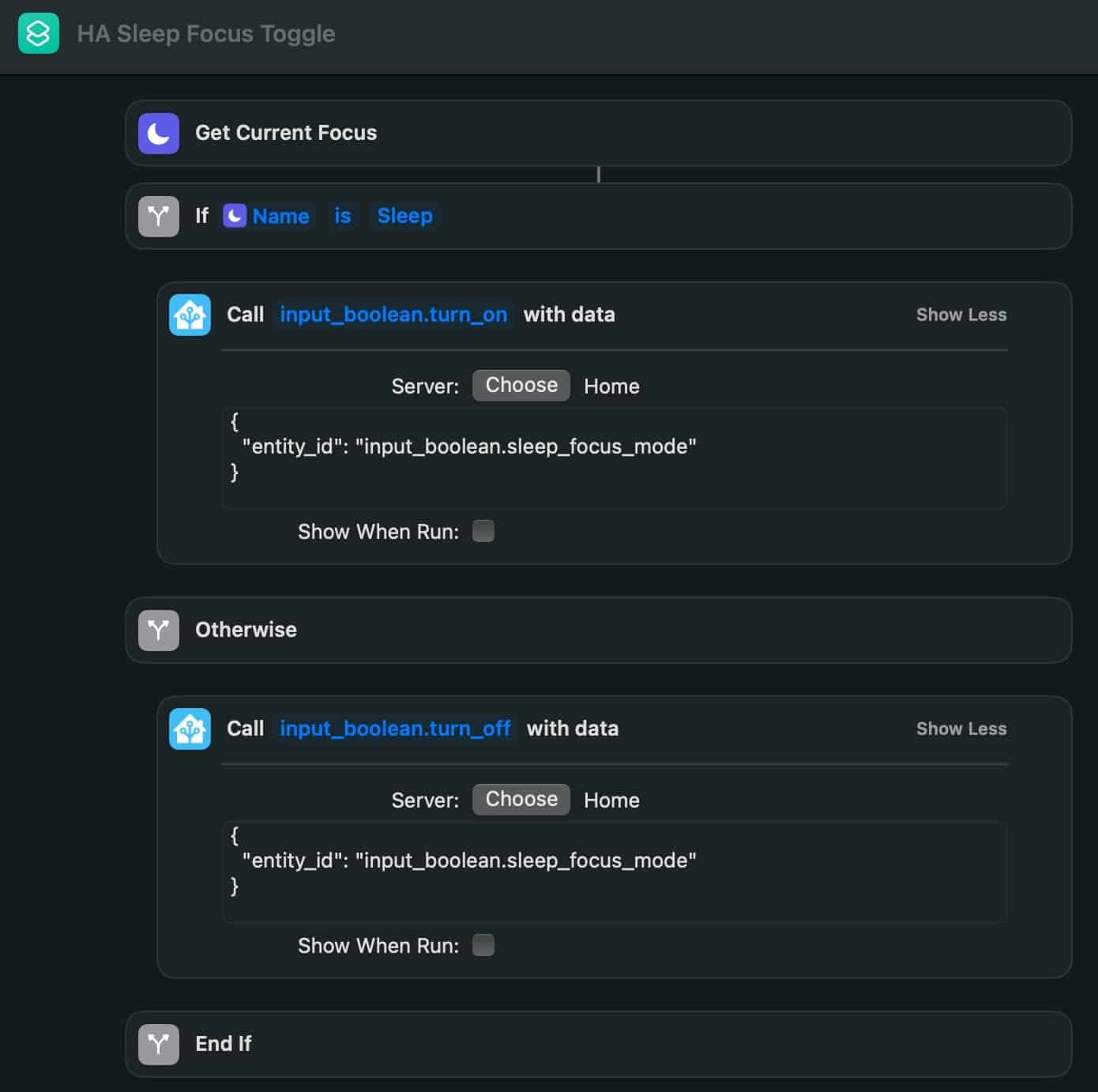
  • In Apple Shortcuts setup a single shortcut that will toggle the state of the HA boolean switch using the Home Assistant “Call Service”, depending on what Focus mode (if any) is active.  
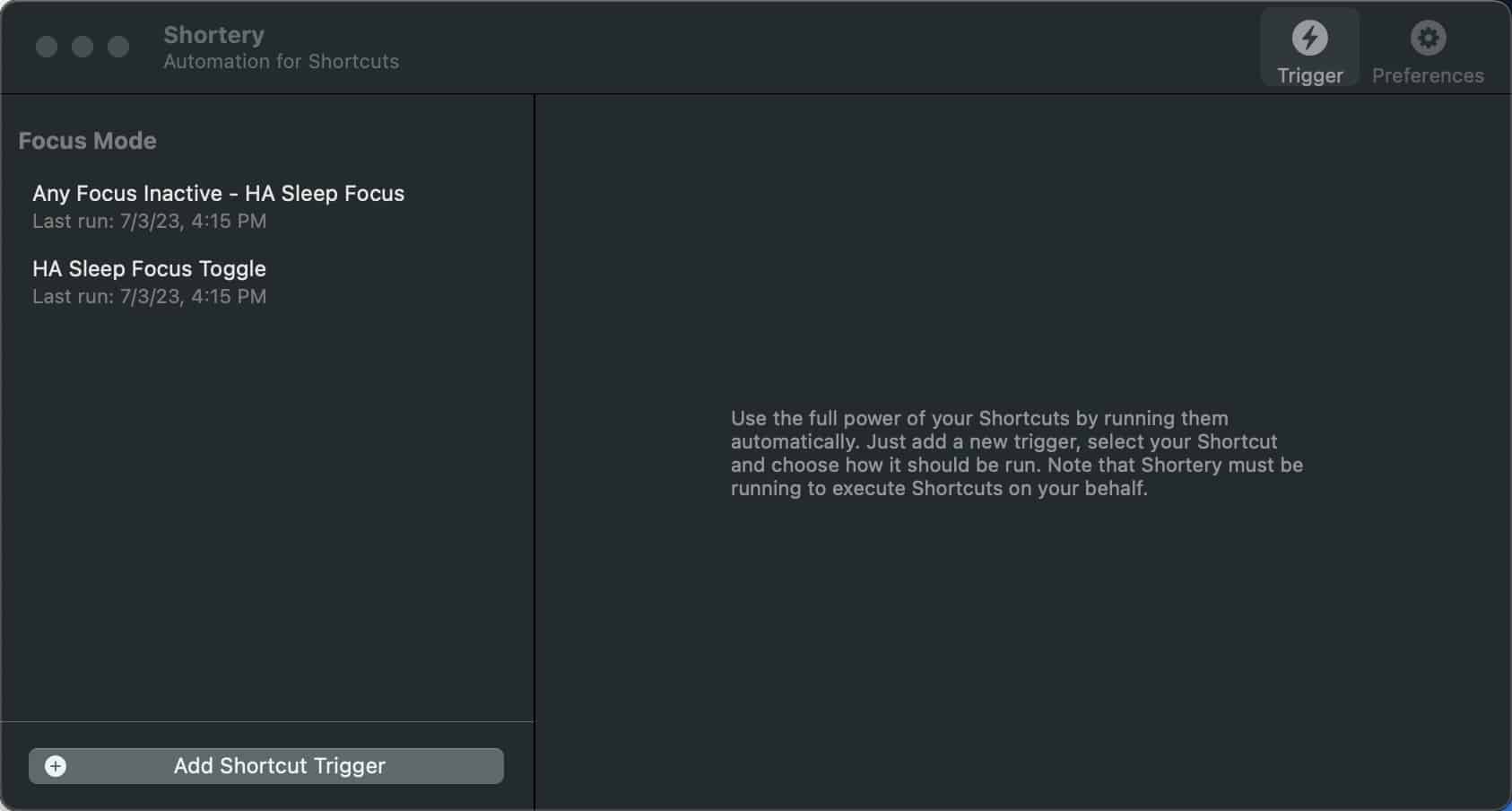
  • In Shortery setup two triggers:
    • Called when a specific focus mode is active, which triggers the above Shortcut
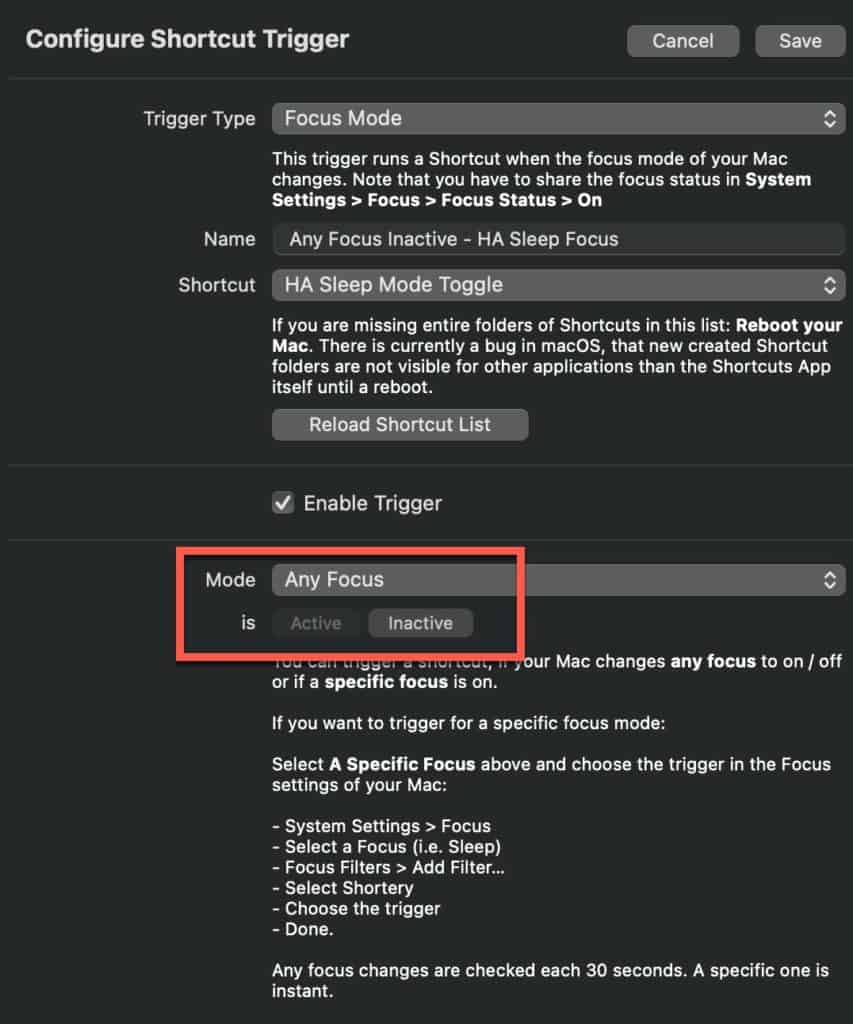
    • Called when any Focus mode is inactive, which triggers the above Shortcut
  • In System Settings Focus modes, configure all Focus modes to call the first Shortery trigger, which runs our shortcut to turn on or off the boolean switch depending on which Focus mode is active.

Home Assistant Configuration

  1. In Home Assistant go to Settings -> Devices & Services -> Helpers. Select CREATE HELPER.
  2. Click Toggle. Give the Toggle a name (e.g. Sleep Focus Mode). Pick an icon. Click CREATE.

Mac Shortcut Configuration

  1. Open the Shortcuts app on your Mac. Create a new Shortcut and replicate the shortcut below. Or you can download it from here. Make sure the Home Assistant Companion app is installed on your Mac. 

Tips for manually creating the shortcut:

  • In the “If” statement click on “Current Focus” and in the next window select Name
  • In the Shortcut search box enter call and then select the Call Service option for Home Assistant. Make sure you select your HA server name (mine is called Home).
  • Use the code block below and change the entity ID as needed.
  • Call the Shortcut HA Sleep Focus Toggle.
				
					{
  "entity_id": "input_boolean.sleep_focus_mode"
}


Shortery Configuration

  1. Download Shortery app. I paid the one time $8.99 USD purchase for the Pro version. I’m not sure if the free version will let you do a focus mode trigger, but you can try. If not, get Pro.  
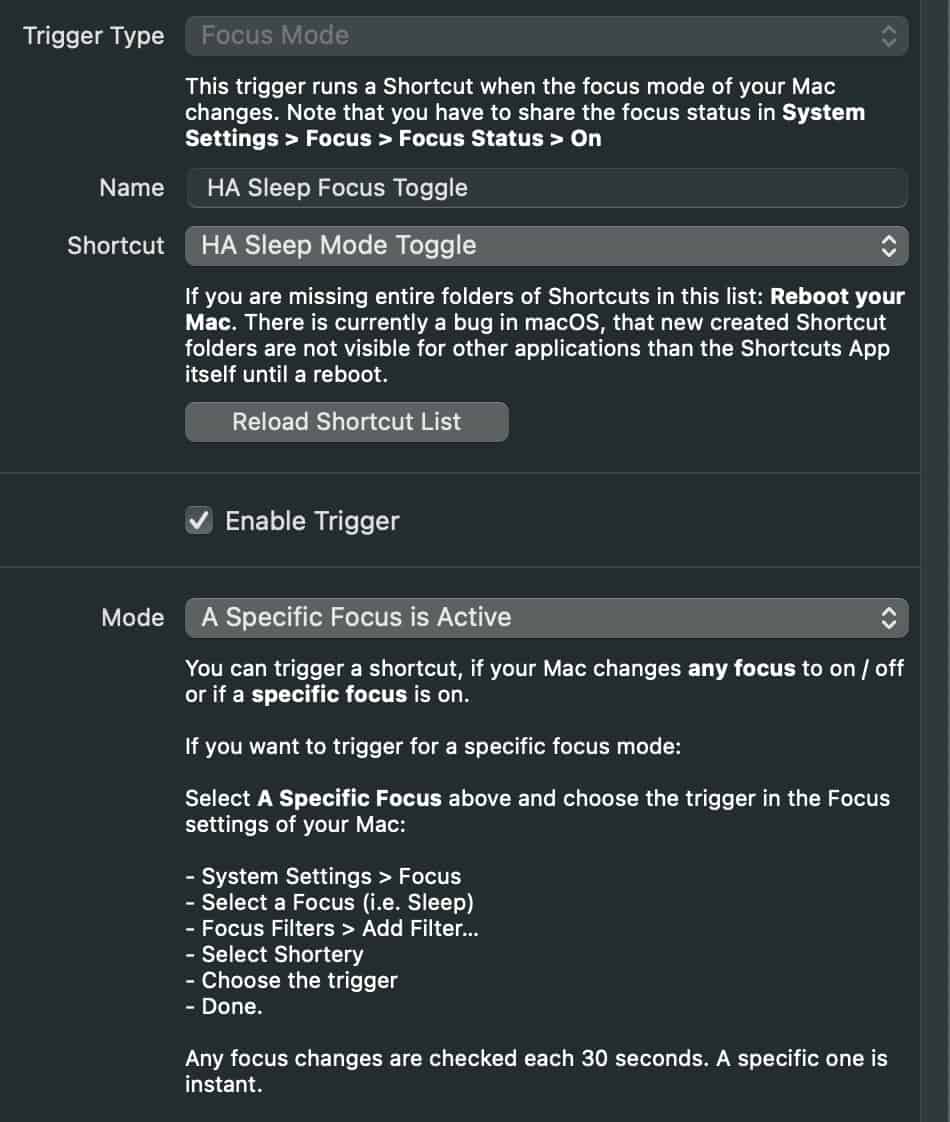
  2. Launch Shorterly and Add a Shortcut Trigger. Select Focus Mode and copy the settings below.

3. Create another Shortery trigger, copying the settings below. Make sure you select Any Focus and Inactive.
Focus Mode Configuration

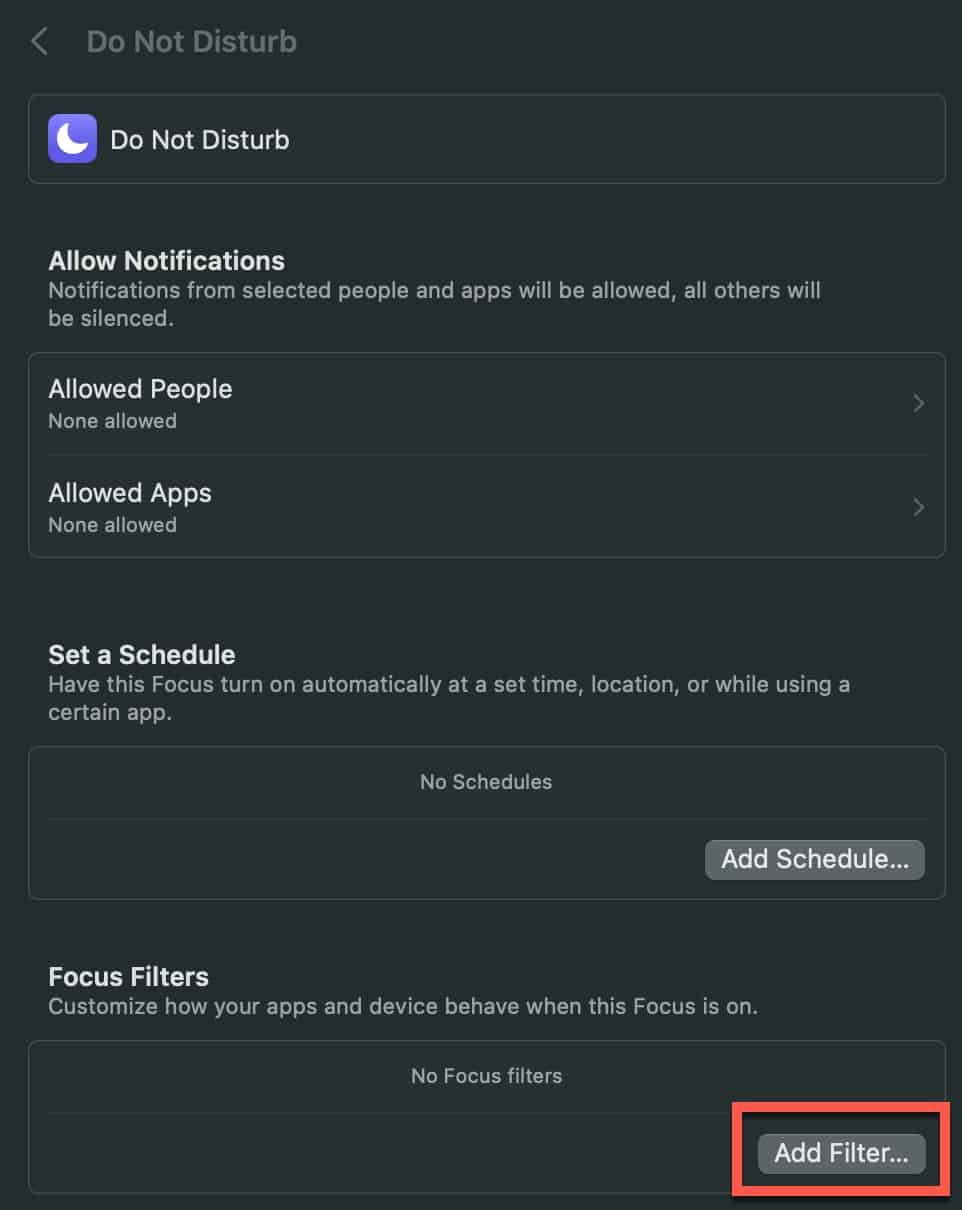
  1. Launch System Settings on your Mac and click on Focus.
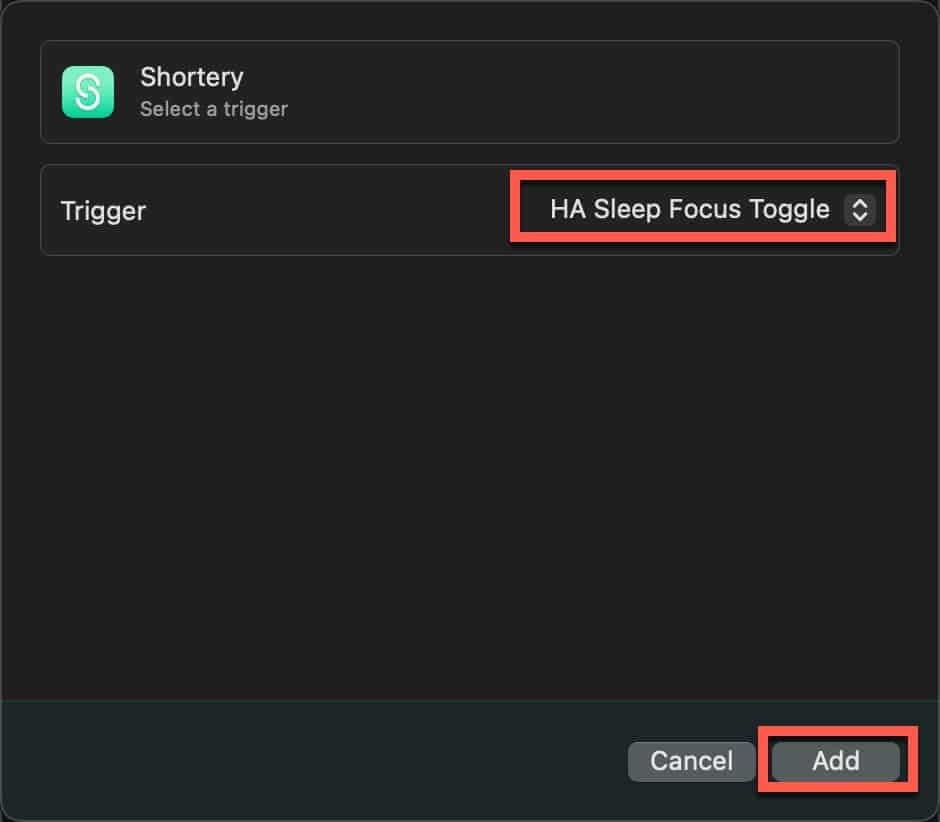
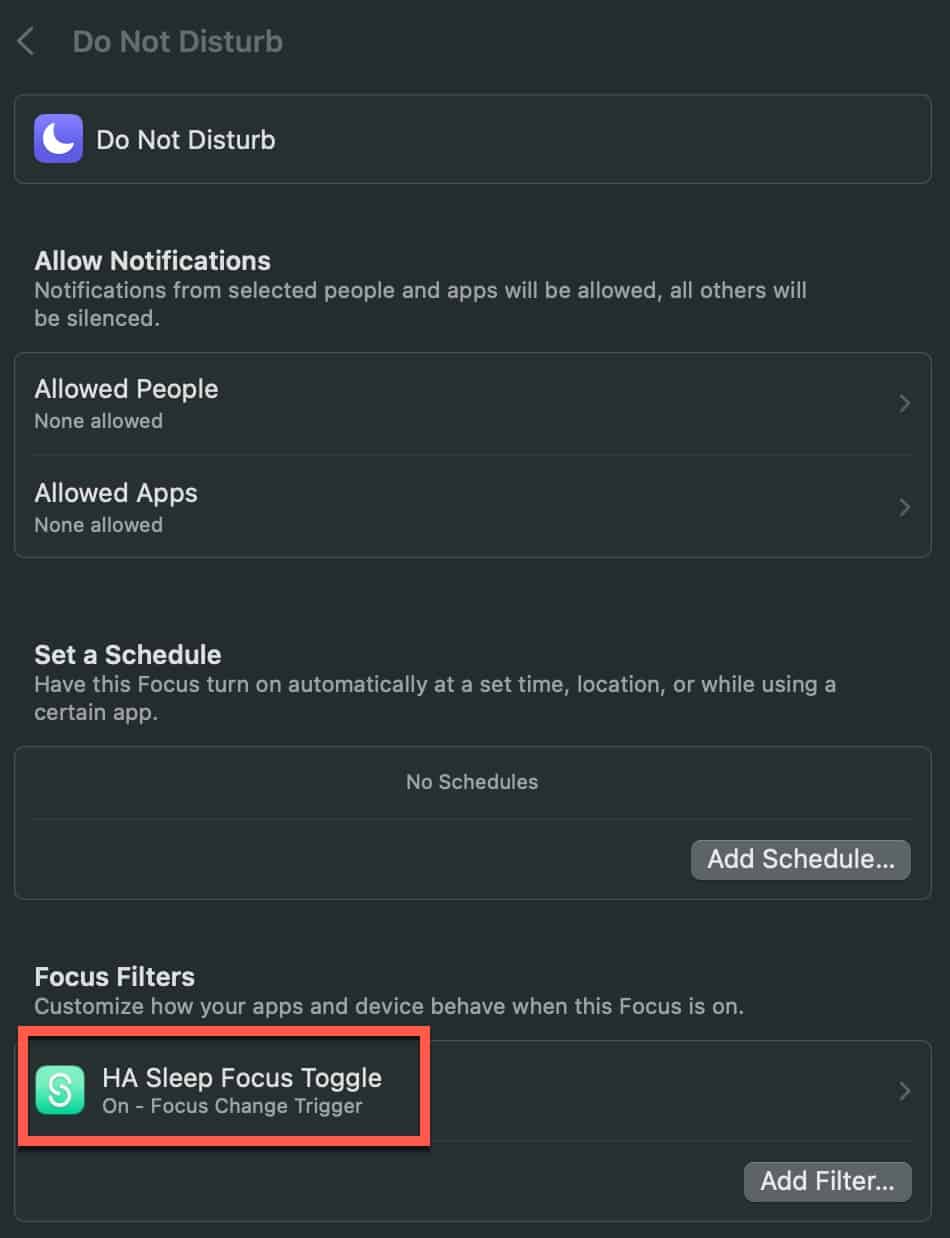
  2. Click on each Focus mode (except Driving) add a Focus Filter using Shortery and pick your HA toggle. 

Testing Sleep Focus Mode

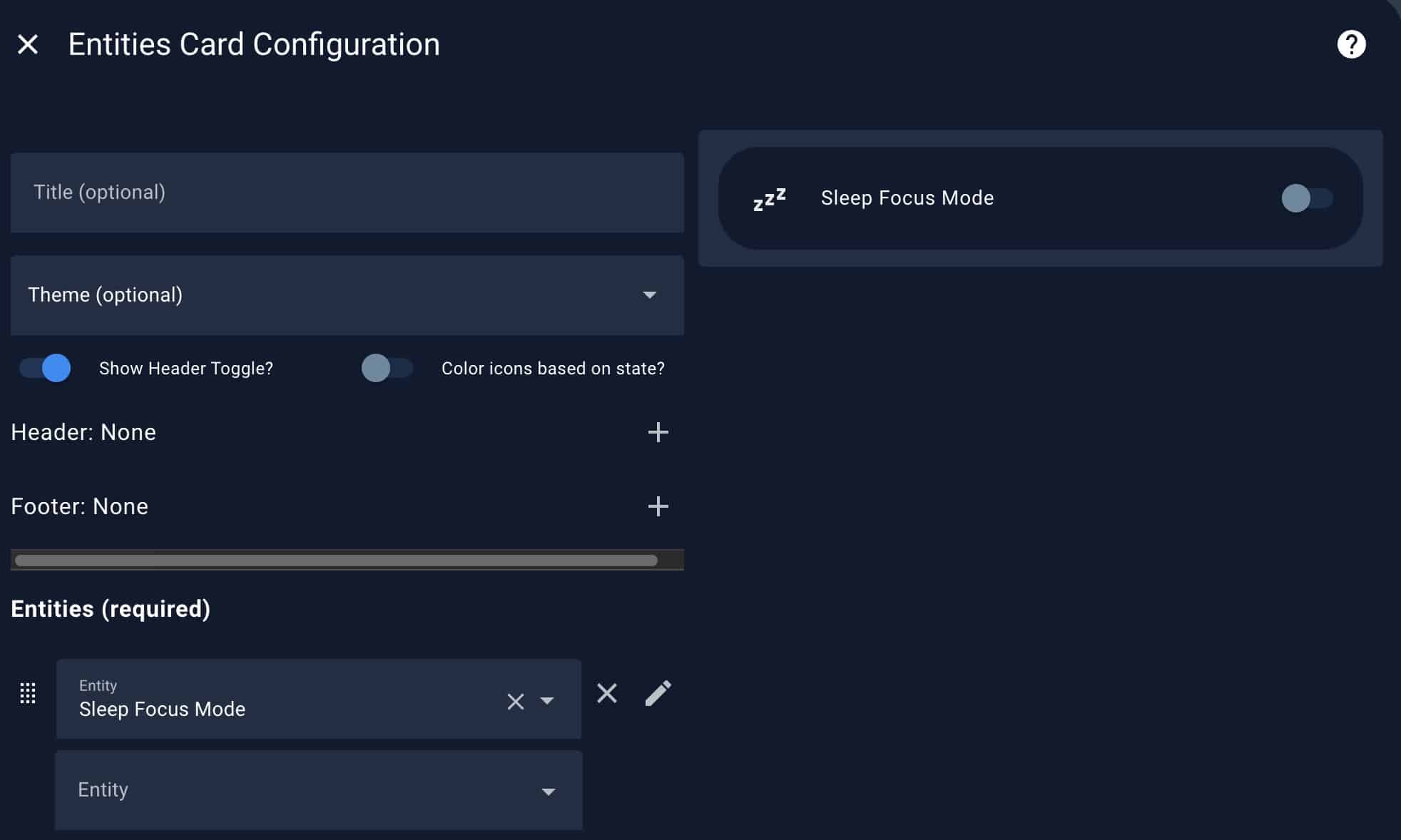
  1. In Home Assistant create an Entities card and select your Sleep focus entity.

2. On your iPhone or Mac turn on Sleep focus mode. Almost instantly the entity card should show Sleep Focus mode is on. Turn Sleep focus off (don’t select another Focus mode, just turn off sleep), and verify the entity card shows Sleep Focus mode off. 
3. On on your iPhone or Mac turn on Sleep focus mode. Almost instantly the entity card should show Sleep Focus mode is on. With Sleep focus still active, select another Focus mode (except Driving) and observe the Sleep focus entity turn off. 

Summary

Setting up Home Assistant to know if the Apple Sleep focus mode is on or not is a bit of pain. Due to Apple API restrictions and iOS Personal Shortcut design decisions, triggering when Sleep focus mode is active or inactive is difficult. All other Focus modes can easily trigger on/off status on iOS using Personal shortcuts. So for Sleep mode I’ve leveraged my Mac and the Shortery app. The solution works well, but I hope in the future Apple provides a better solution.