


With some care, you can customize what appears on your ereader’s sleep screen.

Amazon
We may receive a commission on purchases made from links.
So, you're tired of seeing rotating ads or Amazon's preloaded graphics on your Kindle every time you put it to sleep. That's understandable, especially if you're voracious reader who's been spending a lot of time on your ereader. In this piece, we're going to walk you through how to change your Kindle sleep screen and even how to personalize it if you want.
How to remove Kindle Special Offers
Kindles with Special Offers or lockscreen ads typically cost $20 less than the versions without them. These devices will show you a rotation of advertisements for books, for more Kindle devices or for Kindle Unlimited whenever you put your Kindle to sleep. As long as your device is ad-supported, you cannot customize your screensaver, so your first step is removing Special Offers from your ereader, which will understandably cost you some money. If your Kindle doesn't have lockscreen ads, you can skip this step. But if it does, you can follow these instructions:
1. On desktop, go to the Amazon website, log in and click the hamburger menu on the left side of the screen.
- Under Digital Content & Devices, go to Kindle E-readers & Books.
- On the next screen, click on Manage Content and Devices under Apps & Resources.
- On the new page that loads, click on Devices near the top of screen. If you have more than one Kindle attached to your account, click the box marked Kindle under Amazon Devices and then choose the ereader you want.
- In the Special Offers box at the bottom, you'll find a button to remove offers for $20. Again, you'll have to pay for it, because Amazon says the original $20 discount you got was in exchange for getting ads.
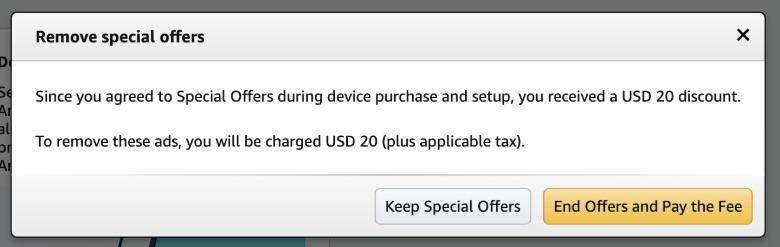 Screenshot by Mariella Moon (Amazon)
2. On mobile, fire up the Amazon app.
- Go to the "Alexa for Shopping" tab on the bottom right corner of your screen.
- Type in "I want to end Special Offers on my Kindle." Alexa will link you to the Manage Devices page.
- From there, choose a Kindle and scroll down to end Special Offers for $20.
NOTE: If you're not in the US but somehow have a US-version Kindle, you might have issues removing lockscreen ads. Amazon will ask you to add a US address and a card with US billing to be able to pay $20 for their removal. Without both, it won't be possible to proceed to the next step. You can try talking to customer service and asking kindly if they can disable special offers for you at no cost, but there's no guarantee that that will work.
How to display book covers as your Kindle screensaver
Once you're done getting lockscreen ads removed, or if you never had them in the first place, you'll get a rotation of Amazon-provided illustrations as your screensaver. Those who own newer Kindles have the option of using the cover of the book you're currently reading instead (see below for a full list of supported models). To make sure this feature is turned on, follow these steps:
- Tap the three-dot menu on the upper right-hand corner of your Kindle.
- Go to Device Options. Find Display Cover and toggle it to On.
- On newer or updated devices, you'll find the "Show covers on lock screen" option in the "Screen and brightness" section. Simply toggle it on.
NOTE: The option to use book covers as screensavers is only available on the following models:
- Kindle Colorsoft
- Kindle Scribe devices
- Kindle 8th generation and newer
- Paperwhite 7th gen and above
- 8th gen Oasis and later
- Kindle Voyage
 Amazon
How to use custom images as your Kindle screensaver
Unfortunately, there's no way to use custom images as your permanent Kindle screensaver without jailbreaking your device. There is, however, a trick you can consider: Replacing the cover of a book with the illustration you want to see, then opening it before locking your device. Before you proceed with the instructions below, make sure you've already completed the steps above to toggle on the option to display book covers as your lockscreen.
- The first step is to create custom wallpapers on programs like Canva or to look for an illustration you want to use. Just make sure it fits the device you have by searching for the dimensions of your ereader's screen. The latest Kindle Paperwhite, for instance, has a 7-by-5-inch display. Some people recommend creating a wallpaper measuring 2,560 x 1,600 pixels, which will work for most Kindle models.
- After you're done designing your custom illustration, download it as a PNG image.
- Use a program like Calibre to convert any file it supports (like PDF) into an EPUB file. You'll find the option to set a cover for your ebook on the conversation screen, so choose the PNG image you made.
- You can also look for an "epub cover change" website online. Upload the book you're reading or any EPUB you have and then choose the PNG image you saved earlier for your new cover.
- Use the "Send-to-Kindle" feature to upload the finished file to your ereader.
NOTE: You will have to switch to the book that uses your custom cover before you put your device to sleep every time you want to see it on your lockscreen. Alternatively, you can change the cover of every book you read, though that sounds pretty time-consuming, especially if you blaze through books quickly. While this solution isn't very straightforward, it's an effective way to personalize your device.