


You're not limited to using Samsung pay just because it's a Galaxy Watch
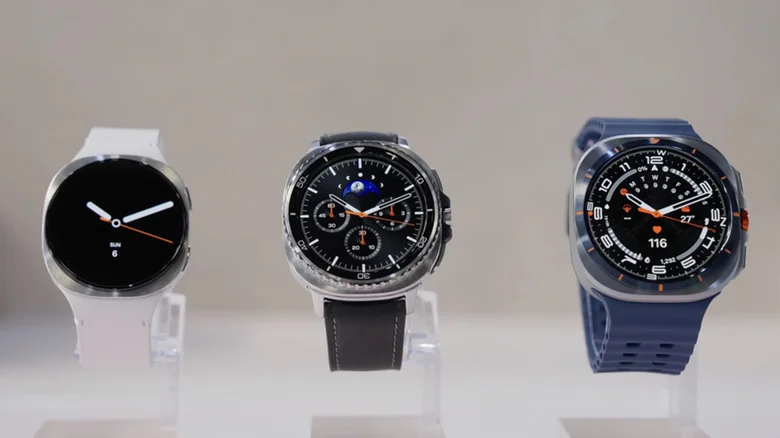
Samsung
Yes, you can tap your Samsung Galaxy Watch to pay for purchases and transportation with cards saved on your Google Wallet. You just have to set it up and make sure you meet a couple of criteria. First, both Google Wallet and its tap-to-pay capability must be available in your region. They're already supported in the US, and you can check Wallet's help page to see if they've already rolled out to your location.
Second, your Galaxy Watch must be running Wear OS version 2.0 or newer, which puts Samsung's Tizen-powered Galaxy Watch 1, 2 and 3 models out of the running. If you have a Samsung Galaxy Watch 4 or a later model, go ahead and follow our instructions below. To check if you have a supported device, swipe down on your smartwatch, go to Settings and then tap "About watch." From there, you can find its Wear OS version under "Software information."
How to install Google Wallet on your devices
- On your Galaxy Watch, swipe up to access your apps drawer and fire up the Play Store. Search for Google Wallet and install it on your wearable.
-If you don't have a lock screen yet, you'll be prompted to set it up. You can choose between Pattern and PIN. A screen prompting you to check your phone will pop up on your watch as the Wallet apps between devices sync. If you choose PIN, tick "Unlock without tap after PIN entered" so you don't have to tap an OK button or a check mark every time you key in your your PIN. - Do the same thing on the Android phone linked to your watch. Simply download and install Google Wallet from the Play Store.
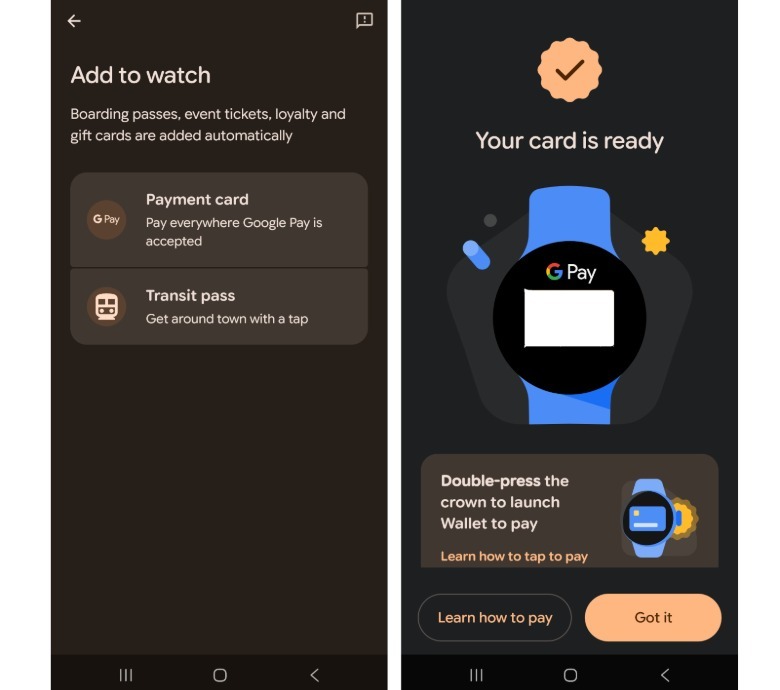 Screenshots by Mariella Moon (Samsung)
How to add a payment method to your Samsung Galaxy Watch
- Tap the "+" tile on your Galaxy Watch and check the Wallet app on your phone to add a payment card.
- In the "Add to Watch" screen on your phone, you can see the option to add a card.
- Here, you can choose one of the cards you've previously saved on Google Play for subscriptions or in-app purchases. The Wallet app will ask for some of the card's details for confirmation, such as its CVV, expiration date or the cardholder name
- You can also add a new credit or debit card. If you choose this, you can either scan the card to automatically extract its information or type its details manually.
- After choosing or adding a card, the Wallet app will confirm with your bank whether you can use that particular card for Tap to Pay. Not all cards and banks support the capability. You can check out Google's website for all supported cards and banks in the United States. If you're not in the US, simply choose your region in the drop-down menu.
- Once you've linked a supported card, you'll see a screen on your phone's Wallet app telling you that your card is ready. It also links to instructions on how to use the tap-to-pay feature.
- On your Galaxy Watch, you'll now see the card you've added in the Wallet app. The first card you add will be your default card for tap-to-pay purchases, but you can change it by tapping on your card of preference and choosing "Make default."
How to use Tap to Pay for purchases
- You can only pay without having to unlock your smartwatch if you have a Pixel Watch 2 or a newer Pixel device.
- On a Galaxy Watch, you will have to unlock your device, open the Google Wallet app, turn your wrist and then hold the face of the smartwatch close to the card reader. You have to do the same for public transportation, but the reader at the gate or entrance must of course support Tap to Pay.
- You will know if the payment is successful if your smartwatch vibrates, makes a sound and shows a blue checkmark on its screen.
- Take note that you can pay with a non-default card: Just swipe up to the card you want to use on your watch's Wallet app and wait for "Hold to reader" to show up.
If you're in Japan...
- In Japan, Google Wallet also supports Suica and PASMO prepaid IC cards. However, you can only use them with smartwatches purchased in Japan, since those devices support Sony's FeliCa contactless technology.
- For Samsung, the models that support FeliCa are the Galaxy Watch 6, Galaxy Watch 6 Classic, Galaxy Watch 7, Galaxy Watch 8, Galaxy Watch 8 Classic and Galaxy Watch Ultra.
- To add a Suica or PASMO card, tap "Add" in the Wallet app on your watch and select one. You can also add money to the prepaid cards from within the application.