


My homelab server is attached to a monitor for dashboard monitoring, but I don't have a dedicated keyboard and mouse permanently connected. This past week Tailscale went on the fritz and I needed physical access. My unideal solution was to dumpster dive through my box of cords until I found a compatible USB-B mouse.
I found input-leap to plug this hole in the future. It's a modern, actively-maintained software-based KVM1. Much like the old physical switches, this lets you share a primary computer's keyboard and mouse with multiple machines over the network.
The KVM software landscape has been pretty bleak for years:
InputLeap isn't the prettiest solution of the bunch but it's actively maintained, works across platforms (Mac, Windows, Linux), and defaults to SSL. Seems like a good enough bet.
Whichever device has your keyboard and mouse physically attached becomes the server. Everything else becomes the client. It's not yet on an official tap so you'll have to add vancluever's formula:
brew tap vancluever/input-leap
brew install input-leap
Grab the latest debian release from github.
This seems to only work on Ubuntu 24.02 or newer. I tried on a machine with an older 22 release and it failed at install time.
cd /tmp
wget https://github.com/input-leap/input-leap/releases/download/v3.0.2/InputLeap_3.0.2_debian12_amd64.deb
apt install ./InputLeap_3.0.2_debian12_amd64.deb
Launch the server first:
a. Find the app bundle Homebrew drops it outside the normal /Applications folder:
/opt/homebrew/opt/input-leap/InputLeap.app/usr/local/opt/input-leap/InputLeap.appopen $(brew --prefix)/opt/input-leap/InputLeap.app
When you open the app you'll see a configuration dialogue. Select server and walk through the steps. Accept the accessibility and local network devices permissions popup when requested.
The main screen looks exactly like the Mac one does. Select client during setup and it should auto-detect the fingerprint of your server's ssl key.
Take note of the "Screen name" portion of the client popup.
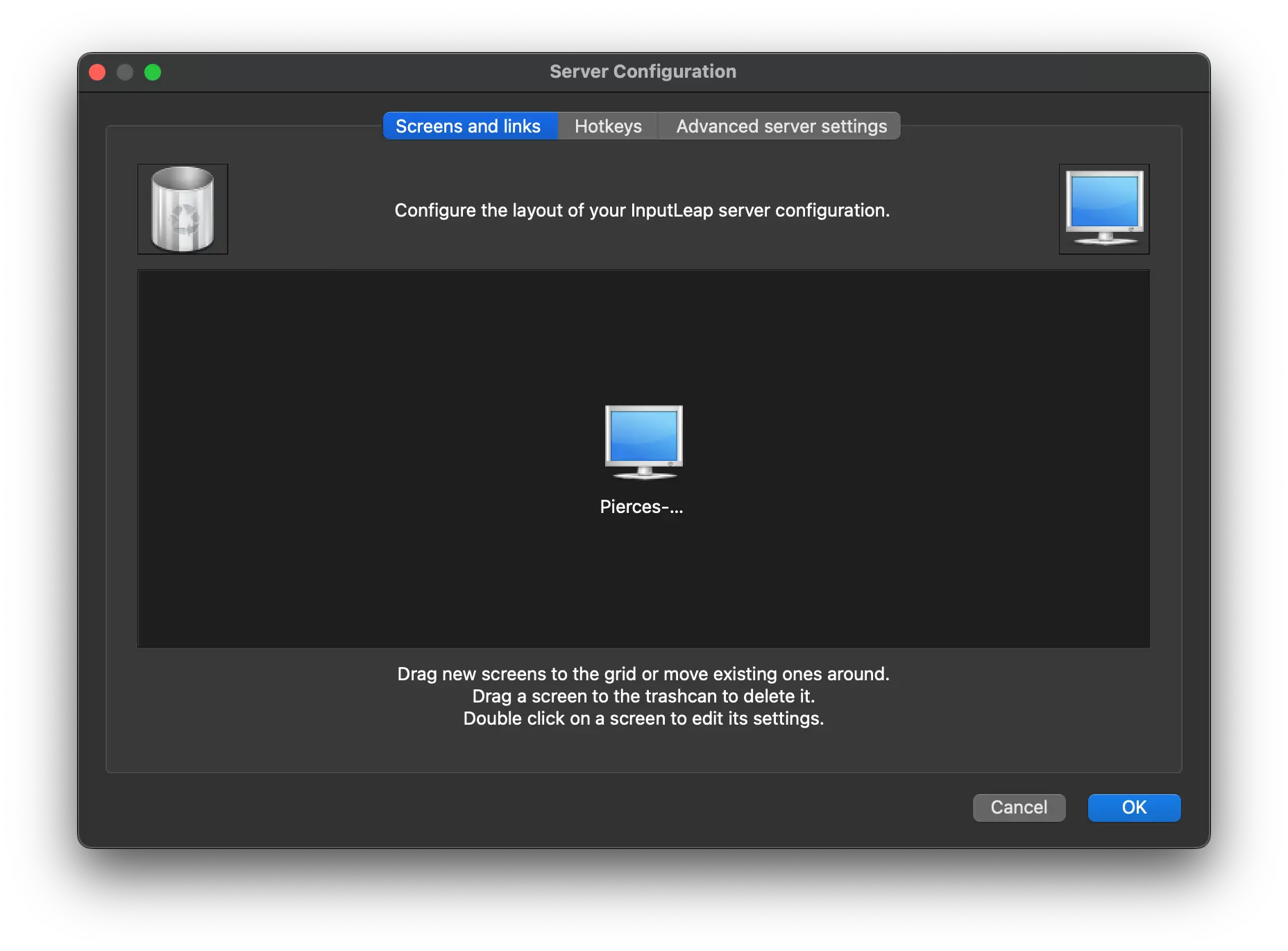
Back on the Mac, click on Configure Server. It will pop up this preference pane.

You'll have to configure where you want to drag to access your Ubuntu screen. You'll have to do this manually: drag the screen icon to the position that you want it to transition when you move your mouse towards it. It should be right next to the center window so you can transition directly.
Double click on the computer icon and specify its Screen Name as the same value as you recorded on Ubuntu. When fully configured it should look something like this:
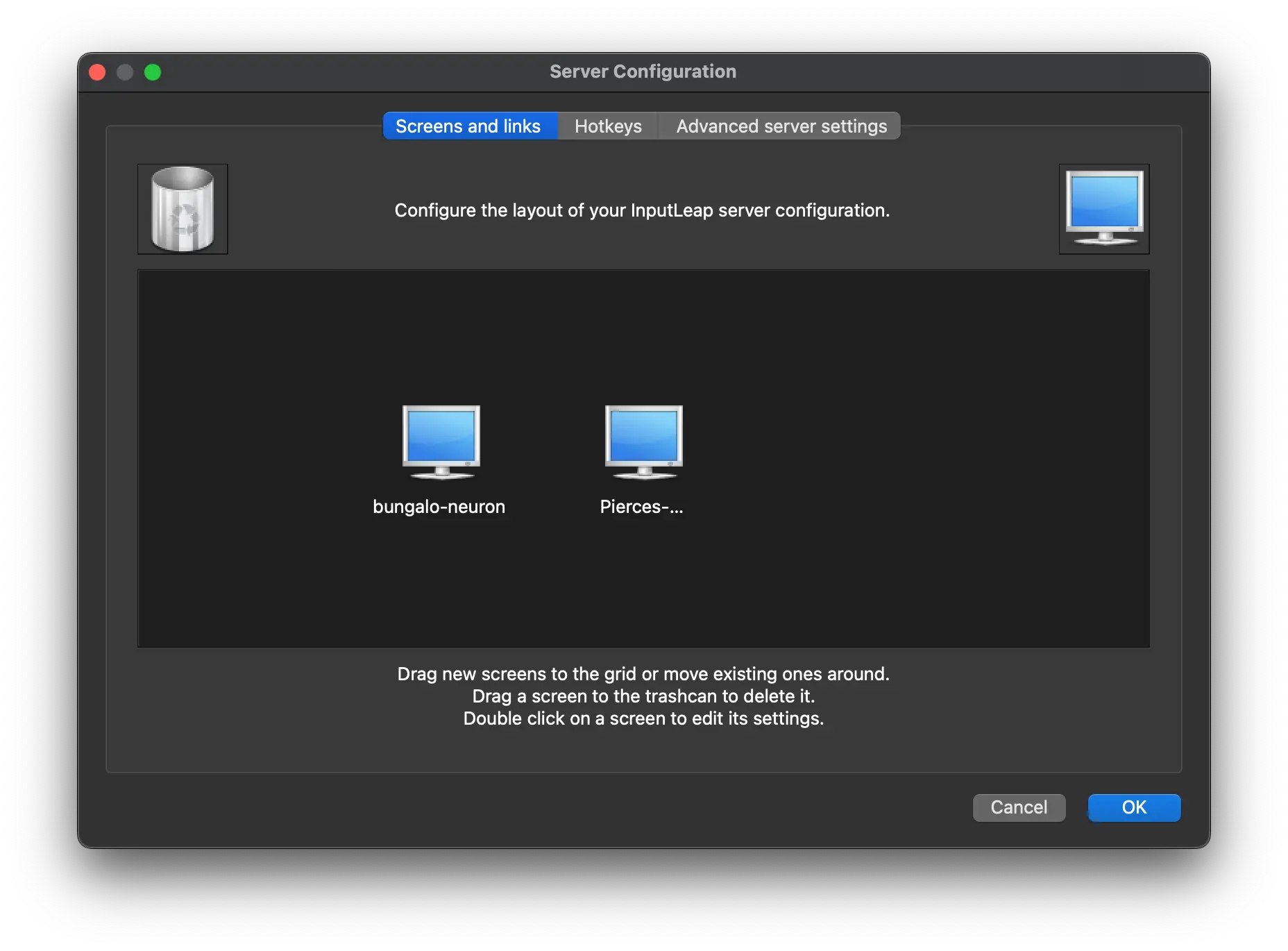
Close this window and click "Reload" on the server panel.
Then get the IP - look for the 192.x.x.x private inet:
ifconfig -a | grep inet
Mac: System Preferences -> General -> "Start at login".
Ubuntu is a bit more complex:
mkdir -p ~/.config/systemd/user
vi ~/.config/systemd/user/input-leap-client.service
[Unit]
Description=Input Leap client
# This will make sure it waits until you actually have a display it can share
After=graphical-session.target
Wants=graphical-session.target

[Service]
# Update with your client screen name and server IP (local LAN grant)
ExecStart=/usr/bin/input-leapc \
          -f \
          --name <CLIENT_SCREEN_NAME> \
          --debug INFO \
          <SERVER_IP>
Restart=on-failure

[Install]
WantedBy=default.target
Inputleap comes with auto-detection of the server via bonjour when it's running as a GUI but it doesn't have the same functionality via CLI flag.
Load and check status:
systemctl --user daemon-reload
systemctl --user enable --now input-leap-client.service
systemctl --user status input-leap-client.service
journalctl --user -u input-leap-client.service -f
If all is successful you should see:
$ systemctl --user status input-leap-client.service
● input-leap-client.service - Input Leap client
     Loaded: loaded (/home/pierce/.config/systemd/user/input-leap-client.service; enabled; preset: enabled)
     Active: active (running) since Thu 2025-05-29 09:09:51 PDT; 2s ago
   Main PID: 7637 (input-leapc)
      Tasks: 3 (limit: 18792)
     Memory: 1.9M (peak: 2.4M)
        CPU: 37ms
     CGroup: /user.slice/user-1000.slice/[email protected]/app.slice/input-leap-client.service
             └─7637 /usr/bin/input-leapc -f --name bungalo-neuron --debug INFO 192.168.1.56

May 29 09:09:51 bungalo-neuron input-leapc[7637]: [2025-05-29T09:09:51] NOTE: connecting to '192.168.1.56': 192.168.1.56:2>
May 29 09:09:51 bungalo-neuron input-leapc[7637]: [2025-05-29T09:09:51] INFO: OpenSSL 3.0.13 30 Jan 2024
May 29 09:09:51 bungalo-neuron input-leapc[7637]: [2025-05-29T09:09:51] INFO: peer ssl certificate info: /CN=InputLeap
May 29 09:09:51 bungalo-neuron input-leapc[7637]: [2025-05-29T09:09:51] NOTE: peer fingerprint (SHA1)
May 29 09:09:51 bungalo-neuron input-leapc[7637]: [2025-05-29T09:09:51] NOTE: fingerprint_db_path: /home/pierce/.conf>
May 29 09:09:51 bungalo-neuron input-leapc[7637]: [2025-05-29T09:09:51] NOTE: Read 1 fingerprints from: /home/pierce/.conf>
May 29 09:09:51 bungalo-neuron input-leapc[7637]: [2025-05-29T09:09:51] NOTE: Fingerprint matches trusted fingerprint
May 29 09:09:51 bungalo-neuron input-leapc[7637]: [2025-05-29T09:09:51] INFO: connected to secure socket
May 29 09:09:51 bungalo-neuron input-leapc[7637]: [2025-05-29T09:09:51] INFO: TLS_AES_256_GCM_SHA384         TLSv1.3 Kx=an>
May 29 09:09:51 bungalo-neuron input-leapc[7637]: connected to server
If the mouse isn't working on the Ubuntu machine but you're seeing logs come through, you're probably running on Wayland which doesn't yet have full support for remote mouse movements.
systemctl --user restart --now input-leap-client.serviceOnly today did I finally learn this stands for keyboard, video, mouse. We love CS acronyms. ↩
此内容由惯性聚合(RSS阅读器)自动聚合整理,仅供阅读参考。 原文来自 — 版权归原作者所有。