惯性聚合 高效追踪和阅读你感兴趣的博客、新闻、科技资讯
阅读原文 在惯性聚合中打开

推荐订阅源

A
Arctic Wolf
T
The Blog of Author Tim Ferriss
月光博客
月光博客
Recent Announcements
V
V2EX
Microsoft Azure Blog
博客园 - 三生石上(FineUI控件)
P
Proofpoint News Feed
The Register - Security
博客园 - 叶小钗
博客园 - Franky
The Cloudflare Blog
雷峰网
雷峰网
罗磊的独立博客
M
MIT News - Artificial intelligence
I
InfoQ
钛媒体:引领未来商业与生活新知
钛媒体:引领未来商业与生活新知
博客园 - 【当耐特】
Engineering at Meta
Engineering at Meta
N
Netflix TechBlog - Medium
爱范儿
爱范儿
博客园 - 司徒正美
Recorded Future
Recorded Future
酷 壳 – CoolShell
酷 壳 – CoolShell
Google DeepMind News
Martin Fowler
Martin Fowler
Microsoft Security Blog
F
Full Disclosure
让小产品的独立变现更简单 - ezindie.com
B
Blog
大猫的无限游戏
大猫的无限游戏
奇客Solidot–传递最新科技情报
奇客Solidot–传递最新科技情报
腾讯CDC
WordPress大学
WordPress大学
小众软件
小众软件
K
Kaspersky official blog
Attack and Defense Labs
cs.AI updates on arXiv.org
Forbes - Security
Forbes - Security
aimingoo的专栏
aimingoo的专栏
IT之家
IT之家
The Last Watchdog
The Last Watchdog
N
News and Events Feed by Topic
B
Blog RSS Feed
S
Security @ Cisco Blogs
美团技术团队
量子位
Threat Intelligence Blog | Flashpoint
Cloudbric
Cloudbric
Hacker News - Newest:
Hacker News - Newest: "LLM"

lvbibir's Blog

shell | 磁盘空间分析脚本 Linux cat 和 tee 命令写入文件 python | 使用 uv 管理你的 python 环境 Claude Code 完整配置指南 windows | mihomo 内核独立部署指南 linux | 磁盘扩容 wsl | 释放长久运行占用的磁盘空间 mysql | 线程上限问题处理 麒麟 7.6 安装谷歌 OTP 认证模块 suse 12sp5 升级 openssh 及 openssl suse 12sp5 部署 mysql 5.7 《谁的青春不迷茫》 docker | centos7 部署 docker vim | 基础配置和使用 windows | rime 输入法 & 雾凇方案 shell | sshpass 批量传输文件及执行命令 wsl | 原生 linux 方式安装 docker nodejs | fnm + pnpm 开发环境配置 wsl | 安装配置 miniconda 虚拟环境 wsl | 自动更新系统代理 wsl | bashrc 环境变量不正确加载的处理方法 wsl | win10 安装 wsl2 troubleshooting | ssh 成功但是 scp 失败 linux | 常用命令总结 docker 部署 piclist shell | 检测网站存活并自动钉钉告警 Zabbix | 监控端口连通性并自动追踪 TCP 路由 windows | 自定义开机快速启动项 windows | miniconda 配置 python 虚拟环境 Zabbix | 监控主机到指定 ip 的流量大小 shell | centos 初始化 loki (二) 部署 loki (一) 简介 prometheus (六) Alertmanager prometheus (五) 记录规则与告警规则 prometheus (四) 黑盒监控 prometheus (三) 服务发现 prometheus (二) 静态配置 prometheus (一) 简介及部署 traefik (四) TraefikService 服务 traefik (三) Middleware 中间件 traefik (二) ingressRoute 路由 traefik (一) 简介、部署和配置 kubernetes | Gateway API 简介及部署 linux | dns 配置文件中 search 和 options ndots 详解 kubernetes | command args 和 dockerfile 中的 ENTRYPOINT CMD kubernetes | statefulset 控制器详解 docker | dockerfile 最佳实践 docker | dockerfile 指令详解 linux | kill 命令详解以及 linux 中的信号 troubleshooting | elasticsearch 安装插件报错 shell | if 条件判断 docker | 下载外网镜像的几种方式 python | 鬼谷子数学问题 steam挂刀教程 linux | history 命令的格式化输出 shell | 将本地镜像批量推送到 harbor windows | hosts 文件修复 kubernetes | configmap & secret kubernetes | RBAC 鉴权和 NetworkPolicy kubernetes | service & ingress kubernetes | 存储 kubernetes | 滚动升级和自动伸缩 kubernetes | 控制器 kubernetes | 日志 kubernetes | 调度 kubernetes | pod kubernetes | 杂记 linux | set 命令详解 ceph | openeuler 部署 ceph-v16 ceph | ceph-v16 离线安装解决方案 pxe 如何应对复杂的服务器硬件环境 python | 批量修改目录下文件名 《微习惯》 ceph | openeuler (aarch64) 部署 ceph-v16 troubleshooting | glibc 误升级后修复 pxe 安装配置大全 《人间失格》 跑步日常 [置顶] Hello, hugo! shell | 检索某 url 中所有文件的内容 shell | 不同执行方式的区别 shell | 开启 debug 模式 vscode | 常见问题 windows & linux 多网卡时设置默认路由以及添加静态路由 mysql (二) 主从复制原理 GTID 并行复制 mysql (一) 部署 mysql | 杂记 cicd | jenkins 部署 mall-swarm 项目 httpd 源码打包编译成 rpm 包 openssl 源码打包编译成 rpm 包 centos7 | 修改网卡名称 ceph | pool pg_num 配置 docker | 脚本方式批量导出/导入镜像 centos 密码尝试次数过多问题处理 centos7 | 升级内核至 5.10 CVE-1999-0526 ceph | centos7 部署 ceph-v12 python | 修改 pip 源 troubleshooting | 安装 cloud-init 后导致 ssh 连接失败
docker | 守护进程的远程调用
lvbibir · 2019-08-01 · via lvbibir's Blog

1 环境准备

主机版本为 Centos7.4,docker 版本为 docker-ce-18.09.7-3.el7.x86_64

  • node1: 192.168.0.111
  • node2: 192.168.0.107
  • 两台安装 docker 的环境
  • 保证两台主机上的 docker 的 Client API 与 Server APi 版本一致

2 修改配置文件

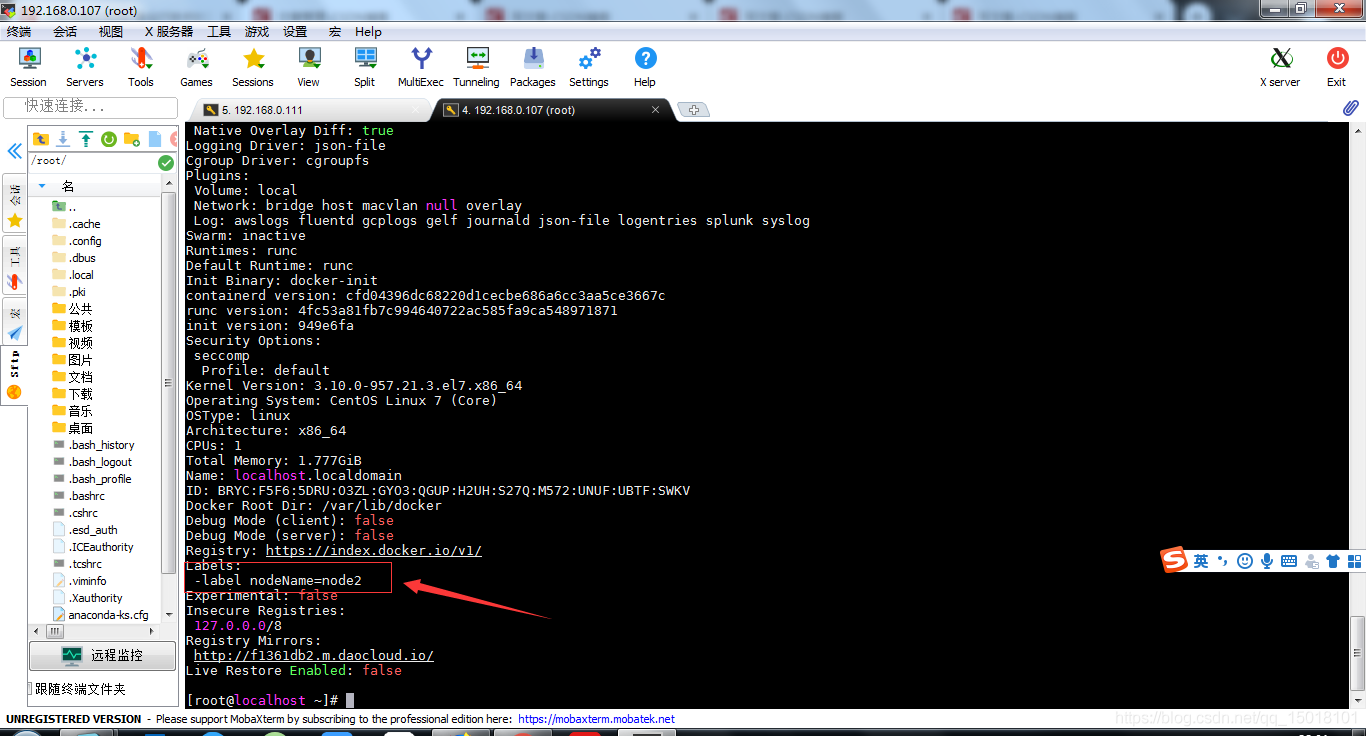
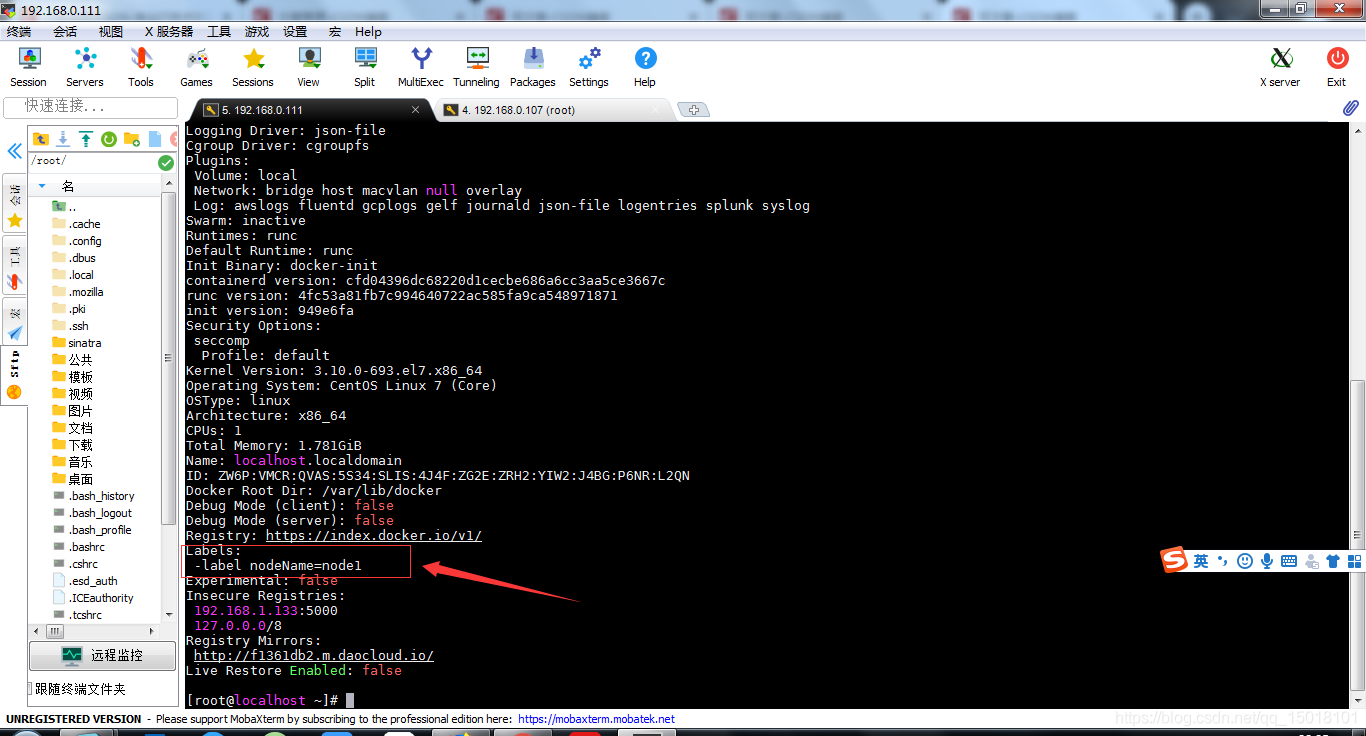
修改 daemon.json 配置文件,添加 label,用于区别两台 docker 主机

node1:

[root@localhost ~]# vim /etc/docker/daemon.json
{
"registry-mirrors": ["http://f1361db2.m.daocloud.io"],    
"labels": ["-label nodeName=node1"]          #添加label
}

查看效果

[root@localhost ~]# systemctl restart docker
[root@localhost ~]# docker info
test

node2:

test

3 修改守护进程的通信方式

修改通信方式共有三种方式:

  1. 修改 daemon.json 文件,添加 host 键值对
    • 添加:"hosts": ["tcp://0.0.0.0:2375"]
    • 开放本机 ip 的 2375 端口,可以让其他 docker 主机的 client 进行连接
  2. 修改 /lib/systemd/system/docker.service 文件,添加 -H 启动参数
    • 修改:ExecStart=/usr/bin/docker -H <tcp://0.0.0.0:2375>
  3. 使用 dokcerd 启动 docker,添加 -H 参数
    • dockerd -H <tcp://0.0.0.0:2375>

Centos7 中/etc/docker/daemon.json 会被 docker.service 的配置文件覆盖,直接添加 daemon.json 不起作用

所以我使用的是第二种方式

node1:

[root@localhost ~]# vim /lib/systemd/system/docker.service
ExecStart=/usr/bin/docker -H tcp://0.0.0.0:2375 
[root@localhost ~]# systemctl daemon-reload
[root@localhost ~]# systemctl restart docker
[root@localhost ~]# ps -ef | grep docker
root       5775      1  3 23:17 ?        00:00:00 /usr/bin/dockerd -H tcp://0.0.0.0:2375
root       5779   5775  0 23:17 ?        00:00:00 docker-containerd --config /var/run/docker/containerd/containerd.toml
root       5879   3919  0 23:17 pts/1    00:00:00 grep --color=auto docker

4 远程访问

node2:

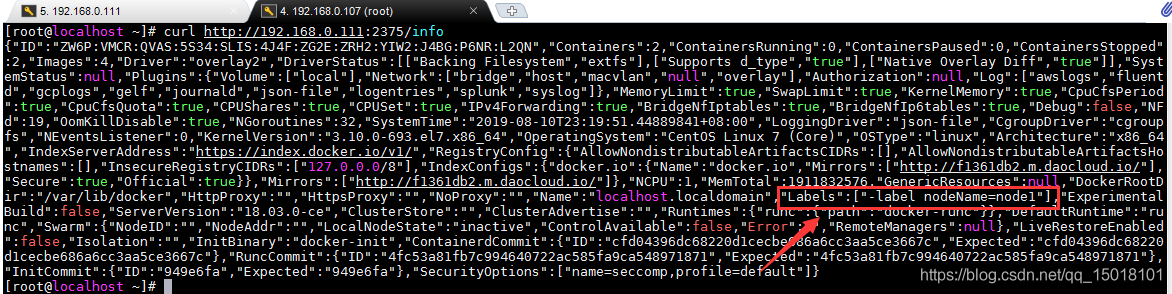
[root@localhost ~]# curl http://192.168.0.111:2375/info
在这里插入图片描述

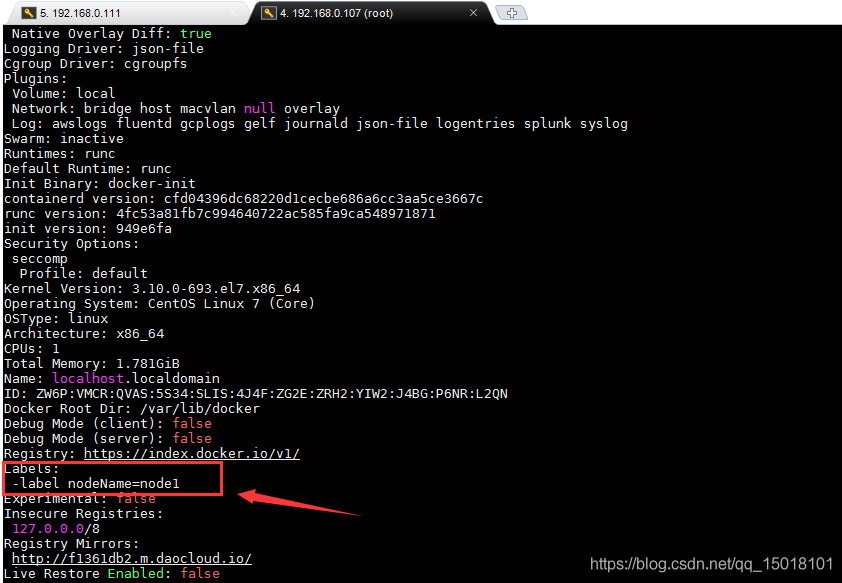
[root@localhost ~]# docker -H tcp://192.168.0.111:2375 info
在这里插入图片描述

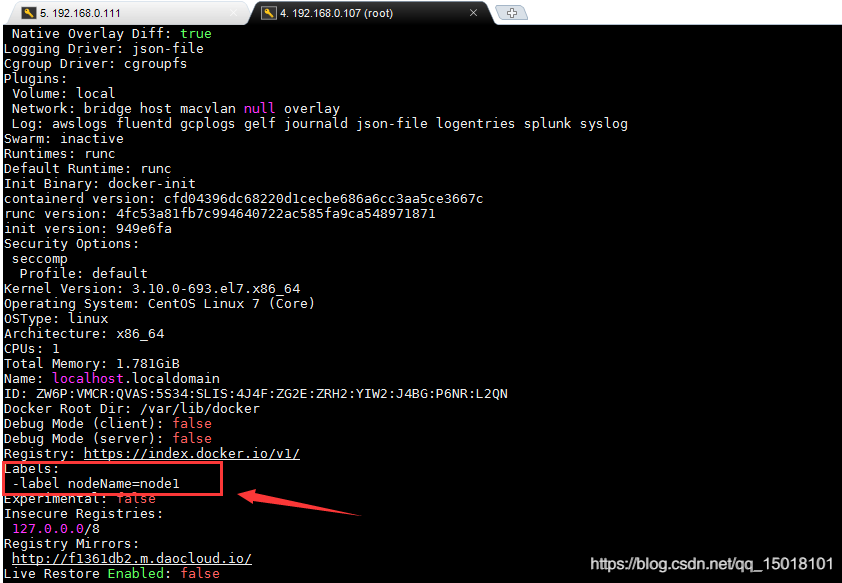
如果频繁使用 -H 选项未免太过于麻烦,可以修改 DOCKER_HOST 这个环境变量的值,node2 就可以像使用本地的 docker 一样来远程连接 node1 的守护进程

[root@localhost ~]# export DOCKER_HOST="tcp://192.168.0.111:2375"
[root@localhost ~]# docker info
在这里插入图片描述

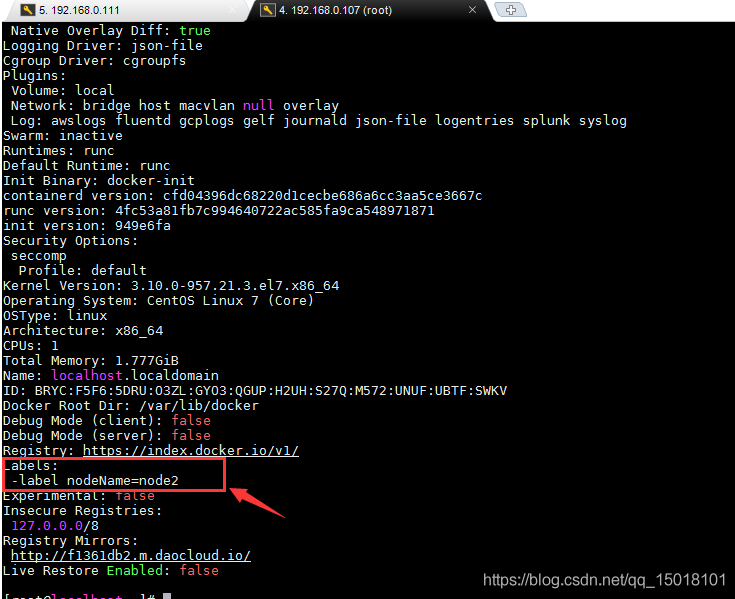
当无需再远程连接 node1 的守护进程时,将 DOCKER_HOST 环境变量置空即可

[root@localhost ~]# export DOCKER_HOST=""
[root@localhost ~]# docker info
在这里插入图片描述

node1:

因为 node1 设置了修改 Client 与守护进程的通信方式,所以本地无法再通过默认的 socket 进行连接,必须使用 -H 选项通过 tcp 来进行连接,也可以通过 DOCKER_HOST 来修改

[root@localhost ~]# docker info
Cannot connect to the Docker daemon at unix:///var/run/docker.sock. Is the docker daemon running?
[root@localhost ~]# docker -H 0.0.0.0:2375 info

如果本机依旧希望使用默认的 socket 进行连接,可以在 docker.service 中再添加一个 -H 选项

[root@localhost ~]# vim /lib/systemd/system/docker.service
ExecStart=/usr/bin/dockerd -H tcp://0.0.0.0:2375 -H unix:///var/run/docker.sock
[root@localhost ~]# systemctl daemon-reload
[root@localhost ~]# systemctl restart docker
[root@localhost ~]# ps -ef | grep docker
root       6462      1  2 23:40 ?        00:00:00 /usr/bin/dockerd -H tcp://0.0.0.0:2375 -H unix:///var/run/docker.sock
root       6467   6462  0 23:40 ?        00:00:00 docker-containerd --config /var/run/docker/containerd/containerd.toml
root       6567   3919  0 23:40 pts/1    00:00:00 grep --color=auto docker
[root@localhost ~]# docker info

以上