


How to Build a Smart AI Assistant That Switches Models Based on Context
Overview
This workflow builds a file-aware chat assistant that automatically selects the most appropriate LLM based on whether the user has uploaded a file. A text query and an optional file upload both feed into a Prompt node that aggregates the inputs. The Smart Router then evaluates the rendered prompt and dispatches to one of two LLM nodes — OpenAI for general text-only inquiries, or Anthropic Claude for file-grounded analysis where the file content is used as context. The selected LLM’s response is returned directly to the Chat Output.
Use case: A single assistant handles both conversational Q&A and document analysis without the user needing to choose a mode. Uploading a file automatically activates the more capable document-aware model; text-only queries are answered efficiently without the overhead of a multimodal model call.
Workflow Diagram
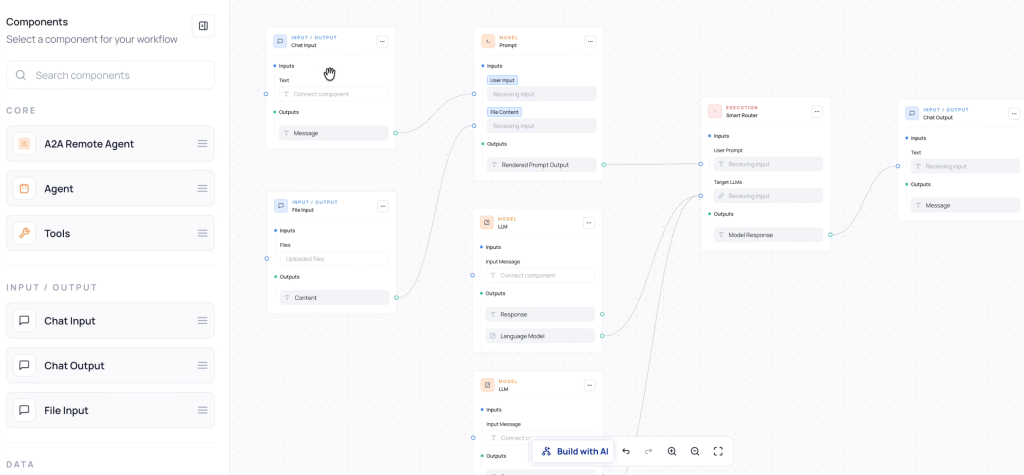
The diagram below shows the full node graph for this AI Workflow as configured in the UNIFI AI Workflows canvas.
Node Reference
This workflow uses seven nodes. The Smart Router is the central decision node — it receives the aggregated prompt and both LLM outputs, then selects which model’s response to surface based on the routing logic.
| Category | Node Name | Role |
|---|---|---|
| Input / Output | Chat Input | Receives the user’s text question |
| Input / Output | File Input | Accepts uploaded files; outputs extracted file Content — empty string if no file uploaded |
| Model | Prompt | Aggregates User Input (from Chat Input) and File Content (from File Input) into a single rendered prompt |
| Model | LLM — OpenAI | Handles general text-only inquiries; configured with the OpenAI AI/ML source |
| Model | LLM — Anthropic | Handles file-grounded analysis; configured with the Anthropic AI/ML source; receives file content as context via the prompt |
| Execution | Smart Router | Evaluates the rendered prompt and routes to OpenAI (no file) or Anthropic (file present); outputs Model Response |
| Input / Output | Chat Output | Returns the Smart Router’s selected Model Response to the user |
Smart Router Logic
The Smart Router selects between the two LLMs at runtime using the following plain-language routing prompt. Paste this exactly into the Smart Router node’s routing prompt field on the canvas:
Route based on whether user uploaded a file.
– If the user is asking general inquiries without uploading a file (i.e., file content empty), you use OpenAI model.
– If the user uploaded a file (i.e., file content not empty), you use Anthropic model and use the file content as context.
| Condition | Selected LLM | Behavior |
|---|---|---|
| File content is empty (no upload) | LLM — OpenAI | General text question answered without document context |
| File content is not empty (file uploaded) | LLM — Anthropic | Document-grounded answer; file content baked into the prompt serves as context for Claude |
Tip: The Smart Router itself runs an internal LLM to interpret the routing prompt. A lightweight model is sufficient for this decision. The routing prompt should be clear and binary — avoid conditions that overlap or require the router to infer intent beyond the file presence check.
Step 1 — Add AI/ML Sources
Sources → AI/ML Sources → Add AI/ML Source
Create two separate AI/ML sources — one for OpenAI and one for Anthropic. Each will be assigned to one of the two LLM nodes on the canvas.
Source 1 — OpenAI
| Field | Value / Notes |
|---|---|
| Provider | OpenAI |
| API Key | Obtain from platform.openai.com → API Keys |
| Request Format | {“model”:”gpt-4o”,”messages”:[{“role”:”user”,”content”:”Hi.”}]} |
| Response Format | {“choices”:[{“message”:{“role”:”assistant”,”content”:”Hello!”}}]} |
| Model Inputs | Map the messages content field as a dynamic input |
| Model Outputs | Map choices[0].message.content as the response text output |
Source 2 — Anthropic
| Field | Value / Notes |
|---|---|
| Provider | Anthropic |
| API Key | Obtain from console.anthropic.com → API Keys |
| HTTP Timeout | 30 seconds (default) |
| Request Format | {“model”:”claude-haiku-4-5-20251001″,”max_tokens”:256,”messages”:[{“role”:”user”,”content”:”Hi.”}],”stream”:false} |
| Response Format | {“id”:”msg_0123ABC”,”type”:”message”,”role”:”assistant”,”content”:[{“type”:”text”,”text”:”Hello!”}]} |
| Model Inputs | Map the messages content field as a dynamic input |
| Model Outputs | Map content[0].text as the response text output |
Tip: Give each source a clearly distinguishable name (e.g. ‘OpenAI GPT-4o’ and ‘Anthropic Claude Haiku’) — you will select them by name when configuring the LLM nodes on the canvas and it is easy to mix them up if the names are generic.
Step 2 — Build the Canvas Workflow
In UNIFI: AI Workflows → New Workflow → open the canvas editor
2.1 Chat Input and File Input Nodes
- Add a Chat Input node — this receives the user’s typed text question
- Add a File Input node — this accepts uploaded files and outputs their extracted text as Content
- Connect Chat Input → Message to Prompt → User Input
- Connect File Input → Content to Prompt → File Content
Tip: If the user does not upload a file, the File Input → Content output will be an empty string. The Smart Router detects this empty string as the ‘no file’ condition and routes to OpenAI. No special null handling is needed — the empty string is the signal.
2.2 Prompt Node — Aggregation
Category: Model — combines user text and file content into a single prompt
The Prompt node assembles both inputs into a structured message. Because the file content (when present) is already embedded in the rendered prompt, both LLM nodes receive full context without any additional wiring.
- Connect Chat Input → Message to Prompt → User Input
- Connect File Input → Content to Prompt → File Content
- Write a prompt template that incorporates both inputs and clearly labels file content when present:
User question: {{User Input}}
{% if File Content %}Content from uploaded file:{{File Content}}{% endif %}
Answer the user’s question.If file content is provided, use it as the primary source of information.
- Connect Prompt → Rendered Prompt Output to Smart Router → User Prompt
- Also connect Prompt → Rendered Prompt Output to both LLM — OpenAI → Input Message and LLM — Anthropic → Input Message
2.3 LLM Node — OpenAI
Category: Model — handles general text inquiries without file context
- Add an LLM node and select the OpenAI source registered in Step 1
- Connect Prompt → Rendered Prompt Output to LLM (OpenAI) → Input Message
- Connect both LLM (OpenAI) → Response and LLM (OpenAI) → Language Model to Smart Router → Target LLMs
2.4 LLM Node — Anthropic
Category: Model — handles file-grounded analysis using Claude
- Add a second LLM node and select the Anthropic source registered in Step 1
- Connect Prompt → Rendered Prompt Output to LLM (Anthropic) → Input Message
- Connect both LLM (Anthropic) → Response and LLM (Anthropic) → Language Model to Smart Router → Target LLMs
- Because the rendered prompt already contains the file content (when present), Anthropic receives full document context without any additional wiring
Important: Both LLM nodes must be connected to the Smart Router’s Target LLMs input before the router can select between them. If only one LLM is connected, the Smart Router has no choice to make and will always use the single connected model regardless of the routing logic.
2.5 Smart Router Node
Category: Execution — selects the appropriate LLM at runtime based on file presence
- Connect Prompt → Rendered Prompt Output to Smart Router → User Prompt
- Connect LLM (OpenAI) → Response + Language Model and LLM (Anthropic) → Response + Language Model both to Smart Router → Target LLMs
- In the Smart Router node configuration, paste the routing logic exactly as written in the Smart Router Logic section above
- Connect Smart Router → Model Response to Chat Output → Text
Tip: The Smart Router uses an internal LLM to interpret the routing prompt — you can configure which model powers the router in its node settings. A lightweight, fast model is ideal here since the routing decision is simple and binary.
2.6 Chat Output Node
- Add a Chat Output node and connect Smart Router → Model Response to its Text input
- The widget surfaces the selected LLM’s response to the user — no additional wiring is needed
Pipeline Flow Reference
The table below maps every node-to-node connection. Both LLM nodes receive the same rendered prompt — the Smart Router selects which response to surface based on the routing logic.
| From | → | To | Data / Notes |
|---|---|---|---|
| Chat Input → Message | → | Prompt → User Input | User’s text question |
| File Input → Content | → | Prompt → File Content | Extracted file text; empty string if no file uploaded |
| Prompt → Rendered Prompt Output | → | LLM (OpenAI) → Input Message | Same aggregated prompt sent to both LLMs |
| Prompt → Rendered Prompt Output | → | LLM (Anthropic) → Input Message | Same aggregated prompt — file content included when present |
| Prompt → Rendered Prompt Output | → | Smart Router → User Prompt | Router evaluates this prompt to determine file presence |
| LLM (OpenAI) → Response + Language Model | → | Smart Router → Target LLMs | OpenAI candidate response |
| LLM (Anthropic) → Response + Language Model | → | Smart Router → Target LLMs | Anthropic candidate response |
| Smart Router → Model Response | → | Chat Output → Text | The selected LLM’s response delivered to the user |
Step 3 — Test in the Playground
| Test Case | Input | Expected Behavior |
|---|---|---|
| Text-only query | Question only, no file upload | Smart Router selects LLM — OpenAI; response answers the text question without document context |
| File + question | Question + uploaded document (.pdf, .txt, etc.) | Smart Router selects LLM — Anthropic; response references file content; verify via Router trace |
| File only, no question | File uploaded, no text in Chat Input | Verify Prompt template handles empty User Input gracefully; Anthropic still selected |
| Router model check | Either input type | Check the Smart Router’s Language Model output — confirm it shows the expected model name for each input type |
Tip: The Language Model output from each LLM node carries the model identifier used for that response. Wire it to a secondary Chat Output during development to confirm the Smart Router is selecting the correct model on each test run.
Step 4 — Configure Interface and Export
4.1 Interface Settings
Configure the assistant’s presentation before exporting:
| Setting | Recommended Value |
|---|---|
| Assistant Name | ‘File Interpreter’ or your preferred display name |
| Feedback Options | Enable thumbs up/down for quality tracking |
| Welcome Message | e.g. ‘Ask me anything. Upload a file to get document-aware answers.’ |
| Placeholder Text | e.g. ‘Type your question or upload a file…’ |
4.2 Save, Export, and Embed
Click Save, then Export or Embed to generate the embeddable assistant snippet. Copy the dataAppId and dataAppUseCaseId from the export panel and paste them into the HTML template below:
| Field | Description |
|---|---|
| dataAppId | Numeric Data App ID from the UNIFI export panel |
| dataAppUseCaseId | Unique use case ID string from the UNIFI export panel — replace ‘YOUR_USE_CASE_ID_HERE’ |
| data_apps_runner.js | Self-contained UNIFI script — includes rendering, data fetching, and auth. No additional dependencies needed. |
| <div id=”…”> | Widget mount point — the exported chat UI renders inside this element |
Tip: The exported HTML embed snippet does not need to change when you update the workflow in UNIFI. The widget always connects to the latest published version via the dataAppUseCaseId. The file upload UI is included in the rendered widget automatically — no additional HTML file input elements are needed.
Quick Reference — Workflow Summary
| Step | Action | Key Detail |
|---|---|---|
| 1a | Add OpenAI source | API key + gpt-4o request/response format; map messages input and choices[0].message.content output |
| 1b | Add Anthropic source | API key + claude-haiku request/response format; map messages input and content[0].text output; use distinct source names |
| 2a | Chat Input + File Input | Chat Input → Message and File Input → Content both wire to Prompt; Content is empty string when no file uploaded |
| 2b | Prompt node | Aggregates User Input + File Content; template uses {% if File Content %} block; Rendered Prompt Output → all three: LLM×2 + Smart Router |
| 2c | LLM — OpenAI | Select OpenAI source; Input Message from Prompt; Response + Language Model → Smart Router Target LLMs |
| 2d | LLM — Anthropic | Select Anthropic source; same Prompt input; Response + Language Model → Smart Router Target LLMs; file context baked into prompt |
| 2e | Smart Router | Routing prompt: empty file content → OpenAI; file present → Anthropic; Model Response → Chat Output |
| 2f | Chat Output | Receives Smart Router → Model Response; no additional wiring needed |
| 3 | Test 4 cases | Text-only, file + question, file only, router model identity check |
| 4 | Configure + Export | Interface Settings (name, feedback, welcome, placeholder) → Save → Export → HTML embed template |