









上一节,我们的自定义活动其实是“拼”出来的,这次,我们来做一个基本的定制活动(不再是将已有的活动进行拼凑),我们将通过自定义属性来设置一封email的信息。我们将给创建给自定义活动创建一个执行组件,并把这个自定义活动添加到工作流中。这个执行组件将使用.NET API来把包含信息的 email发送出去。
创建一个工作流项目
1. 创建一个顺序工作流控制台应用程序,名称为CustomPropertySample。
2. 重命名Workflow1.cs的名称为SendMailWorkflow.cs
创建一个工作流Activity项目
1. 添加新项目 工作流Activity库,名称为SendMailActivityLibrary(记得勾上添加到解决方案的勾哦)。
2. 修改Activity1.cs为SendMailActivity.cs
3. 单击活动设计视图中的标题(或者双击SendMailActivity.cs),可以看到如下界面:
![CropperCapture[5]](https://www.cnblogs.com/images/cnblogs_com/zhuhee/WindowsLiveWriter/WindowsWorkflowFoundation6_E788/clip_image002.gif)
4. 在属性窗口,选择Base Class 属性,点击“…”打开浏览对话框来为这个活动选择一个基类。
![CropperCapture[48]](https://www.cnblogs.com/images/cnblogs_com/zhuhee/WindowsLiveWriter/WindowsWorkflowFoundation6_E788/clip_image003.gif)
5. 选择System.Workflow.ComponentModel命名空间下的Activity后点击OK。这样我们自定义的工作流活动是继承自基本的活动,而不是像以前一样继承自类似System.Workflow.Activities.SequenceActivity来拼凑工作流了。
6. 右键点击SendMailActivity.cs 选择查看代码。
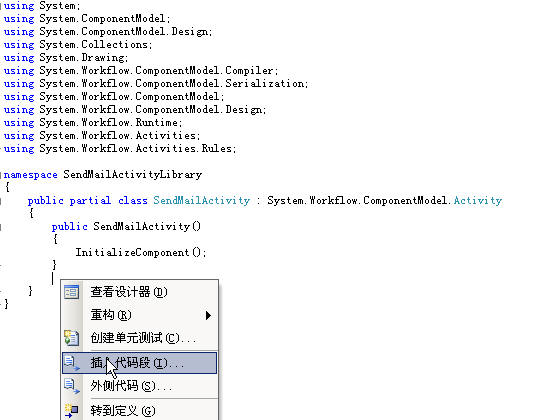
7. 在如图所示处点击右键,选择插入代码段。
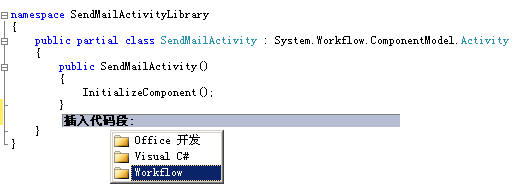
8. 选择Workflow。
9. 选择 DependencyProperty - Property.

10. 此时将插入一些模板代码在我们选择的位置。
下面是一些我们的属性(property)代码段中可以被添加的属性(attribute)描述:
|
Name |
Type |
Description |
|
Browseable |
Boolean |
Indicates whether this property appears in the Properties window. 指出这个属性在我们自定义活动右侧的属性栏中是否可见 |
|
Category |
String |
A user-defined category for the property. 用户为这个属性自定义的分类 |
|
Description |
String |
A description for the property. 此属性的描述 |
|
DesignerSerializationVisibility |
Visible, Hidden, or Content |
Determines how and if properties will be serialized. Visible (the default) – the property will be serialized normally. Hidden – prevents property serialization Content – used for collection properties. The collection object itself is not serialized, however the contents of the collection are. If a developer chooses a collection type, this property will be set to Content. If a developer chooses a non-serializable type, this property will be set to Hidden. |
|
ValidationVisibility |
Optional, Required, or Hidden |
Specifies how the property’s value is validated. Optional (the default) – the property can accept null values. Required – The property must be set to a non-null value and is checked to ensure that this is the case. Hidden – There is no automatic validation of the property’s value. If ValidationVisibility is set to ‘Required,’ when the component is reused, it will require the property to be configured via smart tags, obviating the need for a check in the activity’s Validator class. |
如图:
![CropperCapture[49]](https://www.cnblogs.com/images/cnblogs_com/zhuhee/WindowsLiveWriter/WindowsWorkflowFoundation6_E788/clip_image009.jpg)
12. 类似的,添加如下属性:
|
Name |
Type |
Description |
Category |
|
From |
string |
From Email Address |
EmailActivity |
|
Subject |
string |
Subject of Email |
EmailActivity |
|
Body |
string |
Body of Email |
EmailActivity |
到这里我们的这个活动应该有4个属性了。.
构建工作流解决方案
1. 生成解决方案.
2. 然后会发现SendMailActivity会被添加到工具栏(在解决方案资源管理器中双击SendMailWorkflow.cs,就可以看到工具栏出现了SendMailActivity)。
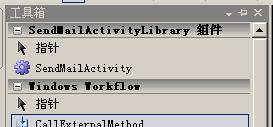
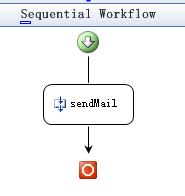
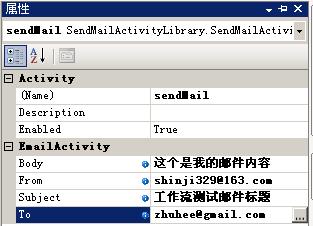
3. 从工具栏中将 SendMailActivity 活动拖拽到 Visual Studio 工作流设计器中,并修改 (Name) 属性 为 sendMail.
4. 注意,现在我们可以看到我们在自定义活动那个项目中创建的属性出现在了属性窗口:

5. 现在可以为这个活动的自定义属性设置初始值值。
添加一个可执行组件
1. 右键点击 SendMailActivity.cs 选择查看代码
2. 在代码文件底部重写活动的 Execute方法,添加如下代码:
 protected override ActivityExecutionStatus Execute(ActivityExecutionContext executionContext)
  {
{  Console.WriteLine(To); return ActivityExecutionStatus.Closed;
  }
}
构建项目
1. 选择重新生成解决方案。
2. 在解决方案资源管理器中双击 SendMailWorkflow.cs 查看工作流设计视图.
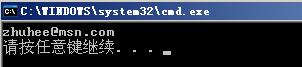
3. 选择调试-开始执行(不调试)来运行项目(或点ctrl+F5),可以看到命令行的输出信息。
4. 命令行中将显示我们的邮件将寄出的地址:
更新这个活动,使他能够发送邮件
现在我们已经吧上面自定义的活动制作成功了,能供通过输出我们自定义的属性到命令行中。现在,我们修改这个代码,使他真的可以发送邮件。
1. 首先,我们本机的添加删除windows组件中确认已经安装了SMTP服务

2. 回到 SendMailActivity.cs 文件的代码视图。
3. 添加如下引用(用以发送邮件):
using System.Net;
using System.Net.Mail;
4. 用如下代码替代我们Execute方法中的测试代码---用来发送邮件:
protected override ActivityExecutionStatus Execute(ActivityExecutionContext executionContext) { MailAddress toAddress = new MailAddress(To); MailAddress fromAddress = new MailAddress(From); MailAddressCollection addresses = new MailAddressCollection(); addresses.Add(toAddress); MailMessage msg = new MailMessage(fromAddress, toAddress); msg.Subject = Subject; msg.Body = Body; SmtpClient mail = new SmtpClient("smtp.163.com"); mail.Credentials = new NetworkCredential("shinji329", "123456"); mail.Send(msg); return ActivityExecutionStatus.Closed; }
如果出现异常,可以看一下是不是杀毒软件监控防止蠕虫病毒的设置拒绝了我们的发送。
在运行这个工作流项目偶,我们可以收到邮件:

现在,我们的自定义基本活动也做出来了,嘿嘿,比较简单的说。
此内容由惯性聚合(RSS阅读器)自动聚合整理,仅供阅读参考。 原文来自 — 版权归原作者所有。