


1. 在“解决方案资源管理器”中,使用鼠标左键选中项目名称“Demo.Grpc.Cmd”,然后单击鼠标右键,在弹出的快捷菜单中选择“重新生成”菜单项。
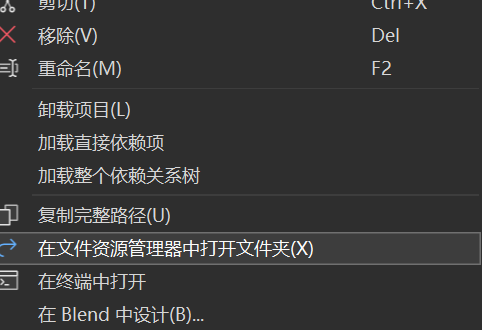
2. 在“解决方案资源管理器”中,使用鼠标左键选中项目名称“Demo.Grpc.Cmd,在弹出的快捷菜单中选择“在文件资源管理器中打开文件夹”菜单项。如下图。
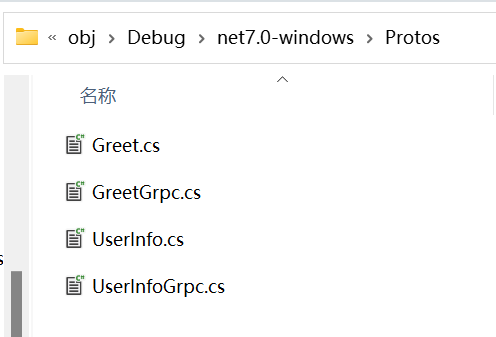
3.我们打开“文件资源管理器”,进入到Demo.Grpc.Cmd\obj\Debug\ net7.0目录,发现此时目录下也有与服务端一样的4个.cs文件,就是GRPC协议文件对应的类文件,如下图所示:
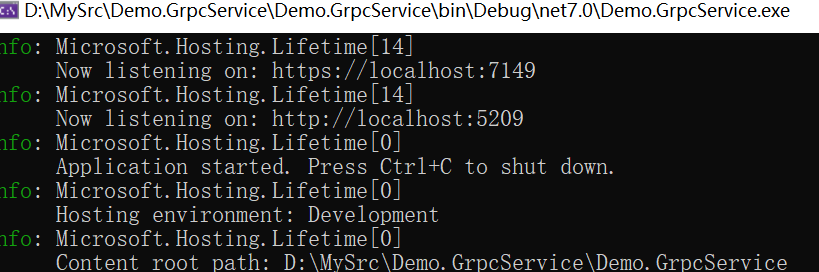
1.在服务端项目(Demo.GrpcService)中,由Visual Studio 2022在创建项目时默认配置了两个地址,让我们来调用。2个地址分别为:http://localhost:5209和https://localhost:7149, gRPC客户端会使用到这2个地址,目的是给客户端请求请求地址,服务端将监听这两个端口。
2. 在Visual Studio 2022的“解决方案资源管理器”中,使用鼠标右键单击“Demo.Grpc.Cmd”项目名称,在弹出菜单中选择“添加--> 类”。 在“添加新项”对话框中将类命名为 User,然后选择“添加”。
3. 在Visual Studio 2022的“解决方案资源管理器”中,使用鼠标双击打开刚才创建的User.cs文件,添加如下代码:
using System;
using System.Collections.Generic;
using System.Linq;
using System.Text;
using System.Text.Json;
using System.Threading.Tasks;
using Grpc.Net.Client;
using Demo.GrpcService.Protos;

namespace Demo.Grpc.Cmd
{

    public class User

    {

        public void GetUserInfo()
        {

            // 使用https
            const string urlHttps = "https://localhost:7149";

            using (var channel = GrpcChannel.ForAddress(urlHttps))
            {

                var client = new UserInfo.UserInfoClient(channel);

                UserInfoResult userInfo = client.GetUserInfo(new UserInfoRequest()
                {
                    UserName = "Admin",

                    Password = "12345"

                });

                //打印服务方法返回的结果
                Console.WriteLine($"{userInfo.UserName},{userInfo.Age},{userInfo.Name}");
                Console.WriteLine( JsonSerializer.Serialize(userInfo));
            }

           // return string.Empty;
           Console.ReadKey();

        }
    }
}
4. 在Visual Studio 2022的“解决方案资源管理器”中,使用鼠标双击打开program.cs文件,添加如下代码:
/ 、See https://aka.ms/new-console-template for more information

using Demo.Grpc.Cmd;


Console.WriteLine("Hello, World!");

new User().GetUserInfo();
5.我们在开启一个Visual Studio 2022,打开“Demo.GrpcService”解决方案,将“Demo.GrpcService”设置为启动项目,并使用https协议启动运行。

6.启动运行之后的结果如图。
7.我们切换到“Demo.Grpc.Cmd”为启动项目Visual Studio 2022,按F5,启动。
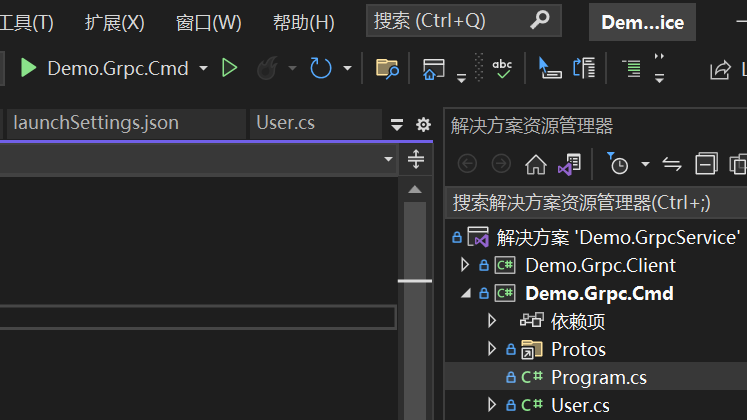
8.启动之后的运行结果,如图。

到此,调用gRPC服务端提供的https地址就成功了。
相比https的调用,我们只需要在调用前加上如下代码即可:
|
AppContext.SetSwitch("System.Net.Http.SocketsHttpHandler.Http2UnencryptedSupport", true); |
1. 在Visual Studio 2022的“解决方案资源管理器”中,使用鼠标双击打开User.cs文件,添加如下代码:
using System;
using System.Collections.Generic;
using System.Linq;
using System.Text;
using System.Text.Json;
using System.Threading.Tasks;
using Grpc.Net.Client;
using Demo.GrpcService.Protos;

namespace Demo.Grpc.Cmd
{
    public class User
    {

        public void GetUserInfo()
        {
            //使用http
            AppContext.SetSwitch("System.Net.Http.SocketsHttpHandler.Http2UnencryptedSupport", true);
            const string urlHttp = "http://localhost:5209";

            using (var channel = GrpcChannel.ForAddress(urlHttp))
                // 使用https
               // const string urlHttps = "https://localhost:7149";
           // using (var channel = GrpcChannel.ForAddress(urlHttps))
            {

                var client = new UserInfo.UserInfoClient(channel);

                UserInfoResult userInfo = client.GetUserInfo(new UserInfoRequest()
                {
                    UserName = "Admin",
                    Password = "12345"

                });


                //打印服务方法返回的结果
                Console.WriteLine($"{userInfo.UserName},{userInfo.Age},{userInfo.Name}");
                Console.WriteLine( JsonSerializer.Serialize(userInfo));
            }

           // return string.Empty;
           Console.ReadKey();
        }
    }
}
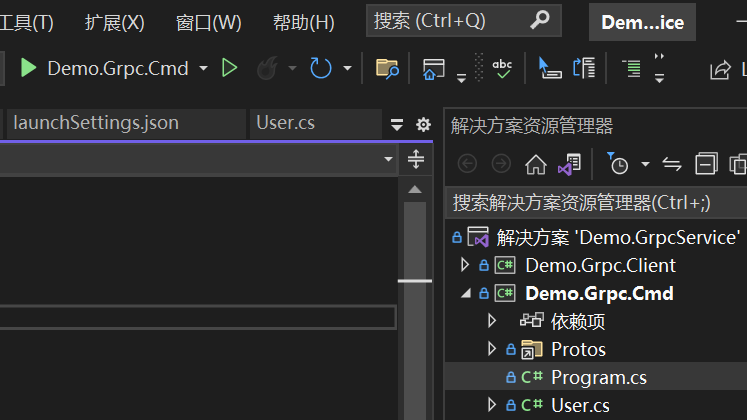
2.在目Visual Studio 2022,按F5或是点击工具栏上的“运行”按钮,启动“Demo.Grpc.Cmd”控制台程序。
到此,调用gRPC服务端提供的http地址就成功了。
运行效果如下:

此内容由惯性聚合(RSS阅读器)自动聚合整理,仅供阅读参考。 原文来自 — 版权归原作者所有。