






2011-10-04 15:58 和尚释然 阅读(1013) 评论() 收藏 举报
用Reflector反编译 Mobile Winform程序
作者:顾恩礼
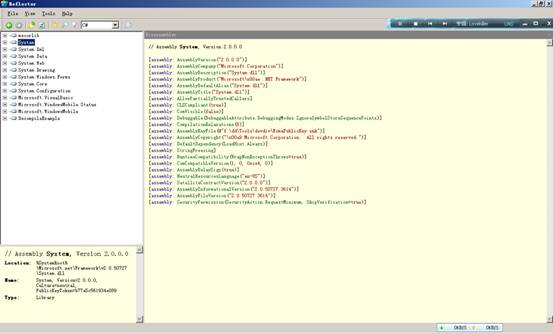
A. Reflector工具:
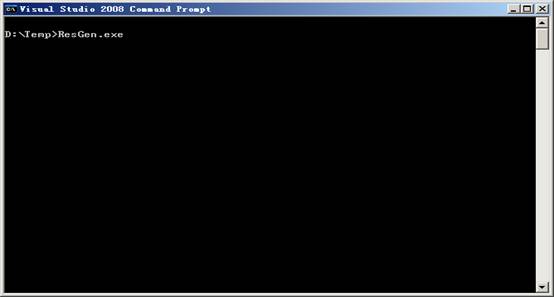
B. ResGen.exe工具(C:\Program Files\Microsoft SDKs\Windows\v6.0A\bin)
A. 新建一个与要反编译程序相同名称的项目.
B. 新建一个与要反编译程序相同名称的窗体,删除窗体自带控件如MainMenu控件,删除*.Designer.cs文件.
A. 将”EXE”或”DLL”文件拖入”Reflector”.得到如下界面.
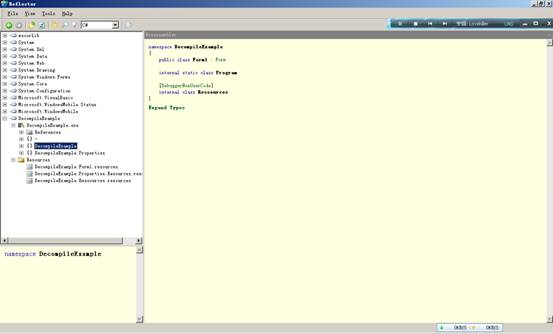
B. 将代码拷贝到你刚建立的文件中去,例如得到如下代码:
using System;
using System.Linq;
using System.Collections.Generic;
using System.ComponentModel;
using System.Data;
using System.Drawing;
using System.Text;
using System.Windows.Forms;
namespace Test
{
public class Form1 : Form
{
// Fields
private Button button1;
private IContainer components = null;
private Label label1;
private ListBox listBox1;
// Methods
public Form1()
{
this.InitializeComponent();
}
private void button1_Click(object sender, EventArgs e)
{
MessageBox.Show("HelloWorld");
}
protected override void Dispose(bool disposing)
{
if (disposing && (this.components != null))
{
this.components.Dispose();
}
base.Dispose(disposing);
}
private void InitializeComponent()
{
this.button1 = new Button();
this.label1 = new Label();
this.listBox1 = new ListBox();
base.SuspendLayout();
this.button1.Location = new Point(0x54, 0xe8);
this.button1.Name = "button1";
this.button1.Size = new Size(0x48, 20);
this.button1.TabIndex = 0;
this.button1.Text = "button1";
this.button1.Click += new EventHandler(this.button1_Click);
this.label1.Location = new Point(4, 12);
this.label1.Name = "label1";
this.label1.Size = new Size(0xe9, 20);
this.label1.Text = "列表:";
this.listBox1.Items.Add("杭州");
this.listBox1.Items.Add("厦门");
this.listBox1.Location = new Point(4, 0x24);
this.listBox1.Name = "listBox1";
this.listBox1.Size = new Size(0xe9, 0xb8);
this.listBox1.TabIndex = 2;
base.AutoScaleDimensions = new SizeF(96f, 96f);
base.AutoScaleMode = AutoScaleMode.Dpi;
this.AutoScroll = true;
base.ClientSize = new Size(240, 0x126);
base.Controls.Add(this.listBox1);
base.Controls.Add(this.label1);
base.Controls.Add(this.button1);
base.Name = "Form1";
this.Text = "DecompileExample";
base.ResumeLayout(false);
}
}
}
修改的结果:
using System;
using System.Linq;
using System.Collections.Generic;
using System.ComponentModel;
using System.Data;
using System.Drawing;
using System.Text;
using System.Windows.Forms;
namespace Test
{
public class Form1 : Form
{
// Fields
private System.Windows.Forms.Button button1;
private IContainer components = null;
private System.Windows.Forms.Label label1;
private System.Windows.Forms.ListBox listBox1;
// Methods
public Form1()
{
this.InitializeComponent();
}
private void button1_Click(object sender, EventArgs e)
{
MessageBox.Show("HelloWorld");
}
protected override void Dispose(bool disposing)
{
if (disposing && (this.components != null))
{
this.components.Dispose();
}
base.Dispose(disposing);
}
private void InitializeComponent()
{
this.button1 = new System.Windows.Forms.Button();
this.label1 = new System.Windows.Forms.Label();
this.listBox1 = new System.Windows.Forms.ListBox();
base.SuspendLayout();
this.button1.Location = new System.Drawing.Point(0x54, 0xe8);
this.button1.Name = "button1";
this.button1.Size = new System.Drawing.Size(0x48, 20);
this.button1.TabIndex = 0;
this.button1.Text = "button1";
this.button1.Click += new EventHandler(this.button1_Click);
this.label1.Location = new System.Drawing.Point(4, 12);
this.label1.Name = "label1";
this.label1.Size = new System.Drawing.Size(0xe9, 20);
this.label1.Text = "列表:";
this.listBox1.Items.Add("杭州");
this.listBox1.Items.Add("厦门");
this.listBox1.Location = new System.Drawing.Point(4, 0x24);
this.listBox1.Name = "listBox1";
this.listBox1.Size = new System.Drawing.Size(0xe9, 0xb8);
this.listBox1.TabIndex = 2;
base.AutoScaleDimensions = new System.Drawing.SizeF(96f, 96f);
base.AutoScaleMode = System.Windows.Forms.AutoScaleMode.Dpi;
this.AutoScroll = true;
base.ClientSize = new System.Drawing.Size(240, 0x126);
base.Controls.Add(this.listBox1);
base.Controls.Add(this.label1);
base.Controls.Add(this.button1);
base.Name = "Form1";
this.Text = "DecompileExample";
base.ResumeLayout(false);
}
}
}
如果该窗体带有资源文件(resources),可以用Reflector工具将资源文件导出.
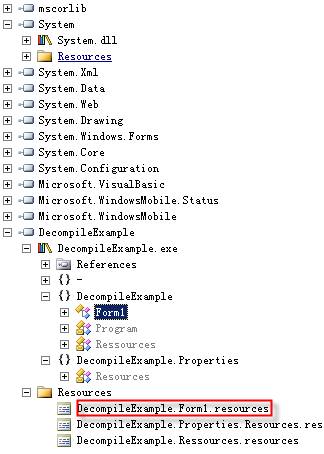
例如上面红色框内的资源文件就是对应上面”Form1”窗体的资源文件.

选中”DecompileExample.Form1.resources”,然后点击右键选择”Save As…”导出资源文件.

在开始菜单中找到”Visual Studio 2008 Command Prompt”命令.打开命令窗口:
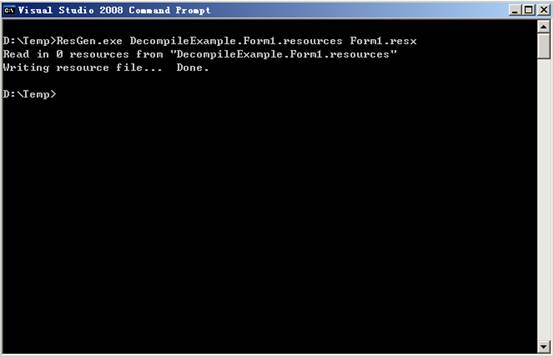
将resources文件转换成resx文件.将”Form1.resx”文件拷贝到项目中覆盖原来文件.
注意:如果一个窗体带有resources文件,并且有内容的时候,在反编译的时候会如下的语句:
ComponentResourceManager manager = new
ComponentResourceManager(typeof(ClassName));
需要将上面的语句替换为
System.ComponentModel.ComponentResourceManager resources = new
System.ComponentModel.ComponentResourceManager(typeof(ClassName));这样窗体设计器才能正常识别,名字也要改为”resources”.
在查看窗体时如出现如下错误,可以重启一下Visual Studio 2008即可.
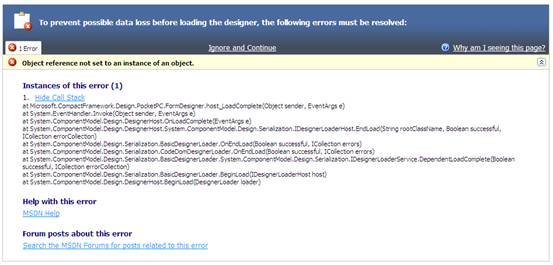
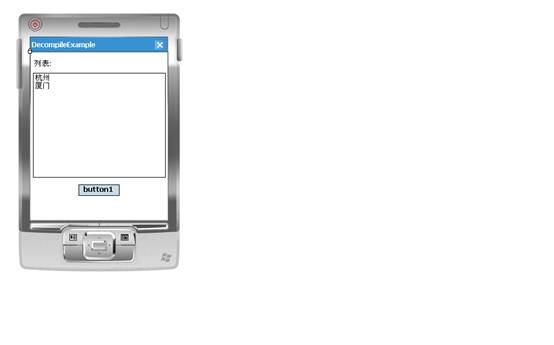
重启之后便可以正常显示了.
处理单独资源文件,我们在Reflector程序中看到红色框其实就是一个资源文件,文件名为”Resources”.
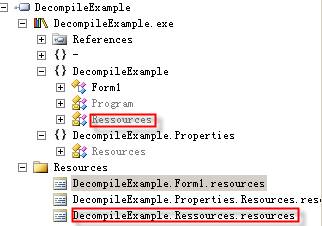
所以在项目中新建一个Resources.resx文件.根据上面的步骤将resources文件转换成resx文件,用VS2008打开界面如下:

可以选择这两条记录后拷贝粘贴到刚才新建的资源文件中即可.
根据上面的操作已经完成反编译的全部工作,如果在代码中用到第三方dll文件需要将dll应用到项目中来.在实际反编译工作中可能并不是那么简单,本文主要也是抛砖引玉的作用.具体情况要具体分析.
此内容由惯性聚合(RSS阅读器)自动聚合整理,仅供阅读参考。 原文来自 — 版权归原作者所有。