


UIImage这个对象是swift中的图像类,可以使用UIImageView加载显示到View上。
以下是UIImage的构造函数:
    init(named name: String!) -> UIImage // load from main bundle
    init(named name: String!, inBundle bundle: NSBundle!, compatibleWithTraitCollection traitCollection: UITraitCollection!) -> UIImage

    init(contentsOfFile path: String!)
    init(data: NSData!)
    init(data: NSData!, scale: CGFloat)
    init(CGImage cgImage: CGImage!)
    init(CGImage cgImage: CGImage!, scale: CGFloat, orientation: UIImageOrientation)
    init(CIImage ciImage: CIImage!)
    init(CIImage ciImage: CIImage!, scale: CGFloat, orientation: UIImageOrientation)
第一种,可以直接指定图片的名称来加载图像,但这种图片必须是以资源文件形式才可以正常加载。
var img = UIImage(named:"04")    //初始化图片
var vImg = UIImageView(image: img);   //初始化图片View
vImg.frame.origin = CGPoint(x:0,y:20);   //指定图片显示的位置
//vImg.frame = CGRect(x:0,y:20,width:120,height:120);   //指定图片的位置以及显示的大小
self.view.addSubview(vImg);   //显示在View上
第二种,可以使用data来构造函数,参数data须要是NSData对象。相比较来说,NSData更加灵活,你可以使用NSData加载本地文件,也可以加载网络地址文件。
NSData是什么呢?我的理解就是适合网络传输的二进制数据(或者相类似的理解)
init(contentsOfFile path: String!)
init(contentsOfURL url: NSURL!)
这个是NSData其中的2个构造函数, 通过这2个构造函数,我们可以指定文件本地路径或者网络路径来将图像转换为NSData对象。我想指定本地路径的方法,可能在由用户指定背景图片(头像)或者背景音乐之类的情况下比较合适。
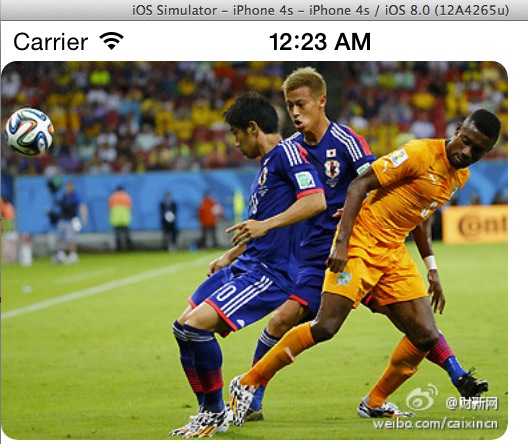
        var nsd = NSData(contentsOfURL:NSURL.URLWithString("http://ww2.sinaimg.cn/bmiddle/632dab64jw1ehgcjf2rd5j20ak07w767.jpg"))

        var img = UIImage(data: nsd);
        var vImg = UIImageView(image: img);
        vImg.frame.origin = CGPoint(x:0,y:20);
        //vImg.frame = CGRect(x:0,y:20,width:120,height:120);
        self.view.addSubview(vImg);
在使用UIImageView对象加载并显示到View时,有时候我们仅需指定图像的xy点即可,如果同时指定了width和height的话,图像显示会变形的。所以在这里,我只指定了frame的origin(CGPoint),而没有指定CGSize. 但有时候显示出来的图片虽然没有变形,但会太大,或者太小,同样对视觉造成影响。这个时候,可以在创建UIImage对象的时候,指定scale来对图像进行缩放来适应设备size。但这个参数我尝试了下,发现和我的理解还是有些偏差的。如果=1,是正常大小,如果小于1,比如0.5,会发现图片基本是原来尺寸的2倍,反而设置为1.5,或者2,数据越大,比例越小。
        var nsd = NSData(contentsOfURL:NSURL.URLWithString("http://ww2.sinaimg.cn/bmiddle/632dab64jw1ehgcjf2rd5j20ak07w767.jpg"))

        var img = UIImage(data: nsd,scale:1.5);  //在这里对图片显示进行比例缩放
        var vImg = UIImageView(image: img);
        vImg.frame.origin = CGPoint(x:0,y:20);
        //vImg.frame = CGRect(x:0,y:20,width:120,height:120);
        self.view.addSubview(vImg);
以下是官方对scale参数的解释:
The scale factor to assume when interpreting the image data. Applying a scale factor of 1.0 results in an image whose size matches the pixel-based dimensions of the image. Applying a different scale factor changes the size of the image as reported by the size property.
总结:
1)如果需要显示app自带的资源文件,可以直接使用UIImage的构造函数:named来直接拉取资源文件。
2)如果要显示本地或者网络资源文件,则需要使用NSData,来拉取对应文件的DATA,最后显示到UIImageView中去。
3)UIImage在构造时,scale的参数需要进一步理解。
4)如果文件尺寸未知的情况下,最好不要对其width和height进行限制。可使用UIView.frame.origin(CGPoint)来指定左上角坐标。同样,也可以单独指定UIView.frame.size来指定CGSize.
5)如果仅指定图像左上角坐标,但又想文件按比例缩放,可以使用vImg的contentMode属性枚举值
        var nsd = NSData(contentsOfURL:NSURL.URLWithString("http://ww2.sinaimg.cn/bmiddle/632dab64jw1ehgcjf2rd5j20ak07w767.jpg"))

        var img = UIImage(data: nsd,scale:1.5);
        var vImg = UIImageView(image: img);
        vImg.frame.origin = CGPoint(x:0,y:20);
        //vImg.frame.size.height = 100//self.view.bounds.width;
        //vImg.frame = CGRect(x:0,y:20,width:120,height:120);
        vImg.contentMode = UIViewContentMode.ScaleAspectFit;

        self.view.addSubview(vImg);
enum UIViewContentMode : Int {
    case ScaleToFill
    case ScaleAspectFit // contents scaled to fit with fixed aspect. remainder is transparent
    case ScaleAspectFill // contents scaled to fill with fixed aspect. some portion of content may be clipped.
    case Redraw // redraw on bounds change (calls -setNeedsDisplay)
    case Center // contents remain same size. positioned adjusted.
    case Top
    case Bottom
    case Left
    case Right
    case TopLeft
    case TopRight
    case BottomLeft
    case BottomRight
}
最后,如果需要对加载的图像进行圆角矩形处理,可以对UIImageView的Layer属性设置
vImg.layer.cornerRadius = 8;
vImg.layer.masksToBounds = true;
此内容由惯性聚合(RSS阅读器)自动聚合整理,仅供阅读参考。 原文来自 — 版权归原作者所有。