Computer problems can be incredibly frustrating. That’s when you need to know how to get help in Windows 11 and 10.
By using Windows’ built-in features, you can either connect with a support agent or troubleshoot the issue yourself. Let’s look at how to get help in Windows using these tools.
Black Friday - 74% discount + 3 month's extra!
Windows offers many ways to get help. You can find quick answers, step-by-step instructions, or direct support from Microsoft. Here are your main options:
You have two easy ways to chat with a support agent about issues you have on your Windows 11 or 10 PC.
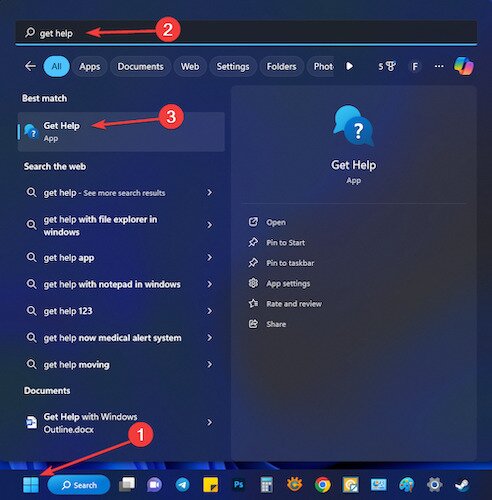
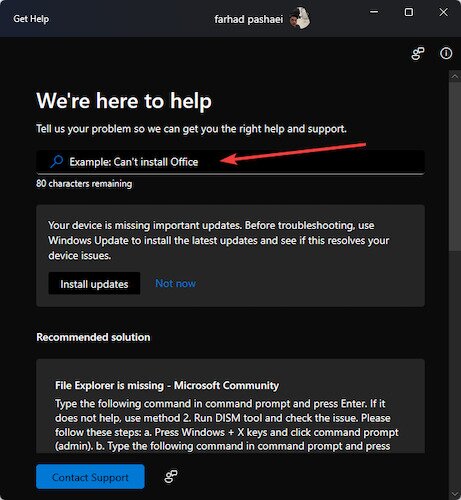
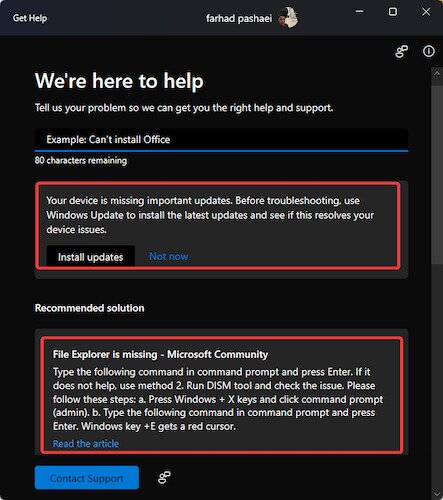
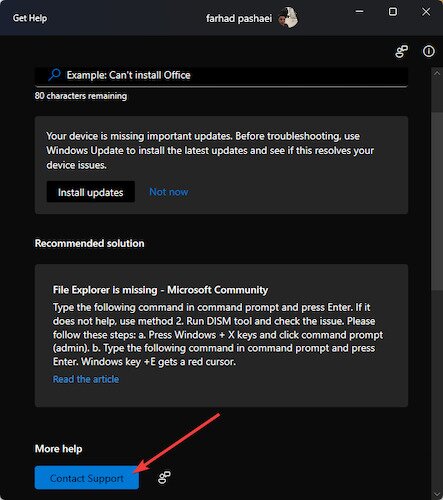
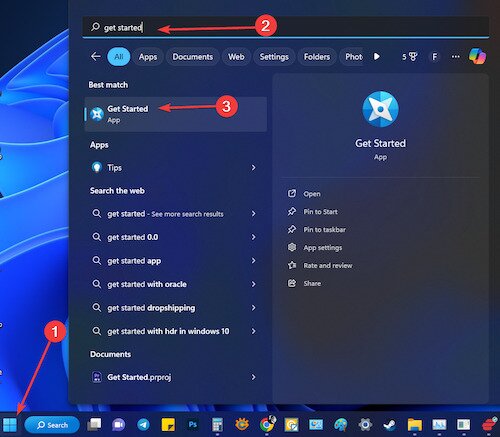
Windows 11 and 10 have the Get Help app. It lets you access a huge library of documents to help with many issues. If the documents don’t help, the app also connects you to Microsoft agents. Knowing how to get help in Windows starts with this app.
Tip: You can also open the Get Help app by pressing Windows + S to open Search, then typing “Get Help.”
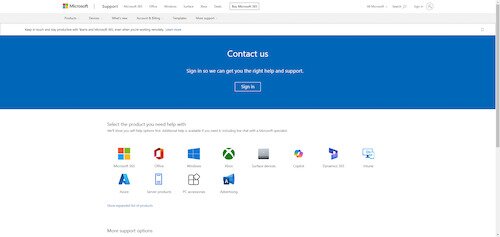
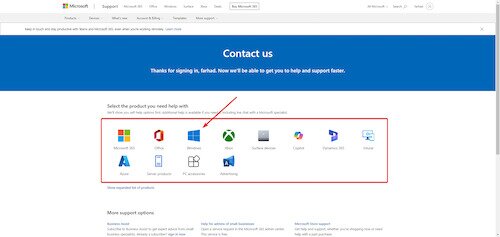
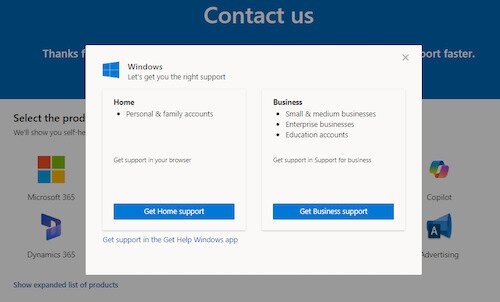
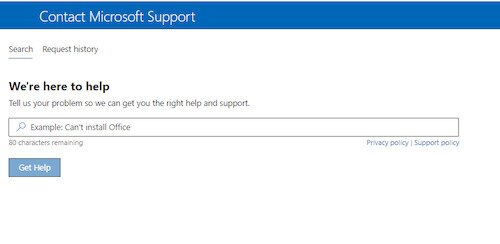
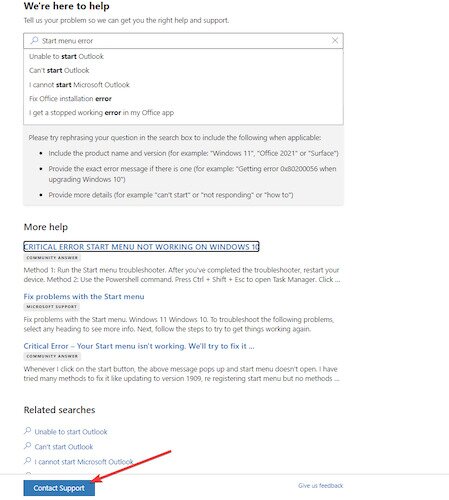
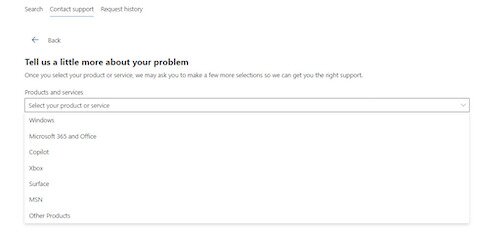
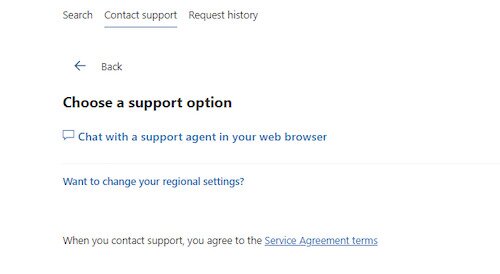
You can also ask for help using the Microsoft website. Here’s how to get help in Windows through the official Contact Us page:
If you have a problem and want to find a solution without an agent (or with a human from Microsoft), follow these steps.
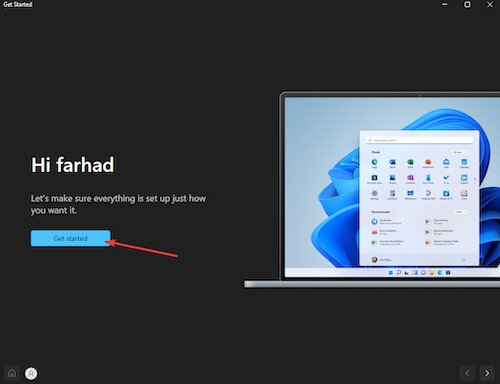
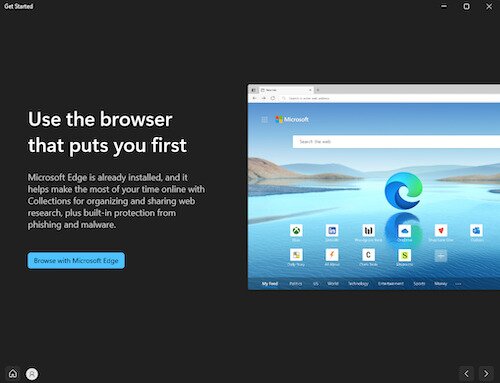
For those new to the Windows operating system, Microsoft has incorporated a helpful onboarding app called the Get Started app. This is one of the easiest ways to get help in Windows when you’re just starting out.
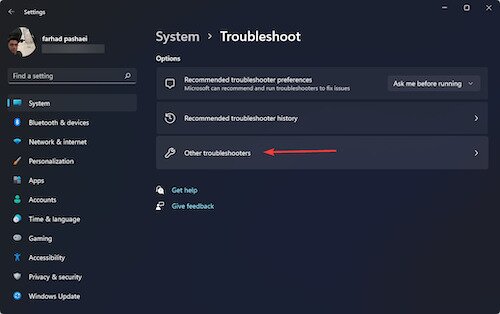
The Troubleshooter is one of Windows’ most helpful tools. This built-in utility finds problems with your computer, finds solutions, and fixes them automatically.
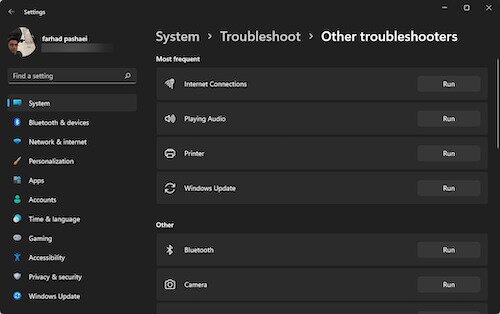
It can resolve many common issues. These include network issues, sound issues, printer errors, and Windows update failures. It saves you from taking your computer to a technician.
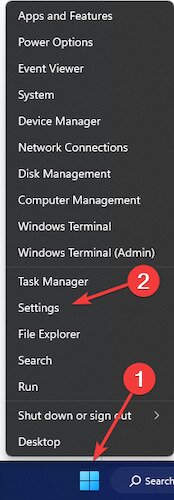
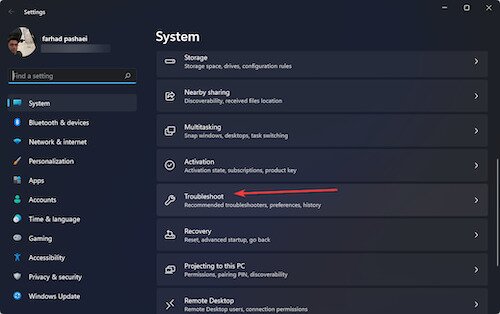
The troubleshooter also provides feedback and suggests more steps if it can’t fully resolve the issue. Here’s how to use it:
You can also run various troubleshooters in the Get Help App.
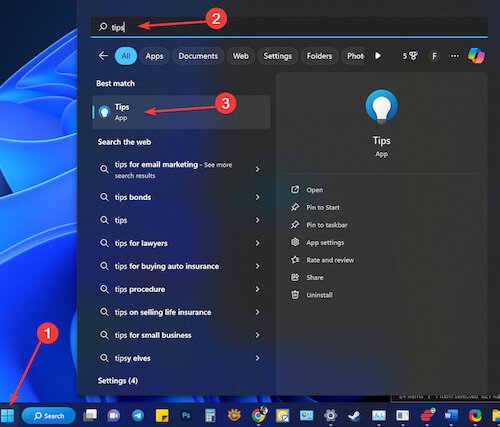
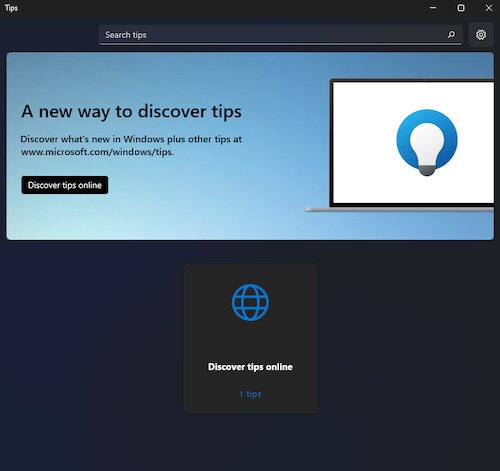
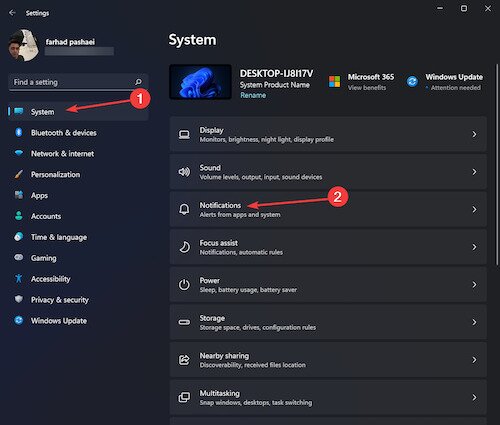
Microsoft’s built-in Tips app is your guide to improving your Windows skills. This tool has a library of tips on topics like security, gaming, organization, productivity, and more. It’s a great resource when you want to get help in Windows without contacting support.
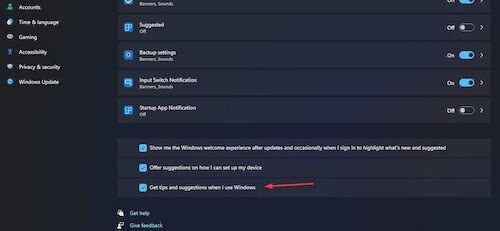
You can get tips as you work on your PC by turning on the “Tips & Suggestions” option. Here’s how:
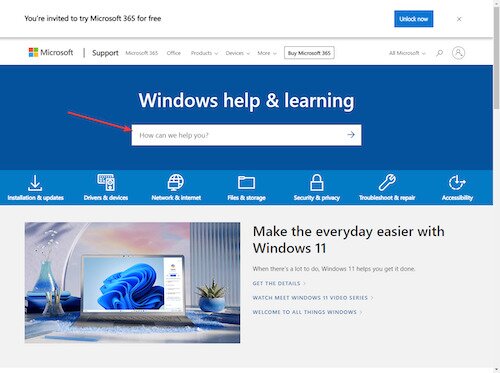
Checking out articles on the Microsoft’s Windows Help & Learning page is another way to get help in Windows 11 and 10.
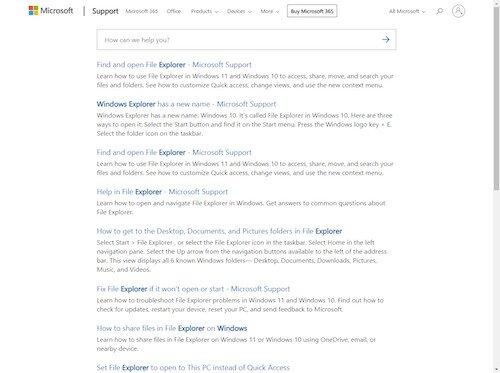
Microsoft Support has many valuable resources. This is especially true if you are looking for Windows tutorials or fixes. They offer categories to help you find what you need and provide instructions for complex issues. Specific categories include
They also have fixes for business-level issues and other specific problems. You can contact support, use the training center, or search for detailed subjects. It is a massive resource that many users should use more often.
There is even a Microsoft Support Community where you can ask questions for free. You can also check to see if other users have already found a solution.
If you require help with software on your Windows 10 or Windows 11 computer, search for a Help button. Most software includes this button. Clicking it will take you to the software publisher’s support page. There, you can use guides, FAQs, and troubleshooting tips to resolve your issue.
Using remote access software is another way to get help in Windows 11 and 10. This software allows another user to access your computer online. This tool is great for letting an online tech service or a smart friend enter your PC to solve problems.
Be careful! Never provide access to unknown tech services. They might try to steal your data. When you grant someone remote access to your computer, make security your top priority.
Microsoft support has a special page on X (formerly Twitter) called MicrosoftHelps. You can reach out by sending a direct message or tweeting your issue and mentioning their account. While not always the fastest, it can be useful every so often.
Scheduling an in-person appointment for Microsoft help is… tricky. They do not have many physical stores left, and those are far apart. Still, here are a few things you could try:
We already looked at the basics of the Get Help app. However, you can also use it to reach Microsoft’s community forums. There, you can ask questions, see if other users had similar issues, and get advice from experts.
A better way to get this kind of help now is through Microsoft Q&A. This is the official platform for all questions on Microsoft products, including Windows. Here are a few other helpful communities:
If you prefer working in a terminal, you can also get help in Windows directly from the command line. Both Command Prompt and PowerShell offer built-in help options.
Farhad Pashaei Content Strategist
Tech virtuoso and software engineer, Farhad Pashaei has dedicated over a decade to OS troubleshooting and tech reviewing, with an impressive portfolio of 5000+ gadgets, crafting comprehensive how-to guides across OS, cybersecurity, and more.
此内容由惯性聚合(RSS阅读器)自动聚合整理,仅供阅读参考。 原文来自 — 版权归原作者所有。