










Microsoft’s Windows 11 is known for its user-friendly features and easy-to-use interface. But we sometimes run into a feature issue or system error that cannot be solved without some help. And what better than to hear the direct advice from the experts? If you want to know how to get help in Windows 11 desktop, your prayers have been answered! Let’s jump right in.
Table of Contents
There are several ways you can find answers and tools through the Windows Help feature.
Method 1: Via Get Help App
You can simply access the Get Help feature by searching on your desktop.
- Click on Search from the toolbar.
- Type in Get Help.
- Now, select Open.

That’s it, you can search for your issue.
Method 2: Via Shortcut Key
Your computer has a dedicated shortcut key to open help in different windows. You can press the F1 key across a browser, File Explorer, and Microsoft apps to open help centers directly.
Method 3: Via Start Tool
Some desktops also have a virtual assistant built into their tools. You can click on the start button and type out your question. After you hit Enter, your browser will automatically open with the top results on fixes.
Method 4: Via Windows 11 Troubleshooters
If you have some issues, you can use the Windows 11 troubleshoot option.
- Open Settings and click on System from the left menu.
- Click on Troubleshoot.
- Click on any option that is related to your problem.
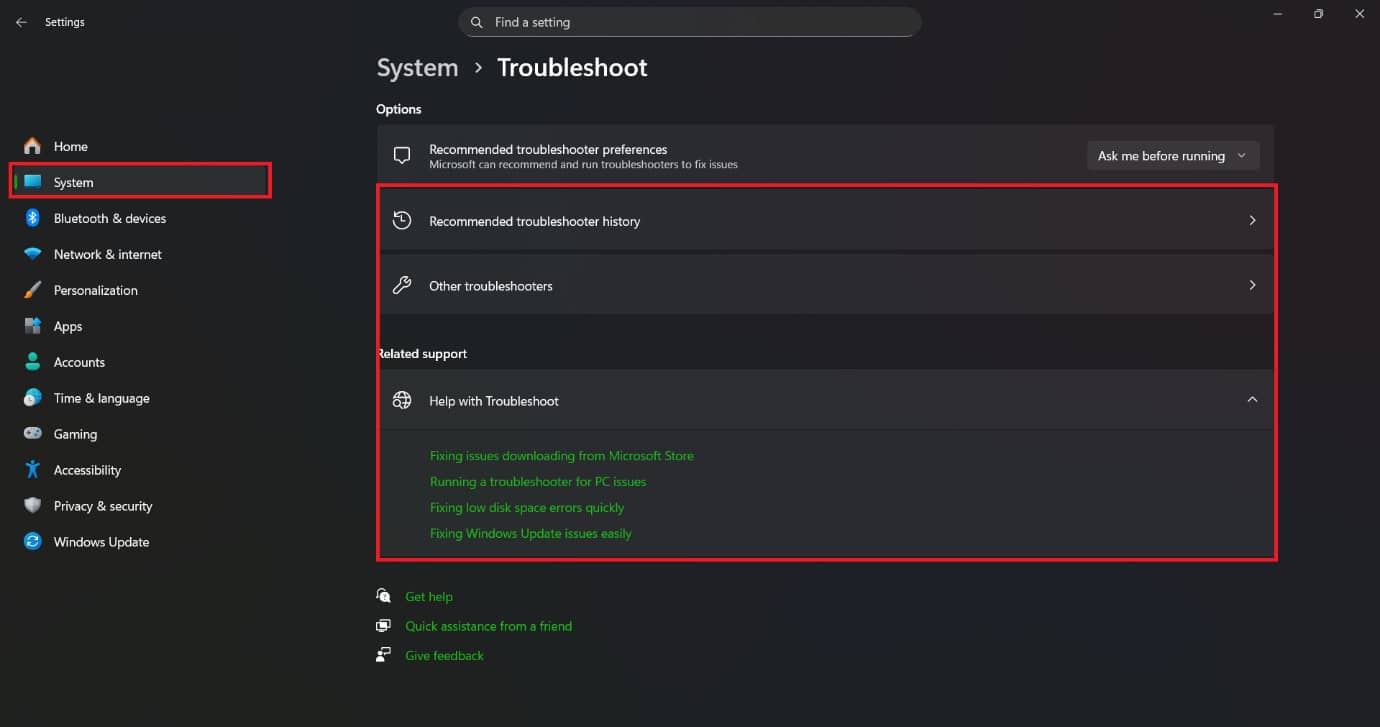
Windows will automatically start fixing the issue.
Method 5: Via Settings
You will also find the option in your settings.
- Open Settings and click on System from the left menu.
- Click on Troubleshoot
- Now, select Get help.
- Type in your problem and hit Enter.
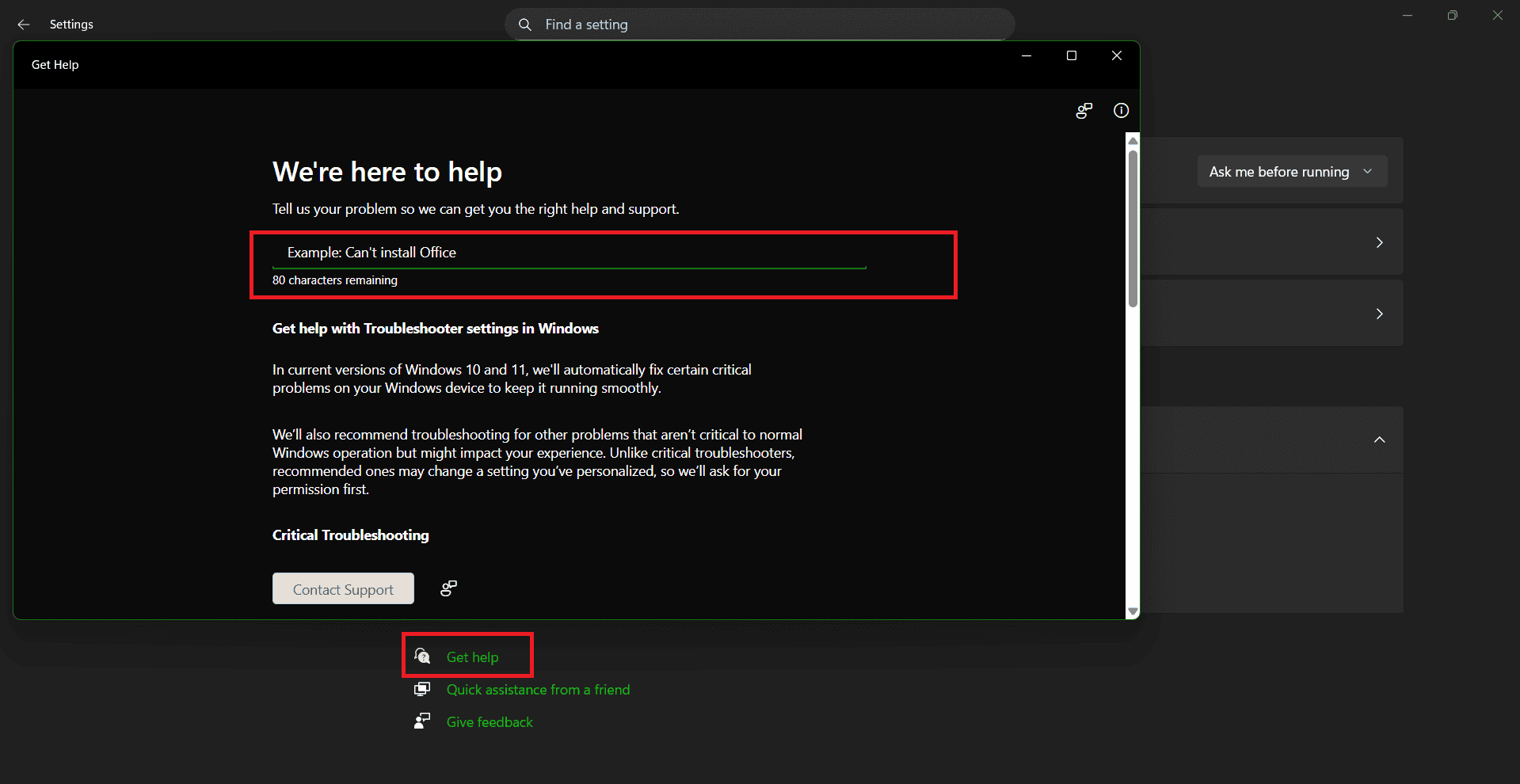
You will find several articles helping you out.
Method 6: Via Copilot
Microsoft also offers Copilot for quick fixes for any issues:
- Click on Search from the toolbar.
- Type in Copilot.
- Now, select Open.
- Type in your issue and hit Enter.
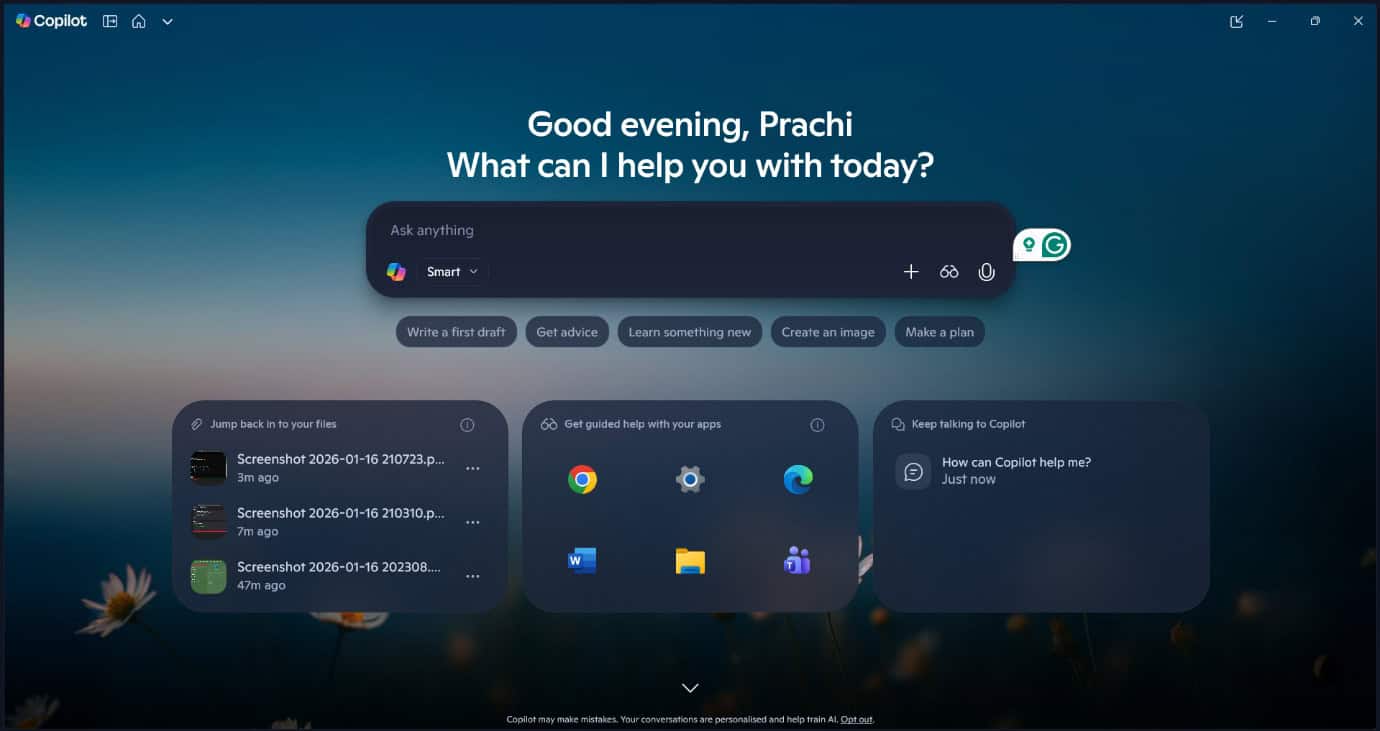
Copilot will start giving you personalised answers.
Method 7: Via Microsoft Online Support and Public Forums
If you are unable to find any related tips regarding your problem, then you can look for external support. Microsoft’s website also offers detailed articles on specific user problems or community forums where anybody can give advice to fix issues. You can also find online communities all across Reddit or Quora where people interact about their problems and solutions in-depth.
Also Read: How to Download Windows 10 ISO File (Direct Links)
Now you will no longer have a difficult time figuring out how to get help in Windows 11 desktop after following this guide. For more helpful tips and tricks, stay tuned, and feel free to share your suggestions in the comments below.