












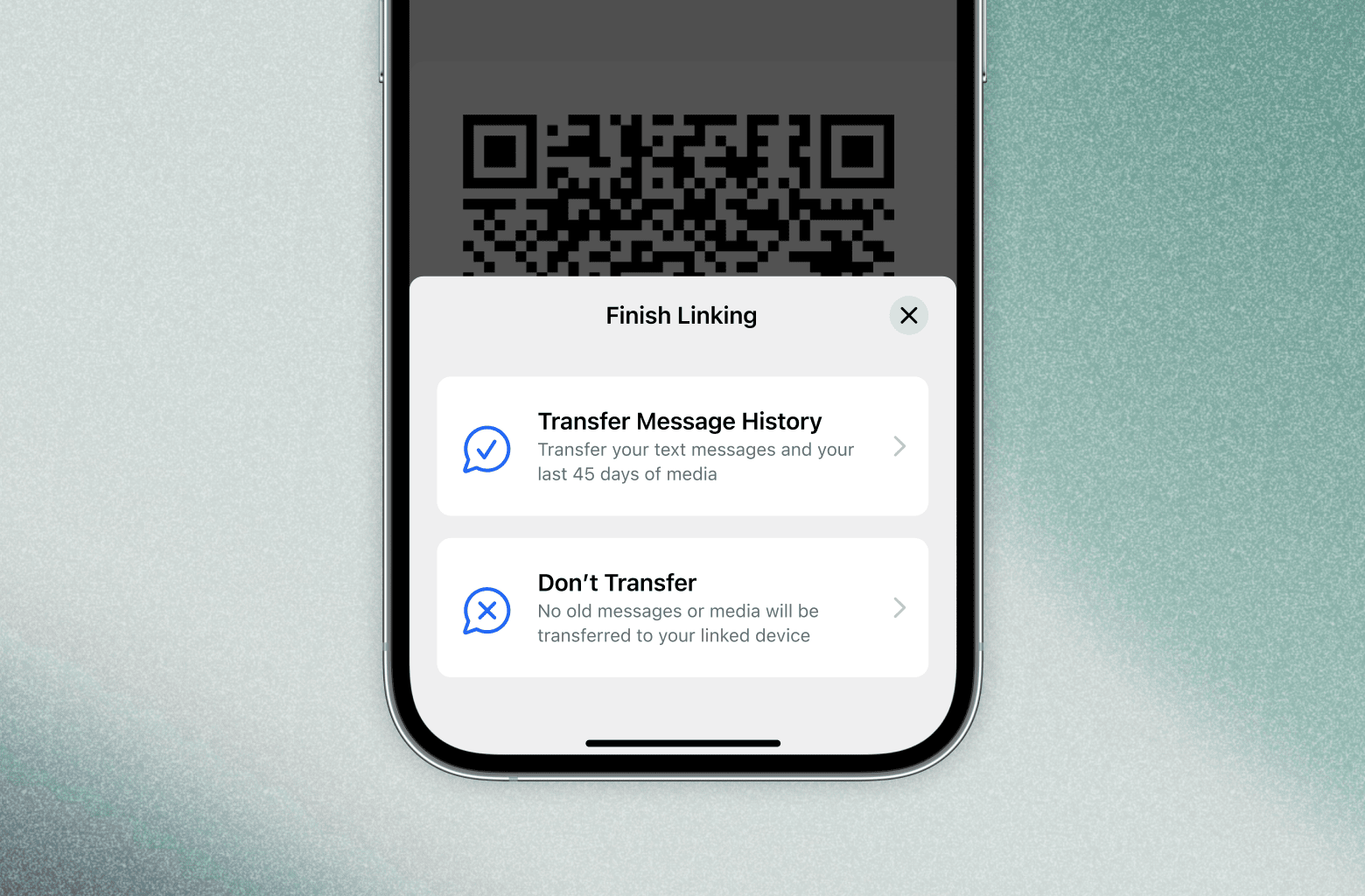
With Signal on Desktop and iPad, you can link your primary Android or iOS account with another device, letting you check and respond to messages in both places or conduct video meetings and calls from the comfort of a bigger screen.
Signal’s upcoming beta releases will also introduce the option to transfer your messages and media when you link your primary Signal device to a new Desktop or iPad. Instead of starting fresh, and having only new messages show up, you can choose to bring your chats and your last 45 days of media with you. Or, you can choose not to.
Just like everything else in Signal, the process of transferring your messages to a new linked device is end-to-end encrypted and private. We designed this feature to be intuitive, fast, and simple — and you can help us start testing it soon before it begins rolling out to production over the next several weeks.
From the perspective of the everyday person, this is a simple change. But like a lot in Signal, it required a good amount of engineering to implement it in a rigorous and privacy-preserving way. So if you’d like to take a peek under the hood, keep reading.
All of your data in Signal is end-to-end encrypted. We don’t have access to your message history (or your contacts, groups, stories, profile avatars, or anything else). We go out of our way to know as close to nothing as possible about you and your data. This means that synchronizing your messages is complicated. Apps that don’t use end-to-end encryption have it easy: if the server has an unencrypted copy of all of your messages, every new linked device can just ask the server to send a copy of all of the stored messages. And bingo, everything is in sync! Plenty of unencrypted messengers operate this way — probably even ones you’ve used before. And while this is simple, these applications fail the mud puddle test. Meaning, they have access to your intimate communications and media in plaintext, allowing you to retrieve and sync your messages without your old device or any decryption keys, at the cost of their storing your communications history.
We’re not like that. We’re not willing to compromise on privacy, and so we need a way to transfer your history between devices without leaking any of your data to Signal or anyone else.
To safely transfer your Signal communication to a new device, Signal initiates a process by which everything having to do with your Signal app and account is bundled up into a compressed, encrypted archive. At your command, this end-to-end encrypted bundle is sent to your new device through the Signal servers. This device-to-device transfer is important. Your device is the only place where your message content is accessible. While our servers process your messages, to ensure they’re delivered to you, these messages are end-to-end encrypted so we can’t see or make sense of them.
Your personal devices are where your message history lives, and that means we have to transfer history between the devices themselves. To understand how, let’s start by talking about linked devices.
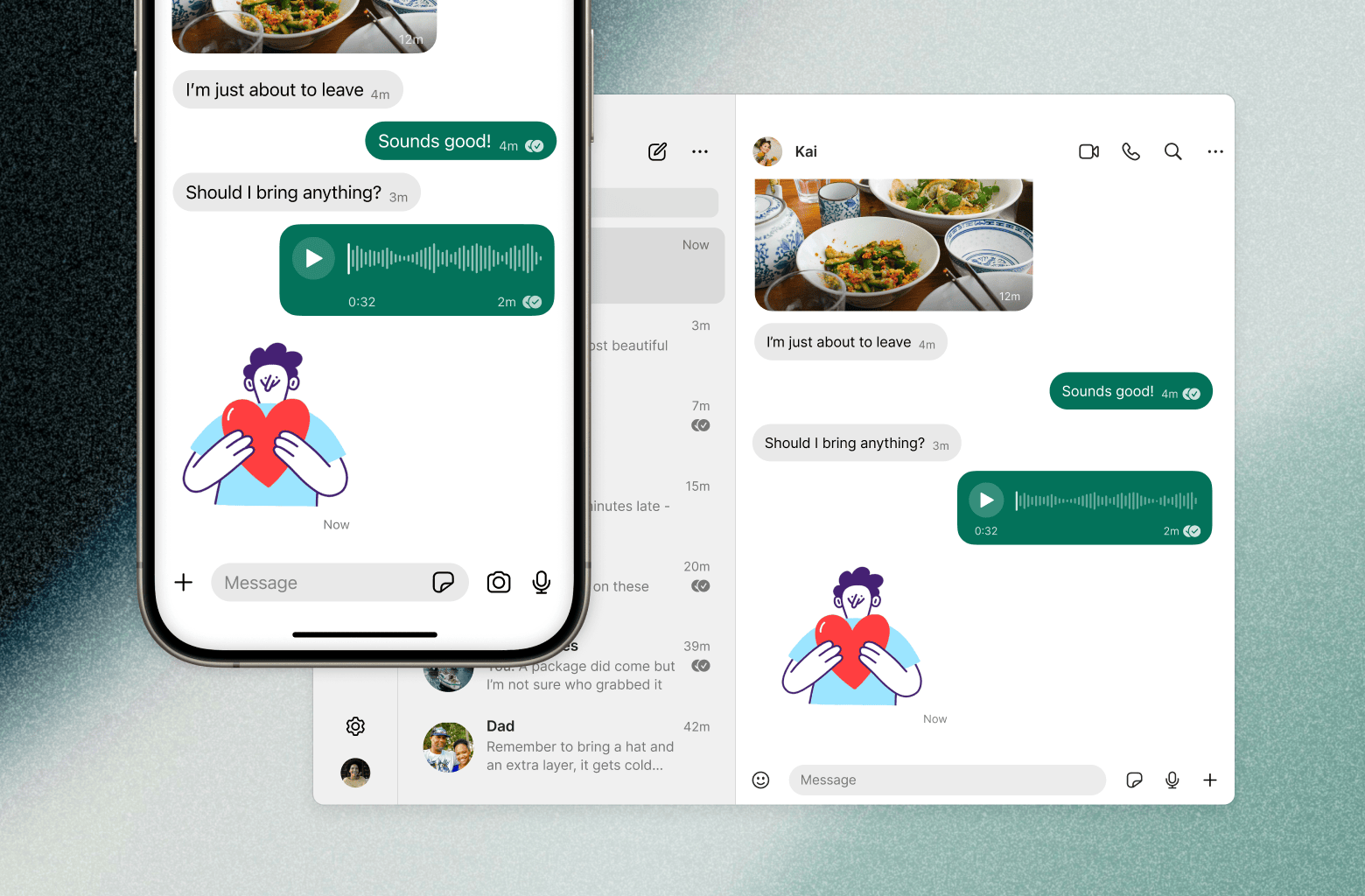
Signal accounts always have a primary device associated with them — as of now, this an Android or iOS device with a phone number. People can link additional Desktop and iPad devices to their primary Signal account. This lets people send and receive messages from any of their devices, and both incoming and outgoing messages appear on all linked devices.
All devices attached to an account share some keys for establishing and verifying the owner’s identity, but every device has its own unique set of keys for encrypting and decrypting messages1.
Of course, that doesn’t explain how devices get linked in the first place. How can we securely transfer keys to your new device, and what distinguishes it from a device an impersonator might try to link to your account?
To link a new Desktop or iPad device to an existing Signal account, the new device must prove it has the account holder’s permission to connect to the existing Signal account, and obtain a set of keys from the primary device. To do that, we need a way to initiate secure communication from the primary device to the new device. For this, a single encryption key sent from the primary device to the new device does the job, bootstrapping a secure connection through which we can send encrypted data. It turns out that even a simple QR code does the trick — the new linked device can display a QR code that includes all of the necessary information to bootstrap the process and send encrypted data through a secure connection. Just scan the code from your primary device to get started.
But how does this work under the hood? First, the new linked device creates a temporary “provisioning address” and records this address with the Signal servers so it can receive encrypted messages from the existing primary device. The new linked device puts this address, along with the public key for a locally-generated Curve25519 keypair into the QR code. Once the QR code has been created on the linked device, you can open the “Linked Devices” section in Signal settings on your primary device. After authentication, scanning the QR code with your primary device will then send a provisioning message — encrypted using the new linked device’s public key — to the provisioning address and the linked device that lives at this address.
The provisioning message is like the starting pistol at the beginning of a race. It contains everything the new linked device needs to communicate with the primary device and start working as another Signal instance: shared keys, account information, and a one-time-use linking token that cryptographically proves that the new device has permission to add itself to the Signal account.
Once the new linked device receives the provisioning message and adds itself to the same Signal account as the primary device, the linked device’s “mailbox” is ready. From this point forward, senders must send multiple copies of any messages for this Signal account, with each message encrypted separately for every device on the account.
This is the basic process by which we enable secure and private account linking on Signal. The changes we’re announcing here require additions to this process. In order to enable message and media history to be synchronized between primary and new devices, we’re adding a new key to this mix: a one-time-use message history encryption key.
To synchronize message history, we need to bundle the information on the primary Signal device and securely transfer it to the new linked device. Let’s talk about these pieces one by one.
First, your primary device compresses all message history into a single transferable archive. Signal isn’t just for text messages, and this end-to-end encrypted bundle also includes stickers, call history, group updates, quotes, reactions, and delivery/read receipts.
Second, we encrypt this archive with a strong, random, one-time-use 256-bit AES key that is securely transferred to the new linked device as part of the “provisioning message.” Because this archive is end-to-end encrypted, not even Signal employees can access its content or make sense of it. The encrypted archives that your primary device creates as part of this “link-and-sync” process are only available for a limited time. After the new linked device has downloaded and decrypted the end-to-end encrypted archive, it can throw away the key forever.
When people choose to synchronize their history with a new linked device, we want that device to instantly have a full and consistent history. That means we want all of the steps to be as fast as possible. No one wants to stare at their screens forever, waiting to use an essential app like Signal. And while Signal was built for speed, updating the application’s local database with potentially millions of messages all at once is a change. We’ve been able to speed up this process with performance optimizations like careful batching and minding our write locality. However, these tricks don’t help with large media attachments. For those, we needed to try other approaches.
When something big needs to be sent through Signal, we send it as an attachment. Big things include photos, videos, files, and really long text messages. Even the end-to-end encrypted archives that are transferred from the primary device to the new linked device — as mentioned in the previous section — are sent as attachments.
Let’s say that someone wants to send a friend a picture of their cat on Signal. To make this happen quickly and easily, instead of sending the large image directly inside a Signal message, Signal encrypts the cat pic and uploads it to a file server. To ensure that the intended recipient (and only the intended recipient) can see the cat pic, the sender shares a decryption key and the download location for the uploaded cat pic in a specially formatted Signal message. The sender can re-use the same location and key across multiple messages for each of the recipient’s linked devices, but the sender only needs to upload the large file once.
This speeds up the process of sending big things on Signal, while ensuring that only the intended recipient with the decryption key for the attachment can ever access it. We’re so serious about this level of privacy that all encrypted attachments are also padded to prevent those without the decryption key from determining the exact size of the encrypted attachment.
That’s how attachments are sent in Signal, to ensure privacy and speed. But of course we don’t want to hold onto that cat picture on our file servers forever, even if it’s end-to-end encrypted. The Signal servers automatically delete encrypted attachments 45 days after they are uploaded.
This follows from how Signal delivers your messages. Each device on a Signal account has its own mailbox. Devices are always retrieving messages from their mailbox when they are online, and as soon as the device confirms they’ve gotten a message, it is deleted from the Signal servers.
If a device has been offline for a while, it may have a lot of messages waiting in its mailbox when it returns. Today, Signal will hold a message in a device’s mailbox for up to 45 days, giving an idle device a chance to wake up and fetch it.
Since we know a message is only available for 45 days after it is sent, we assume that if a device hasn’t retrieved the attachment after 45 days, it won’t ever retrieve it.
It’d be nice if we could know when everyone has received your cat picture so we could delete the attachment earlier. But, we really don’t want to know who’s downloading a particular attachment and when, so we don’t track that. In general, we can’t tell who received an attachment pointer, how many received it, which message(s) included it, and who downloaded it — we’d like to keep it that way. So we always delete end-to-end encrypted attachments 45 days after they are uploaded.
We mentioned earlier that uploading media as part of the end-to-end encrypted archive that’s sent from the primary device to the new linked device would be too slow — so we don’t do this.
However, because end-to-end encrypted attachments are available for 45 days (to facilitate retrieval by offline devices as discussed above), we have a natural solution for synchronizing recent media. We include the pointers to attachments in the end-to-end encrypted archive that’s shared from the primary device to the new linked device, and the new linked device can fetch and decrypt them on demand without the primary device needing to re-upload large attachments as part of the synchronization process.
This works to enable fast media history synchronization without creating a burden on the network (whether a Signal user’s, or our own!). Right now this means we cannot synchronize media older than 45 days. However, we’re looking at ways to extend this and let people preserve more of their history in the future.
Using server-stored media means that the archive is mostly text. Not only does this reduce the amount of data that gets copied around to produce the archive to begin with, it also compresses very well. At Signal we exclusively use Signal to communicate with each other, and many of us have message histories going back for years. Even with our heavy Signal usage, we’ve found that our text message histories usually fit in just a few megabytes after compression.
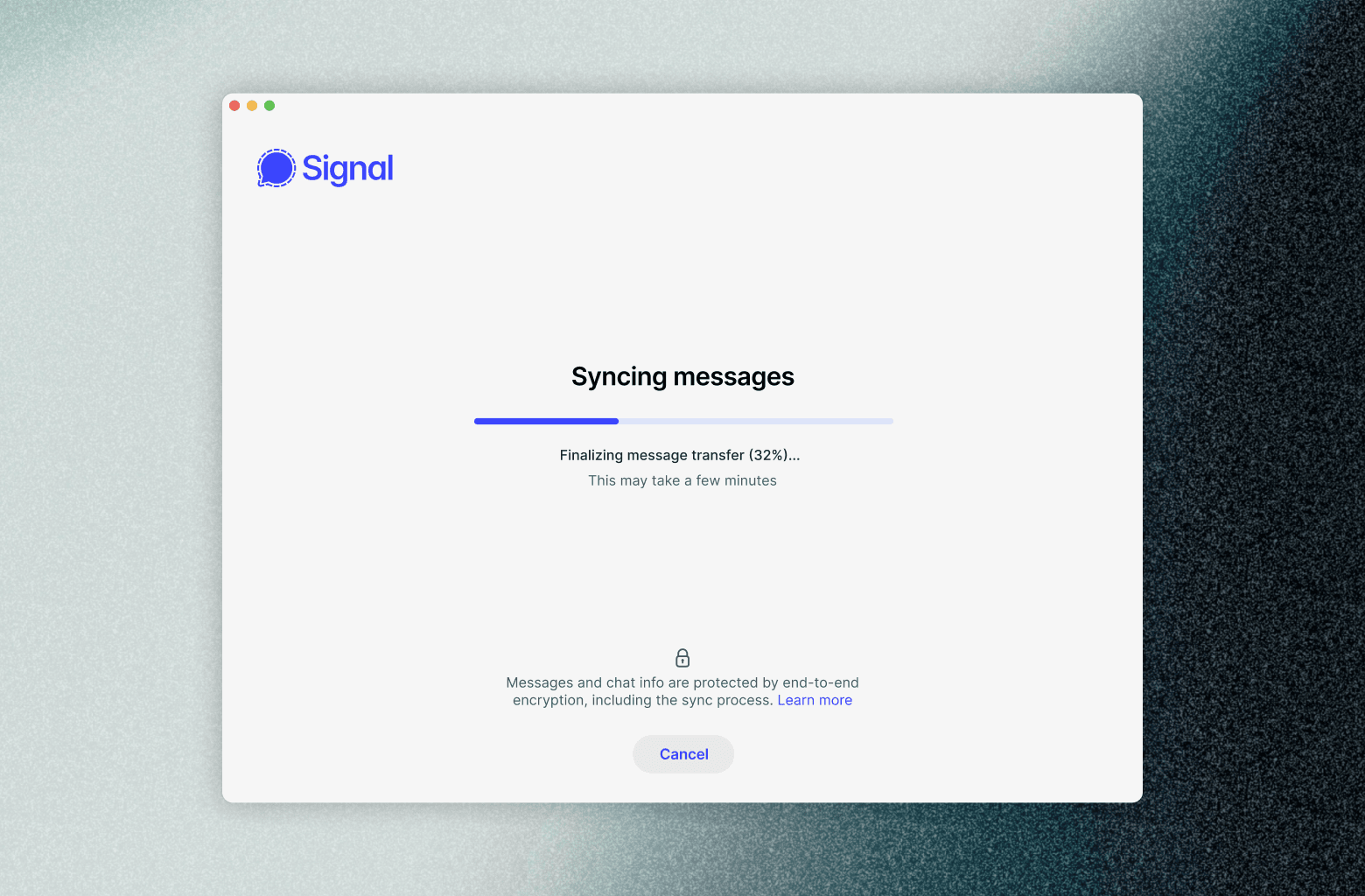
Now that we have a cross-platform archive format for Signal messages, we’re already working on using it to give you optional new tools to transfer your messages when you get a device, or to restore your messages if you accidentally drop your phone in a lake. Look forward to more new features using this archive format in the future!
Huge thanks to the engineering team that made this all happen. I could list them all, but the list would include most engineers at Signal (this really was a colossal project and we’re extremely excited to get this in your hands). Thank you to Josh Lund, Jon Chambers, Nina Berman, and Meredith Whittaker for their essential help shaping this blog post. And finally, thanks to the intrepid members of the Signal community forums who helped test out this feature ahead of a wider beta release.
此内容由惯性聚合(RSS阅读器)自动聚合整理,仅供阅读参考。 原文来自 — 版权归原作者所有。