









You should be able to communicate without worrying that every gossip tidbit, meme, or joke you share and who you share it with will get churned up into fodder for targeted ads or used to train an AI model. You also shouldn’t have to strip your communications down to the barest and most utilitarian version of relaying information.
This is why Signal is dedicated to providing a truly private messaging app, and why we work to constantly make the experience better for everyone who uses it.
We want you to know about the improvements we’re making in Signal, even the smaller ones that simply make the app nicer to use. So, starting here we’re publishing a periodic New Features Roll Call, reviewing multiple new features and quality of life improvements in one place.
If your contact list has gotten too unwieldy, you can now remove contacts in Signal.
If you’d like to remove someone from your contact list in Signal but they are already in your phone’s address book, you’ll first have to delete them there. Then, long press their name in the contact list on the New Chat screen (or click on the three dots next to their name if you’re using the Desktop app) and select “Remove” to delete them from your contact list. If they are not in your address book, you can just long press and hit “Remove.”
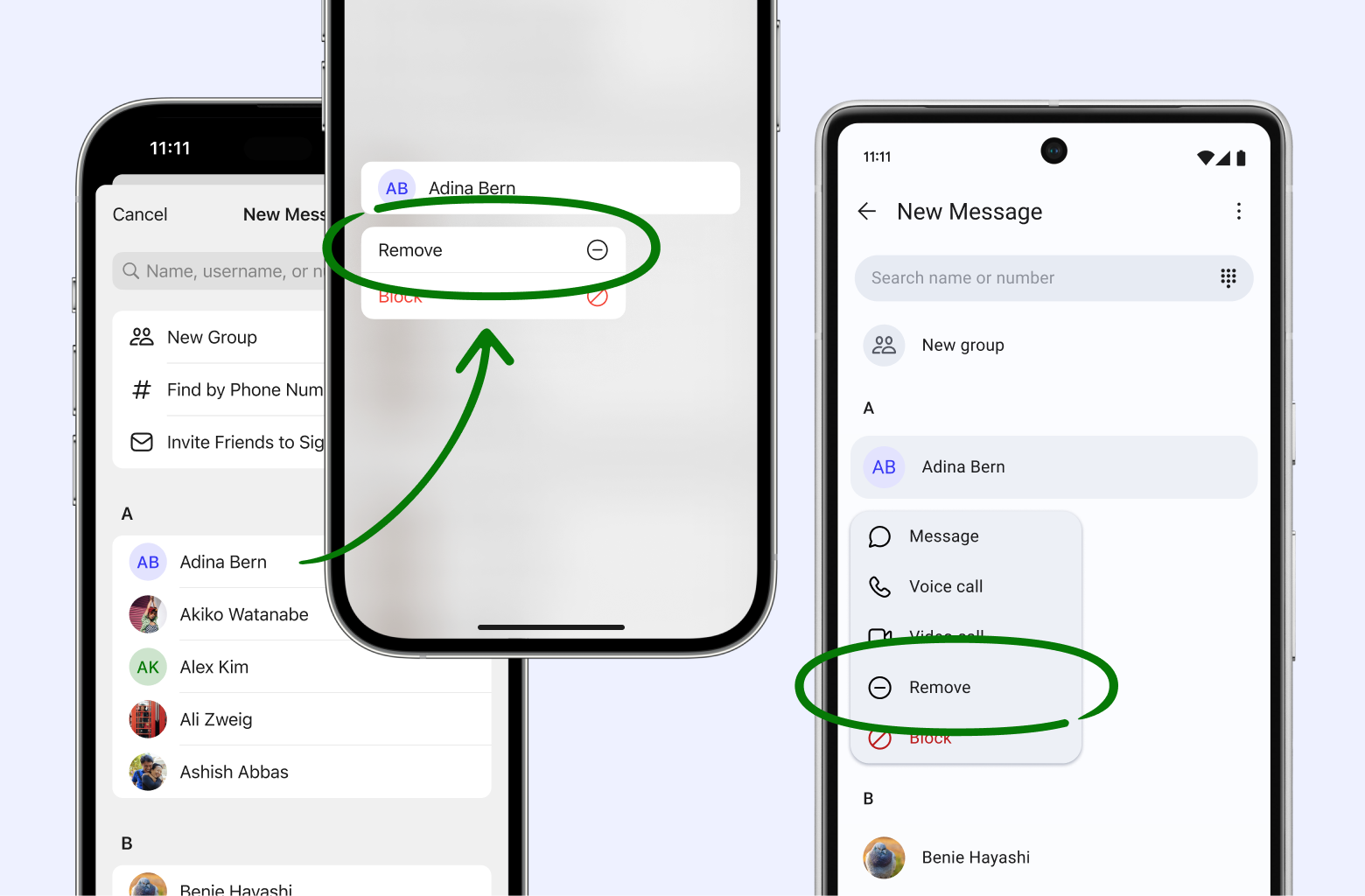
If they message you again, you’ll see a message request. That request will work like any other message request. You can accept the request to start the chat, delete the request which deletes the chat, or block to prevent that number from sending another message request again.
If you want to keep a person in your contact list but don’t want to hear from them, you can still block them.
Edit your messages in Signal to fix typos, replace emoji that have the wrong vibe, or make any other small adjustment if you press send too quickly. Edit message is designed to let you make tweaks and fix small mistakes, not erase the past.
If you’re using Signal on mobile, long press a message to edit. If you’re using Signal on your desktop, click the three dots that appear next to a message when you hover your cursor over it, and make your adjustments.
Once you’ve edited a message, the fact that it’s been edited will be clearly marked to both you and whoever you’re chatting with. Tapping the “Edited” label shows its full edit history.
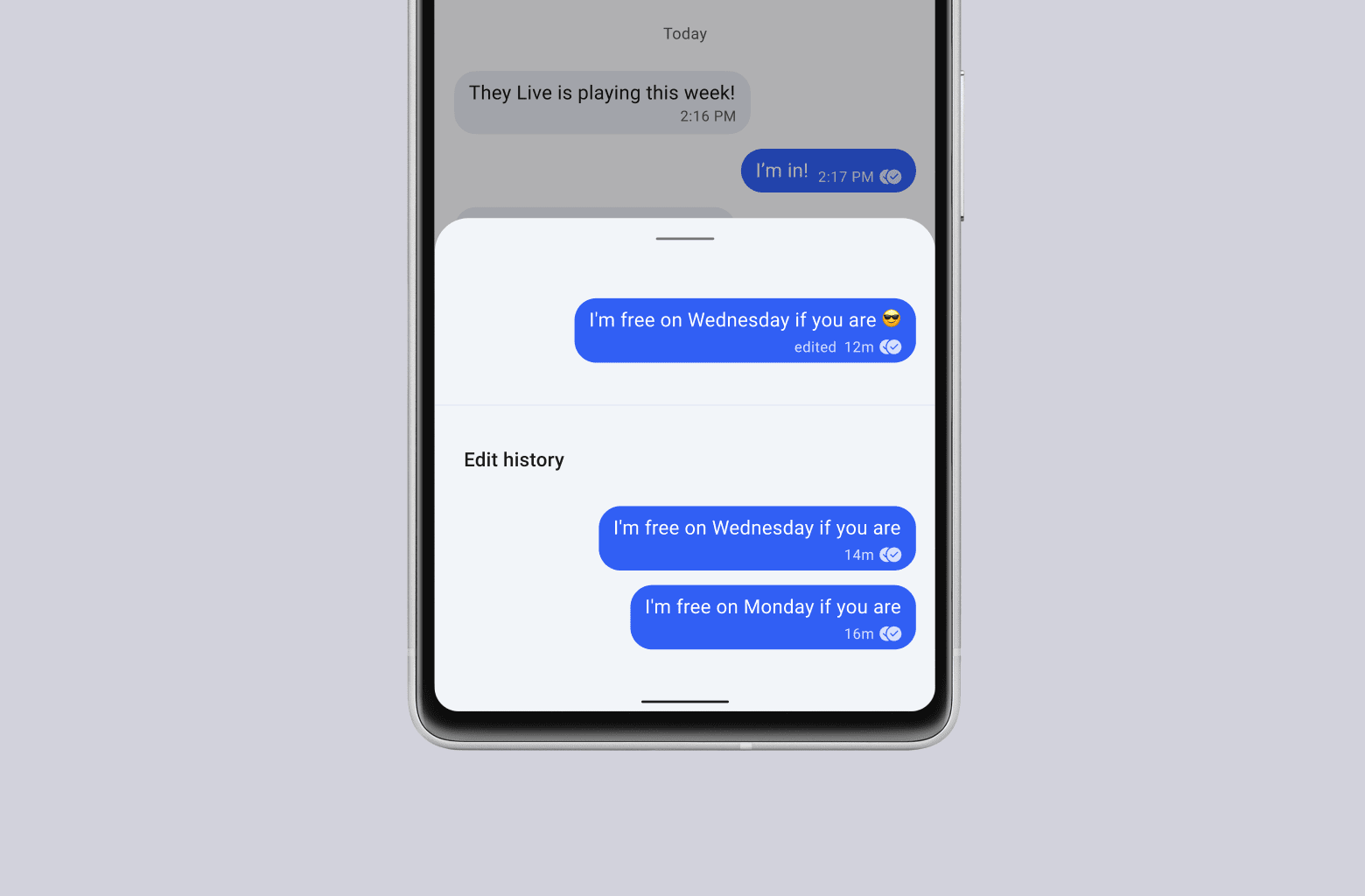
After you edit a message, you can see whether the edit was delivered and read or not.
You can edit any message up to 10 times within 24 hours of sending. (There is one exception to this rule: you can edit Note to Self messages forever. We support you telling yourself whatever you want, however you want, whenever you want.)
New vistas of personal expression await you with text formatting.
Highlight your selected text to use bold, italics, strikethrough, or monospace to really get your point across.
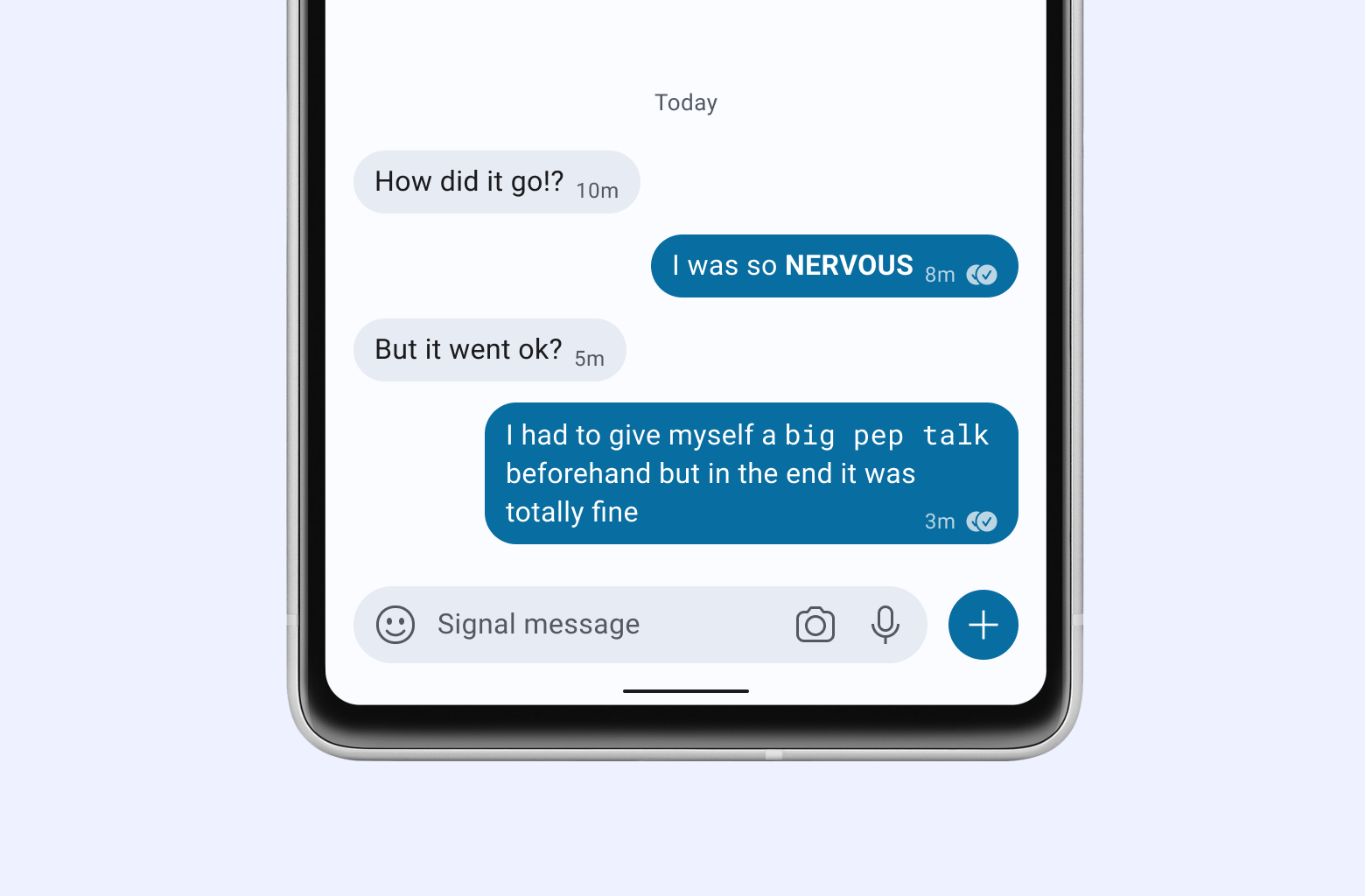
You can also hide text if you don’t want to spoil the ending or if you just want to be dramatic. Before you hit Send, highlight the text you want to hide then hit the spoiler effect option. Recipients won’t be able to see what you wrote until they tap on it to reveal what’s underneath.
Work at Signal continues. If you’d like to see new features before they officially launch and share important early feedback, join Signal Beta!
此内容由惯性聚合(RSS阅读器)自动聚合整理,仅供阅读参考。 原文来自 — 版权归原作者所有。