





Follow ZDNET: Add us as a preferred source on Google.
If you take mobile security seriously (and you should), then you might want to consider file encryption. I'm not talking about saving a file in an encrypted folder to tuck it away from prying eyes.
No. This is all about encrypting files that you can either leave on your device and view when needed or share with others, knowing they can be viewed only by the recipient.
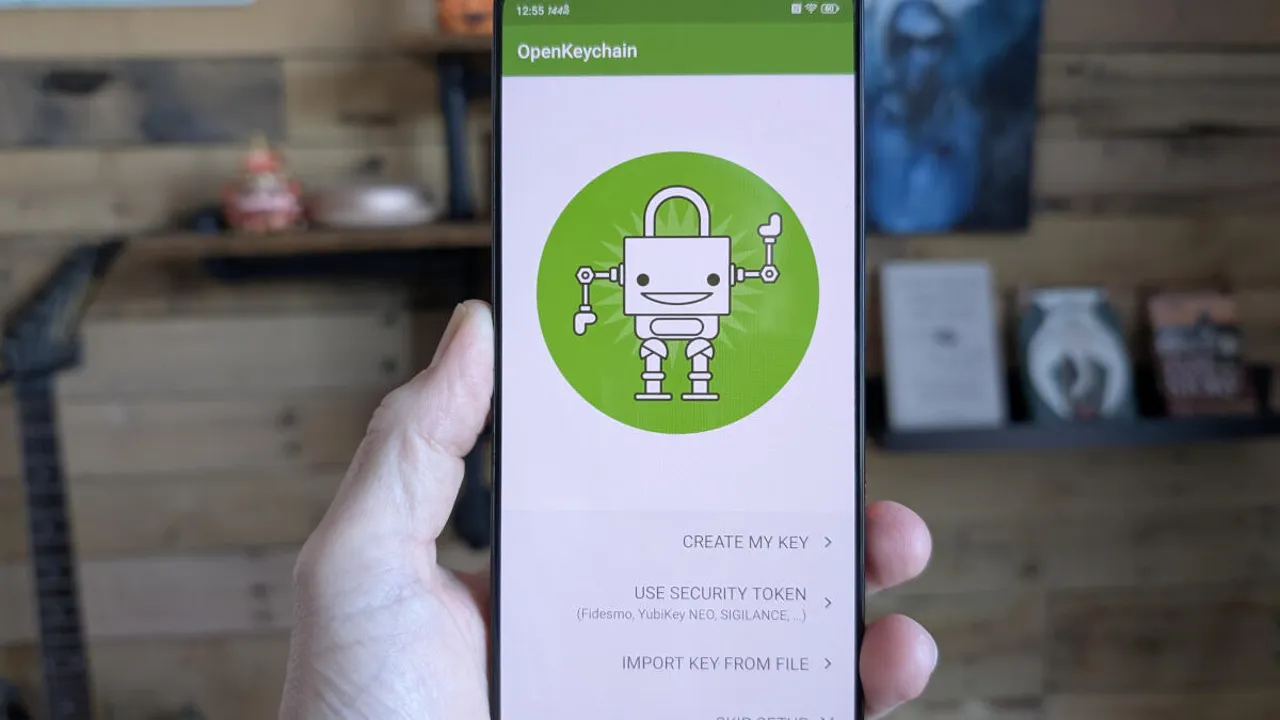
This is made possible by the OpenKeyChain app. This app is all about encryption, and although it makes the process easy, there are some things you'll need to know before diving in.
Let's do just that.
If you've ever used public key encryption on your desktop to securely send a file to someone, you already understand it. If not, let me explain.
Also: These 6 Linux file managers are way better than your default
Public key encryption uses a key pair: one private and one public. The private key remains on the recipient's device, while the public key is sent to those who need to send an encrypted file to them. Files encrypted with someone's private key can only be opened by someone who has the corresponding public key. Without that public key, there's no way to open the file.
It works, and it works very well. You can have this on Android, and it's not nearly as hard as you might think. Let's see how it works.
To do this, you'll need an Android device, and you'll need the OpenKeyChain app installed. Make sure you install that app, and you're ready to go.
There are two things you'll need/want to do. The first is to create your own key.
Open the Keys tab of the app. On that page, tap the three-dot menu in the upper-right corner and then tap "Manage my keys."
Creating your first key pair with OpenKeyChain is quite easy.
On the resulting page, tap CREATE MY KEY and walk through the user-friendly wizard.
The keys wizard is very easy to follow.
The next thing you have to do is import the public key from someone you want/need to send an encrypted file to. This is where OpenKeyChain really shines. If the person you need to send the encrypted file to also has OpenKeyChain installed, they can open their key, and you can simply scan the QR code associated with their key pair to add their public key.
Also: 3 ways to stop Android apps running in the background - and why I always do
If the person doesn't have OpenKeyChain installed, they have to send you their public key, and you then have to import it from within My Keys > + > Import from File. Locate the file the person sent you, and then it's ready to use.
You have to import a recipient's key to send them an encrypted file.
With your key created, you can now encrypt a file. You can either encrypt the file such that it'll be sent to another user (using the recipient's public key), or you can encrypt a file that can be saved on your Google Drive account (or your device), using your public key, such that the public key password (that you create within the key creation wizard) is required to open the file.
One thing to keep in mind with saving files to your device. Those files will end in .gpg. If someone gets access to your device, knows you have OpenKeyChain installed, and knows where those files are, they can view them without entering your decryption password (because it'll automatically match the key pair).
Also: How I share audio from my Android phone to multiple earbuds (and why it's a big deal)
The good news is that you can hide those files "in plain sight," to make it harder for someone to find/view them. Also, those files cannot be viewed via Google Drive, because your public key is stored on your device. That means if someone gains access to your Google Drive account, they will not be able to view those encrypted files.
To encrypt a file, follow these steps.
Tap the three-line menu on the main page and then tap Encrypt/Decrypt.
On the resulting page, tap Encrypt files. You will then have to select who the file is to be encrypted for. If you're encrypting the file so it can be saved to Google Drive, you'll use your key pair. If you're encrypting it for someone else, you'll have to select their public key.
This is where the magic happens.
Either way, tap "Encrypt to" and then type out the name of the recipient. Select the relevant key and then tap "Add file(s)." Locate the file you want to encrypt, and then tap the tiny save icon near the top right (to the left of the share icon).
Also: How to use Google Messages' new Trash feature to recover texts you accidentally deleted
Select the folder you want to house the file, give the file a name, and then tap Save. Your file will be saved in the intended location. You can then send the encrypted file to the recipient by whatever means you would normally use (email, messages, etc).
Make sure to give your file a name that doesn't exactly scream, "Don't look into this file!"
This is simple. All you have to do is go to Encrypt/Decrypt, tap "Select input file" under Decrypt/Verify, and then locate and tap the file. You can open the file from within OpenKeyChain, and you're good to go.
此内容由惯性聚合(RSS阅读器)自动聚合整理,仅供阅读参考。 原文来自 — 版权归原作者所有。