
惯性聚合 高效追踪和阅读你感兴趣的博客、新闻、科技资讯
阅读原文 在惯性聚合中打开

推荐订阅源

Engineering at Meta
Engineering at Meta
奇客Solidot–传递最新科技情报
奇客Solidot–传递最新科技情报
小众软件
小众软件
博客园_首页
T
Tailwind CSS Blog
美团技术团队
博客园 - 叶小钗
Microsoft Security Blog
有赞技术团队
有赞技术团队
Apple Machine Learning Research
大猫的无限游戏
大猫的无限游戏
Microsoft Azure Blog
H
Hackread – Cybersecurity News, Data Breaches, AI and More
I
InfoQ
MongoDB | Blog
MongoDB | Blog
The Cloudflare Blog
J
Java Code Geeks
OSCHINA 社区最新新闻
OSCHINA 社区最新新闻
博客园 - 聂微东
酷 壳 – CoolShell
酷 壳 – CoolShell
Blog — PlanetScale
Blog — PlanetScale
IT之家
IT之家
Cyber Security Advisories - MS-ISAC
Y
Y Combinator Blog

Latest news

LG G6 vs. LG G5: I compared the latest OLED TV models, and it's a surprisingly tough choice I saw the 'MacBook Pro for Linux users' for the first time, and it's a legit Windows threat I'm putting Motorola above Samsung when it comes to flip phones - and won't think twice I got an early look at ChatGPT Images 2.0, and it's impressive - with one exception I tested Surfshark's new Dausos VPN protocol - here's how it compares to WireGuard How to easily encrypt your files on an Android phone - for free I'm not giving up on DJI cameras yet - not when they can upset my GoPro like this The best website builders for small businesses in 2026: Expert tested and reviewed Why I'm recommending last year's phones over 2026 models - with one exception This powerful Gemini setting made my AI results way more personal and accurate After testing this HP laptop, I get why its 'boring' design is adored by business users The best TV antenna of 2026: Expert tested Your old iPad or Android tablet can be your new smart home panel - here's how Apple's original AirTag still tracks effectively, and you can get a 4-pack for its best price ever T-Mobile will give you an iPad for $99 when you sign up for a new line - here's how How to qualify for Apple's education discount - and get a $499 MacBook Neo for school T-Mobile will give you a Samsung Galaxy Watch 8 for free - how to get yours Prolonged AI use can be hazardous to your health and work: 4 ways to stay safe Verizon will give you a free iPad or Apple Watch with your next iPhone - how the deal works The best laptops of 2026: Expert tested and reviewed I hid 4 Bluetooth trackers (including AirTags) to test their reliability - here's how Android rivals compared I stopped using my iPhone's hotspot after testing this 5G router - and that won't change The best Kindles in 2026: Expert recommended Does Best Buy price match? Everything to know about matching prices online and in-store The best WordPress hosting services of 2026: Expert tested and reviewed The best Apple Watch of 2026: Expert tested and reviewed The best TV screen cleaners of 2026: Expert recommended The best 50-inch TVs of 2026: Expert tested I traded my Sonos Era 300 for Denon's new home speaker - and see no reason to go back AI-powered website builders have come a long way - here's your best option in 2026
I'm no longer using Google Photos as just a cloud storage...
2026-04-10 · via Latest news
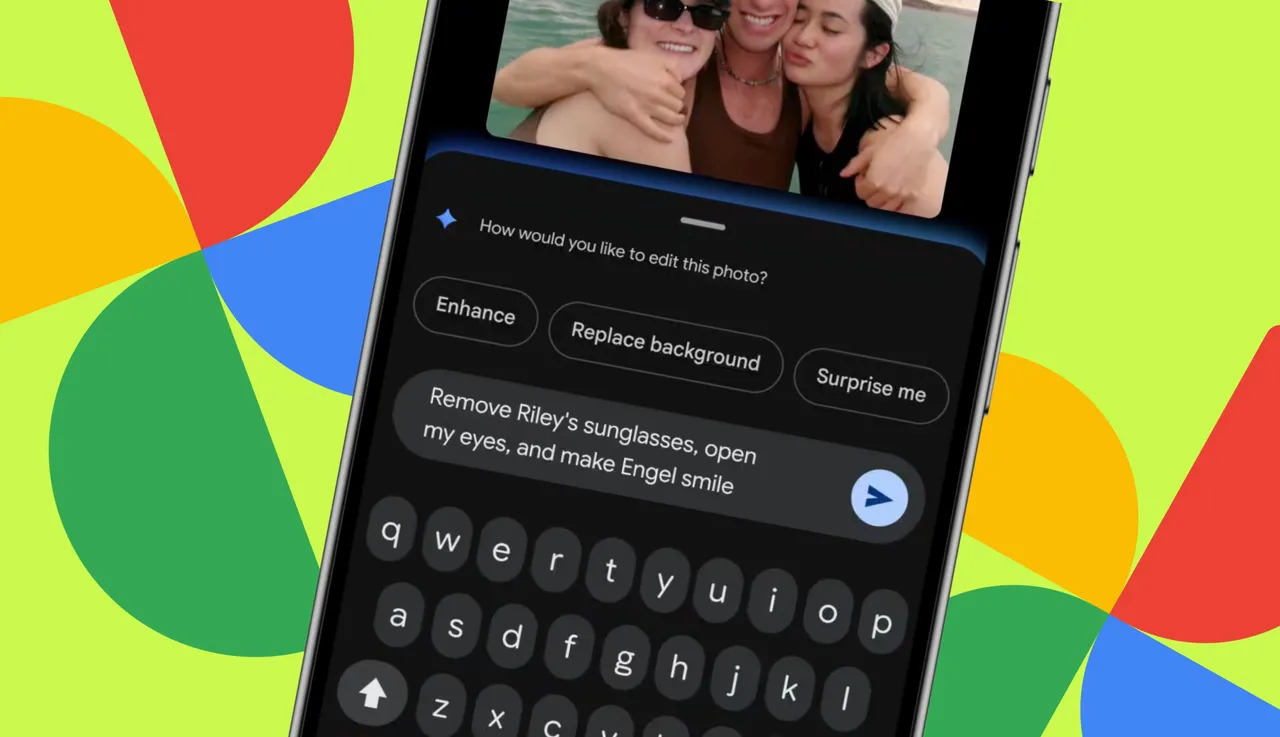
Your Google Photos just got 3 huge Nano Banana image editing upgrades - for free
Google / Elyse Betters Picaro / ZDNET

Follow ZDNET: Add us as a preferred source on Google.


ZDNET's key takeaways

  • Google Photos is more than just a storage tool.
  • With these five tricks, you can up your Photos game.
  • Each of these features is built into Google Photos.

Google Photos is a necessity for anyone who uses Android and takes a lot of photos. With this app, you can organize, search, and even create. But did you know there were things you can do that go beyond the usual?

Also: How I ditched Google Photos for my own private self-hosted alternative - for free

Android users who want to level up their Google Photos game are in for a treat. And iPhone users should not feel left out, as the first four of these five tools will work in iOS, too, although the steps will vary. (Naturally, iOS users need to have the Google Photos app installed.)

Check these out:

1. Create Reels

If you're seriously into social media, you're no doubt familiar with Reels, Stories, and Clips. Ever wondered how to create such short-form video content? If you try to do this manually, you'll find it's a chore. Google Photos can help you create and post Reels as quickly as possible. To create a Reel in Google Photos, follow these steps:

  1. Open Google Photos.
  2. Tap the Create tab.
  3. Tap "Highlight video."
  4. Choose a template.
  5. Tap "Use template."
  6. Select the photos you want to add to the Reel.
  7. Tap Next.
  8. Edit as needed (resize, adjust, and add audio/music/text).
  9. Tap Save. 
  10. That's it. You can now share that Reel where you want.
Google Photos

Reels can be shared via social media, email, SMS, etc.

Screenshot by Jack Wallen/ZDNET

2. Create stickers

Who doesn't love a good sticker? Even better, who doesn't like personalized stickers? If that sounds like you, you'll be tickled to know that Android allows you to create stickers from your photos. This might sound challenging, but it's not. In fact, Google has made this process quite simple, thanks to AI -- naturally.

Also: I captured 1,000 photos with the Google Pixel 10 Pro in Hawaii, and it set a new standard for me

How do you pull this off? Let me show you.

  1. Open Google Photos.
  2. Locate the image you want to use.
  3. Tap on that image.
  4. Long-press the object in the image that you want to use as a sticker.
  5. Tap "Copy sticker."
  6. Open the app you want to use, then paste the sticker. You can also use the built-in Share feature to send it via SMS, email, or however you prefer to share items.  

It's stickertastic!  

Google Photos

Yes, that is me on the left in a production of Green Eggs & Ham with StageOne from the late '90s.

Screenshot by Jack Wallen/ZDNET

3. Share albums via QR Code

Do you like sharing photo albums with people, and are you looking for a faster way to do so? Google Photos has you covered. With a new-ish feature in the app, you can create a photo album and then share it via a QR code. 

Let me show you how this is done.

  1. Open Google Photos.
  2. Tap + near the upper right corner of the app.
  3. In the resulting pop-up, tap Album.
  4. Give your new album a title and an optional description.
  5. Tap "Select photos."
  6. Select all of the photos you want to add to the album.
  7. Tap "Add" at the top right corner of the app.
  8. Locate your newly created album.
  9. Tap the share icon at the bottom (far left icon on the pill).
  10. Tap "Show QR Code."
  11. Tap "Create link."

Also: Your Pixel phone hides a free Google Photos AI tool that's pure magic - how it works

When the QR code appears, share it with others (either do it directly from your phone or take a screenshot of the code and share it).

Google Photos

Make sure you trust the person you're sending the QR code to.

Screenshot by Jack Wallen/ZDNET

Do be careful of sharing a screenshot of the QR code, as you don't want that to wind up in the wrong hands.

4. Convert hand-written notes

Do you have a handwritten note that you've taken a photo of, so you can remember or use it later? What if you could use Google Photos to convert those handwritten notes into text? You can! Even better, Google Photos is a vast improvement over Google Lens in this process. 

How this works depends on the phone you have. Since I only have a Pixel phone, I'll show you how it's done on Google's flagship. If you use a different phone, the process might vary.

  1. Open Google Photos.
  2. Locate the photo of the handwritten note you want to transcribe.
  3. Tap the photo in question.
  4. Tap Ask at the bottom.
  5. Type "Transcribe this note" in the Ask prompt.
  6. Wait for Gemini to finish the task.
  7. Copy the contents of the note.
  8. Paste the contents where needed.
Google Photos

No, this is not a real recipe, so don't try it.

Screenshot by Jack Wallen/ZDNET

5. Add music to your videos

If you take a lot of videos without sound, you might want to give them a boost of creativity by adding music, and Google Photos makes this very easy. Here's how. (Note that this trick does not apply to iOS users.)

Also: 10 must-try Google Photos tips and tricks - including a new AI editor

  1. Open Google Photos.
  2. Locate and tap the video you want to add music to.
  3. Swipe the bottom tab bar left until you see Music.
  4. Tap Music.
  5. Locate the song you want to add to your video and tap Select.
  6. If you don't want the song to start at the beginning, locate the section to use by dragging the song timeline left or right.
  7. Tap Save.
Google Photos

Those are my clownfish, George and Rosemary Clowny.

Screenshot by Jack Wallen/ZDNET

You can now share your new video with sound in any way you like.