

惯性聚合 高效追踪和阅读你感兴趣的博客、新闻、科技资讯
阅读原文 在惯性聚合中打开

推荐订阅源

AI
AI
TaoSecurity Blog
TaoSecurity Blog
H
Heimdal Security Blog
Help Net Security
Help Net Security
cs.CV updates on arXiv.org
Microsoft Azure Blog
www.infosecurity-magazine.com
Google DeepMind News
爱范儿
爱范儿
The Cloudflare Blog
OSCHINA 社区最新新闻
OSCHINA 社区最新新闻
人人都是产品经理
人人都是产品经理
大猫的无限游戏
大猫的无限游戏
N
News | PayPal Newsroom
V2EX - 技术
V2EX - 技术
博客园 - 【当耐特】
D
Darknet – Hacking Tools, Hacker News & Cyber Security
S
Secure Thoughts
C
CERT Recently Published Vulnerability Notes
罗磊的独立博客
Exploit-DB.com RSS Feed
钛媒体:引领未来商业与生活新知
钛媒体:引领未来商业与生活新知
P
Privacy & Cybersecurity Law Blog
有赞技术团队
有赞技术团队
S
Schneier on Security
S
SegmentFault 最新的问题
Google Online Security Blog
H
Hacker News: Front Page
The Last Watchdog
The Last Watchdog
Schneier on Security
PCI Perspectives
PCI Perspectives
IT之家
IT之家
Project Zero
Project Zero
博客园 - 司徒正美
P
Privacy International News Feed
Recent Commits to openclaw:main
Jina AI
Jina AI
Security Latest
Security Latest
Hacker News - Newest:
Hacker News - Newest: "LLM"
腾讯CDC
C
CXSECURITY Database RSS Feed - CXSecurity.com
阮一峰的网络日志
阮一峰的网络日志
C
Check Point Blog
aimingoo的专栏
aimingoo的专栏
V
Vulnerabilities – Threatpost
W
WeLiveSecurity
NISL@THU
NISL@THU
Webroot Blog
Webroot Blog
N
Netflix TechBlog - Medium
L
Lohrmann on Cybersecurity

博客园 - 蔡秋心

Windows Azure VM的两种shut down 方式 转贴: A Simple c# Wrapper for ffMpeg PowerShell: 找到一个目录下最新的文件 PowerShell: 如何解决File **.ps1 cannot be loaded because the execution of scripts is disabled on this system. Please see "get- help about_sig" for more de 在localhost上使用fiddler 在SQL Server Business Intelligence Development Studio中编辑Dynamcis CRM中的Report Report Design: Best Practices and Guidelines Visual Studio使用小技巧6 – 为代码加上Using(Resolve using)和管理Using(Organize using) Visual Studio使用小技巧5 – 区块选择(box selection)的拷贝(copy)和粘贴(paste) Visual Studio使用小技巧4 – Where am I(在Solution Explorer中显示当前文档) Visual Studio使用小技巧2 – 使用任务列表(task list) - 补充 Visual Studio使用小技巧2 – 使用任务列表(task list) Visual Studio使用小技巧1 – HTML编辑器中的格式化 部署Dotnetnuke Site到虚拟目录和端口不为80的网站 asp.net使用COM组件需要的权限设置 前台线程(Foreground Threads)和后台线程(Background Threads) 在Dynamics CRM 的 Entity Form中显示记录的ID的方法 如何使用VS2005创建web安装包 使用Visual Studio中的Item Template
Visual Studio使用小技巧3 – 标签分组(Tab Group)和分割窗口(Split window)
蔡秋心 · 2011-03-30 · via 博客园 - 蔡秋心

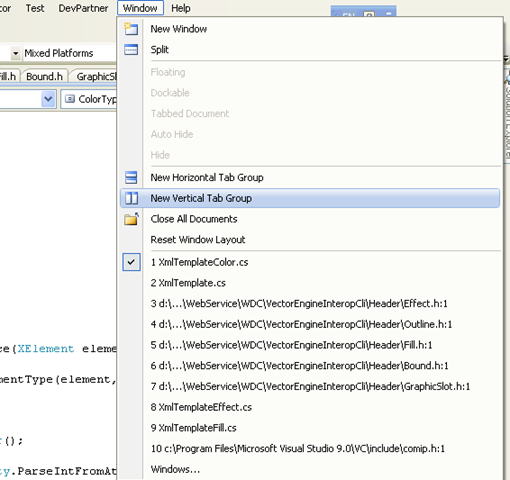
我们程序员在写程序的时候经常要参考本项目或者是本解决方案中的另一个文件的代码。像写Business Logical的时候,要参考Domain类的定义。我这两天就深感其烦,我的Domain类是C#代码, 而Business Logical是Cli的代码,最要命的是cli中的自动提示(intellisense) 经常不工作。我需要不停的按Alt+Tab键切换窗口,直到我发现了标签分组(Tab Group)。微软提供两种方式的标签分组(Tab Group): 水平标签分组(New Horizontal Tab Group)和垂直标签分组(New Vertical Tab Group). 它们都在Window菜单下。
image

水平标签分组(New Horizontal Tab Group):引用的assembly中的定义显示在上面的Object Browser中,代码写在下面。

image

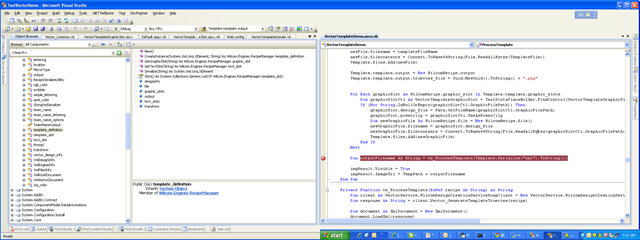
垂直标签分组(New Vertical Tab Group):引用的assembly中的定义显示在左边的Object Browser中,代码写在右边。

image

点住窗口的标签,可以在两个group中互相拖动。或者是通过Window菜单下的Move to Previous Tab Group和Move to Next Tab Group,将窗口移动到另一个group中去。

具体使用水平分组还是垂直分组,取决于你的显示器。如果我只使用19吋16:10的显示器,水平分组好点。不过估计大家都使用22吋或者23吋 16:9的显示器。估计垂直分组好点。不过我现在有两个显示器,垂直分组可以自动将两个分组分到不同的显示器上,看起来还是很爽的。
image

Visual Studio默认就是Tab的窗口,如果你的Visual Studio不小心被改成了多文档窗口。你可以通过Option中的设置改回来。

Tool –> Options打开Options对话框,找到Environment->Genearal。

Window layout中选中Tabbed documents.

image 

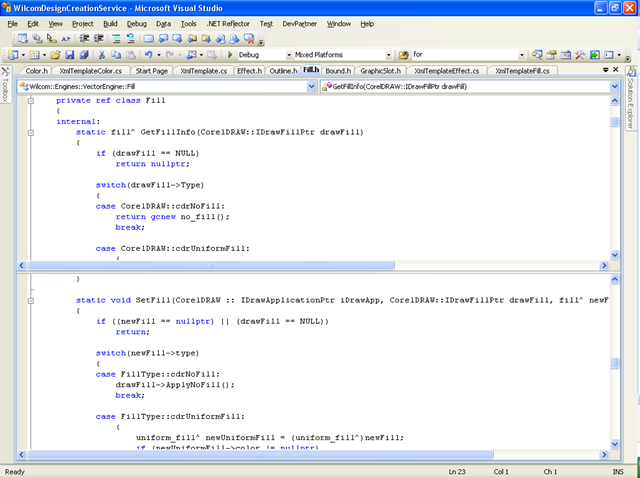
如果我想参考的代码在同一个文件中怎么办?例如我想在Set函数中参考Get函数中的代码。这个时候可以使用分割窗口(split window):Window –> Split。 我们没有过多的选择,只能水平分割。
image

分割窗口(split window)还可以通过鼠标设置,鼠标移动到下图红色圈内的小灰色矩形上,光标会变化,这时候就可以进行拖动了。

image