惯性聚合 高效追踪和阅读你感兴趣的博客、新闻、科技资讯
阅读原文 在惯性聚合中打开

推荐订阅源

WordPress大学
WordPress大学
V
Visual Studio Blog
P
Privacy International News Feed
月光博客
月光博客
Threat Intelligence Blog | Flashpoint
L
Lohrmann on Cybersecurity
N
News and Events Feed by Topic
K
KPMG report finds enterprise disconnect between AI and its ROI | CIO
Apple Machine Learning Research
阮一峰的网络日志
阮一峰的网络日志
Webroot Blog
Webroot Blog
T
Threatpost
宝玉的分享
宝玉的分享
The Last Watchdog
The Last Watchdog
小众软件
小众软件
L
LINUX DO - 最新话题
C
Cisco Blogs
T
Troy Hunt's Blog
Schneier on Security
酷 壳 – CoolShell
酷 壳 – CoolShell
www.infosecurity-magazine.com
雷峰网
雷峰网
G
GRAHAM CLULEY
有赞技术团队
有赞技术团队
Know Your Adversary
Know Your Adversary
博客园 - 叶小钗
罗磊的独立博客
V
V2EX
博客园 - Franky
P
Proofpoint News Feed
SecWiki News
SecWiki News
腾讯CDC
cs.CL updates on arXiv.org
Jina AI
Jina AI
博客园 - 三生石上(FineUI控件)
S
Secure Thoughts
钛媒体:引领未来商业与生活新知
钛媒体:引领未来商业与生活新知
Google DeepMind News
Attack and Defense Labs
人人都是产品经理
人人都是产品经理
The Cloudflare Blog
PCI Perspectives
PCI Perspectives
V2EX - 技术
V2EX - 技术
Google DeepMind News
Last Week in AI
Last Week in AI
aimingoo的专栏
aimingoo的专栏
Cisco Talos Blog
Cisco Talos Blog
N
News and Events Feed by Topic
让小产品的独立变现更简单 - ezindie.com
S
SegmentFault 最新的问题

博客园 - 云梦鸿

Winform界面显示的“语言”切换 Linux使用笔记 QT 练习笔记 QT 读写配置文件(*.INI) ubuntu 配置网口静态IP C++ 读写文件 C#代码计算农历(日期、节气、节日) 中标麒麟,使用笔记 关于无密码访问 Windows7/10 的远程桌面/共享 颜色转换:HSB颜色 与 RGB颜色 QT 信号(槽)绑定的使用_connect QT 给控件(Label)设置显示图片 QT 打包Windows应用程序(*.exe) C#程序执行Python脚本 C#监控U盘插拔 C# AnimateWindow 设置窗体动画 C# GetWindowRect 获取窗体在屏幕中的位置信息 C# 创建音频WAVE文件头信息(*.wav) VS2019错误:CS8370 的处理方法
C#编写Windows服务
云梦鸿 · 2023-07-26 · via 博客园 - 云梦鸿

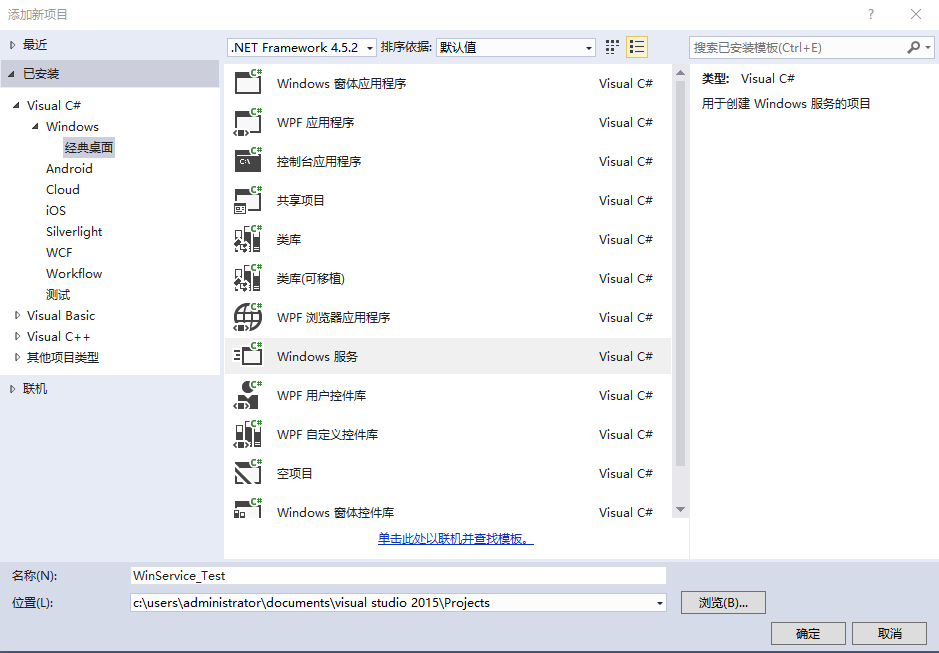
1.新建项目:Windows服务

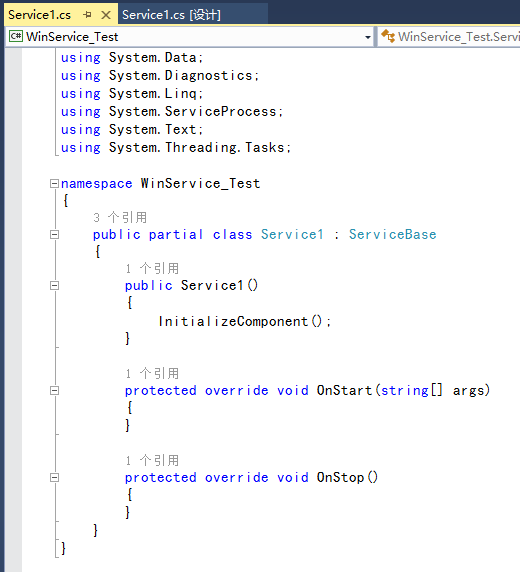
2.默认创建一个Service1.cs文件,切换到“代码视图”,如下图所示:
3.编写功能

void OnStart(string[] args)  方法中,编写服务启动时要执行的代码;

void OnStop() 方法中,编写服务停止时要执行的代码;

        protected override void OnStart(string[] args)
        {
            FileStream fs = new FileStream(@"F:\test\ServiceTest.txt", FileMode.OpenOrCreate, FileAccess.Write);
            StreamWriter sw = new StreamWriter(fs);
            sw.BaseStream.Seek(0, SeekOrigin.End);
            sw.WriteLine("Service OnStart" + DateTime.Now.ToString() + "\n");
            sw.Flush();
            sw.Close();
            fs.Close();
        }

        protected override void OnStop()
        {
            FileStream fs = new FileStream(@"F:\test\ServiceTest.txt", FileMode.OpenOrCreate, FileAccess.Write);
            StreamWriter sw = new StreamWriter(fs);
            sw.BaseStream.Seek(0, SeekOrigin.End);
            sw.WriteLine("Service OnStop" + DateTime.Now.ToString() + "\n");
            sw.Flush();
            sw.Close();
            fs.Close();
        }

4. 添加安装程序

在service的设计界面,空白处,右键,选择“添加安装程序”
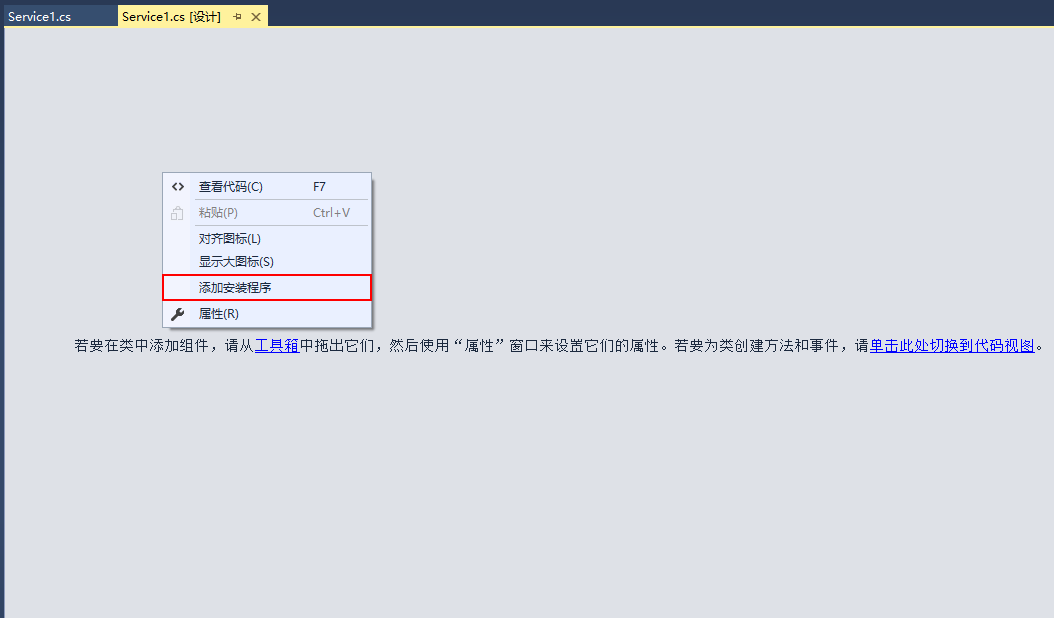
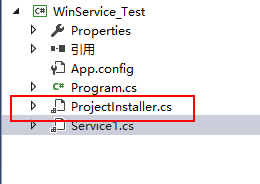
 会自动创建“ProjectInstaller.cs”文件:
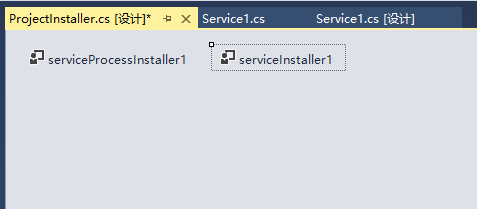
      

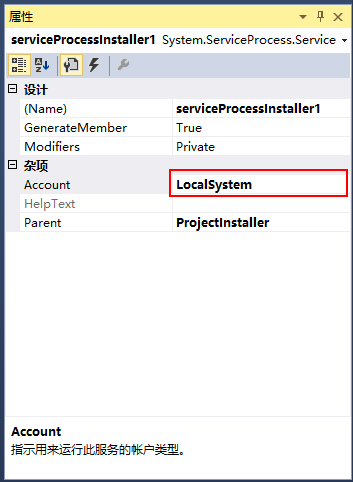
分别设置“serviceProcessInstaller1”、“serviceInstaller1”两个组件的属性:
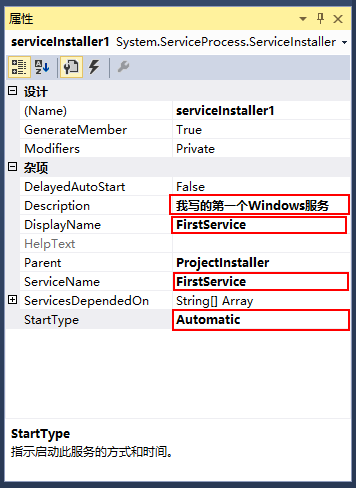
  

 保存,编译生成。
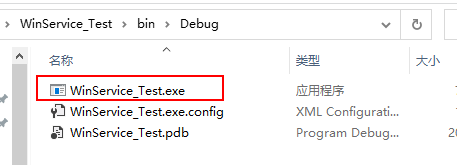
5.安装与卸载服务

在本地计算机:C:\Windows\Microsoft.NET\Framework\v4.0.30319\ 目录下,找到“InstallUtil.exe”文件,把它拷贝到上述生成的应用程序所在的目录。
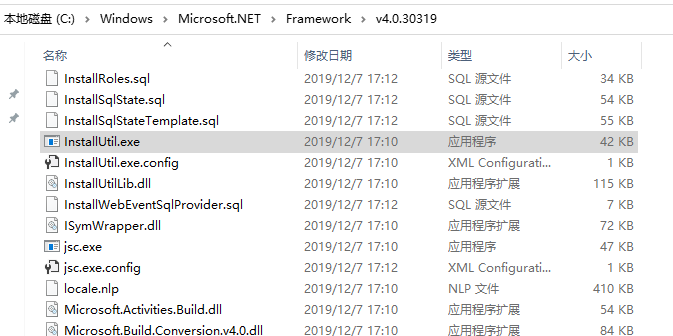
 创建文本文件,并重命名为“安装服务.bat”,编辑内容:

%~dp0InstallUtil.exe %~dp0WinService_Test.exe
pause

 创建文本文件,并重命名为“卸载服务.bat”,编辑内容:

%~dp0InstallUtil /u %~dp0WinService_Test.exe
pause

其中“WinService_Test.exe”为上述生成的window服务应用程序。将这两个bat文件也放到生成的应用程序所在的目录下
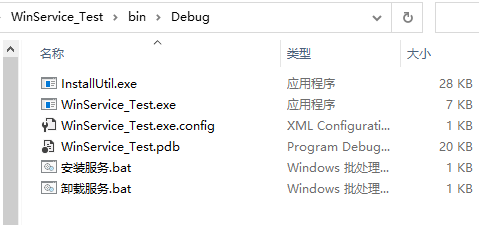
 注意,上述目录的路径中不能有空格

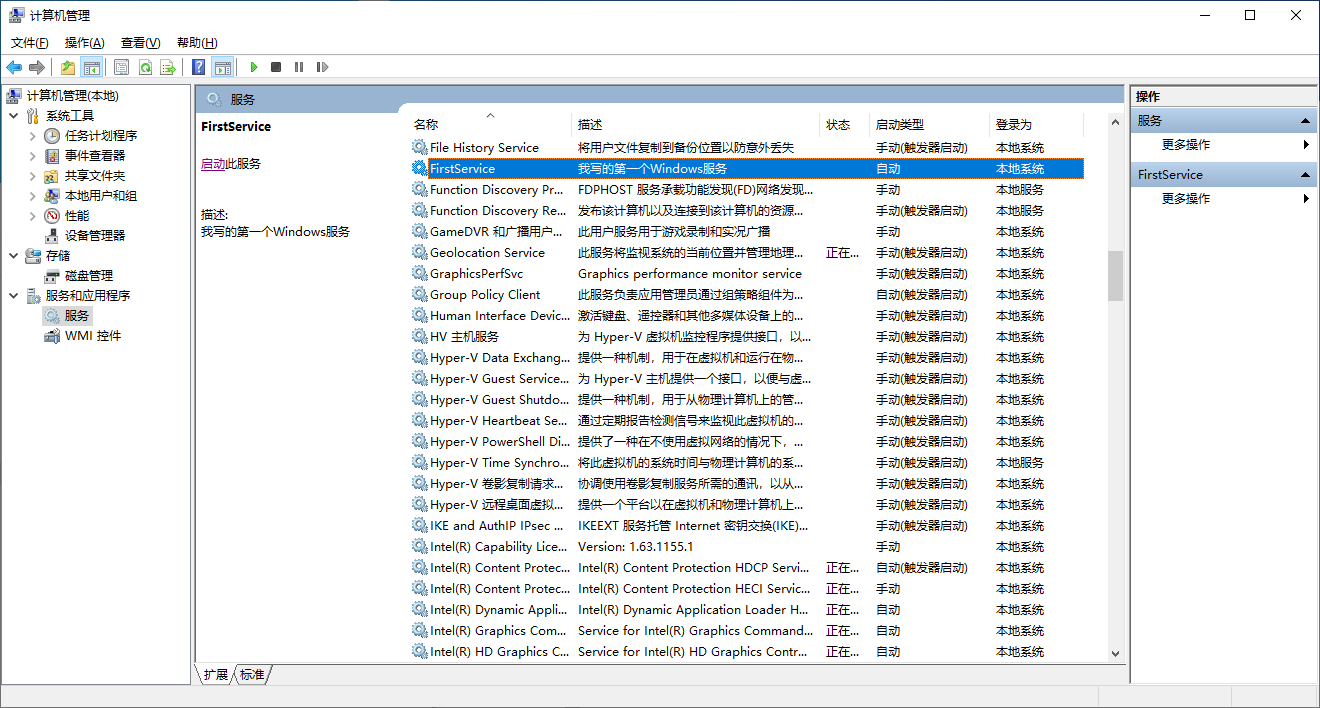
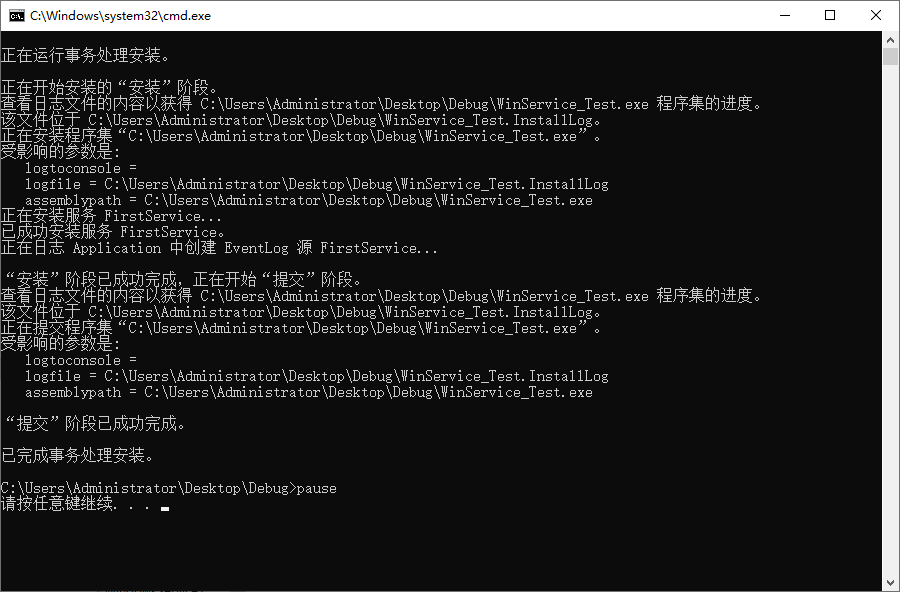
6.运行“安装服务.bat”
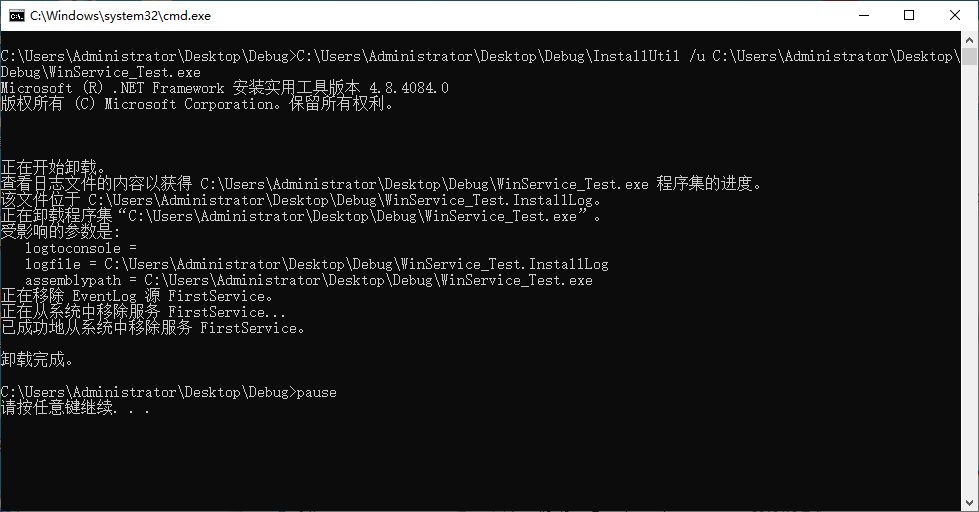
 7. 运行“卸载服务.bat”